ChatGPT’s Chrome extension is becoming less of a convenient sidebar and more of a browser-based assistant with visibility into the work already sitting in front of a user. OpenAI has updated the extension so ChatGPT can inspect open tabs for more tailored answers, while its Work mode can carry out certain multi-step actions in the browser, including sending messages, completing forms, organizing tabs and adding information to a calendar.
The change matters because a browser is often where comparison, research and administration happen: a shopper may have several product pages open, a player may be bouncing between patch notes and community resources, or someone may be reviewing service providers before making a decision. Rather than requiring every relevant detail to be copied into a chat window, the new tab-aware approach is intended to let the assistant work from the pages already open.
OpenAI says the extension is available regardless of ChatGPT plan and works not only in Chrome, but also in Chromium-based browsers including Microsoft Edge, Brave and Opera.
What ChatGPT can do with open tabs
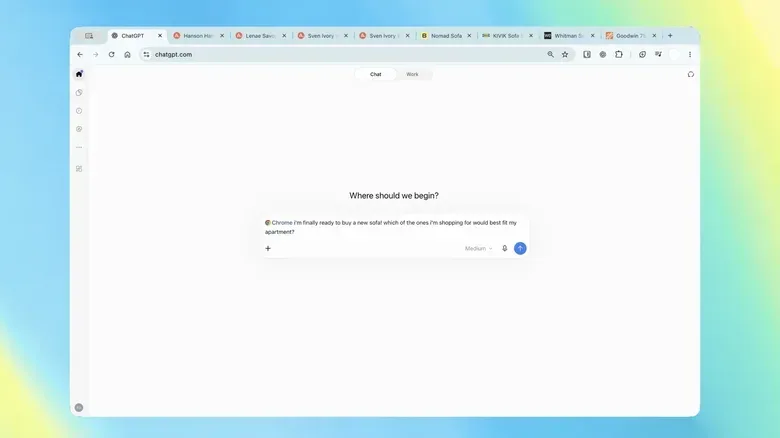
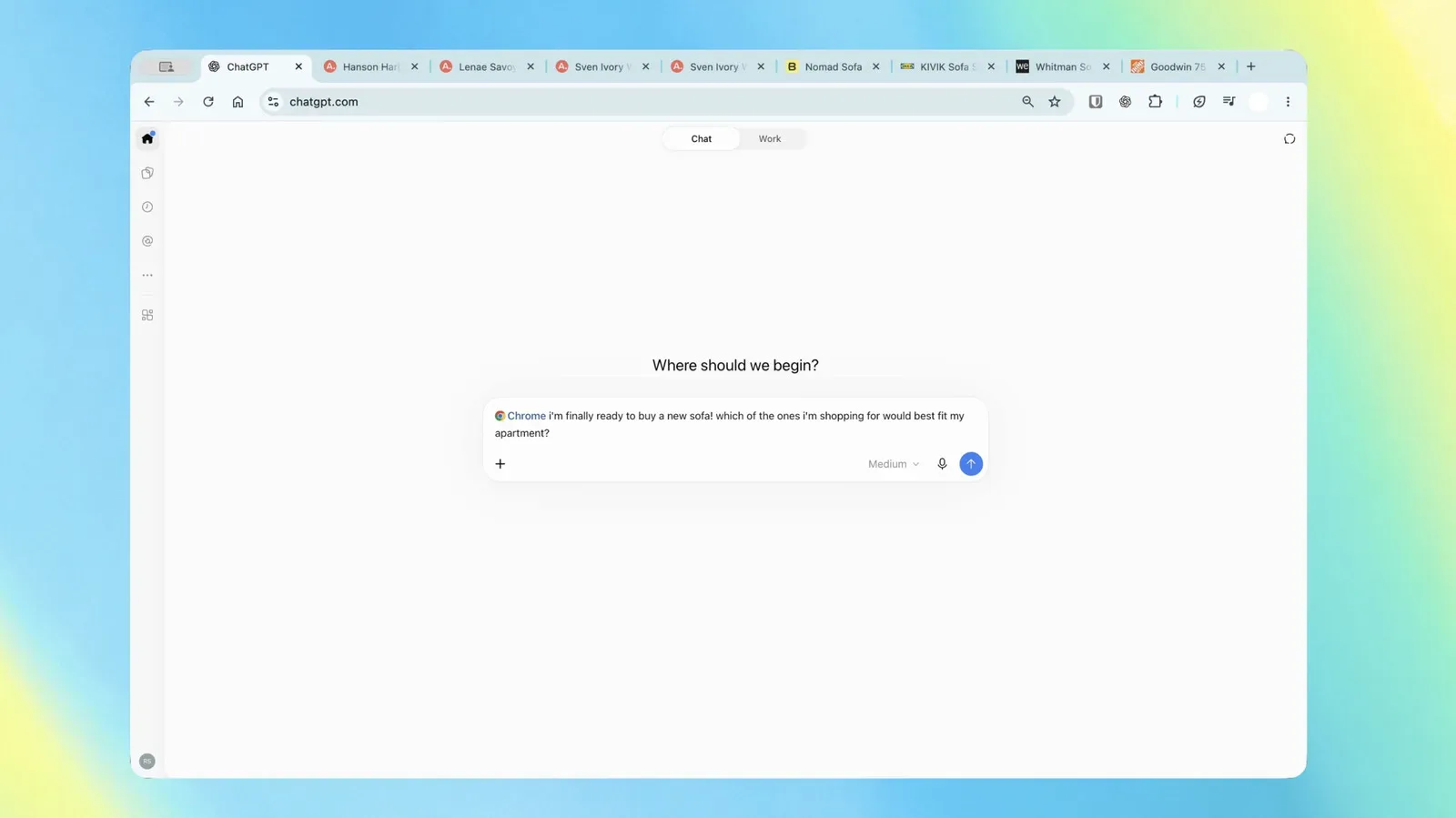
In ChatGPT Chat, users can ask the assistant to look across their currently open Chrome tabs and produce an answer shaped by that material. The clearest example is a comparison task: with several couch listings open, a user could ask ChatGPT to weigh their dimensions, prices, delivery windows and return policies.
That is a meaningful distinction from a conventional search query. A search engine starts by locating information across the web. Tab awareness starts with a much narrower set of pages the person has already selected. In principle, that makes the resulting comparison more directly connected to the shortlist a user is actually considering.
It could also reduce the repetitive part of browser research. People regularly open multiple tabs precisely because the answer is spread across them: specifications on one page, shipping terms on another, a return-policy page in the background. Asking for a structured summary may be more useful than manually flipping between each one and trying to remember which page contained a particular condition.
For game and entertainment readers, the same general workflow could be useful when sorting through a limited set of official pages, retailer listings or industry reports. It is still important to distinguish a summary from verification, though. When exact wording, eligibility, regional details or a deadline matters, the underlying tab remains the thing to read. A generated comparison can organize information, but it should not replace checking the page where a policy or offer appears.
ChatGPT Work shifts from summarizing to acting
The more consequential capability sits in ChatGPT Work, described as OpenAI’s agent for complex, multi-step tasks. An agent, in this context, is an AI system intended to do more than answer a one-off prompt: it can proceed through a sequence of browser actions toward a stated objective.
Related coverage includes ChatGPT Chrome Extension Adds Tab Awareness and Browser Tasks.
OpenAI’s examples include asking Work to send messages, fill out forms, organize tabs and complete calendar-related tasks. One suggested workflow involves completing a new-dentist form and then adding the appointment schedule to a calendar. Another involves reviewing terms from several contractors in open tabs, identifying the provider that best fits a user’s requirements and drafting an email to that provider.
The difference is practical. Reading tabs and creating a comparison leaves the user with an answer. Browser task execution can turn that answer into an action: information gets entered, a message is prepared or a calendar is updated. That can save time, especially for repetitive digital chores that require moving the same details among sites and services.
It also raises the stakes of the user’s prompt. A request such as “compare these options” is relatively contained. A request that involves a form, a message or a calendar has consequences outside the chat. A mistaken field, an unsuitable recipient or a misleading interpretation of a term can be more than a formatting annoyance.
Useful tasks, but not a reason to stop reviewing
The sensible use case is delegation with oversight. Let the tool gather comparable fields, draft language, arrange tabs or reduce clerical work, then review anything that will be submitted, sent or saved. This is particularly important when a page asks for personal information, when an email represents a commitment or when a calendar entry affects other people.
The contractor example illustrates why this review matters. Terms can be dense, and deciding which provider “fits” someone’s needs requires judgments about priorities. Price may matter most to one person; turnaround time, scope, cancellation terms or other conditions may matter more to another. An assistant can be told those priorities, but a user should confirm that the recommendation reflects them and that the resulting email says exactly what they mean.
In other words, automation does not remove decision-making. It moves the user’s role from performing each browser step to setting the criteria, checking the output and approving the meaningful action.
The sidebar can use browsing history
OpenAI has also expanded the ChatGPT sidebar in Chrome with access to a user’s whole browsing history. The company frames that as a way to chat with the assistant and assign work without leaving the page currently being viewed.
Browsing history generally refers to the record a browser keeps of pages visited over time. In this update, history access means the assistant can draw on more than the tabs visible right now. That may make the sidebar feel more continuous: a user does not necessarily need to find and reopen every page before asking a question related to recent browsing.
Convenience and sensitivity are linked here. Open tabs can show an immediate project; a full history can reveal a broader pattern of interests, research and activity. The source material does not detail specific permission controls, retention practices or settings for these capabilities. Users should therefore take time to understand what access the extension requests and confirm the relevant browser and ChatGPT settings before using tab or history features for sensitive tasks.
A practical rule is straightforward: treat browser-connected AI as an assistant that may see what you authorize it to see. Avoid casually including sensitive personal, financial or work-related material in a task simply because it is already open in a tab. Where a process can be handled without exposing extra pages or details, that is the safer workflow.
Why the extension matters after OpenAI retired its browser
OpenAI previously had its own browser product, but retired it on August 9. Rather than leaving browser assistance behind, the company has continued improving the Chrome extension. The result is a strategy that puts ChatGPT inside browsers people may already use instead of requiring a separate browser environment.
That approach could make the feature easier to encounter in everyday browsing. Chrome, Edge, Brave and Opera share Chromium foundations, so compatibility across those browsers broadens the extension’s potential reach. It also positions the extension as an in-browser alternative to Gemini for people who want AI help while browsing.
For users, the important question is less about which AI is attached to the browser and more about what kind of control it is being given. A sidebar that helps summarize several pages is one level of integration. Access to full history is another. The ability to fill forms, send messages and update a calendar is another again. Each step offers a potentially larger time saving, but also deserves a more deliberate check before proceeding.
How to approach the new features responsibly
- Start with low-stakes comparisons. Use tab awareness for sorting product details, organizing research or building a concise list of differences.
- Give explicit criteria. If comparing options, state what matters: delivery timing, return terms, size, budget or another specific requirement.
- Verify the source pages. Recheck important policies, dates and exact terms in their original tabs before deciding.
- Review actions before they become final. Read forms, emails and calendar details carefully before submitting or sending them.
- Be cautious with sensitive tabs. Consider whether an AI needs access to a page at all before enabling it for personal or work-related tasks.
- Keep the task bounded. A focused request is easier to inspect than a broad instruction that combines research, judgment and external actions.
The update arrives as browsing itself increasingly becomes a place where AI tools are expected to summarize, compare and act. For readers keeping one eye on the wider technology shift and another on the games business, that is part of the same industry backdrop behind developments such as Modern Warfare 4’s effort to reconnect with Call of Duty’s “good old days”: software platforms and the tools around them continue to reshape how people find, organize and use information.
ChatGPT’s updated extension is not simply a new way to ask questions from a browser. Its tab awareness, history access and Work-mode automation collectively move it closer to being a participant in browser workflows. The value will be clearest when it removes tedious steps without obscuring the user’s control over what is read, entered, sent and scheduled.