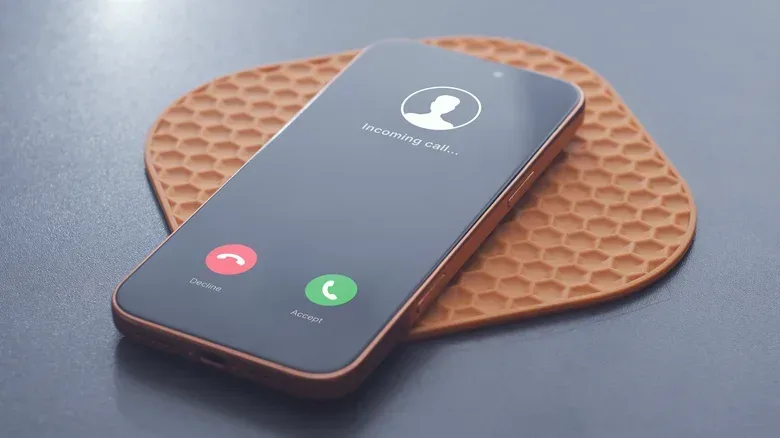
There is a particular kind of iPhone panic reserved for an incoming call at precisely the wrong time: the phone is ringing, the screen is locked, and the familiar red Decline button appears to have vanished. It has not been removed by a setting, an update, or an accidental tap. In the normal iPhone call interface, what appears on screen depends chiefly on one simple condition: whether the handset is locked.
When the iPhone is locked, an incoming call normally presents Slide to Answer. When the iPhone is already unlocked, it offers visible Answer and Decline controls. The different screens can make the behavior seem inconsistent, but the core call actions remain available in both situations. The difference is the interface Apple chooses to show, not whether the phone can reject a caller.
That distinction matters because it turns a frustrating mystery into a manageable set of shortcuts. A caller can be sent to voicemail without unlocking the phone, the ringing can be quieted without ending the call, and a text response can provide context when speaking is not an option.
The missing button is tied to the lock screen
On a locked iPhone, the call screen emphasizes the action needed to take the call: sliding to answer. This is why someone may look for a red decline button and find only the answer control. On an unlocked iPhone, the system can instead show the two direct choices: answer the call or decline it.
For more context, explore Cardi B and Mona Love’s Colorism Dispute Is Really an Argument About Access, Labor and Context.
The presentation can also vary with the iPhone’s Incoming Calls preference. A call may show as a compact banner while the phone is in use, or it may occupy more of the display. In either layout, the relevant answer and decline options are still available once the call controls are exposed.
A compact banner is useful when someone is using another app and does not want an incoming call to take over the entire display. If more controls are needed, tap the banner to expand it. That is the moment to look for options such as sending a message rather than answering.
What “decline” actually does
Declining an incoming call ends the ringing on the recipient’s phone and directs the caller to voicemail. It is different from merely silencing the alert. This distinction is useful in a meeting, in a quiet room, or during a task where an interruption needs to disappear immediately but the caller may still be worth hearing from later.
Related coverage includes Why Your iPhone Sometimes Shows Decline and Sometimes Does Not.
Silencing, on the other hand, stops the ring or alert sound while allowing the incoming call to continue. The caller is not immediately sent to voicemail simply because the sound has been muted. It is the better choice when a person wants to avoid noise without making a quick rejection feel intentional.
The two physical-button shortcuts worth remembering
The on-screen layout is not the only way to control a call. Apple’s physical button actions work whether the phone is locked or unlocked:
- Press the side button twice quickly to decline the incoming call and send it to voicemail.
- Press either volume button once to silence the ringing without declining the call.
The difference between these commands is small in motion but significant in result. Two quick presses of the side button is the decisive action: the call is rejected. One press of a volume button is the quieter action: the phone stops making noise, but the call itself has not been dismissed.
For practical use, think of the volume button as “not right now, but keep trying,” and the double side-button press as “send this to voicemail.” Neither requires navigating the lock screen or locating a software control while the phone is ringing.
There is also a social consideration. A caller may infer a deliberate rejection if they are sent to voicemail the instant the phone begins ringing. That is not always a problem—sometimes a call simply is unwanted or cannot be taken—but it is why the silence command and the text-response tools can be more considerate options for legitimate calls.
Reply by text instead of answering
The incoming-call interface includes a Message option for replying by text. It is designed for the common situation where a call cannot be answered, but leaving the person with no explanation would be unhelpful. Rather than take the call, the recipient can select a prepared response or write a custom one.
If the incoming call is currently only a banner, first tap that banner to reveal additional controls. Choose Message, then select one of the prepared replies or choose Custom to type a personal response.
This is especially handy when the reason for declining is brief and ordinary: working, driving, in a conversation, or unable to talk. A short text establishes that the call was noticed while steering the exchange toward a format that may be easier to handle. It also gives the caller a useful next action, such as texting the details or leaving a voicemail.
Customize the stock call replies ahead of time
Prepared replies are more useful when they reflect the situations a person actually encounters. The relevant path is:
- Open Settings.
- Select Apps.
- Choose Phone.
- Select Respond with Text.
- Choose a response and edit it.
Responses such as “I’m working right now” or “Please text me; I’m busy” are straightforward examples. The key is to make each saved line immediately useful. A reply that tells someone when to try again, asks them to text instead, or indicates that the call will be returned later reduces ambiguity without requiring an on-the-spot explanation.
It is worth separating this feature from voicemail. Voicemail gives the caller a place to leave information; Respond with Text lets the recipient proactively send information to the caller. One collects a message, while the other sends one.
Blocking a number after an unwanted call
Individual blocking is the direct option for a repeated nuisance number. The supplied call history makes this possible even after the call has been rejected. Open Recents, locate the number, tap it—or use the Info button in Classic view—scroll to the bottom, select Block Caller, and confirm.
Blocking is a number-by-number tool, not a guarantee that a broader telemarketing or robocall problem disappears. Persistent callers can use different numbers, which is why a blocked number may stop one route of contact without ending all unwanted calls. Still, blocking repeated offenders is a practical way to reduce interruptions from contacts already identified as unwelcome.
The scale of the problem helps explain why these controls are relevant beyond occasional inconvenience. The Federal Trade Commission recorded more than 2.6 million Do Not Call complaints in fiscal year 2025. The figure does not establish that every unknown number is spam, but it does show why iPhone owners may want both individual blocking and broader screening options.
Screen unknown callers carefully
iOS 26 and later includes a broader setting at Settings > Apps > Phone > Screen Unknown Callers. The available choices are Never, Ask Reason for Calling, and Silence.
- Never leaves unknown calls unscreened through this setting.
- Ask Reason for Calling provides a middle-ground screening choice.
- Silence routes every unknown call to voicemail without ringing.
The middle option is potentially the most balanced for people who receive unwanted calls but cannot safely assume every unfamiliar number is irrelevant. An unknown caller could be a recent contact, someone calling from a replacement phone, or a person with an urgent reason to get through. Silencing every unknown number is convenient, but it deliberately trades reachability for fewer interruptions.
That trade-off is worth making consciously. A person expecting calls from new employers, medical offices, delivery services, schools, repair providers, or recently met contacts may not want to silence unknown callers wholesale. Someone whose incoming unknown calls are overwhelmingly disruptive may make a different choice. The setting is less about finding a universally correct mode than matching the phone’s behavior to the risks of missed calls and the cost of constant interruption.
A quick decision guide for the next call
When the phone rings, the fastest correct response depends on what needs to happen next:
- Want to answer? Use Slide to Answer on the lock screen, or Answer on an unlocked phone.
- Need the ringing to stop but want the call to remain available? Press either volume button once.
- Need to reject it immediately? Press the side button twice quickly to send the call to voicemail.
- Cannot talk but want to acknowledge a legitimate caller? Use Message and send a prepared or custom text.
- Recognize a repeated unwanted caller? Block the number from Recents.
- Frequently receive calls from unfamiliar numbers? Review Screen Unknown Callers and choose the level of screening that fits your needs.
The important takeaway is that the missing decline button is not evidence that anything is broken. It is part of the normal locked-versus-unlocked call design. Once the button shortcuts and message options are familiar, a ringing iPhone becomes less of a lock-screen puzzle and more of a quick choice between answering, silencing, declining, replying, blocking, or screening.