There is a particular kind of phone friction that feels far too small to matter until it happens five times in a day: a web address on a poster, an email address on a display, a phone number on a shop sign, or event details on a flyer. Taking a photo preserves the information, but it does not necessarily make it usable. Apple’s Live Text is designed to close that gap by treating detected writing in the iPhone Camera app as selectable text rather than a collection of pixels.
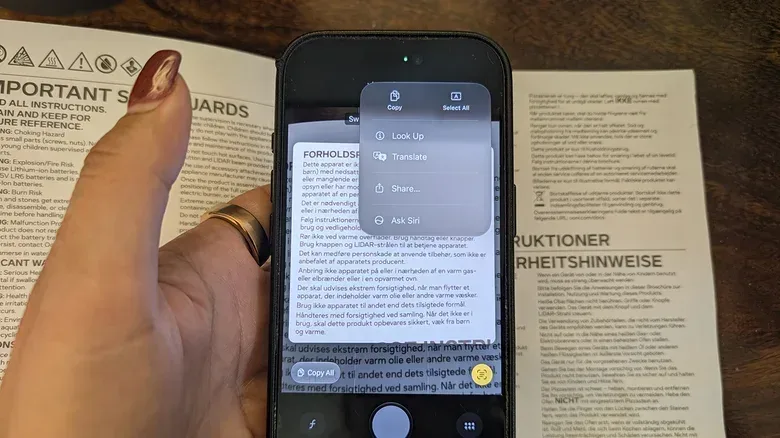
On supported iPhones, Live Text can recognize text that is visible in the camera view, allowing users to copy it, share it, translate it, look it up, or use an appropriate quick action. A detected phone number can lead to a call, for example, while a web address or email address can be opened without laboriously typing every character. It is a modest feature with a practical purpose: reduce transcription work when information exists in the physical world but needs to move into a digital app.
Live Text is available on iPhones going back to the iPhone XS family when they are running iOS 15 or later. Crucially, it does not require an iPhone that supports Apple Intelligence. That makes it a useful built-in camera tool for people who want text recognition and quick actions without needing the newer, broader Visual Intelligence experience.
How to use Live Text in the iPhone Camera app
The workflow is intentionally short. Open the Camera app and place the writing you want to capture inside the viewfinder. Once the iPhone recognizes the text, a yellow frame should appear around it. Tap the Live Text symbol at the lower-right of the screen—the small icon resembling lines of text inside corner brackets—to begin interacting with what the camera has identified.
- Open Camera.
- Point the camera at a sign, note, flyer, screen, poster, or other readable text.
- Wait for the yellow outline to appear around the recognized text.
- Tap the Live Text icon in the lower-right corner.
- Select the exact passage using the grab points, or choose Select All.
- Choose an action such as Copy, Share, Look Up, or Translate.
The yellow frame is the important visual cue. It indicates that the phone has detected writing it can work with. From there, text can be narrowed down with selection handles in much the same way as text in a document. That is especially helpful when a crowded poster contains several pieces of information but only one is needed, such as a URL, a date, or a contact detail.
What the available actions actually do
Copy is the basic option: it puts the selected characters on the clipboard so they can be pasted into Messages, Notes, Mail, or another app. This can be preferable to saving a screenshot when the goal is to reuse the words themselves. A copied address can become a message, a task note, or a search query; copied event details can be shared in a group chat without forcing everyone to zoom into an image.
Share skips part of the copy-and-paste routine. It is useful when the information needs to be passed along immediately, including through AirDrop or another available sharing method. The distinction is simple but worthwhile: Copy prepares text for a later destination, while Share is an attempt to send it now.
Look Up offers a path to more information about selected material, including web addresses or terms that need research. Translate is particularly relevant when text is in another language. For travel, that can mean translating a notice or sign in the moment rather than first capturing an image and then manually entering the words into a separate tool.
Related coverage includes How to Use Live Text on an iPhone.
Some types of text also produce a quick action at the bottom of the screen. Phone numbers, email addresses, and websites are the clearest examples because the phone can infer a likely next step: place a call, start an email, or visit a page. Currency conversion is another supported kind of shortcut. These are not merely recognition results; they are attempts to connect a detected format to an action that makes sense for that format.
Small situations where Live Text saves the most effort
Live Text is most useful when typing would be slow, error-prone, or unnecessary. That usually means dense, unfamiliar, or time-sensitive text.
- Event flyers: Select a date, venue, contact detail, or web address and send it to a friend rather than forwarding an unreadable crop of a poster.
- Written notes: Turn the contents into editable text for colleagues instead of relying on a screenshot that cannot be readily searched or reused.
- Business signage: Call the displayed number, open the listed site, or compose an email directly from the detected contact information.
- Travel information: Translate visible text or convert currency when dealing with information in another language or denomination.
- On-screen details: Capture a URL or email address without having to carefully reproduce punctuation, capitalization, and spelling by hand.
For players and hobbyists, the same principle applies to any situation where text exists away from the keyboard: a tournament notice, a local event poster, a printed instruction sheet, or a contact address visible on a display. The feature does not replace reading carefully, but it can eliminate the irritating intermediate step of retyping information just to make use of it.
Live Text is text recognition, not a general visual assistant
It is easy to confuse Live Text with Visual Intelligence because both can begin with a camera pointed at something in front of you. The difference is scope.
Live Text is focused on interacting with detected text. It appears organically in the Camera app once text is recognized, and its central jobs are selection, copying, sharing, lookup, translation, and actions tied to items such as numbers, emails, websites, and currencies.
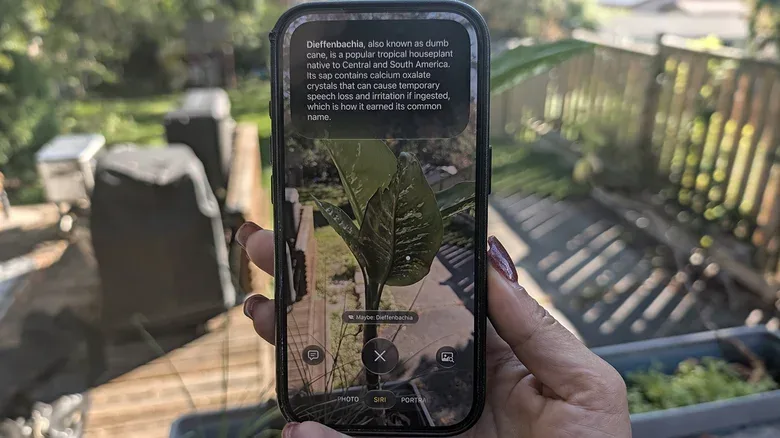
Visual Intelligence, introduced with iOS 18.1 as part of Apple Intelligence in September 2024, goes further. It can analyze subjects beyond writing, including objects such as plants and landmarks, and can surface context through Siri, Google Image Search, or ChatGPT. A business sign can potentially lead to details such as operating hours, menus, reviews, or a reservation option. It can also handle text tasks, including translation, reading aloud, summarizing, and opening a detected contact method or website.
In other words, Live Text answers, “What can I do with these words?” Visual Intelligence asks a wider question: “What is this, and what information can I retrieve about it?” The latter’s broader ambition makes the comparison natural, but it should not make Live Text seem obsolete. Text selection is often the entire task, and Live Text reaches it with fewer requirements and a direct Camera-app flow.
Visual Intelligence requires a compatible Apple Intelligence iPhone: the iPhone 15 Pro, iPhone 15 Pro Max, or a newer model. It can be accessed through several routes, including a long press of the Camera Control button where that button is present, an Action button configured for Visual Intelligence, Siri in the Camera app when Siri AI is enabled, or a Visual Intelligence control added to the Lock Screen or Control Center. Siri must be turned on in Settings for these workflows.
The contrast matters when deciding which feature to use. A person scanning a URL from a notice does not need object analysis or an AI-generated explanation; Live Text is the faster fit. Someone trying to identify a landmark, investigate a plant, or get richer context from a business sign may have more reason to open Visual Intelligence. The overlap on translation and tappable contact details does not erase the distinction in purpose.
Visual Intelligence’s use of ChatGPT is also separate from the simple utility of turning printed characters into selectable text. Readers weighing conversational AI tools and their differing strengths may find this broader comparison useful in this look at ChatGPT Voice and Gemini Live.
Control: turning Live Text off
Live Text is optional. If detected-text prompts are unwanted, open Settings, choose Camera, then turn off Show Detected Text. This is a straightforward preference rather than a complicated system-level decision: it stops the Camera app from presenting the detected-text experience.
For everyone else, its appeal is its lack of ceremony. There is no need to photograph first, open another app, and transcribe afterward when the camera can recognize a visible phone number, address, note, or foreign-language phrase on the spot. Live Text is not a substitute for Visual Intelligence’s broader recognition and research tools. It is the more focused feature—and for the common task of moving words from the world into an app, focus is exactly the point.