Knowing which version of iOS is on an iPhone is useful for more than settling a settings-menu scavenger hunt. It tells you whether a device is current, whether an update is waiting, and whether an older phone may be missing recent security fixes. It can also help explain why two iPhones behave differently even when they appear to be running the same apps.
The good news: Apple puts the answer a few taps away. The slightly less good news is that “iOS version,” “available update,” “automatic updates,” and “backup” are related settings rather than one giant red button labeled please make my phone normal. Treating them as separate steps makes the process much easier to manage.
Find the iOS version currently installed
To see the precise iOS release already on the iPhone, open Settings, then go to General > About > iOS Version.
This is the quickest route when an app, support page, or troubleshooting conversation asks for the version that is actually installed. It is a status check, not the update screen itself. That distinction matters: the version displayed here tells you where the phone is now, while the Software Update page tells you whether there is somewhere newer to go.
Long-term software support is one reason people hold on to iPhones. The iPhone 11, released in 2019, can still run the latest version of iOS more than seven years later. That does not mean every older device will feel identical after every major operating-system release, but it does illustrate why checking software can be worthwhile before assuming an aging handset has reached the end of the road.
Check whether an update is available
For updates, take the neighboring route: Settings > General > Software Update. The page shows the phone’s present software version and, when an update is available, provides a Download and Install option.
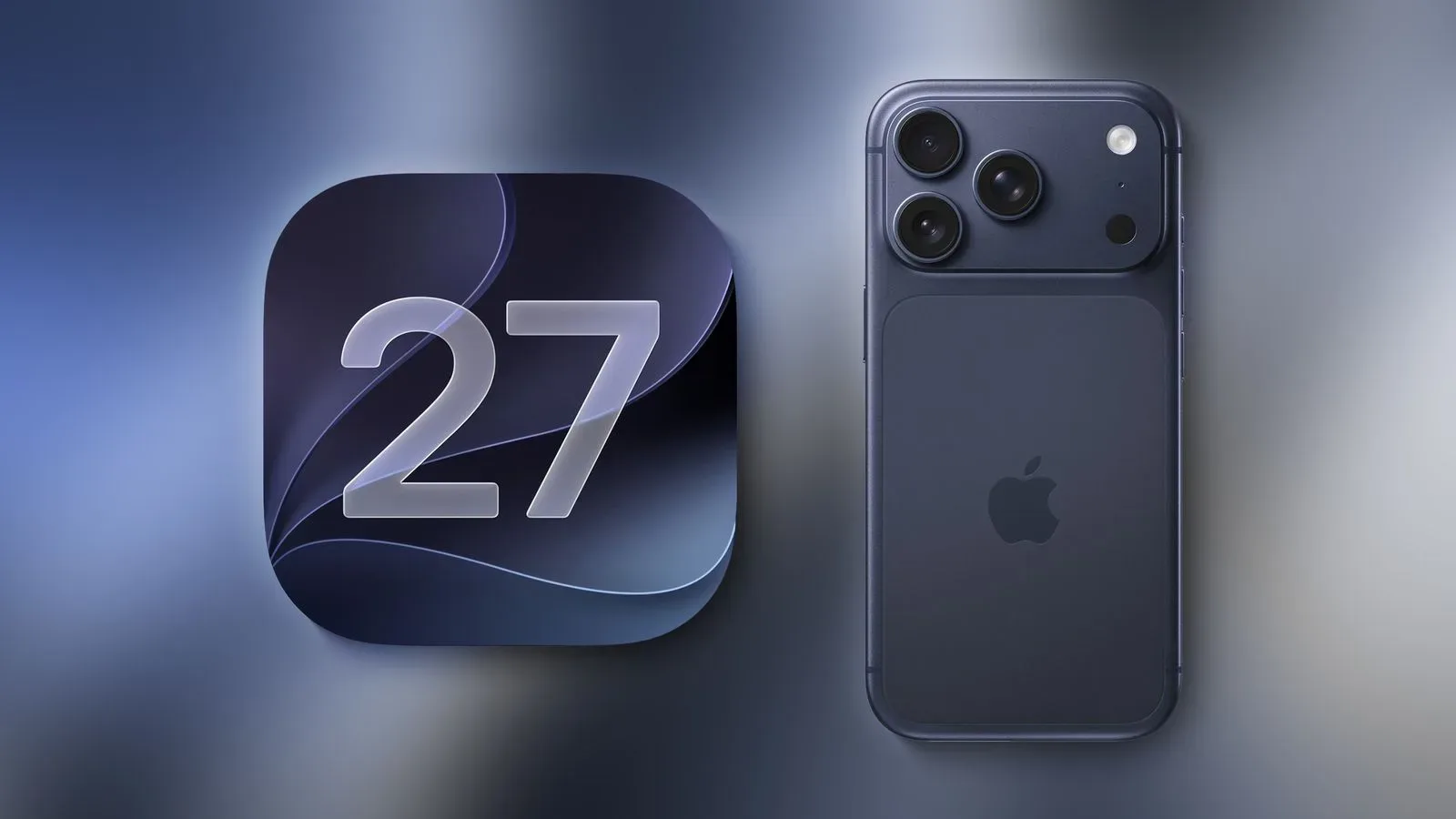
A major release may also appear separately at the bottom of the screen under Also Available. In the supplied example, iOS 27 could be presented there. This layout is useful because it makes clear that not every offered update is necessarily the same type of release; a phone can show an available major upgrade separately from its current update path.
After the download completes, tap Update Now, enter the passcode, and accept the terms and conditions. The iPhone restarts on its own to finish the installation. That reboot is expected. It is the part where the operating system changes from downloaded package to the version the phone starts using.
Related coverage includes How to Check Your iPhone’s iOS Version and Update It Safely.
Battery and connection checks before pressing Update Now
For a manual update, the iPhone needs at least 20 percent battery charge. Major upgrades can be several gigabytes, while smaller security updates and hotfixes may only be a few hundred megabytes. A fast Wi-Fi connection is therefore especially helpful for a major release.
That download-size difference is practical, not just trivia. A small hotfix is usually a much lighter lift than a full operating-system upgrade, while a large iOS package deserves a more reliable connection and a little more patience. If the household Wi-Fi is unreliable, updating through a computer is an alternative rather than repeatedly trying to brute-force a huge download over a shaky signal. For a related look at why a dependable connection still matters even when headline broadband value has improved, see this breakdown of home internet costs per megabit.
Let the iPhone install updates automatically
Users who would rather not keep checking can open Automatic Updates from the Software Update area and enable Automatically Install. With that toggle on, the iPhone can handle updates when it has Wi-Fi and sufficient battery.
Automatic installation is the low-maintenance option. It does not change the value of periodically looking at the installed version—particularly after a major iOS cycle begins—but it reduces the odds that an important update sits unseen for an extended period. The phone normally notifies users about new iOS releases as well, yet notifications are easy to dismiss when the device is busy being a camera, messaging hub, music player, map and portable game screen all at once.
There is also room for a reasonable personal preference here. Someone who needs to control exactly when a reboot happens may favor manual installation. Someone who simply wants updates handled with minimal fuss may prefer automatic installation. Either approach is more intentional than ignoring the software screen indefinitely.
Update iOS with a Mac or Windows PC
A computer can be the more dependable route when Wi-Fi is spotty. Start by connecting the iPhone with a cable. On a first connection to that computer, the iPhone may ask the owner to tap Trust on its screen. That approval is an important checkpoint: it confirms that the computer is allowed to work with the device.
Macs running macOS 10.15 or later
Open Finder and select the iPhone in the sidebar. Choose the General tab, click Check for Update, then select Update to confirm.
Windows PCs and older systems
On Windows, the Apple Devices app can update an iPhone. iTunes remains an option on an older Mac or a Windows computer. The core idea is the same across these routes: the computer checks for an available iOS release, downloads it, and applies it to the connected iPhone.
Computer updating is not a mysterious power-user ritual; it is simply another delivery path for the operating system. It is especially relevant when a major upgrade is too large or too temperamental for the available wireless connection. Keeping the cable connected and allowing the process to finish are the key practical requirements.
Back up before installing: a small precaution with a big payoff
Major update disasters are unusual, but Apple recommends making a backup before installing software updates. That is sensible preparation, not a prediction that something will go wrong. A backup is a copy of the iPhone’s data that can be used if recovery becomes necessary.
To create an iCloud backup on the iPhone, go to Settings, tap your name at the top of the screen, then choose iCloud > iCloud Backup > Back Up Now.
If iCloud storage is unavailable or full, a Mac or Windows PC can be used for a backup through Finder, iTunes, or the Apple Devices app. This makes the computer-update method doubly useful: it can provide both an alternate update route and a local backup option.
It is tempting to view a backup as extra ceremony before an update, particularly if past installs have been uneventful. But the point is to preserve options before the reboot begins. Software updates are routine; personal data is not replaceable in the same way.
Why the version number can matter beyond new features
New iOS releases are often judged by visual changes and attention-grabbing features. iOS 26 brought a substantial Liquid Glass redesign, while iOS 27 is described as looking broadly similar to its predecessor but putting more emphasis on performance and stability. That distinction is important for people using older iPhones, where responsiveness can be more meaningful than another layer of visual novelty.
Apple says iOS 27 includes an optimized CPU scheduler and can launch apps up to 30 percent faster. A CPU scheduler is the part of an operating system that organizes when processor time is assigned to tasks. In plain terms, it helps determine how the phone shares its computing attention among the things it is doing. Apple’s stated “up to” figure is a maximum claim, not a promise that every app and every iPhone will improve by precisely 30 percent.
The wider practical takeaway is more modest and more useful: a major update can be about refinement as much as new features. iOS 18 and iOS 26 had reputations for bugs and for falling short of expectations around a smarter Siri. iOS 27 instead prioritizes polish, with reported stability and performance improvements, especially on older hardware. That can make an update appealing to owners who delayed a previous release because they were wary of disruption.
Siri’s newer AI capabilities are also available as a beta waitlist for users with Apple Intelligence-capable iPhones. The route is Settings > Siri. The assistant is described as better at fulfilling requests and handling more involved conversational commands, while still not matching the far more capable assistant Apple had initially suggested at WWDC 2024. The beta label matters: it signals an in-progress feature rather than a finished promise with identical results for everyone.
Security is the less flashy reason to stay current
Performance gains and assistant features get attention, but security fixes may be the strongest argument for checking Software Update. iOS updates patch security issues and vulnerabilities. A vulnerability is a weakness that could be exploited; a patch is the software change meant to fix or reduce that weakness.
That makes the update screen a basic maintenance tool rather than merely a feature showroom. Users do not need to chase every headline or memorize each iOS revision to use it well. Check the installed version in General > About, look for available software under General > Software Update, back up beforehand, and choose either Wi-Fi or a computer based on the reliability of the connection. No secret menu, no ritual sacrifice to the charging cable—just a manageable bit of device upkeep.