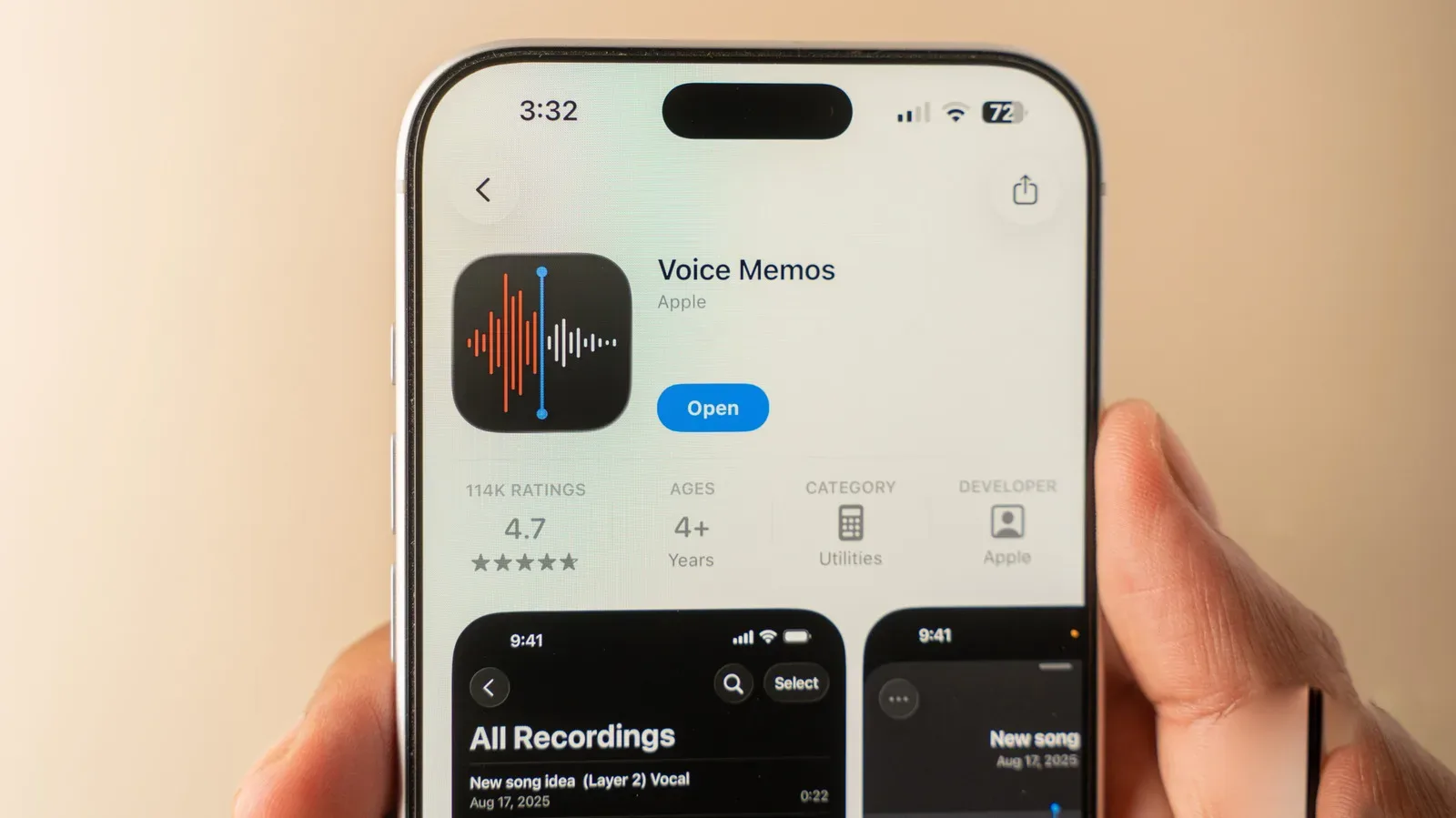
When the job is recording a conversation, a class, a quick idea or a piece of ambient sound, the iPhone already has a dedicated tool: Voice Memos. It is built into iOS on modern iPhones, so the basic workflow does not require a new recording app, an account or a complicated project setup.
The simple part is genuinely simple. Open Voice Memos, tap the red Record button to begin, then tap it again to stop. The file is saved immediately. But the app also has a deeper set of controls that can make an ordinary phone recording more useful: transcription, searchable spoken words, trimming, selective replacement of a flawed passage, playback cleanup controls and iCloud syncing across Apple devices.
That makes Voice Memos less like a disposable audio button and more like a lightweight capture-and-review workspace. The important caveat is that not every audio option is available on every iPhone. In particular, multitrack recording is limited to iPhone 16 Pro models or later, while Spatial recording depends on supported hardware.
Start with the fast recording workflow
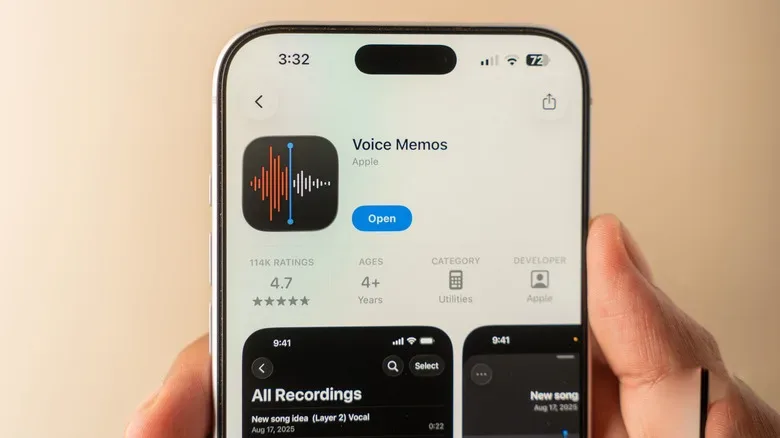
Find Voice Memos by looking for its dark icon with sound waves. If it is not on the Home Screen, swipe down to use iPhone Search. Anyone who previously removed the app can download it again from the App Store.
- Open Voice Memos.
- Tap the red button to start recording.
- Tap the red button again when finished.
The recording will be retained in the app’s list, where newer items appear first. This is the right approach for a quick note when the value is in catching the thought, not in configuring an audio session. Naming, sharing, cleanup and organization can happen afterwards.
For a planned recording, it is worth taking a moment before starting to decide which recording mode makes sense. Visit Settings > Apps > Voice Memos, then look under Recording Mode. The available choices are Mono, Stereo and, on supported models, Spatial.
What Mono, Stereo and Spatial mean
Mono puts recorded sound into a single audio channel. Stereo uses two channels, which can preserve differences between sounds on the left and right. Spatial is described as 3D audio: it aims to make sound feel as though it comes from around the listener rather than from one fixed point.
These are recording formats, not universal quality rankings. A straightforward spoken note may call for a simple mode, while a recording where the sense of space matters may benefit from another option. The practical step is choosing before building a large library, rather than discovering later that every clip used a mode unsuited to its purpose.
Use the expanded controls while recording
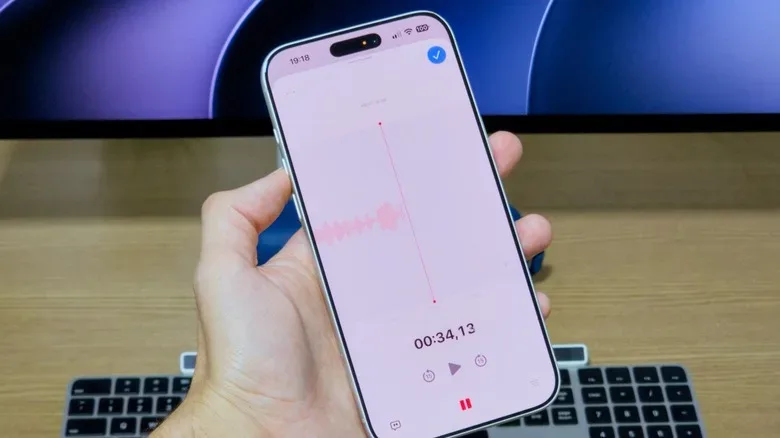
The compact recording card does not show every control at first glance. Swipe up on it to open the full-screen recording view. From there, Voice Memos provides pause and rewind controls.
Pausing is useful whenever recording needs to continue as one file after an interruption. Rewind has a more unusual role: it can be used to revisit a moment and replace an earlier section with newly recorded audio. If a sentence comes out wrong or a burst of background noise ruins a few seconds, this provides a way to redo that portion instead of abandoning the entire memo.
This is not the same thing as a full multitrack production workflow. Multitrack recording means keeping more than one separately recorded audio layer in a project. Voice Memos offers it through the Plus button, but only on an iPhone 16 Pro or newer. That device requirement matters: users with another iPhone should not assume the button or feature will be present.
For most everyday recordings, the real benefit of the expanded interface is correction. The ability to pause, inspect a moment and replace a short section can help preserve a usable continuous recording when a small mistake would otherwise force a restart.
Transcripts turn an audio file into something searchable
One of Voice Memos’ most helpful capabilities is transcription. A speech-bubble button in the lower-left area of the recording screen opens the full transcript. As speech continues, the text updates in real time.
A transcript is text made from spoken audio. It should be treated as a navigation and note-taking aid, rather than a substitute for checking a crucial recording word-for-word. Its immediate value is speed: tap a word in the transcript and Voice Memos jumps to that point in the audio. Instead of dragging through a long recording looking for one sentence, the written text provides a route back to the corresponding moment.
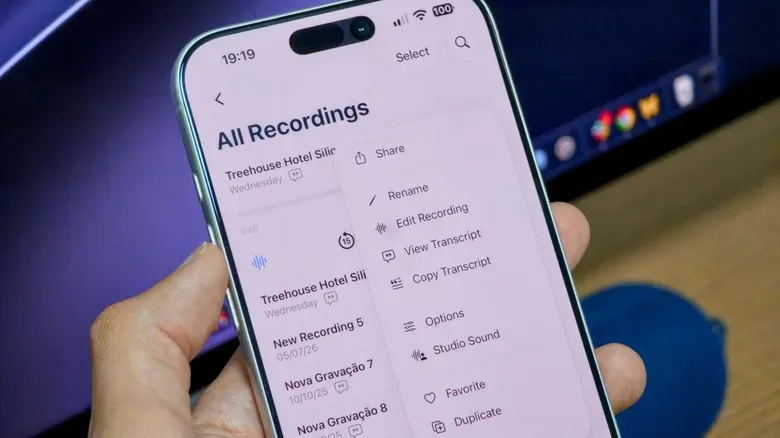
The three-dot menu in the upper-left also includes Copy Transcript. This allows the recorded speech to be pasted into another iPhone app, such as Notes or Messages. It is a useful bridge between capturing spoken material and turning it into a written task list, reminder, outline or follow-up message.
Transcripts also matter after a memo is saved. Voice Memos can search for matches within them, so a user with many recordings can search for spoken content rather than relying entirely on file names. That is especially useful when the original recording was made quickly and given an unhelpful automatic name.
Clean up the recording without leaving the app
Voice Memos includes controls for removing unwanted portions and improving playback. The three-dot menu offers Trim, which cuts audio sections that are no longer needed. Trimming is useful for removing dead air at the beginning or end of a recording, cutting an interruption, or reducing a clip to its relevant section before sharing it.
The button with three sliders in the lower-right controls playback-related options, including speed. Altering playback speed can be valuable when reviewing a long recording, though listeners should choose a pace that still lets them accurately follow what was said.
For mono and stereo recordings, the available controls include:
- Skip Silence, which bypasses quiet stretches during playback.
- Enhance Recording, which is intended to reduce background noise and echo.
Those tools target different problems. Skip Silence helps review an audio file more efficiently; it is about navigating the recording. Enhance Recording is aimed at how the audio sounds by reducing unwanted noise and echo. Neither changes the importance of recording in a reasonably quiet place when possible, but both can make review more manageable when the environment was imperfect.
Spatial recordings use a different option: Studio Sound. It includes an intensity slider and is designed to make a voice sound more like it was recorded in a studio. The best practical approach is to adjust it deliberately, listen to the result and apply the amount that serves the recording rather than assuming a stronger setting is always preferable.
After choosing settings, use the blue button to apply them, then tap it again to save the memo. This confirmation step is easy to overlook when moving quickly through the interface.
Name and organize recordings before the list becomes overwhelming
Voice Memos lists recordings in reverse chronological order, with the newest at the top. That is convenient for recent work but becomes less useful as the library grows. The app’s three-dot menu on a saved memo includes options to share it to another app, rename it, add it to favorites and view its transcript.
Renaming is one of the most practical habits in the app. If Location Services are active, Voice Memos may use the current location as the memo name. Select the name to replace it with something more meaningful. A clear name makes a recording easier to identify in the list and reduces dependence on memory later.
The arrow at the upper left lets users browse recordings by type, and the app supports folders for further organization. Folders are particularly helpful when recordings have distinct purposes: personal notes, ongoing project material, meetings or clips intended for sharing. Favorites provide another layer for marking the recordings that need repeat access.
Audio preservation has its own practical concerns, whether the material lives on a phone or on physical media. Our guide to keeping old cassette tapes in better condition is a reminder that organization and storage habits affect whether recordings remain useful over time.
Keep Voice Memos available across Apple devices with iCloud
Voice Memos can sync recordings across Apple devices through iCloud. That can be useful for someone who records on an iPhone but wants to listen, search or manage the same memos elsewhere in their Apple setup.
To check the setting, go to Settings > [Your name] > iCloud > Saved to iCloud and make sure Voice Memos is enabled. The key word is sync: the convenience comes from having the same recordings accessible across devices connected to the user’s iCloud setup.
Before relying on that arrangement for recordings that matter, it is sensible to verify the setting rather than assuming it is active. Likewise, use the share option for a memo when it needs to move into another app or be sent elsewhere. Those two paths serve different purposes: iCloud keeps Voice Memos available within the Apple device ecosystem, while sharing moves a specific file beyond the app.
A compact workflow for better voice memos
Voice Memos works best when its features are used in the order they solve problems. Start recording quickly, then make the file easier to revisit. A practical sequence looks like this:
- Select Mono, Stereo or Spatial in Settings when the recording situation calls for a particular format.
- Record with the red button; swipe up if pause, rewind or replacement controls are needed.
- Use the live transcript to mark and revisit a spoken point.
- Trim unneeded audio and choose playback cleanup controls where appropriate.
- Rename the memo, file it in a folder or mark it as a favorite.
- Copy the transcript when the spoken content needs to become written material.
- Confirm iCloud syncing is enabled if access on other Apple devices is important.
The app will not make every recording situation silent, and its advanced options vary by model. Still, the built-in combination of capture, transcript navigation, editing controls, search and organization means the iPhone’s basic audio tool can handle considerably more than a one-off spoken reminder.