An older iPhone does not need to become a drawer-bound artifact the moment apps take a little longer to open. Hardware inevitably has less headroom for newer software over time, but several common sources of perceived slowness are manageable: storage that is almost full, apps doing work out of sight, elaborate visual effects, and a battery that can no longer provide power as reliably as it once did.
That distinction matters. A settings change will not turn an older processor into a newer one, and it cannot add capabilities absent from the device. What it can do is remove bottlenecks that make ordinary tasks—finding a photo, switching apps, opening a game menu, downloading an update, or bringing up a contextual control—feel more laborious than they need to.
Start with the least disruptive options, check whether they improve the issue that bothers you, and save a full erase-and-restore for last. If the phone is still useful for gaming, messaging, media or its other daily jobs, a little maintenance may extend that run considerably.
1. Make free storage the first thing you check
Storage is not merely a number that decides whether another app can be installed. iOS needs room for caches, temporary files and system updates. Messages and their attachments occupy space too, as do offline music and video downloads. When an iPhone is close to full, the system has less room to handle those everyday processes, which can contribute to a generally slower, more awkward experience.
Free space also helps the phone’s flash storage move and manage data through a process called wear leveling. In practical terms, flash memory benefits from having room available rather than being packed to the limit. A useful target is keeping at least 10% of the device’s total capacity free. On a 128GB phone, that works out to roughly 12.8GB.
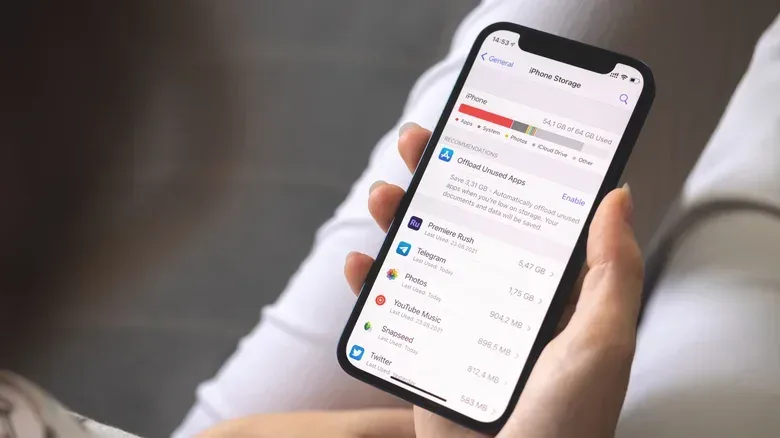
Open Settings > General > iPhone Storage to see what is using space. This page is the sensible starting point because it breaks the total down by category and app, and can show when an app was last used. Photos, video, messages and large message attachments are frequent contributors. Downloaded albums, shows and films in media apps can be equally easy to overlook.
Work through the biggest items first rather than deleting random small apps. Remove downloaded media you no longer need, review large attachments, and move older files to a computer or external drive when appropriate. The storage screen may also provide tailored recommendations, including options to offload unused apps.
Use iCloud Photos carefully to reclaim local room
For people using iCloud Photos, Optimize iPhone Storage can reduce the amount of full-resolution photo and video data kept locally. Go to Settings, tap your name, choose iCloud > Photos, then find the iPhone Storage setting and select Optimize iPhone Storage. The phone retains smaller local versions and downloads the full-resolution item when needed.
This is especially useful when a photo library, rather than apps, is responsible for most of the space pressure. It is not the same as deleting the library; it changes how much of it is held on the phone at once. Since full-resolution files may need to download when requested, it is worth considering connectivity before relying on a particular image or video away from a connection.
Safari data is another modest but worthwhile cleanup target. In Settings > Apps > Safari > Clear History and Website Data, you can remove stored browsing history and site data. It may not produce a dramatic windfall, but it is a reasonable housekeeping step if it has been neglected for a long time.
2. Remove dormant apps—or offload them without losing their data
The App Store makes it painless to accumulate apps, while removal tends to be forgotten. An old iPhone can end up carrying utilities, games and services that have not been opened for a year. The iPhone Storage screen shows last-used information, making it easier to identify those forgotten residents.
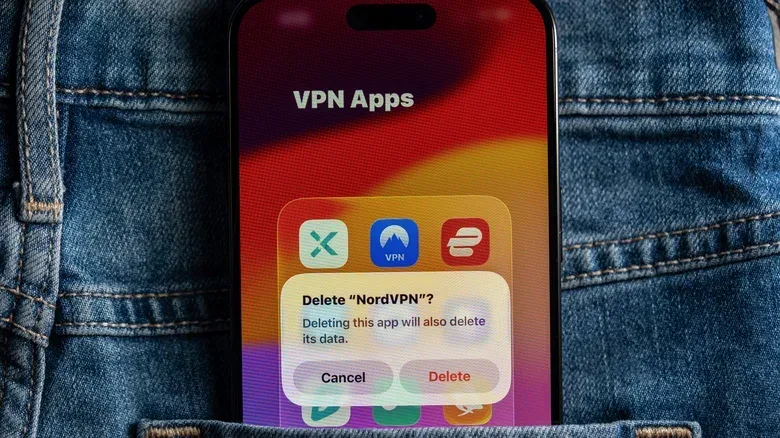
There are two different choices here. Deleting an app removes it. Offloading removes the app itself while retaining its documents and settings on the device. That distinction is valuable for a game or utility you may want to return to but do not need installed every day. Select the app in iPhone Storage and choose Offload App. Its Home Screen icon receives a cloud marker; tapping it later downloads the app again, with its retained data and settings ready to use.
If you prefer iOS to handle that maintenance, enable Offload Unused Apps in Settings > Apps > App Store. This does not mean every old app must go. It is a compromise for conserving storage while avoiding a full data purge.
Reduce background work where it is not useful
Background App Refresh allows apps to fetch content and update data when they are not actively open. It is convenient when an app needs to be current the instant you return, but it also asks the phone to keep doing work behind the scenes. On an older device, limiting that workload can help it feel less burdened.
Find the controls at Settings > General > Background App Refresh. You can disable the feature entirely or switch it off for selected apps. A selective approach is often the practical one: leave it on only where timely background updates genuinely matter and turn it off for apps that do not need to prepare anything before you open them.
This is a trade-off, not a magic speed switch. Apps with refresh disabled may not present newly fetched content until they are opened. The benefit is less background demand; the cost is a little less immediate convenience.
3. Trade some interface spectacle for a snappier feel
Not every “slow” sensation is a long wait for computation. Animation timing changes how responsive a device feels. iOS uses real-time motion in app transitions, long presses, Control Center and other parts of the interface. Those effects place demands on the graphics processor, or GPU, and an older iPhone may have a harder time rendering them as smoothly as newer hardware.
The most direct adjustment is Reduce Motion. Go to Settings > Accessibility > Motion and turn it on. This reduces the parallax effect on the Home Screen and changes app-opening behavior from zooming to a fade. The phone is not secretly completing every task faster, but it has less animation work to perform and the interaction can feel more direct.
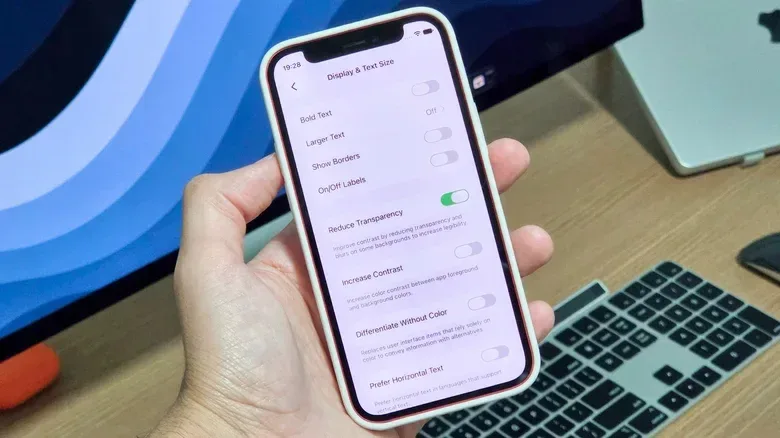
You can also remove translucent blur effects via Settings > Accessibility > Display & Text Size > Reduce Transparency. Areas such as the Dock and Control Center become more solid rather than using blurred backgrounds. The visual trade-off is clear: the interface loses some of its layered, glass-like styling. In exchange, an older device may feel faster and run cooler during use. These settings are reversible, so there is little downside to trying them for a day and deciding whether the plainer appearance is worth it.
For long presses, visit Settings > Accessibility > Touch > Haptic Touch and choose Fast. This shortens the delay before contextual controls appear after holding an item. It is a small adjustment, but it can make Home Screen shortcuts and other press-and-hold actions feel less hesitant.
For more on deciding where upgrades are actually worthwhile in a gaming setup, see our guide to the cost and complexity of a custom mechanical keyboard. The underlying principle applies here as well: separate a real functional need from the urge to replace something that may only need attention.
4. Treat battery health as a performance issue, not just an endurance issue
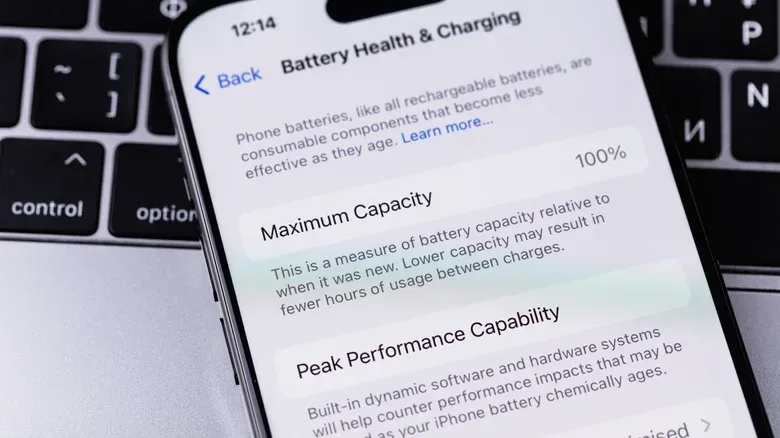
Aging lithium-ion batteries do more than run down sooner. As they degrade, they may not be able to deliver the power required to keep the phone operating normally under demand. iOS can limit performance in response, helping prevent unexpected shutdowns when battery condition is poor. That means a worn battery can be part of a phone’s slowdown story.
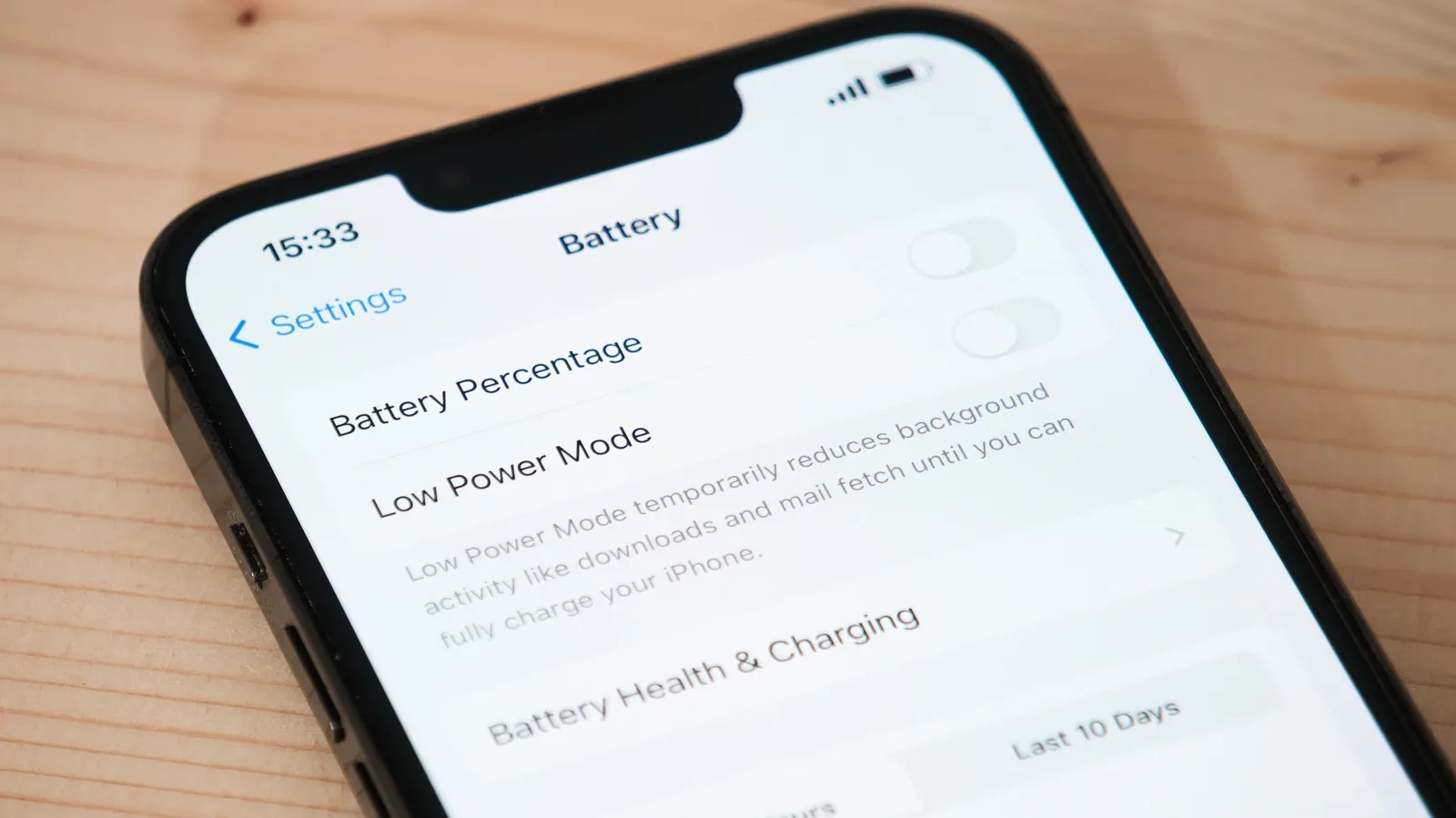
Check it in Settings > Battery > Battery Health. Capacity below 80% is an important threshold in this context, and the phone may recommend service. The battery in the latest iPhones is designed to retain 80% of its original capacity after 1,000 charge cycles; beyond that point, faster battery drain and slower operation can become more noticeable.
Replacing a depleted battery can therefore address two practical problems at once: it may improve responsiveness and extend how long the phone remains useful between charges. Battery replacement pricing is listed from $69 to $129 depending on the iPhone model, with the iPhone Duo listed at $229. Because battery work involves the physical device, an Apple Store or authorized service provider is the recommended route.
It is worth being precise about expectations. A fresh battery does not alter the age of the processor or create additional storage. But if performance management related to battery condition is involved, replacement may be one of the more meaningful improvements available without replacing the whole phone.
5. Back up and restore only after the lower-risk fixes
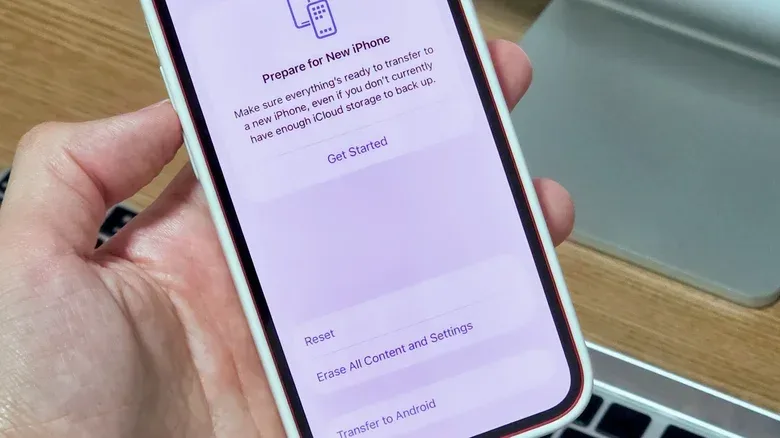
If storage is under control, unused apps have been addressed, background activity and effects have been reduced, and battery health is acceptable, a clean restore is the more drastic remaining option. A phone used over several years can accumulate update remnants, temporary material and app data. Erasing the device removes that clutter and starts the local installation over.
Do not begin this step until the iPhone has been fully backed up to iCloud or to a Mac or PC. Once the backup is safely complete, go to Settings > General > Transfer or Reset iPhone, choose Erase All Content and Settings, and follow the confirmation prompts. The phone restarts in its new-device state.
During setup, you can restore the backup to bring back apps and settings. Setting up as new may be more effective for performance because it avoids restoring as much accumulated material, but it also requires more manual rebuilding afterward. That is the key choice: a backup restore is less disruptive, while a clean setup is the more thorough reset.
A sensible order of operations
For an iPhone that is merely feeling worn rather than failing outright, the efficient path is straightforward:
- Check iPhone Storage and free a meaningful amount of space.
- Offload or delete apps you do not use, then review Background App Refresh.
- Try Reduce Motion, Reduce Transparency and Fast Haptic Touch.
- Inspect Battery Health and consider service if capacity is below 80%.
- Only then, back up and consider an erase-and-restore.
Each stage answers a different question. Is the phone constrained by storage? Is it wasting resources on old apps or invisible updates? Are its animations making it feel slower than it is? Is battery aging forcing protective performance limits? Or has years of local clutter made a reset worthwhile? Answering those questions in that order avoids the unnecessary leap to a replacement—or an unnecessary factory reset—when a smaller fix may be enough.