An iPhone battery does not need to hit 0% or stop charging entirely to become a problem. Its decline is usually quieter at first: a little less play time between charges, a percentage meter that seems to fall too fast, or a phone that gets uncomfortably warm during a session that used to be routine. Eventually, though, battery wear can become a performance issue as well as an endurance issue—particularly for people using their phone for demanding games, 4K streaming, or large video exports.
That is not necessarily a sign that every dip in battery life calls for service. Apps can consume unusual amounts of power, and intensive tasks naturally draw more energy than reading messages. But iOS includes useful battery information, and a combination of a low health reading and real-world symptoms gives owners a much clearer reason to consider a replacement.
The key fact is simple: lithium-ion battery cells age chemically. Charge cycles, temperature, age, and everyday use all contribute. Software can report on that process and manage performance around it, but it cannot return a depleted cell to its original capacity. The practical goal is to distinguish normal battery use from a battery that is no longer reliably supporting the phone.
Start with Battery Health in Settings
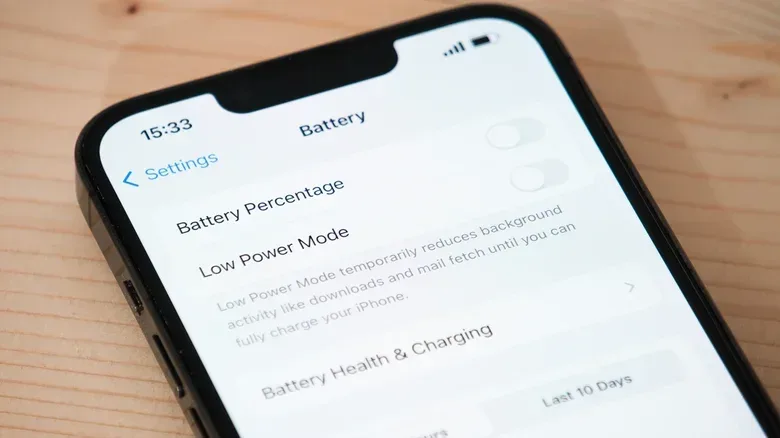
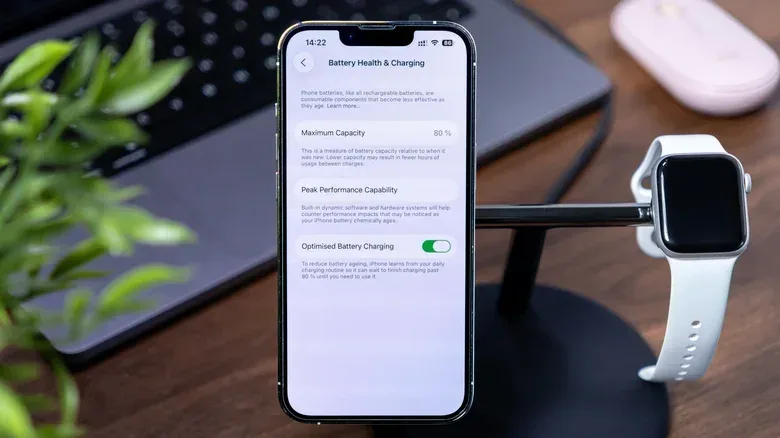
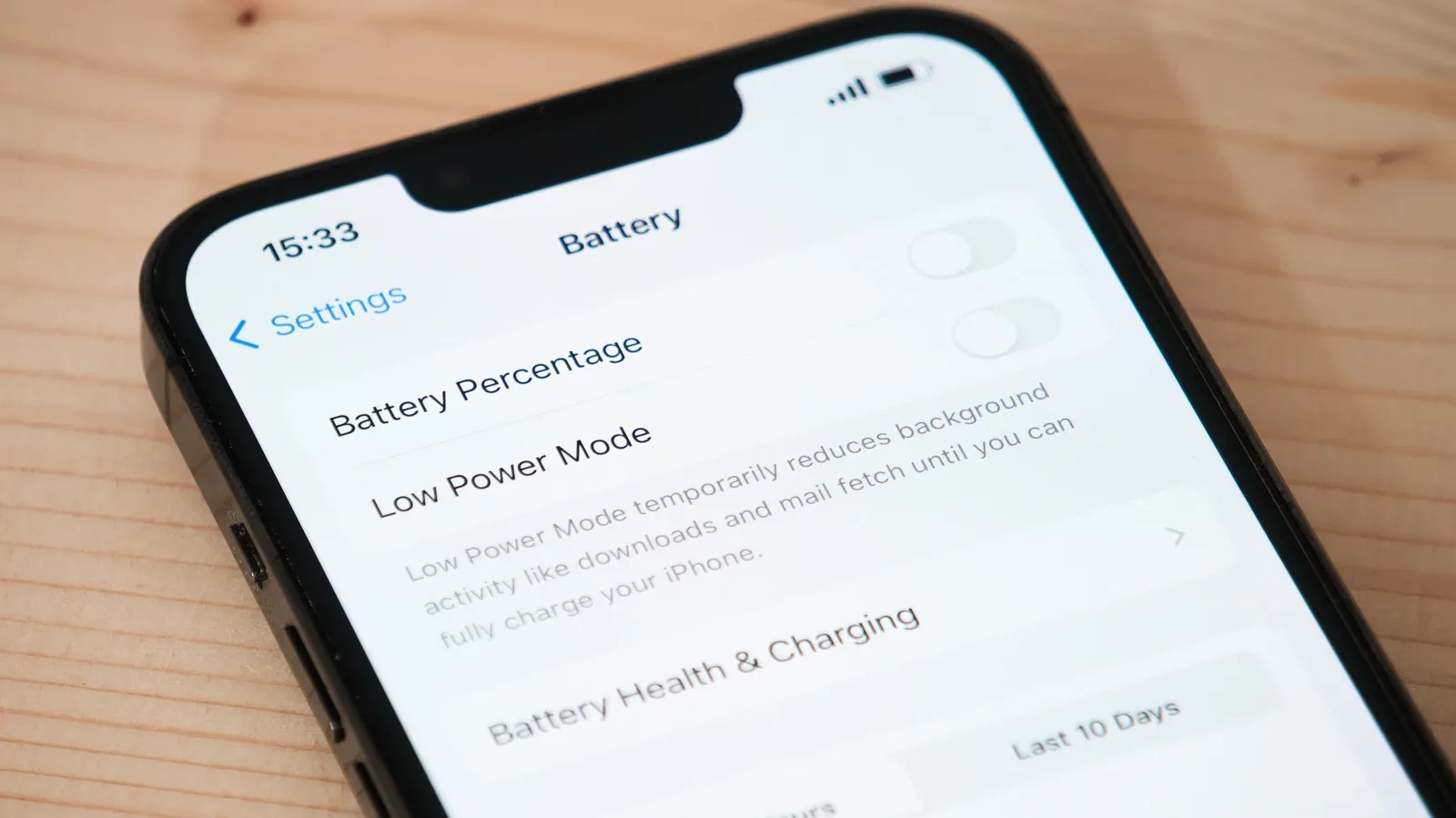
The most direct check is Settings > Battery > Battery Health. This screen provides the health status and a maximum-capacity figure, rather than asking users to diagnose the phone solely by how long it lasts on a particular day.
The status may read Normal or Significantly Degraded. A significantly degraded battery is accompanied by a message recommending replacement to restore full performance. That is the clearest built-in warning: it is not merely an estimate that the phone is getting older, but an indication that the battery has deteriorated enough for replacement to be advised.
The number most people will focus on is maximum capacity. It expresses the battery’s present capacity compared with when it was new. For example, it is a relative measure of how much charge the battery can hold now, not a score for how efficiently an individual app is behaving. A lower figure makes shorter daily runtime more likely because there is less stored energy available from the start.
Apple considers a battery worn once maximum capacity falls below 80%. At that point, reduced day-to-day battery life should be expected, and replacement is recommended. The 80% mark is consequently the most useful threshold for deciding whether a battery issue is likely to be hardware wear rather than simply a demanding day of use.
For players, this check is especially worthwhile before assuming a game itself is at fault. A graphically intensive title can certainly use a lot of power, but a healthy battery and a worn battery are not equivalent starting points. When the battery is depleted, the same long gaming session may require a charger or power bank much sooner than it once did.
Related coverage includes How to Tell When Your iPhone Battery Needs Replacing.
What cycle count tells iPhone 15 owners and newer
On an iPhone 15 or later, Battery Health also displays the total cycle count. A charge cycle is a measure of cumulative battery use rather than a tally of how many times a cable has been connected. It is useful because batteries wear over repeated cycles, but it should be interpreted alongside maximum capacity and the phone’s behavior—not as a solitary pass-or-fail number.
iPhone 14 models and earlier are designed to reach 80% capacity at 500 cycles. The target rises to 1,000 cycles for newer models. That difference makes the model generation important when comparing figures. A high cycle count may help explain reduced endurance, but the capacity percentage remains the more immediately useful indicator of how much charge is actually available now.
Cycle count also provides a little context for purchase and protection-plan decisions. Someone who frequently runs down and recharges their phone through a demanding routine—mobile gaming, video work, streaming, or constant travel—may put more cumulative use on the battery than somebody whose phone spends much of the day lightly used. There is no need to panic over normal aging; the point is to understand that a battery is a consumable component and to watch the measurable signs.
The everyday signs a capacity reading cannot fully capture
A number in Settings is useful, but it is not the whole experience. The strongest practical clue is a change in routine. If you now need to carry a power bank simply to make it through an ordinary day, first check whether a specific app is draining power excessively. If there is no unusual app-level culprit and the pattern continues, the battery may be the limiting factor.
Watch for these symptoms together with the Battery Health information:
- Rapid percentage loss: the battery meter falls unusually quickly during typical use.
- Unexpected shutdowns: the iPhone powers off even though the displayed battery percentage is still well above the last few percentage points.
- Shortened daily endurance: charging becomes necessary much more often than it used to be under a similar routine.
- Heat during light use: the phone warms up quickly while unplugged or while doing very little.
- Slowdowns under load: performance feels less responsive in demanding games, 4K streaming, or large video exports.
Any one of those observations deserves context. A resource-heavy game can heat a phone; long 4K streaming can consume considerable power; and an unusual app can affect endurance. What matters is a sustained change, especially where several signs appear alongside a maximum-capacity reading near or below 80%.
Why battery wear can affect gaming performance
Battery health is not only about how long a charge lasts. When the phone is under heavy demand, iOS may reduce performance to help avoid a shutdown. This is generally described as throttling: the device limits performance rather than allowing conditions that could cause it to turn off unexpectedly.
For a game player, throttling can feel like sluggishness when the action gets busiest. The supplied warning signs specifically include slower performance in heavier tasks such as gaming, exporting large videos, and streaming 4K video. That does not establish that every frame-rate problem is a battery problem—games, network conditions, storage, and software can all shape an experience—but it gives battery condition a place on the troubleshooting list when a formerly dependable iPhone is struggling under load.
Heat is relevant for the same reason. A device that becomes hot quickly while barely in use and unplugged may be signaling that the battery is working unusually hard and needs service. Heat, age, daily use, and cycling all intersect in the broader process of chemical degradation. In practical terms, a warm phone should prompt an owner to check its battery data and consider whether the heat is recurring outside naturally demanding moments.
Players who use an iPhone as a regular gaming device may recognize the difference between a long, graphically demanding session and a phone that seems strained without an obvious workload. The first can be normal. The second, particularly with fast battery loss or shutdowns, is a stronger reason to investigate the battery rather than simply accepting worse performance as the cost of an older device.
For more on how Apple’s software is changing the way people approach routine device tasks, see our look at macOS 27’s AI-prompted Shortcuts changes.
Do not ignore swelling
There is one warning sign that should not be treated as a performance troubleshooting exercise: a battery that appears to be bulging out of the case. Stop using the iPhone immediately and contact Apple Support. A swollen battery is a safety hazard, not a reason to keep playing until the next convenient upgrade or to see whether the issue resolves itself.
This is distinct from a merely short-lived battery. Reduced capacity can be anticipated as cells age. Physical expansion of the battery and pressure on the case require prompt attention. Do not continue charging or using the device while trying to extract a few more hours from it.
Replacement, AppleCare, and the 80% line
Battery replacement can be a practical alternative to replacing an entire iPhone when the main problem is degraded endurance or battery-related performance behavior. The decision is easier when Battery Health identifies the battery as significantly degraded or the maximum capacity has dropped beneath 80%, especially if the phone also exhibits rapid drain, surprise shutdowns, heat, or slowdowns in demanding work.
AppleCare coverage can change the cost calculation. With an active subscription, there is no service fee for a replacement battery that has fallen below 80% capacity. Without an AppleCare plan, Apple service pricing spans from $69 for an iPhone 6s battery to $129 for an iPhone 18 Pro Max battery.
The most sensible habit is therefore not to wait for a complete failure. Check Battery Health when battery life begins affecting how you use the phone, review whether an app is consuming abnormal power, and note whether symptoms recur during ordinary use. If the health readout, capacity threshold, and day-to-day evidence point in the same direction, a battery replacement is not an indulgence—it is the straightforward maintenance step that can restore the device’s usable runtime and full performance.