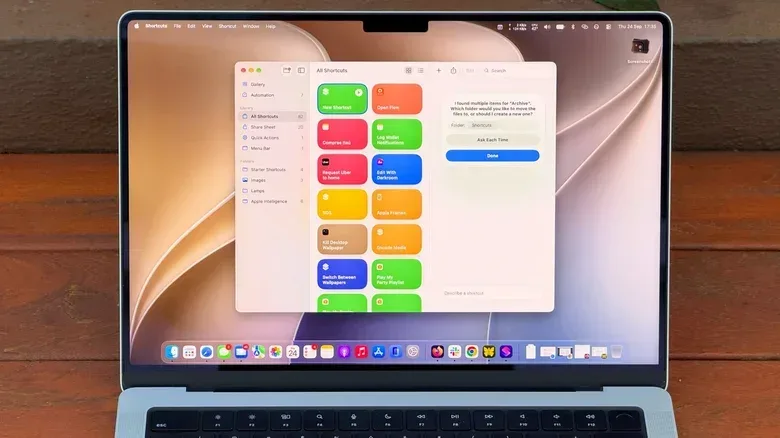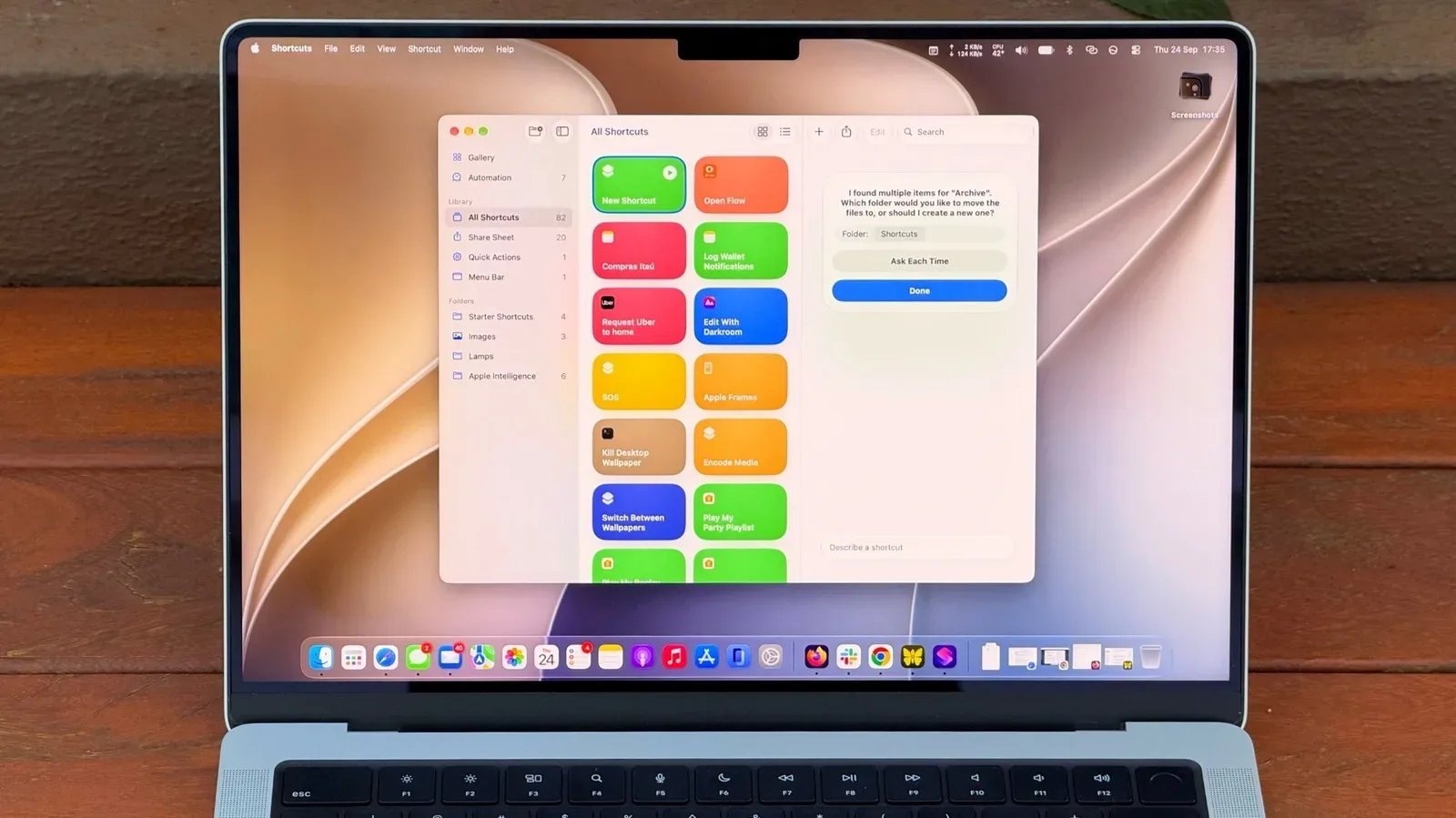
Mac Shortcuts has been around since macOS Monterey, yet it has often felt like a utility for people who enjoy building little systems out of menus, actions and variables. macOS 27 Golden Gate is positioned to lower that barrier. Its new Describe a Shortcut feature lets a user write what they want an automation to do, with Apple Intelligence handling much of the initial assembly.
That shift matters less because it turns every Mac owner into an automation expert and more because it gives newcomers a sensible place to start. Instead of first learning which actions exist and how they connect, a user can state a goal, inspect what has been created and revise the request if the result is wrong. It is a more approachable route into an app whose potential has always been broader than its reputation.
For readers who divide their time between games, creative work and general PC administration, the appeal is straightforward: repetitive housekeeping is still repetitive whether it happens around a controller or a keyboard. Shortcuts will not improve a game’s frame rate or replace a launcher, but it can help make routine Mac tasks more deliberate and easier to repeat. For a separate look at a PC game built around the much less relaxing business of sorting, see Something Is Wrong With the Library.
What Shortcuts is designed to do
Shortcuts is Apple’s automation tool: users create scripts that carry out a sequence of tasks on their devices. An action is one individual instruction in that sequence, such as working with a file, reading clipboard text or making a note. A shortcut combines actions so one command can handle a multi-step job.
The basic idea is not limited to file management. An example use is messaging a spouse with an estimated arrival time when leaving work, using traffic information. A more involved shortcut could examine calendar information and weather conditions, then provide a daily summary. Those examples illustrate two important qualities of automation: it can collect information from more than one place, and it can turn a repeated decision into something the computer performs consistently.
In practice, the best first shortcuts are usually narrow and easy to check. A narrowly scoped task reduces the chance that an ambiguous instruction produces an unexpected result. It also makes troubleshooting much simpler: if a shortcut is meant to change one folder, users can look in that folder immediately and decide whether it behaved as intended.
Describe a Shortcut turns intent into a starting point
Golden Gate’s Describe a Shortcut is the central change. Rather than manually assembling every action from the beginning, users can enter a natural-language request. Apple Intelligence then helps construct the shortcut. This does not make the feature infallible. It may not always generate a working result, and the quality of the prompt still matters. But it changes the first step from “learn the building blocks” to “describe the outcome.”
That distinction is especially useful for someone who knows the task they want done but has no reason to know automation terminology. The feature is best understood as a drafting aid, not a guarantee. A generated shortcut should be treated as something to review and test before it becomes part of a routine.
Related coverage includes How to Start Automating Your Mac With Shortcuts in macOS 27.
Specificity is the practical skill that still matters
Vague requests leave open questions that a person might answer instinctively but software cannot reliably infer. “Clean up my Downloads,” for example, does not say which files should be moved, whether anything should be deleted, where files should go, or when the clean-up should run.
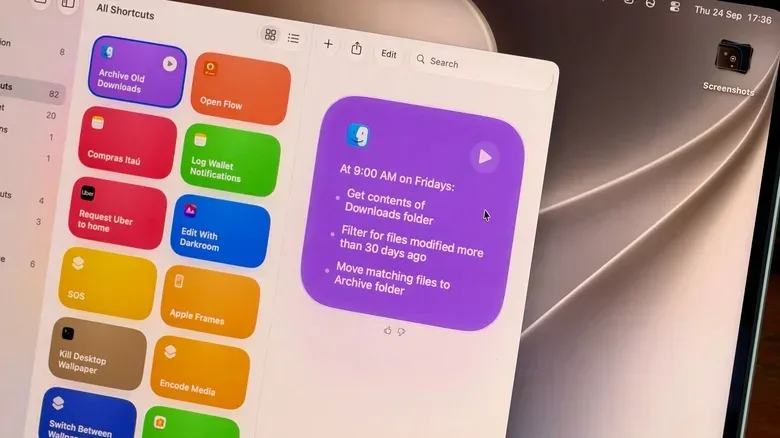
A much more useful request defines a schedule, location, condition and destination: every Friday, move items in the Downloads folder that are older than 30 days into a folder named Archive. It gives the automation concrete boundaries. The schedule is Friday; the location is Downloads; the age threshold is 30 days; and the destination is Archive.
That pattern is worth carrying into any description:
- State the trigger or schedule when the task should happen.
- Name the input such as a folder or the clipboard.
- Set a condition such as items older than a particular number of days.
- Name the desired output including the destination, format or app where it should appear.
These are not magic words; they are a way to reduce ambiguity. The more choices a shortcut is forced to make on its own, the more opportunity there is for it to miss the user’s actual intention.
A low-risk first project: Downloads housekeeping
Downloads is a practical starting point because it is a folder many people use constantly and tidy rarely. Files accumulated there can make it harder to identify what is current, and an automated archive routine can reduce that clutter without turning the task into a major project.
The source-supported example has a further advantage: it is verifiable. After the shortcut runs, open Downloads and Archive, then compare what moved. If the scope was too broad, the response is not to assume the automation is correct; revise the prompt with stronger limits and try again. That feedback loop is the responsible way to learn the feature.
Users should also distinguish moving from deleting. The given example moves older downloads into Archive, which preserves them in a separate location. That makes it easier to review the result than an instruction that removes files. When an automation changes files, reversible outcomes and visible checks are prudent, particularly while the shortcut is new.
Clipboard summaries show the Apple Intelligence angle
Another suggested workflow combines Shortcuts with Apple Intelligence for text summarization. The requested process is clear: take text currently copied to the clipboard, summarize it in three sentences and save the summary into a new note. In plain terms, the clipboard is the temporary holding area that receives text when it is copied. The shortcut uses that copied text as its input.
It is a compact example of why automation can be more than a schedule. One step obtains the text, another asks for a constrained summary, and a final step places the result in Notes. The “three sentences” condition is useful because it states the desired scale of the result instead of merely requesting a summary.
As with any AI-assisted output, users should account for the stated limits. More complex prompts can hit usage limits faster when using Apple’s AI models in Shortcuts. A shorter, focused task therefore has two benefits: it is easier to describe accurately and may be less likely to run into those limits than an expansive request.
Make a useful shortcut visible
An automation that exists only inside an app library is easy to forget. Golden Gate’s Shortcuts options address that with several ways to bring a repeat task closer to where it is needed.
To assign a keyboard combination, choose the shortcut, select Edit, open Shortcut Details through the information icon, and use Add Keyboard Shortcut. A keyboard shortcut is a direct key combination that triggers the chosen automation, avoiding a trip through the Shortcuts interface.
Users can also put a shortcut in Control Center or the menu bar. Open Control Center from the top-right area of the Mac, select Edit Controls, then add the action from the Shortcuts app. The menu bar is the persistent strip at the top of the screen, while Control Center groups commonly used controls. The better choice is simply the one that matches the user’s habits: a frequent action may deserve a keyboard command, while a task used occasionally may be more comfortable in a visible menu.
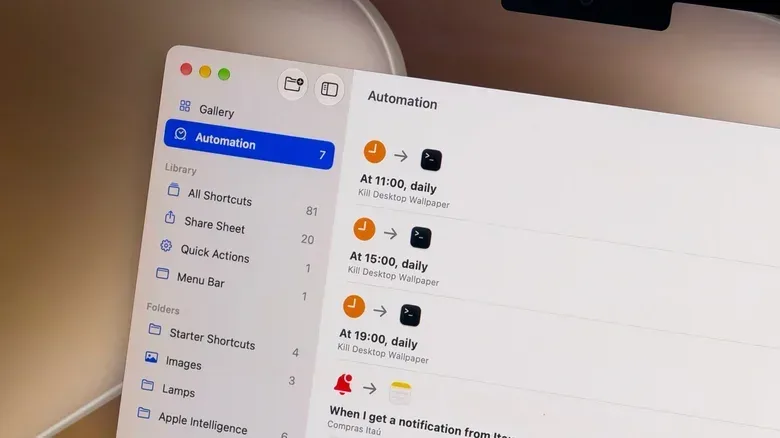
The Automation tab is another place worth exploring for workflows intended to run on their own. The key question is whether a task truly needs to be automatic or merely easy to launch. File movement that needs a weekly cadence is a natural automation candidate; a summary of copied text may be better as an action the user deliberately triggers after choosing the right text.
Visual Intelligence and Siri extend the same idea
Shortcuts is not the only Golden Gate feature intended to take action from context. Visual Intelligence uses Shift + Command + Space. After pressing that key combination, the user can select a window on screen and ask Siri questions about it or request an action. One supplied example is selecting an email with a date embedded in it and asking Siri to add an event to the calendar.
The distinction is useful. Shortcuts is primarily about reusable procedures: build a process once, then run it again. Visual Intelligence begins with what is presently on screen. Siri can also run shortcuts by voice, providing another way to activate a workflow once it has been set up.
Eligibility and sensible expectations
The AI-based parts of this workflow have a firm hardware requirement. Shortcuts and Siri AI require Apple Intelligence, which means an M1-based Mac or later. Intel Mac owners cannot use those Apple Intelligence features. That does not change the fact that Shortcuts has been available on Mac since macOS Monterey, but it does limit who can use the newer AI-assisted approach described here.
The larger practical message is to start with a small, observable job rather than asking for a sweeping personal assistant. Describe the action precisely, test the result, make the shortcut convenient to access, and refine it when it does not match the original intent. macOS 27’s contribution is not that automation suddenly needs no thought; it is that the first draft no longer has to begin with a blank canvas full of unfamiliar actions.