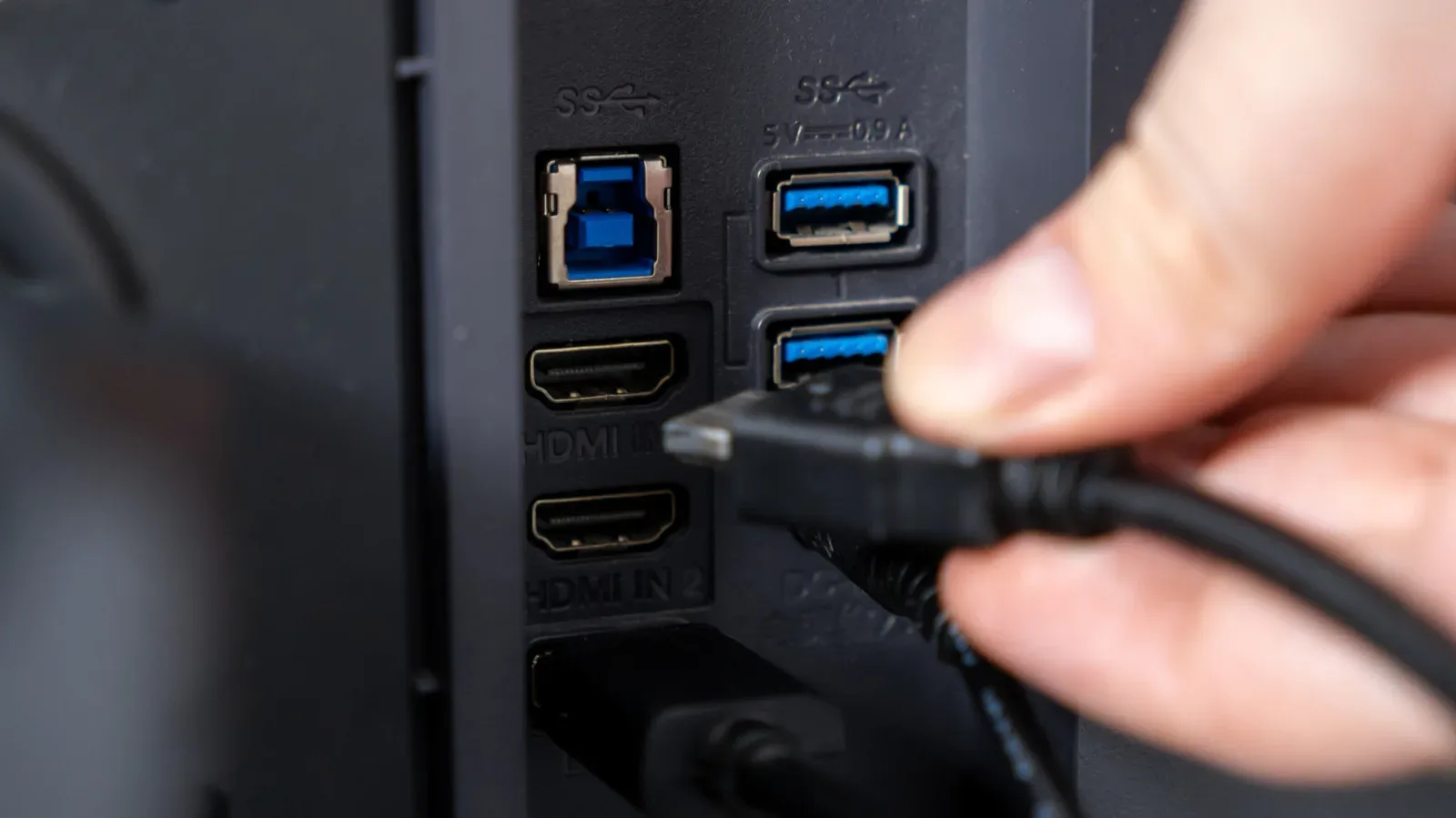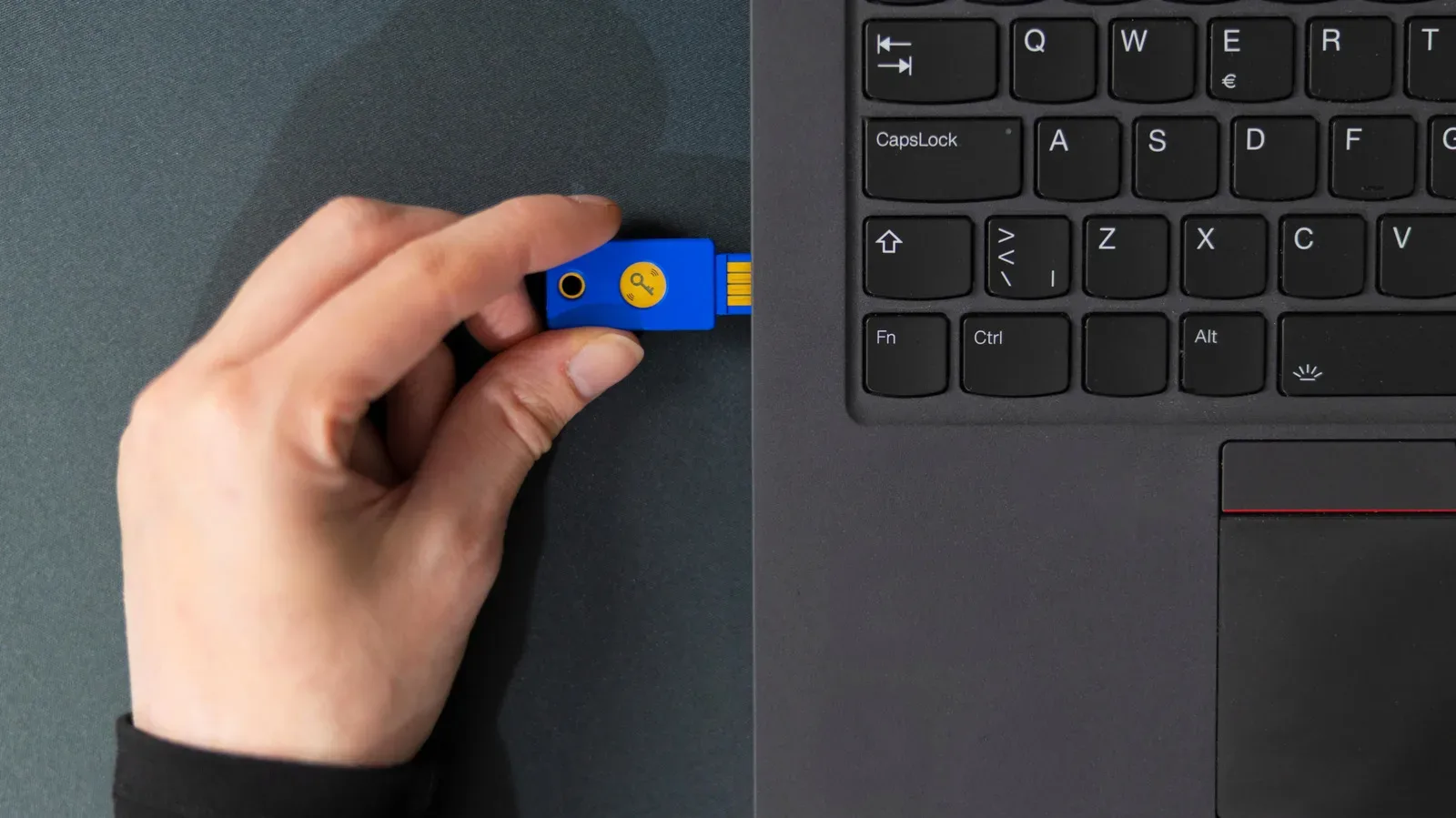
A USB device that connects for a moment and then vanishes is one of computing’s most irritating small failures. A mouse can stutter at the wrong moment, a keyboard can lose inputs, a webcam can drop its feed, and an external drive can fail before a file transfer is complete. The good news is that an intermittent USB connection is often diagnosable without guessing.
The important move is to change one variable at a time. USB problems can originate with the accessory, its cable, a particular computer port, a hub, Windows power management, or a mismatch between what a port or cable supports and what the connected device needs. Randomly changing several things at once can make a temporary recovery look like a cure. A short, methodical process gives the result meaning.
For anyone who uses a PC as a gaming setup, the stakes can be more immediate than a slow transfer: keyboards, mice, controllers, capture gear and cameras all depend on a connection that stays put. This is separate from network quality—though a stable wider setup matters too, as explored in our look at fiber versus cable internet for gaming. Start by proving whether the USB link itself is the weak point.
First, restart and isolate the failure
Restart the computer before opening settings or removing drivers. It is the least demanding step and can clear a temporary problem. If the disconnecting stops after a restart, keep an eye on it; an apparent fix is more convincing if the device remains stable through normal use.
If the issue continues, run two simple swaps:
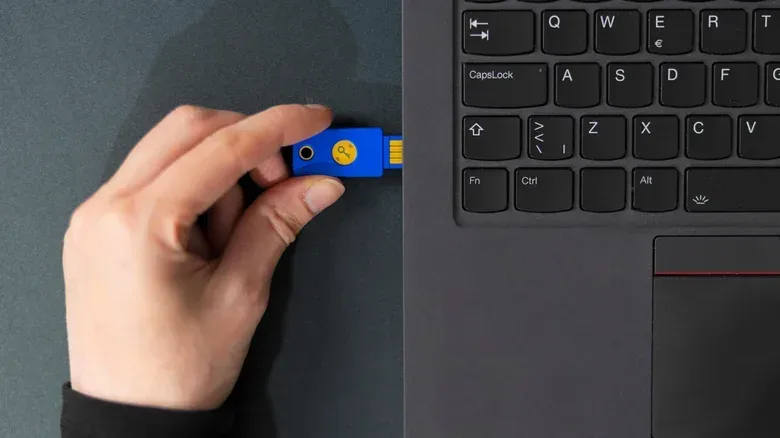
- Connect the same USB device to a different USB port.
- Connect a different USB device to the original, suspect port.
Those tests are a basic form of isolation. They do not require technical knowledge, but the pattern of results is useful:
- If one accessory disconnects in every port, suspicion shifts toward that device, its removable cable, or the computer more broadly.
- If several accessories misbehave only in one port, that particular port is the leading suspect.
- If the problem only appears with a hub in the chain, test without the hub before blaming the PC or peripheral.
This order matters. It avoids spending time changing Windows settings when a damaged cable is the actual culprit, or replacing an accessory when a single port has a physical connection problem.
Inspect the physical connection before changing software
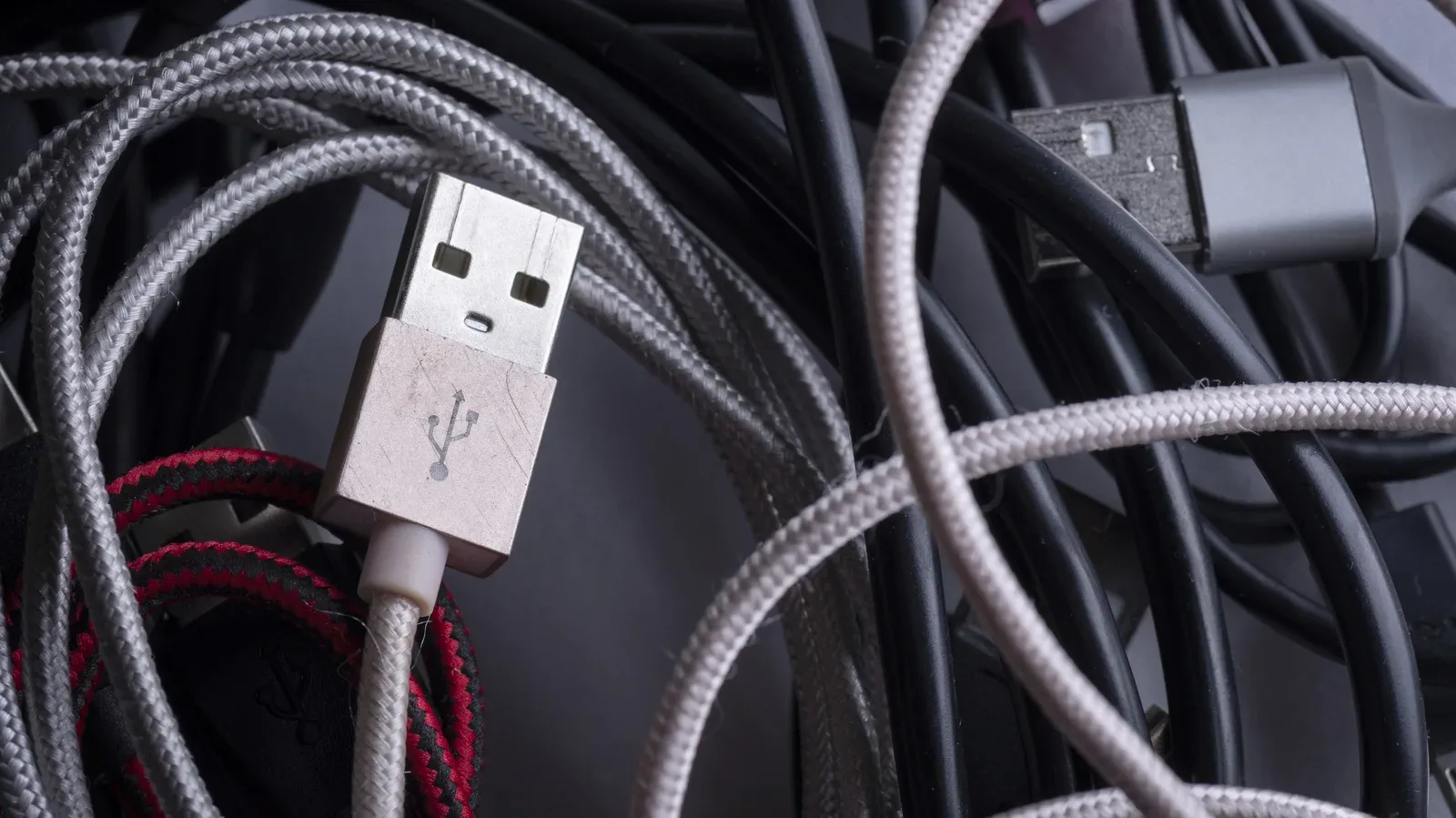
Look closely at the USB plug on the device and, where applicable, at both ends of its cable. A connector that feels unusually loose, pins that appear bent, a split outer jacket, or severe bending around the cable ends can all undermine a stable connection. A removable damaged cable should be replaced rather than repeatedly flexed into working for a few more minutes.
Then inspect the computer’s port with a light. Dust or debris can prevent the plug from seating cleanly. If debris is visible, use a wooden toothpick very gently rather than a metal object. For material that will not shift easily, short, careful bursts of canned air are an option. The aim is to clear obstruction, not to force anything deeper into the port or damage its internal contacts.
If the pins within the port look warped or physically obstruct a normal insertion, software troubleshooting is unlikely to resolve it. Professional assessment is the sensible route unless hardware repair is already within your comfort zone.
Why cables and ports can mimic bigger failures
An intermittent connection does not always mean the accessory has failed. A cable carries the connection between device and computer; damage or a poor fit can break that link whenever the cable moves. Likewise, a port with debris or damaged contacts may work intermittently because the plug is only making partial contact. That can feel like a mysterious system issue even when the fault is mechanical.
Also make sure the cable is capable of the job. Not every USB cable transfers data. Some are intended for charging, which can lead to confusing situations where a phone appears to charge but cannot move files to a PC. If a data task fails, test with another cable known to support data rather than assuming the phone, computer or port is defective.
Remove hubs and reconsider where devices are connected
A USB hub is convenient, but it is another link between a device and the computer. Bypass it for testing: plug the accessory directly into the computer and see whether the disconnecting stops. A hub can be especially problematic when high-power accessories are attached to a basic unit that itself draws power through USB.
A powered USB hub is a hub that plugs into wall power rather than relying entirely on the computer’s USB connection. That extra power can be the better choice when multiple or higher-power devices need to remain connected. It is not a universal cure, but direct connection versus hub connection is a valuable diagnostic comparison.
Desktop owners should also consider the physical route to each port. Back-panel USB ports are directly connected to the motherboard. Front-panel ports commonly rely on extension cables inside the case, creating a little more overhead. For devices that will stay attached long-term, using rear ports where practical is a sensible way to reduce one potential complication.
Check what the USB-C port actually supports
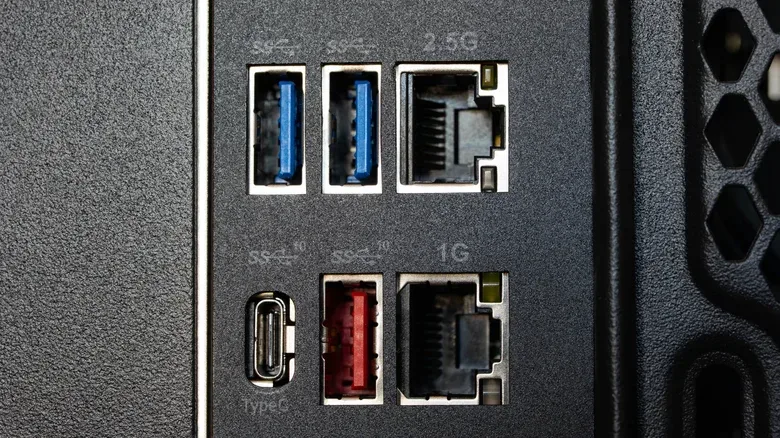
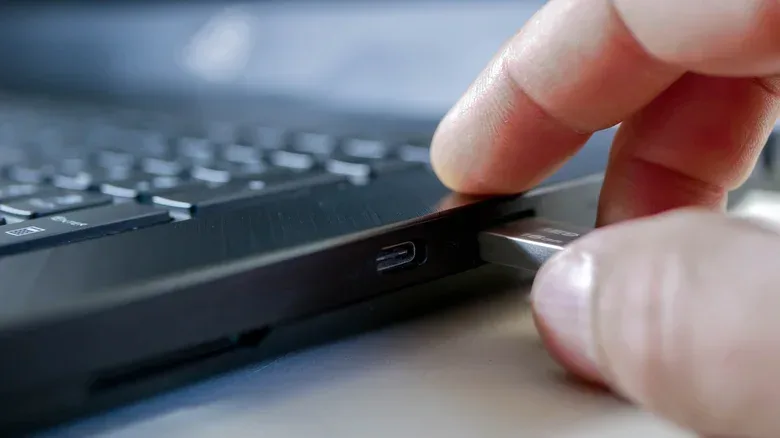
USB-C describes the connector shape, not a promise that every similarly shaped port has identical capabilities. A USB-C port may not support video, for example. On some devices, only one of several USB-C ports may work for charging. The same visual connector does not guarantee the same function.
When an accessory disconnects—or never operates as expected—check the computer or device specifications if the ports are not clearly labelled. Confirm that the relevant port supports the activity in question, whether that is charging, data transfer or video output. This applies to cables as well: a cable that is fine for charging is not automatically appropriate for transferring files or another data-dependent task.
The same principle extends outside a PC. USB ports on TVs, routers, cars and other equipment can have specific approved uses and power limits. A TV port, for instance, may not provide enough power for a streaming stick. In a vehicle, an unstable CarPlay connection can be a cable issue, making a new high-quality cable a logical test. Consult the relevant manual or online guide before treating every USB port as interchangeable.
Windows: review USB power management carefully
If the physical checks do not identify the issue, Windows includes power-saving options that can affect USB behavior. These options are intended to reduce power use, but in some circumstances they can shut down a device when it is still needed.
One place to check is Device Manager, Windows’ panel for viewing and managing installed hardware. Right-click the Start button, or press Win + X, then select Device Manager. Expand Universal Serial Bus controllers. For each relevant item, open its properties, select the Power Management tab, and clear the box marked Allow the computer to turn off this device to save power. Confirm each change with OK.
It may not be obvious which listing corresponds to the exact physical port you are investigating. A practical identification technique is to watch Device Manager while inserting and removing a device, noting which entry changes. A free utility called USBDeview can also help identify USB devices. Take care not to disable the entry used by the keyboard or mouse currently controlling the PC, or control could be lost.
Windows also has USB selective suspend, a power-management feature that can disable USB ports when they are considered idle. To find it, search the Start menu for power plan, choose Choose a power plan, select Change plan settings beside the active plan, then choose Change advanced power settings. In the resulting menu, expand USB settings, open USB selective suspend setting, and change the setting to Disabled.
Disabling selective suspend may stop Windows from powering down USB ports, but it trades away a power-saving behavior that Microsoft strongly recommends leaving enabled. Treat it as a targeted troubleshooting step, not an automatic setting every PC needs.
If the device becomes stable only after this change, that is useful evidence that power management was involved. Users can then weigh the improved device reliability against the loss of that saving feature.
Drivers: a later step, not the first assumption
A driver is the software that allows Windows to communicate with hardware. An outdated or corrupted USB driver can be a factor, although it is less likely in ordinary cases unless specialized hub hardware is involved. In Device Manager, open the relevant USB device’s properties, select the Driver tab, and use Update Driver to check for a newer version.
For a specific troublesome port, Device Manager also offers Uninstall Device. Restarting the computer afterward allows Windows to reinstall it automatically. This should be approached only after documenting which port or entry is the issue and after the basic cable, port and hub tests. Removing entries indiscriminately does not improve the diagnosis.
When the accessory itself is probably at fault
If an accessory fails in multiple ports and on more than one computer, the device itself becomes the most likely explanation. Consider its recent condition: a mouse, external drive or other USB hardware may be damaged after a drop, liquid exposure or another physical shock. The fact that a device sometimes connects does not rule out a hardware failure.
At that point, manufacturer support is a sensible next step. Bring the results of the isolation tests: whether the device failed in every port, whether another cable was used, whether a hub was bypassed, and whether it worked on another computer. Those details turn “it keeps disconnecting” into a clear account of what has already been ruled out.
A short troubleshooting order worth keeping
- Restart the computer.
- Test the device in another port and another device in the original port.
- Inspect the connector, cable and port; clear visible debris safely.
- Bypass any hub and test a direct connection.
- Use a cable that supports the needed task, especially data transfer.
- Check the port’s documented capabilities, particularly with USB-C.
- Review Windows USB power settings if physical testing does not solve it.
- Only then investigate drivers or reinstall the identified USB device.
- If the accessory fails everywhere, contact its manufacturer for support.
A disconnecting USB device is frustrating precisely because USB normally feels invisible. But the fault-finding process is manageable when it starts with physical connections and simple comparisons, then moves to power settings and drivers only when evidence points there. The goal is not to change every setting; it is to identify the one part of the connection chain that cannot reliably do its job.