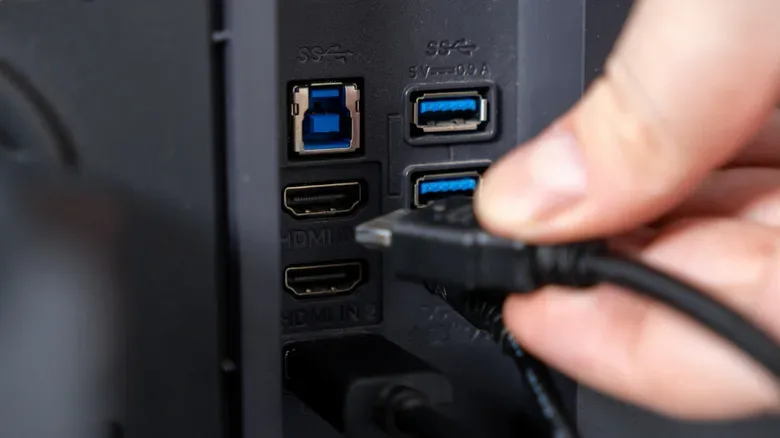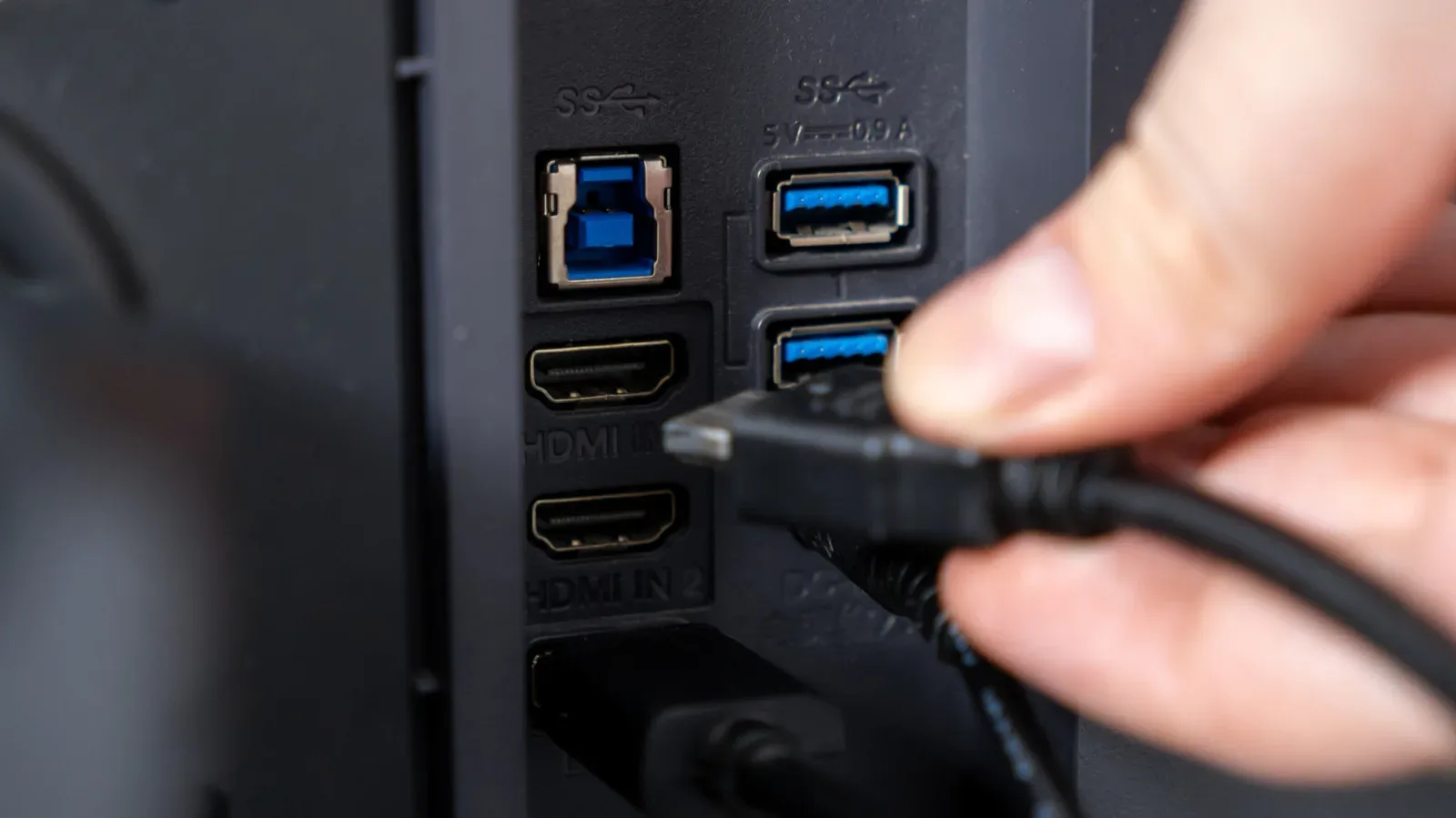
A pair of USB ports on a monitor can look like a small convenience feature—some bonus sockets on the side for a controller cable or flash drive. In practice, they can make a gaming or work-from-home setup significantly less annoying. Many monitors include a built-in USB hub, letting peripherals plugged into the display communicate with the connected PC or laptop.
The important catch is that a port’s presence does not automatically mean it is connected, fast, able to charge something, or capable of sending video. A tidy desk can turn into a baffling troubleshooting session when a mouse does nothing, an external drive crawls along, or a USB-C cable charges a laptop but will not put an image on the monitor.
The short version: treat the monitor as a hub positioned in the most useful place on the desk. Then confirm what connects that hub back to the computer and what each port is actually designed to do.
Why a monitor has USB ports at all
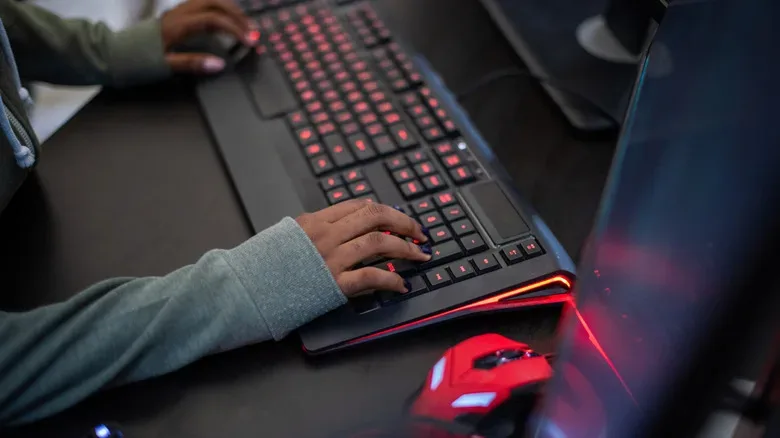
On a monitor with a built-in USB hub, the ports are generally intended to serve the computer connected to the screen. That makes the display a convenient home for desktop accessories: a keyboard, mouse, wireless dongle, webcam, controller charging cable, flash drive or external storage device.
There are two directions in that arrangement, and the terminology matters:
- Upstream is the connection from the monitor’s hub back to the PC or laptop. It is the route that allows the computer to see devices connected to the monitor.
- Downstream ports are the sockets where accessories plug into the monitor. Their data travels through the display’s hub and then along the upstream connection to the computer.
Put another way, plugging a keyboard into the monitor is only half the chain. The monitor must also have an active upstream data connection to the computer. Without it, the keyboard may have a physical place to plug in but no route to reach the system.
Do not assume that two visible ports mean one is upstream and one is downstream. A display might provide two downstream USB-A ports while putting its upstream connection on a separate USB-B socket. Another monitor may use USB-C for upstream duties. The labeling on the monitor and its manual, rather than the number of ports or their location, is the reliable answer.
HDMI and DisplayPort show the picture, but often not the USB devices
This is the most common setup snag. If a monitor is attached to a PC over standard HDMI or DisplayPort, that cable carries the picture but does not provide the USB data connection needed by the monitor’s hub. In that configuration, the display typically needs a second cable—its USB upstream cable—to make its keyboard, mouse and other downstream ports work.
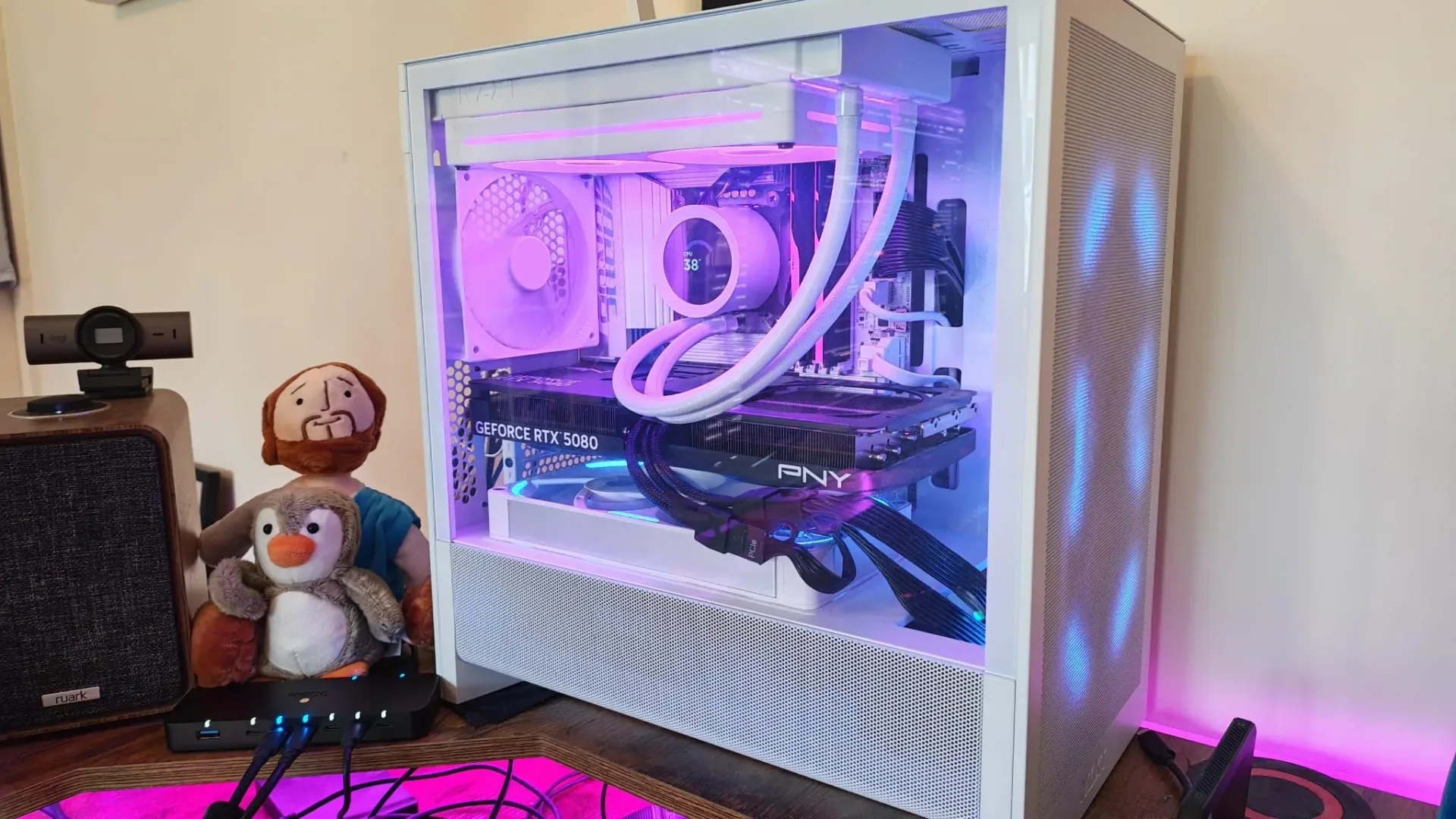
For a desktop gaming setup, that can still be entirely worthwhile. Connect the display through HDMI or DisplayPort for video, connect its upstream USB cable to the PC, and leave low-demand desk accessories attached to the monitor. The reward is not extra performance; it is fewer cables needing to run all the way to the tower and fewer ports consumed directly on the PC.
That also explains why someone can see a perfectly good image on a monitor while its side USB ports appear dead. The display connection is functioning, while the separate hub connection is absent.
USB-C can reduce the cable count—but the logo is not a promise
USB-C can make a laptop setup much simpler when both the monitor and computer support the necessary functions. A compatible single USB-C connection can carry the image to the display, return USB data from the monitor’s connected peripherals to the laptop, and in some cases deliver power to charge the laptop as well.
That is particularly attractive for players who use a laptop at a desk and take it elsewhere. Keyboard, mouse, webcam and wireless receiver can remain at the monitor. Returning to the desk can be as simple as reconnecting the one USB-C cable, rather than rebuilding the entire peripheral lineup every time.
Technically, this works because a supported connection can use DisplayPort Alt Mode, which allows video to travel over USB-C alongside data. USB Power Delivery is the separate capability that can enable charging over that cable. The connector alone does not guarantee either feature.
That distinction is essential. USB-C describes the shape of the connector, not a uniform list of supported functions. Ports that look identical may differ in data speed, video support and charging capability. Standards such as USB 3.2, USB4 and USB Power Delivery are not interchangeable labels for every USB-C socket. Before buying a cable or reorganizing a desk around one-cable convenience, check the monitor documentation and the computer’s port capabilities.
The same caution applies to portable monitors. A one-cable arrangement can be especially useful there because it cuts down on adapters and loose leads, but it remains dependent on support at both ends.
The best jobs for monitor USB ports in a gaming setup
Leave permanent, low-bandwidth peripherals connected
Keyboard and mouse cables are obvious candidates. So are wireless receivers for peripherals, and potentially a webcam. These accessories do not normally depend on the fastest available transfer speed, and connecting them at the monitor can make the desk easier to manage.
There is also a practical laptop benefit. When the laptop leaves the desk, all of those accessories can remain in place. When its upstream connection to the monitor is restored, they return with it as a group. This is less like adding a new dock and more like using hardware already built into the display.
Use easy-to-reach ports for occasional storage
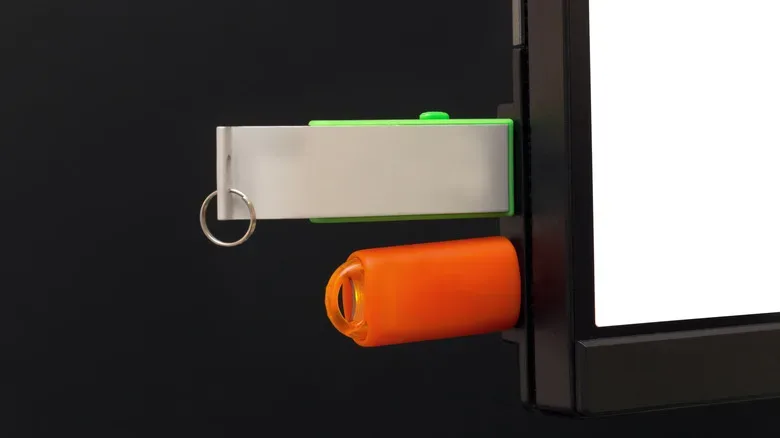
A side-mounted monitor port is often more accessible than the rear panel of a desktop PC. It can be a sensible spot for a flash drive or an external drive used for a quick transfer. The advantage is simple reach: no leaning behind the tower or disturbing its cable bundle.
Speed is the trade-off. Every downstream device is limited by the monitor hub’s upstream connection. If that upstream route is slower than the external drive, the hub becomes the bottleneck. Therefore, the monitor is a practical place for brief transfers, but it may not be ideal for shifting hundreds of gigabytes from a fast external drive.
For gamers, that means a monitor port can be convenient for moving screenshots, clips, mods or smaller files. It should not be assumed to be the best route for a major library migration or any other large storage task. The appropriate choice depends on the monitor’s USB specification and its current connection mode.
Charge accessories, if the monitor supports it
Some monitor downstream ports can supply power to USB devices. Whether they continue to do so in standby is model-specific and may be governed by a setting. Some Dell displays, for example, include an Other USB Charging option that controls whether downstream ports stay powered while the monitor is in standby.
That can be handy for an accessory that only needs a modest charging connection, but it should be treated as a documented feature rather than a universal behavior. Check the manual and settings if a device stops charging when the display sleeps.
When bandwidth becomes the boss fight
Single-cable USB-C monitor setups are neat precisely because video and USB data can share the same connection. They can also require a compromise. Some displays allow a user to prioritize display bandwidth or USB data speed.
Dell’s U3223QZ illustrates the point. Its High Resolution setting reduces USB data to USB 2.0 speeds, while High Data Speed enables USB 3.0 bandwidth. The choice can also affect whether the monitor’s built-in webcam can capture 4K video. It is a useful reminder that an apparently mysterious limitation may be a bandwidth configuration, not a failed cable or broken peripheral.
In plain language, bandwidth is the amount of data a connection can carry over a given period. A high-resolution image signal consumes a substantial part of that capacity. A fast external drive or high-resolution webcam also needs meaningful data throughput. If the display is configured to favor the image path, connected USB gear may have less available bandwidth.
So if a drive is unexpectedly slow or a high-resolution webcam does not behave as expected through a monitor, inspect the display’s USB-C mode and its documentation. Connector shape will not diagnose the problem; the supported standards and the selected bandwidth mode will.
KVM switches: one monitor and peripherals, two computers
A less common monitor feature can be especially useful for a desk shared by a work laptop and a personal gaming PC: a built-in KVM switch. KVM stands for keyboard, video and mouse. On a supported monitor, it allows two computers to share the display and connected input devices, switching between them without physically moving the keyboard and mouse cables.
It is not a capability to presume from the existence of USB ports. A monitor must explicitly include KVM functionality. But when it does, it can reduce the clutter and repetitive reconnection involved in alternating between two machines.
A quick checklist before reorganizing the desk
- Identify the monitor’s upstream port and downstream ports in its labels or manual.
- If using HDMI or DisplayPort for video, confirm that a separate USB upstream cable is connected to the PC.
- For USB-C, verify video support, USB data support and—if needed—Power Delivery separately.
- Use monitor ports first for steady, non-speed-sensitive accessories such as a keyboard, mouse or wireless receiver.
- Check the monitor’s USB speed and bandwidth mode before using it as the regular route for fast storage or a demanding webcam.
- Look through monitor settings if charging behavior changes in standby.
- Confirm KVM support specifically if two computers need to share one display and set of peripherals.
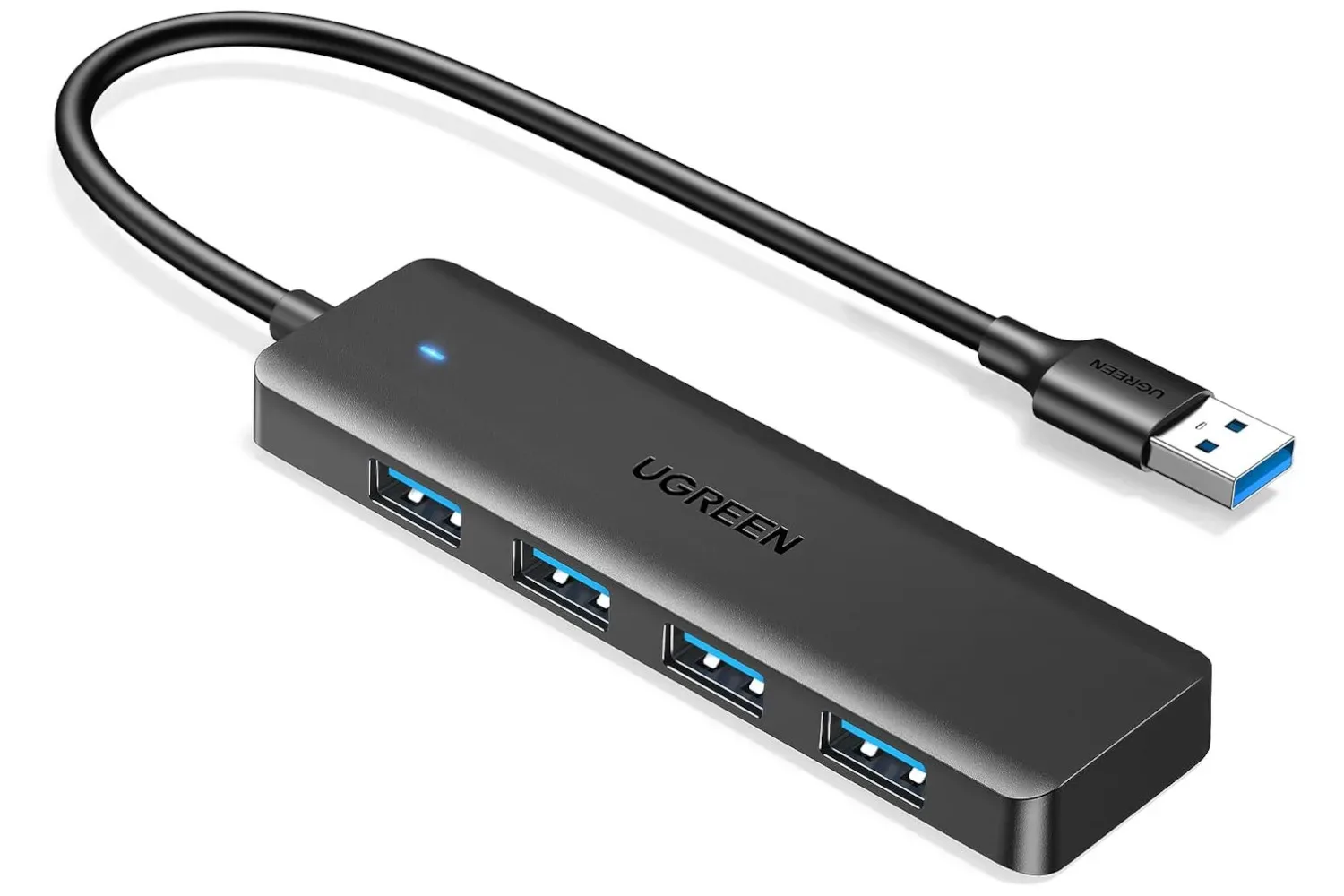
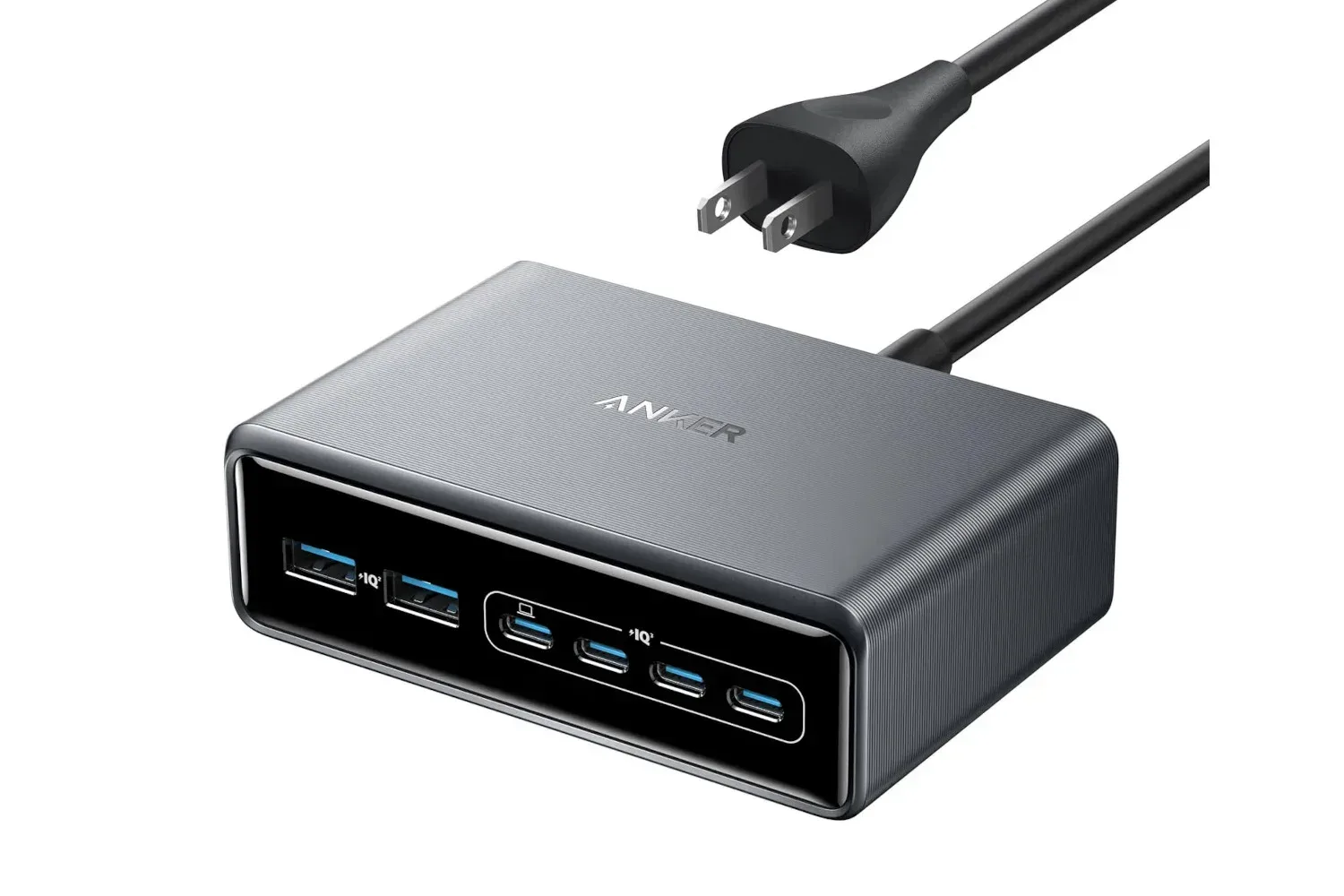
A monitor hub is not a replacement for every kind of expansion. A dedicated USB-C hub may still be necessary for more ports or connections the monitor does not provide, including Ethernet or an SD card reader. But for accessories that permanently inhabit a desk, the monitor’s USB ports can remove an unnecessary extra box from the setup.
And while diagnosing a monitor connection, do not overlook the screen itself: a bright dot may be a stuck pixel rather than a USB-related issue. Different symptoms, different side quest.