An “unlimited” mobile plan does not make data use irrelevant. A limited plan from an MVNO, a travel eSIM, a shared hotspot, or simply a connection you need to preserve for later can turn ordinary iPhone behavior into something worth managing. The problem is rarely one dramatic download. It is usually the accumulation of video autoplay, background refreshes, automatic backups, app updates, map use and feeds quietly updating while the phone is in your pocket.
The practical answer is not to make an iPhone unusable. It is to decide which tasks deserve cellular access, which can wait for Wi-Fi, and which can be prepared in advance. iOS provides controls at several levels: one broad data-saving mode, system-wide background behavior, individual app permissions, and download or quality settings inside the apps themselves.
That layered approach matters. A person using a temporary eSIM abroad may want strong restrictions for a few days. Someone with a modest monthly allowance may instead want to identify one or two unusually hungry apps. A household relying on one phone’s hotspot faces a different calculation again. The right setting is the least restrictive one that still protects the data allowance.
Start with Low Data Mode when conserving data is the priority
Low Data Mode is the most direct iPhone-wide option. Open Settings > Cellular. If the iPhone uses more than one SIM, first select the line to manage. Choose Data Mode, then select Low Data Mode rather than Standard.
Think of this as a broad conservation setting rather than a simple hard block. It reduces data use through several coordinated changes: streaming media and video calls may use lower quality, automatic updates and backups are turned off, and feeds refresh less often. It also disables Background App Refresh.
Those trade-offs are important to understand before treating Low Data Mode as a permanent default. Lower-quality streams can be perfectly acceptable for a commute or a temporary travel line, but less appealing when watching video at home. Feeds may not feel as immediate, because apps are not checking for new material as frequently. Automatic backups being limited can be helpful for data control, but it also means a user should make sure their phone reconnects to Wi-Fi when a backup is needed.
In short, Low Data Mode is a strong first move when the goal is to preserve a set amount of data for active use: navigation, messages, an essential search, or the occasional call. It is especially useful when a secondary eSIM has a fixed data allotment.
Use Background App Refresh selectively
Background App Refresh lets apps retrieve information while they are not actively open on screen. That can make an app feel ready the moment it is launched, but it can also create cellular activity that is easy to overlook.
Related coverage includes How to Reduce Mobile Data Usage on an iPhone.
For more control without all the effects of Low Data Mode, visit Settings > General > Background App Refresh. The master setting can be changed to Wi-Fi, preventing all background refreshes over cellular data. Alternatively, keep the feature available on Wi-Fi and Cellular Data, then switch it off only for apps that do not need to stay current between uses.
This is an opportunity to separate convenience from necessity. An app whose value depends on delivering current information may be more worth leaving enabled than one that can refresh when opened. The point is not that every background refresh is wasteful; it is that each one should have a reason to use limited cellular data.
Remember that Low Data Mode already disables Background App Refresh. There is no need to chase individual Background App Refresh switches if Low Data Mode is active for the cellular line in question, unless the user is planning a different setup later.
Check the Cellular list before guessing
The most useful diagnostic is in the same Cellular settings area. Under Cellular Data, choose Show All to see apps and their recorded use during the Current Period. This makes the conversation about data less abstract: rather than assuming a particular app is responsible, users can see which apps have actually consumed the most.
There is one critical detail: the Current Period does not reset automatically. It changes only when the user resets it manually. That means it should not automatically be treated as a monthly bill-cycle figure. It is still a valuable comparison tool, but it is most useful when the user knows when the count was last reset.
From this list, disable cellular access for any app that should only run on Wi-Fi. Turning off an app’s slider prevents it from using mobile data in both the foreground and the background. That is the firmest app-level control: the app can remain installed, but it will need Wi-Fi for internet-dependent work.
This tactic works best for apps with a clear Wi-Fi-only role, particularly those centered on large media transfers. It is also a sensible response to an app that appears high in the list but is not genuinely important away from Wi-Fi. The trade-off is straightforward: on cellular, that app will not load online material at all.
Video settings and autoplay can make the largest difference
Not every data decision lives in iOS Settings. Video-focused apps, including social platforms and video services, often have their own controls for autoplay and default playback quality. Turning off autoplay prevents the next clip from beginning simply because a feed was left open. Lowering the default video quality reduces how much data each intentional viewing session uses.
Video streaming and video calls are among the most data-intensive activities on a cellular connection. The practical implication is simple: if data is constrained, choose a lower resolution where the app permits it, and consider switching a call to audio-only when seeing the other person is not essential.
Music and podcast services also deserve individual review. Apple Music separates quality settings for Wi-Fi and mobile data. Many podcast apps offer an option to stop episode downloads over cellular. Services such as Instagram and Spotify may include a Data Saver-style setting, which combines multiple data-reduction adjustments behind a single control.
The exact labels differ by app, so there is no universal menu path. The efficient sequence is to inspect the Cellular usage list, identify the biggest candidates, then open those apps’ own settings. Look for terms such as autoplay, playback quality, cellular downloads, data saver and offline downloads.
Download on Wi-Fi, then use content offline
Storage can substitute for mobile data. If there is enough room on the iPhone, downloading material before leaving Wi-Fi is one of the cleanest ways to prevent repeated streaming on the move.
Useful candidates include:
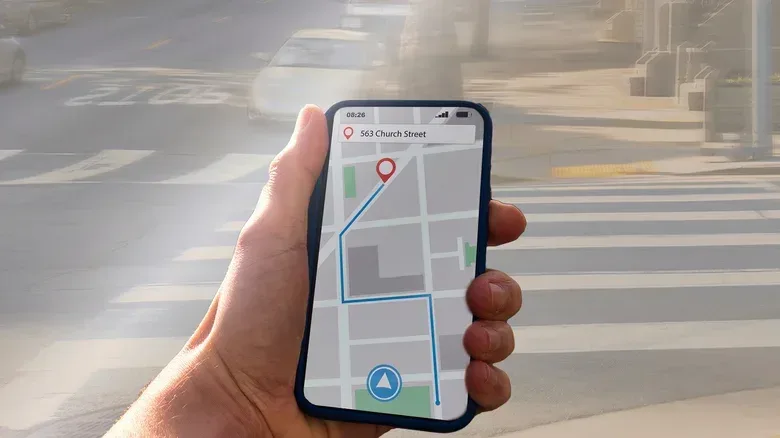
- Offline map areas for navigation.
- Movies and shows in supported streaming apps.
- Music playlists.
- Podcast episodes.
Offline downloads do not just lower total usage; they make the experience less dependent on the quality of a mobile connection. That can be valuable when traveling, when a hotspot is serving several people, or in areas where a connection is inconsistent.
Preparation has limits. Downloads in many apps can expire or be capped, so it is worth checking that maps, episodes or media are still available before the point at which they are needed. Downloading also consumes device storage, which is the central trade-off. For a short trip or a known commute, a small, deliberate offline selection may be more useful than trying to keep an entire library saved.
Turn off cellular updates and backups that can wait
A couple of system switches can prevent large transfers from arriving at an inconvenient moment. Go to Settings > Apps > App Store and disable Automatic Downloads under Cellular Data. The App Downloads option can also be set to Always Ask or Ask If Over 200 MB. Either choice adds a decision point before a large app download begins away from Wi-Fi.
For backups, open Settings > [Your name] > iCloud > iCloud Backup and turn off Back Up Over Cellular. This keeps backups on Wi-Fi rather than allowing them to use the mobile plan.
These are not dramatic quality-of-life changes. Apps can still be downloaded and phones can still be backed up. They simply move those tasks to a connection better suited to them. For anyone using a data-capped plan, that is often exactly the desired division of labor.
Inspect Connectivity Assist on weak Wi-Fi
Another easily missed setting is Connectivity Assist, found by opening Settings > Wi-Fi and scrolling down. When it is enabled, the iPhone can use mobile data alongside Wi-Fi when the Wi-Fi connection is weak or busy. The benefit is a smoother experience and less delay when moving out of a network’s effective range. The cost is that a user may assume they are on Wi-Fi while some of the activity is using cellular data.
The setting reports how much data it has used since the count was last reset, which makes it worth checking rather than assuming it is insignificant. Connectivity Assist is not used while roaming in another country or when Low Data Mode is enabled.
It can also be managed for a particular Wi-Fi network: tap the i button beside that network and disable its Connectivity Assist slider. This is a more targeted answer for a place with unreliable Wi-Fi where a user would rather tolerate the slowdown than spend cellular data.
Make Wi-Fi and hotspot decisions at the plan level
Using Wi-Fi wherever possible remains the basic answer, but public or provider-managed hotspots can extend that option beyond home. Subscribers with Xfinity internet can look for networks named xfinitywifi; the Xfinity app provides a hotspot map and auto-connection features. Other internet providers, including Spectrum, may also offer hotspot access.
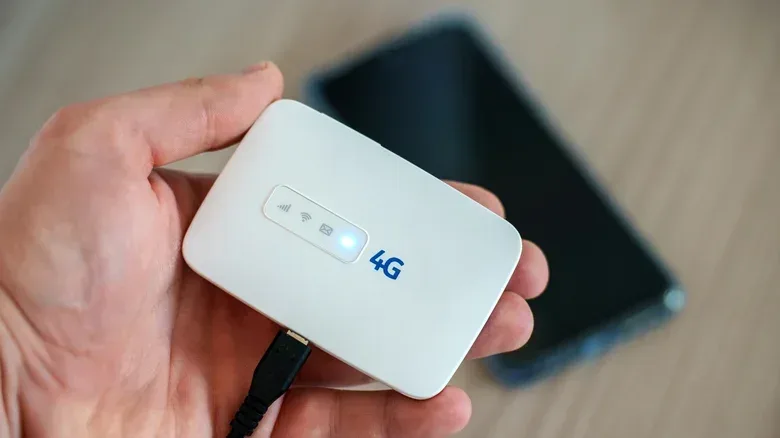
For families or groups, the more important question may be whether the plans themselves are structured sensibly. A dedicated physical hotspot could let several people share one Wi-Fi connection while away from home. Another arrangement is an unlimited phone plan with unlimited hotspot data on one person’s phone, then connecting other devices to that hotspot.
There is no universal winner. The calculation depends on the number of people, the amount of data they need and the relevant plan details. But it is useful to recognize that endlessly reducing individual usage is not the only strategy. In some cases, consolidating the connection is simpler than asking everyone to constantly police their phone.
Data controls are most effective when matched to the situation. Use Low Data Mode for a tight travel allowance, per-app cellular restrictions for known offenders, offline downloads for planned entertainment and navigation, and App Store or iCloud limits for transfers that can wait. For more iPhone settings context, see our guide to enabling and troubleshooting Live Activities on iPhone and CarPlay.