Passing a Samsung Galaxy phone to a child for a quick game can create a surprisingly broad invitation. A moment that starts with one racing game or puzzle can turn into a trip through messages, email, the Play Store, or far more sensitive apps. Samsung’s answer is not a simple, individual app-lock switch. Instead, Galaxy phones provide two distinct tools with very different jobs: Secure Folder for safeguarding sensitive material, and app pinning for temporarily keeping the phone on one screen.
That distinction matters. Pinning a game is a practical way to stop someone from wandering into other apps while they are using the device. It is not a security vault. Secure Folder, meanwhile, is designed for apps and data that require stronger separation, but it takes longer to configure and changes the way those apps are used.
For a parent, friend, or anyone sharing a phone briefly, the sensible approach is to decide what problem needs solving before opening the game. Is the goal to prevent accidental app-switching for the next few minutes? Pin the game. Is the goal to keep banking, private chats, or photos protected even when somebody has the phone in hand? Set those items up inside Secure Folder.
Samsung’s two tools solve different problems
On iPhone, users can long-press an app and choose an option that requires Face ID, preventing access until a face or fingerprint scan is completed. Samsung no longer presents Galaxy users with an equivalent lightweight, per-app lock. Its system centers on Secure Folder, backed by Samsung Knox, alongside app pinning for a more temporary restriction.
Secure Folder is not merely a locked icon. It creates a separate encrypted area on the phone. Apps added there operate as isolated copies, with separate data and sign-ins from their counterparts outside the folder. In everyday terms, that means the copy of an app in Secure Folder is treated differently from the regular copy already on the phone.
Encryption is the relevant technical term here. It means information in the protected space is secured so that access requires the chosen authentication method. Samsung offers a PIN, password, pattern, or biometric authentication for Secure Folder. The feature is therefore aimed at private information rather than the small inconvenience of stopping a child from tapping away from a game.
App pinning, by contrast, locks the current experience to a selected app. It is better understood as a temporary single-app mode. Once a game is pinned, the person using the phone cannot simply jump to another app. The feature does not encrypt the game or any other data, and it should not be treated as protection for financial or private apps.
The split can initially feel less convenient than a basic “lock this app” control, especially for routine use. But the choices are clearer when matched to their intended situations: Secure Folder is the more robust privacy measure; app pinning is the quick handoff measure.
Related coverage includes How to Restrict Apps on a Samsung Galaxy Phone.
Use app pinning when someone only needs one game
App pinning is the right starting point when a child wants to play a game on a borrowed phone and there is no need to establish a separate encrypted workspace. It is particularly useful when the concern is that they might leave the game, open the Play Store, or tap into another installed app.
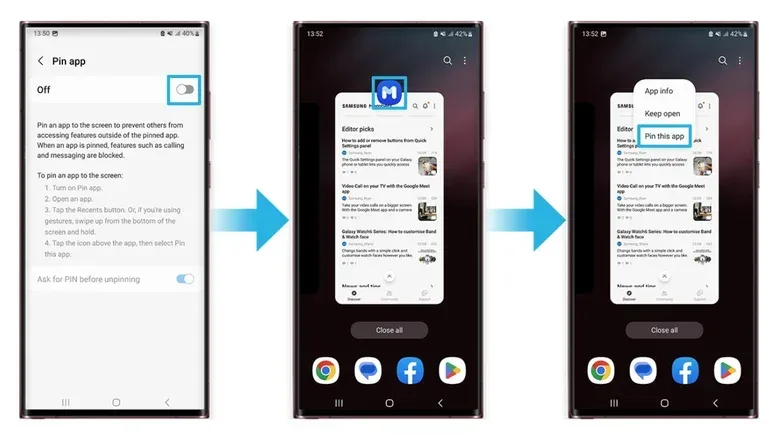
To enable it on a Galaxy phone:
- Open Settings.
- Go to Security and privacy, then More security settings.
- Turn on Allow apps to be pinned.
With the setting enabled, open the game you plan to hand over. Then enter the recent-apps view. On phones using the three-button layout, tap the Recents button, represented by three vertical bars. With swipe navigation enabled, swipe up from the bottom of the screen and hold.
From the recent-apps view, tap the icon above the selected game and choose Pin this app or Pin to screen. The wording can be presented in either form. The key result is the same: the phone remains in that chosen app rather than allowing ordinary switching to others.
To leave the pinned app, hold the Recents and Back buttons together. The phone displays directions for unpinning through the on-screen controls, so pinning works best as a friction-reducing measure rather than an absolute barrier against a determined user who can follow those instructions.
A useful handoff routine
The practical sequence is simple: open the game first, pin it second, and only then pass over the phone. That prevents a brief unpinned window where a curious player can move elsewhere on the device. It also avoids having to navigate the recent-apps screen while someone is already waiting to play.
For game-specific help, it can also be worth setting up the session before handing the device over. For example, a player beginning Star Wars: Galactic Racer can use this beginner’s guide to get situated before the phone is pinned for a run.
App pinning is intentionally low-overhead. It takes little setup once enabled and is appropriate for a short stint in one title. What it does not do is create a secure copy of the game, wall off information through encryption, or replace protection for apps containing money, communications, or personal records.
Use Secure Folder for apps that need genuine privacy
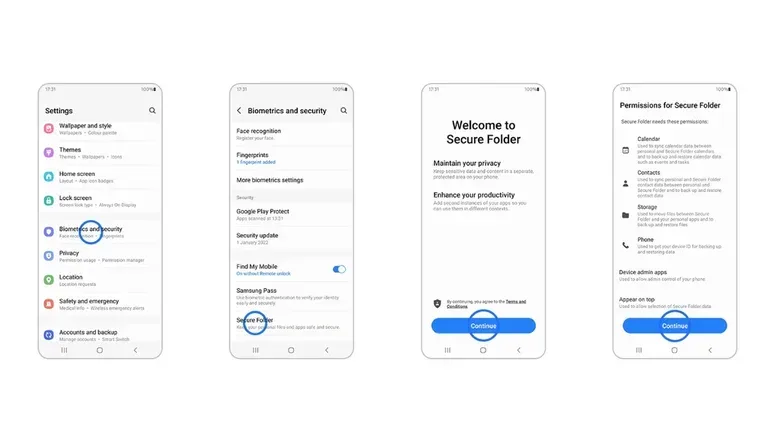
Secure Folder is the stronger choice for banking apps, messaging tools, private photos, and other material that should remain unavailable to someone casually holding the phone. Rather than blocking an existing app with a small gate, it uses Samsung Knox to establish an encrypted, isolated environment.
The isolated-copy design is important. An app placed in Secure Folder has its own data and sign-in within that protected space. This is more involved than simply asking for a biometric scan before an app opens, but it is also why Secure Folder is suited to sensitive information.
To begin setting it up:
- Open Settings.
- Select Security and privacy.
- Choose More security settings, then Secure Folder.
- Sign in with a Samsung Account.
- Choose the lock method: PIN, password, pattern, or biometric scan.
- Decide whether apps may continue running in the background while Secure Folder is closed.
- Open Secure Folder, tap the plus icon, and select the apps to add.
The background-running decision deserves a moment of thought. It determines whether apps inside Secure Folder may continue operating when the folder itself is closed. There is no one universal answer in the available settings: it depends on whether the owner wants those protected apps to remain active in the background or not.
Once added, the selected apps cannot be accessed until Secure Folder is unlocked using the authentication method selected during setup. This makes the tool more appropriate for protecting privacy from children, relatives, or a thief than app pinning alone.
Hiding Secure Folder adds discretion, with a trade-off
Samsung also allows the Secure Folder icon to be hidden from the home screen. From the quick panel, turn off the Secure Folder app to remove that visible shortcut. This can offer an additional layer of discretion by making the protected area less conspicuous in ordinary use.
There is an operational consequence: when Secure Folder is hidden, apps within it will not keep running in the background or generate notifications. That behavior can be useful for privacy, but it also means owners need to unhide the folder when they are ready to use those apps again.
In other words, hiding is not just a cosmetic home-screen choice. It changes what happens to the apps stored there. Anyone using Secure Folder for messages or another app that may normally alert them should remember that hidden-folder state suppresses both background activity and notifications.
Which option should Galaxy owners choose?
The quickest decision rule is based on duration and sensitivity.
- Choose app pinning when a person needs to use one game for a short period and the goal is to stop ordinary app-switching.
- Choose Secure Folder when the apps themselves contain private or financial information and should be placed in an encrypted, separately authenticated area.
- Use both for different purposes when sharing a phone is common: protect genuinely sensitive apps in Secure Folder, then pin the game when lending the device.
That last approach reflects the strengths of the Galaxy setup. A parent can prepare sensitive apps in Secure Folder once, then use app pinning as the fast routine whenever a child asks for a game. The first task takes a few more steps because it establishes an encrypted container and distinct app copies. The second is built for immediate, low-stakes control.
Neither feature is a perfect duplicate of a single-app biometric lock. Yet they provide meaningful protection when used for the situations they were designed to handle. Pin the game to make a short handoff less stressful. Put the apps that truly matter inside Secure Folder, authenticate access, and consider whether hiding the folder’s icon fits the way the phone is used.