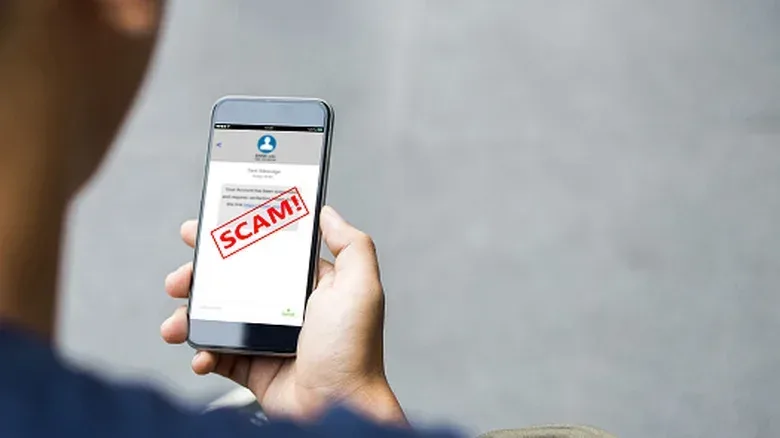
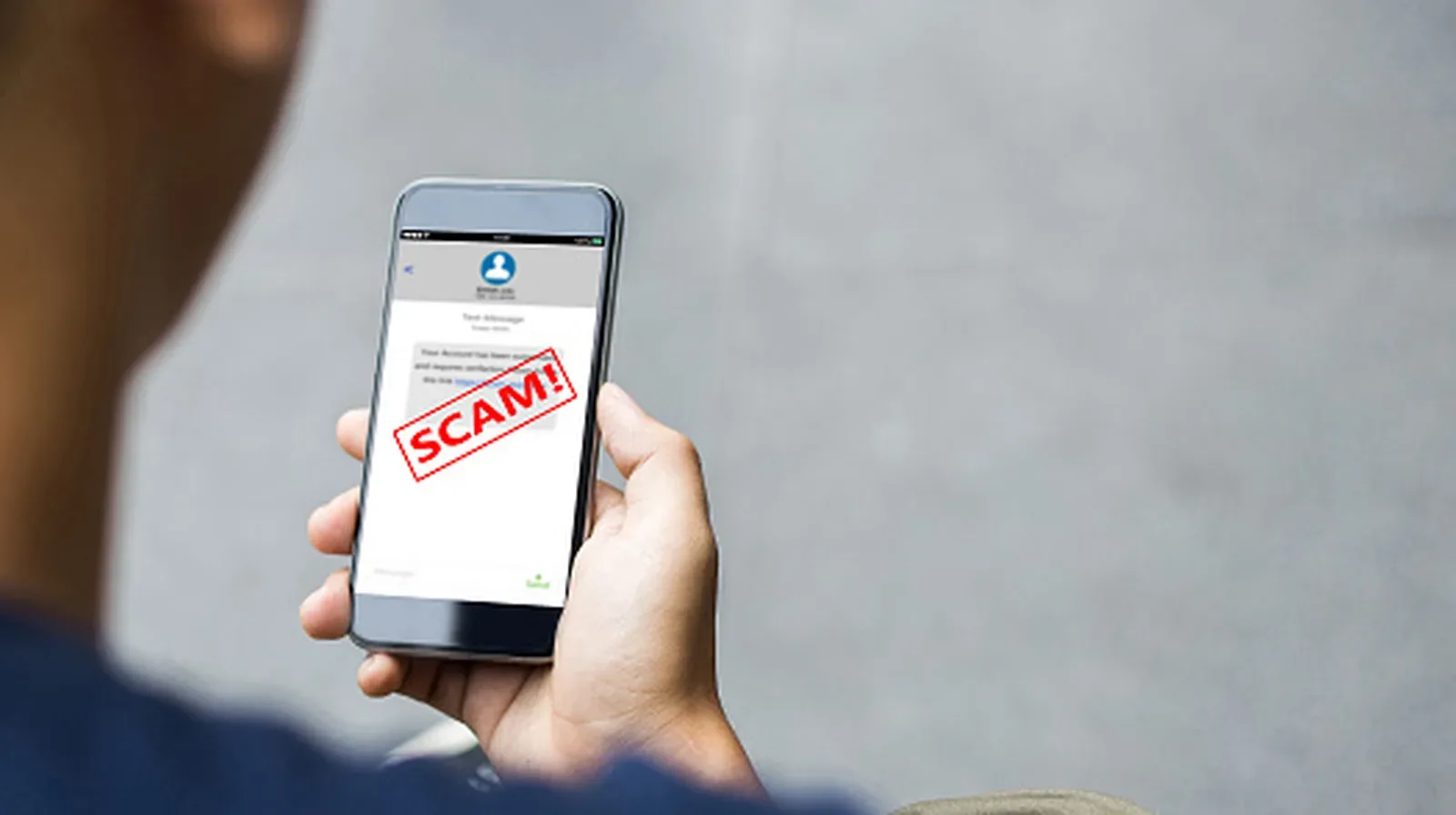
Your phone notification should not feel like an encounter table built entirely from suspicious delivery updates, miracle job offers and a stranger opening with “hey, how are you?” Yet text-message scams remain a costly problem: consumers reported roughly $470 million in losses from scams that began by text during 2024.
That number is a useful reminder that unwanted texts are not merely clutter. Many are attempts to start a conversation, prompt a reply or funnel a recipient to a malicious link. The apparent reward may be a gift card, help with student loans or an unusually generous work-from-home role. The underlying goal is to get personal information or otherwise expose the recipient’s data.
No setting makes a smartphone completely immune to spam. However, the built-in filtering options on iPhone and Google Messages, combined with reporting and one simple rule—do not reply or follow the link—create a sensible defensive loadout. The best approach is layered: filter unfamiliar senders, choose carefully which legitimate business notices you want, and report messages that appear fraudulent.
First: what makes a text message suspicious?
A suspicious text is not always an obvious wall of typos from an unknown number. It can imitate a recruiter, parcel-delivery service or financial offer, and it may use a low-pressure opener intended to see whether someone will engage. A message can also be unwelcome without being a sophisticated scam, but the safe response is similar when its origin cannot be verified.
Phishing is the term for an attempt to trick somebody into revealing information or interacting with a deceptive link. In the text-message context, that link can be the trap: it may promise a reward or claim there is an urgent delivery or payment issue. Replying can also be risky because it may begin the interaction the sender wanted.
This does not mean every unfamiliar sender is malicious. Verification codes, order messages and other time-sensitive notices may come from numbers not stored in a contact list. The point of message filtering is not to erase every unknown message; it is to move those messages out of the main notification flow so they can be assessed deliberately.
iPhone: screen unfamiliar senders and use the spam list
On iPhone, Messages includes controls for filtering conversations from people who are not known contacts. Open Messages, select the menu button at the upper-right of the conversation list, then choose Manage Filtering. There, turn on Screen Unknown Senders.
Once it is enabled, additional choices can appear. One useful option is allowing notifications for time-sensitive messages, such as verification codes. That helps preserve access to a code you may genuinely need while still lowering the volume of routine interruptions from unfamiliar senders.
Related coverage includes How to filter and report spam texts on iPhone and Android.
The same area can also provide a Filter Spam option. When active, this hides notifications for messages identified as spam and shifts them to a dedicated Spam list. This is an important distinction: filtering is organization and notification control, not an assurance that every message has been correctly judged. Check filtered areas when expecting something important from an unfamiliar sender, but do so without treating an unexpected message as trustworthy merely because it appears in Messages.
Available labels and options can vary by country and region. If a particular toggle described here is absent, that can reflect local availability rather than a problem with the phone.
Reduce optional business-message noise
Some texts are not scams at all, but they can still make it harder to notice the messages that matter. Business alerts may include order and transaction notices. iPhone offers controls for these under Settings > Apps > Messages.
Depending on the carrier and location, users may see RCS Business Messages, which can be turned off. They may also see Apple Messages for Business; within that area, Business Updates can be disabled.
RCS, or Rich Communication Services, is a messaging standard used for more feature-rich messaging than basic SMS. In this context, the practical issue is straightforward: business-message settings can determine whether commercial updates reach the Messages experience. Turning them off is a noise-reduction choice, not a substitute for scam filters or cautious link handling.
Use Screen Time communication limits when the situation calls for it
iPhone also offers a more restrictive option through Settings > Screen Time > Communication Limits > During Screen Time. This section lets users manage who can contact them and when, including an option that limits messages to contacts.
This setting is powerful precisely because it is blunt. It may be helpful when minimizing interruptions is the priority, but it can also exclude legitimate communication from people or services not saved in Contacts. Before switching to contacts-only communication, consider whether you are expecting a courier, a new employer, a support representative or a verification message that might arrive from an unfamiliar number.
Android: turn on Google Messages spam protection
People using Google Messages can activate the app’s built-in filter by opening the app, tapping the profile image in the upper-right and navigating to Message Settings > Protection and Safety. From there, enable Spam protection.
Spam protection is designed to identify and filter suspected unwanted messages. It is a practical starting point because it works inside the messaging app many Android users already use; there is no need to immediately install an unknown blocking utility just to obtain basic filtering.
Google Messages also has an optional Enhanced protection mode that uses Gemini to detect potential scams and double-check links. In simple terms, it is an AI-assisted safety setting: the system evaluates messages and links for warning signs rather than requiring a recipient to spot every pattern alone. It remains a safeguard, not a reason to click first and investigate later. A message that asks for information or pushes an unexpected link should still be treated cautiously.
Android 17 additionally has a feature intended to help with scam calls. It sends a real-time notification asking users to confirm whether a call is legitimate. This concerns calls rather than texts, but it reflects the same practical security principle: an interruption that creates a pause for verification can prevent an impulsive response.
The universal rule: don’t click and don’t reply
Filters can reduce what reaches the foreground, but they cannot guarantee every scam is caught. If a text looks suspicious, do not click its links and do not reply. Both actions can create avoidable exposure: links may lead to deceptive destinations, while a reply engages a sender who is attempting to start a conversation.
That restraint is especially valuable when a message manufactures urgency. A supposed parcel problem, unexpected prize or dream job may be framed so that the recipient feels they must act immediately. Taking no action on the text itself is not missing a timed game event; it is giving yourself room to verify before handing over attention or information.
There is also a quality-of-life benefit. The same phone used for authentication codes, friends and game-session coordination does not need to become a support desk for every random solicitation. If you keep an older device around for entertainment or utilities, our look at ways an old iPad can still be useful offers a different angle on making devices work around your routines rather than against them.
Report suspicious texts to help block future attempts
In the United States and the United Kingdom, suspicious text messages can be forwarded to 7726, which spells SPAM on a phone keypad. Forwarding messages there helps carriers identify and block similar messages. Major fraud can also be reported directly to the Federal Trade Commission.
Reporting serves a different purpose from simply deleting a text. Deletion clears the immediate annoyance, while reporting can provide a signal that helps a carrier spot patterns. There is no promise that a single report will stop every variant or end all unsolicited messages, but it is one of the available actions that can reduce the broader stream.
Avoid solving the problem by downloading a random third-party blocking app. Third-party filters exist, but unverified apps can themselves contain malware. Malware is malicious software designed to harm, disrupt or compromise a device or its data. Built-in message controls are the safer first stop because they avoid adding an unknown app to the security equation.
A practical low-drama setup
For most people, a strong routine does not require treating every notification like an elaborate boss fight. Start with the built-in tools your phone already offers, then adjust only as far as your real communication needs allow.
- On iPhone, enable Screen Unknown Senders and consider Filter Spam in Messages.
- On iPhone, review business-message settings if order or transaction alerts are contributing to notification overload.
- On Android with Google Messages, enable Spam protection under Protection and Safety.
- Consider the optional Enhanced protection mode in Google Messages if it is available and appropriate for your needs.
- Do not reply to a suspicious text or open its links.
- Forward suspected spam to 7726 in the US or UK, and report serious fraud to the FTC.
- Avoid unverified third-party blocker apps.
The result will not be perfect silence. Legitimate messages can still come from unfamiliar senders, and scammers can change tactics. But moving suspected spam out of immediate view, keeping optional commercial updates under control and refusing to engage with dubious texts all improve the odds that the next buzz is a message worth opening.