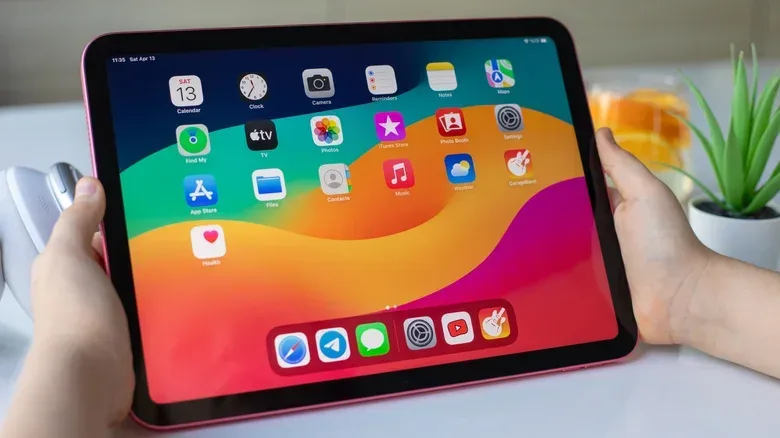
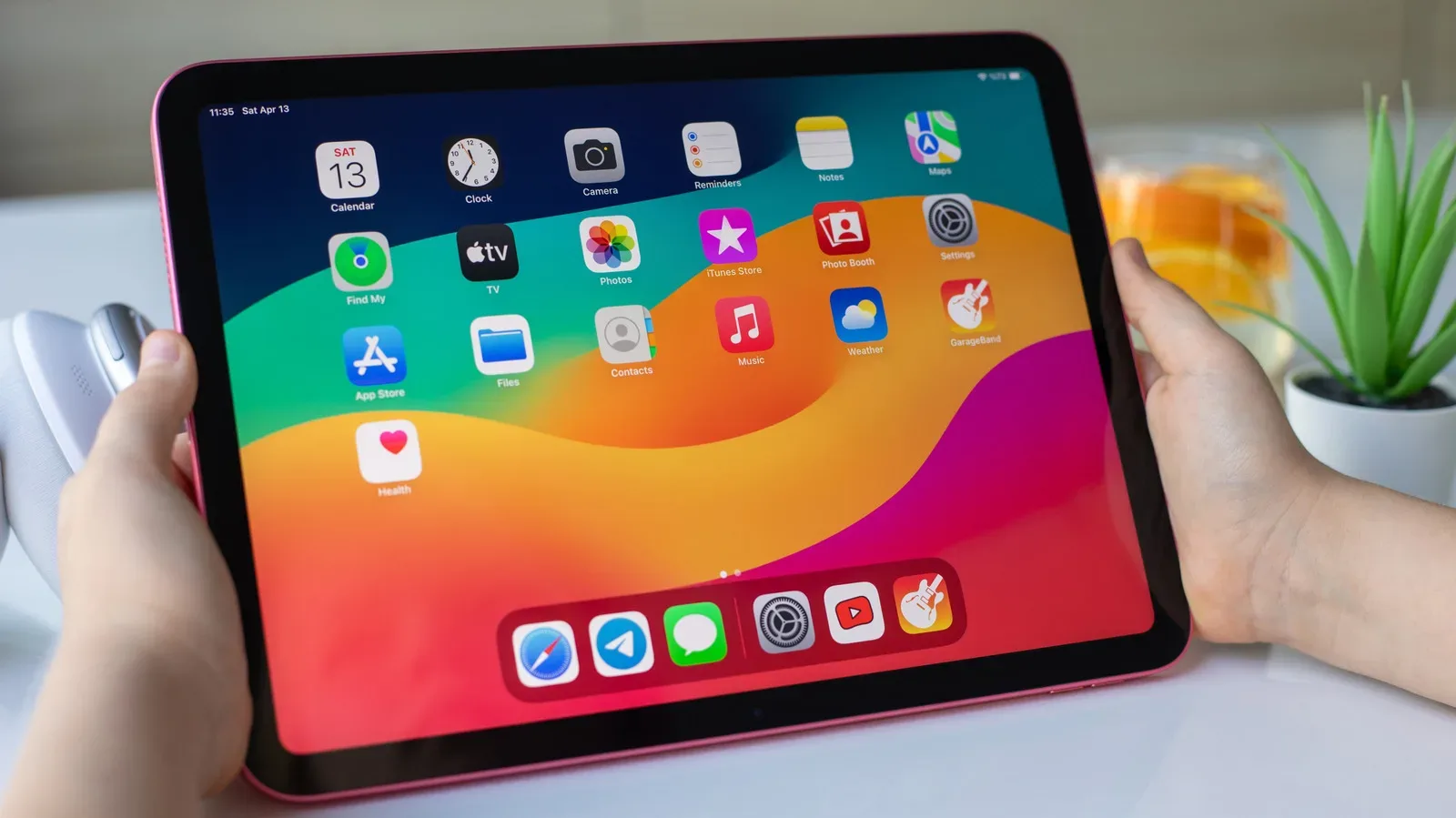
An old iPad is easy to dismiss as a drawer-bound relic: too dated for the newest apps, too large to replace a phone, and perhaps not valuable enough to justify selling. But the better question is not whether it can still be a general-purpose tablet. It is whether it can do one useful thing well.
For players, the most appealing answer may be a compact retro-gaming setup. Yet the same screen can also be repurposed as a photo frame, shared household calendar, bedside sound machine, second Mac display, Apple Pencil drawing surface, backseat video screen, ebook reader or dedicated music player. The practical limit is software support—and, for online tasks, security.
That distinction matters. iPadOS 27 supports the ninth-generation iPad and newer standard models, sixth-generation iPad mini and newer, fourth-generation iPad Air and newer, second-generation 11-inch iPad Pro and newer, and fourth-generation 12.9-inch iPad Pro and newer. Older hardware may still receive security patches, but on an unpredictable schedule. If a tablet is no longer supported, offline uses such as locally stored music, downloaded library books, personal videos and certain photo-frame setups are the sensible lane. It should not remain a device for banking, shopping or password-heavy accounts.
Before assigning a role, make the iPad behave more like an appliance than an all-purpose computer. Under Settings > Display & Brightness, Auto-Lock can be set to Never for an always-on display. Keep a stationary unit connected to power. Guided Access, found in Settings > Accessibility, can confine the tablet to one app; with an app open, triple-press the power button to activate it. That is useful for a wall calendar, kitchen controller or a kid-accessible game station where the goal is to prevent accidental detours into other apps.
1. Build a low-fuss retro gaming station with Delta
Delta is the standout reuse case for an iPad that still runs iPadOS 17.4 or later. The free emulator supports NES, SNES, Nintendo 64, Game Boy Advance, Nintendo DS and Sega Genesis systems. It arrived through the App Store after Apple began allowing retro-game emulators in 2024, so installing it does not require sideloading.
An emulator is software that reproduces the behavior of older game hardware. That makes one iPad capable of running software associated with several legacy systems. Delta includes useful quality-of-life functions: save states, fast-forward, custom controller skins and save syncing through Google Drive or Dropbox. A save state is different from a game’s ordinary save file: it records play at a chosen instant, which is especially convenient for older games designed around limited checkpoints or passwords.
The virtual controls are available, but a physical controller makes the tablet feel far less like a compromise. Delta supports PlayStation 4 and PlayStation 5 controllers, Xbox Series X|S controllers, Nintendo Switch controllers, Bluetooth keyboards and wired keyboards. Put the iPad on a stand, pair a controller and the unused tablet becomes a full-screen home spot for retro sessions rather than a device that only comes out for browsing.
There are two compatibility checks. First, Delta requires iPadOS 17.4, putting it within reach of the sixth-generation iPad and newer standard models. Second, the operating system requirement is separate from the question of whether a particular older tablet still receives current security updates. For a device dedicated to downloaded retro play, that difference is less consequential than it would be for a tablet storing financial information, but it is still worth understanding.
Related coverage includes 11 practical ways to put an old iPad back to work.
Anyone weighing this against a purpose-built handheld should also think about the play style. The iPad’s strengths are its larger display, controller support and the possibility that it is already owned. Its weakness is that it is a tablet first: a stand and controller are part of the setup. Still, reclaiming dormant hardware can be more appealing than paying more than $200 for a separate retro device.
2. Give a Mac more room—or make an iPad a drawing display
An iPad can earn its keep at a desk as well. Apple’s Sidecar lets a compatible iPad serve as a second screen for a Mac. It works with all iPad Pro models, sixth-generation iPad and later, fifth-generation iPad mini and later, and third-generation iPad Air and later, provided the iPad runs iPadOS 13 or newer. Both devices must be signed in to the same Apple Account.
From the Mac’s Displays settings, choose the iPad to extend the desktop. Extending means the iPad becomes additional workspace; mirroring, available through Screen Mirroring in Control Center, repeats the Mac display instead. The first option is the more useful one for keeping reference material, chat, music controls or another app beside a main project.
For a different arrangement, Universal Control lets one keyboard and mouse work across the Mac and iPad while the tablet continues running its own apps. That is not the same as a second monitor. It is better understood as shared controls across two devices—handy when the iPad is showing a music player or a communication app rather than a Mac window.
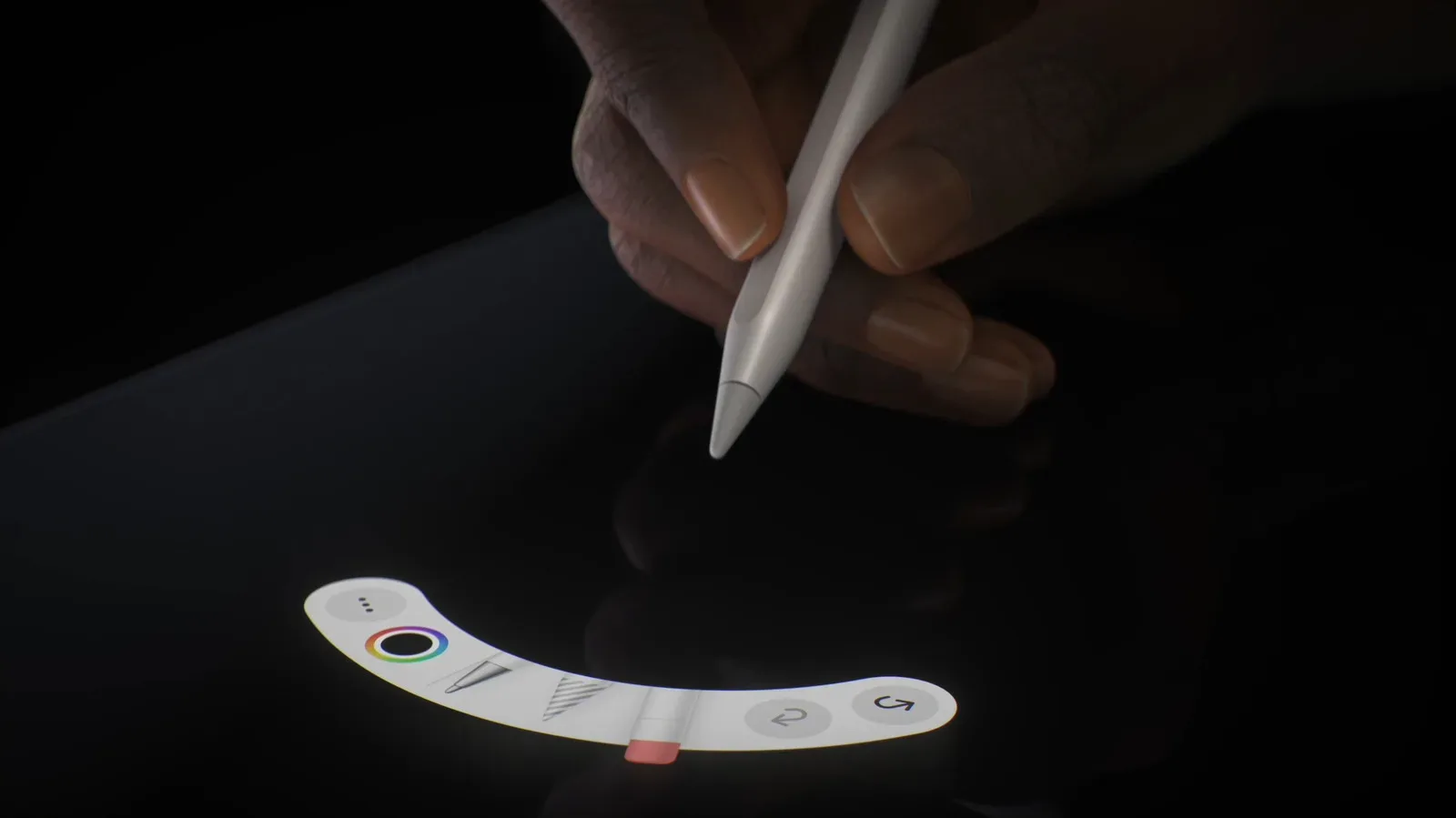
Sidecar also supports Apple Pencil, turning a compatible iPad into a way to draw directly in Mac apps. That makes the old tablet relevant for digital-art experiments without immediately buying a dedicated pen display. Compatibility needs close attention: the first-generation Apple Pencil works with sixth- through ninth-generation standard iPads, third-generation iPad Air, fifth-generation iPad mini and early iPad Pro models.
Windows users need a different route. Sidecar is Mac-only. Astropad Studio can mirror a Mac or Windows desktop to an Apple Pencil-compatible iPad, including Pencil pressure sensitivity for work in apps such as Photoshop. It has a free trial, then costs $99.99 annually or $179.99 as a one-time purchase. Luna Display works with Mac and Windows but relies on an $89.99 dongle. The cost comparison is important: an old iPad may reduce hardware spending, but software and accessories can still determine whether a setup makes sense.
3. Make an old tablet part of the household
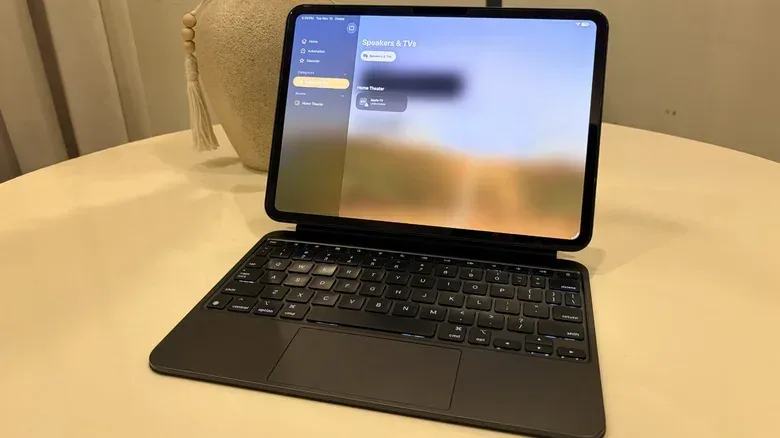
Stationary uses are often the best fit for an iPad with a tired battery, because it can remain plugged in. On a kitchen stand, the Home app can control lights, cameras and thermostats, while recipes, timers and FaceTime calls remain available on a screen that is not someone’s phone. Guided Access can limit the unit to Home when visitors or children use it.
It does not replace every function of Apple’s $299 HomeView. The newer display can recognize faces for individual setups and uses Siri AI with personal context from an iPhone. More importantly, an iPad cannot be a home hub in the current Apple Home setup. A HomePod or Apple TV remains necessary for remote controls and automations, and Matter accessories cannot be added without a hub. In other words, the old tablet can be a useful control surface, not the central piece of the smart-home infrastructure.
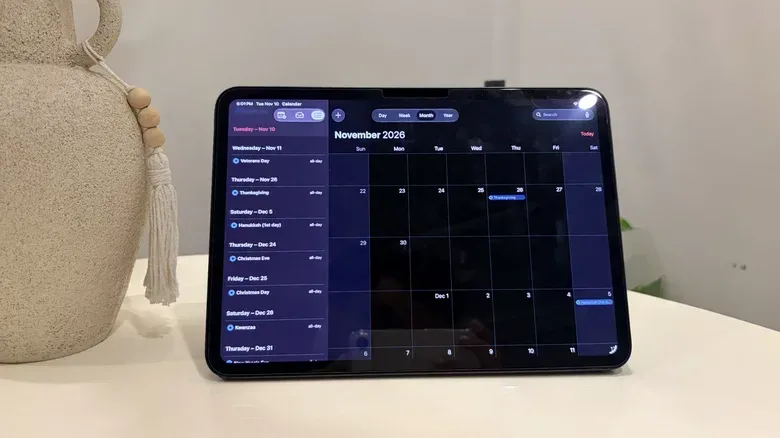
A wall-mounted iPad can similarly become a shared family dashboard. A shared iCloud calendar lets invited people add events from their own iPhones, while the mounted screen provides a common view. The organizer can choose whether invitees may edit it or share a read-only Public Calendar link. Shared Reminders lists can handle chores and groceries; on iPadOS 17 and later, grocery lists automatically arrange items into groups such as produce and dairy.
Cozi Family Organizer is another option for tablets running iPadOS 17 or later. Its free tier combines a color-coded calendar with grocery lists, to-do lists and a recipe box, though it only allows events to be added and viewed 30 days ahead. Cozi Gold is $39 per year and removes that limit while adding an ad-free experience, month view and more reminders. That gives an old iPad many of the core functions associated with a 15-inch Skylight Calendar, which costs $299.99 before its $79 annual Calendar Plus meal-planning plan.
4. Turn it into a gentler bedside device
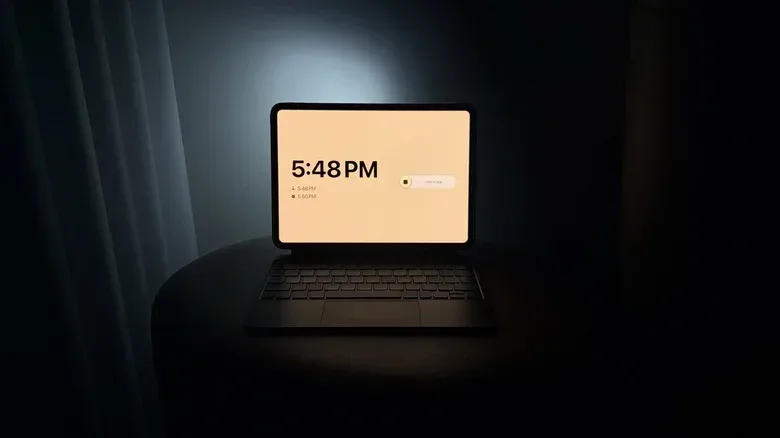
iPadOS 15 and later include Background Sounds under Settings > Accessibility > Audio & Visual. Choices include Balanced, Bright and Dark Noise, as well as Ocean, Rain and Stream. Adding Hearing to Control Center makes the control easier to reach. The Clock app covers alarms, so this is a straightforward sound-machine role with no separate device required.
The iPad does not include a native sunrise light, but apps can approximate one. Glow Alarm gradually brightens the tablet screen before an alarm, with a red-to-orange sunrise effect in its Pro tier. It is free with optional Pro plans, needs iPadOS 26 and must stay on its Sleep screen overnight for the light portion to work. Wake Up Light takes another route: with HomeKit smart bulbs and a home hub, it creates Home automations that brighten bulbs over 30 to 60 minutes. It requires at least iPadOS 17 and is free with optional upgrades.
For context, a dedicated Hatch Restore 3 costs $169.99, with a $49.99 annual subscription for its full sound library. An old iPad will not be a one-for-one replacement, but its built-in sounds, alarms and compatible apps may be enough for someone who already has the tablet and a safe place to keep it powered overnight.
5. Put that display to work for photos, books and video
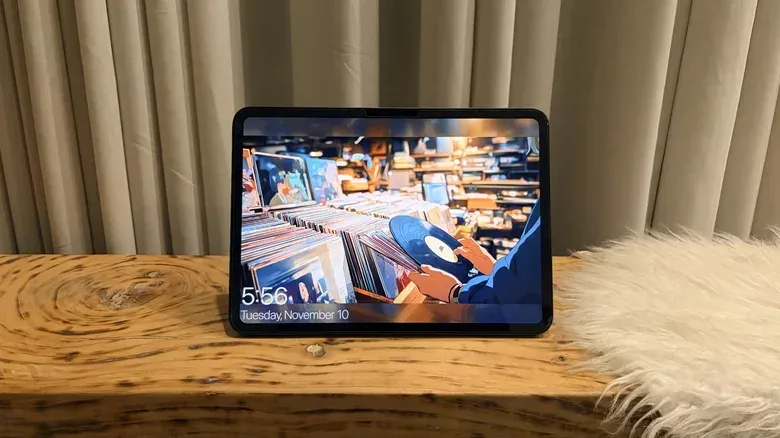
A digital photo frame is among the least demanding jobs for an aging tablet. The ninth-generation iPad has a 2,160 x 1,620 display, whereas many smart frames reach 1,280 x 800. Synced Photo Frame by Re-Frame needs iOS 12 or later and can pull from shared iCloud albums, so newly added images can appear automatically. Its lifetime Pro access costs about $10 and adds useful living-room features including a sleep schedule and automatic dimming.
LiveFrame is an option for much older hardware, supporting iOS 9.3.5 or later with Google Photos and Dropbox, although it has not been updated since January 2021. The built-in Photos app can also show an album as a slideshow, but it presents the result as a Memory with music and does not shuffle photos.
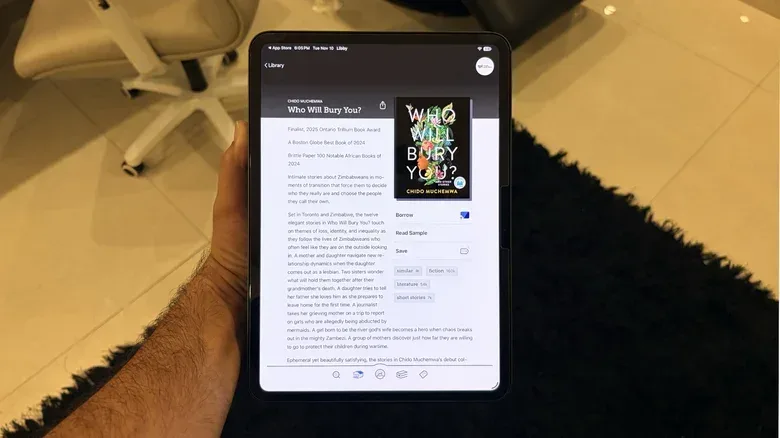
For reading, Libby runs on iPadOS 13 or later and lets library-card holders borrow ebooks, audiobooks and magazines. Borrowed titles can be downloaded for offline use, and audiobook playback includes a sleep timer. This is a sensible use for older devices precisely because it can reduce the need to browse online. It will not replicate an E Ink reader: compared with a $200 Kindle Paperwhite, an iPad’s backlit LCD is harder to read in direct sun, heavier and more battery-hungry. But near a charger, it can make a very capable no-extra-cost reader. The Kindle app itself requires iPadOS 17.
For road trips, a headrest-mounted iPad can be a passenger screen, not a CarPlay replacement. Download content before departure because connectivity on the road cannot be assumed. Netflix’s ad-supported plan allows 15 downloads per device each month, but its iPad app requires iPadOS 26. Older tablets may instead be limited to personally owned video in the TV app or other services that still support offline playback. YouTube Premium also offers downloads.
6. Create a music machine, then decide whether to keep it
As a dedicated music player, an iPad keeps calls and notifications off the listening device and gives lyrics or music videos a larger screen. Downloaded playlists avoid interruptions when a connection drops. A personal music library can be synced from a Mac through Finder on macOS Catalina or later. On Windows, the Apple Devices app handles syncing over USB or Wi-Fi, with the Apple Music app on the PC required.
Output options depend on the port. AirPlay can send audio to a HomePod or compatible speaker, while Bluetooth works with a wireless speaker. USB-C iPads accept a USB-C DAC directly; a DAC is a digital-to-analog converter, which allows digital audio to be used with wired audio equipment. Lightning models need Apple’s $39 Lightning to USB 3 Camera Adapter for supported audio interfaces. Some older models, including the ninth-generation iPad, retain a 3.5mm headphone jack for direct connection to powered speakers or a stereo.
Finally, reusing is not mandatory. Apple Trade In offers $45 to $915 for an iPad based on model and condition; selling privately can bring more but requires more effort. Before selling, recycling or handing the device to someone else, back it up, unpair accessories, sign out of the Apple Account, then use Settings > General > Transfer or Reset iPad > Erase All Content and Settings. Erasing disables Find My and Activation Lock, allowing the next owner to sign in with their own account. If that next owner is a child, Screen Time can manage app limits and content restrictions.
The most successful old-iPad project is usually the narrowest one. Pick the task the tablet can still do reliably, confirm that its operating system supports the necessary app, and avoid treating an unsupported device as a secure modern computer. For gaming, especially, a stand, a controller and Delta may be all it takes to turn surplus hardware into a screen worth returning to.
For more desk-setup perspective, see what actually changes with mechanical versus membrane keyboards for PC gaming.