Smartphones put an absurd number of useful tools in one pocket-sized device: maps, ride hailing, photography, messaging, games and more. The trade-off is that many of those apps want access to parts of the phone that are considerably more personal than a high-score table. Camera, microphone, location, contacts, photos, files and messages can all be sensitive permissions. A periodic permission audit is the security equivalent of opening an inventory screen and asking why a fishing app is holding a flamethrower.
This is not a case for treating every permission prompt as a jump scare. Apps often need access to perform an obvious function. A navigation service may need precise, continuing location access; a ride-hailing app may work best with it as well. A camera app needs the camera. A messaging service may need contacts if the user wants to find people already in their address book. The important question is simpler and more useful: does the permission make sense for what this app is meant to do, and does it need that level of access all the time?
Both Android and iOS provide tools to answer that question after an app has been installed. That matters because a choice made quickly during first launch does not have to be permanent. Access can generally be revoked, or reduced from persistent access to access only while an app is being used. Reviewing those choices occasionally is a practical privacy habit, especially for apps that have stayed installed long after their original purpose faded.
Permissions are capabilities, not automatic evidence of wrongdoing
A permission is the phone’s gatekeeping system for data or hardware features. Rather than letting an app silently use a microphone, inspect a photo library or obtain location information by default, the operating system requires the app to ask. Users can grant or deny the request, and can revisit the decision later through settings.
That protection is meaningful, but it works best when the person holding the phone gives each request a little context. The presence of a request does not establish that an app is malicious. Android and iOS have built-in measures intended to identify and block malicious apps, and plenty of legitimate software has real reasons to request sensitive capabilities. Still, an app can create unnecessary privacy risk if it retains access unrelated to its role.
Consider the difference between necessity and convenience. A maps app might need location to provide directions. It may function most effectively with Precise Location, which means location information accurate enough to support detailed navigation, and in some cases with the access setting set to Always. A game, by contrast, might have a clearer explanation to provide if it requests that same ongoing location access. That is not a verdict on the app; it is a cue to investigate before tapping through the prompt.
The same logic applies to the camera, microphone, contacts, photo library, messages and files. Ask what feature depends on the request. If the feature is optional, the permission may be optional too. If the explanation is not convincing, deny the request and see whether the app can still handle the task that actually matters to you.
Watch the indicators already on your screen
Modern phones do not leave camera, microphone and location use entirely invisible. On iPhone, a green dot indicates that the camera is being used, while an orange dot signals microphone activity. A blue location icon appears when an app checks location. Android phones provide similar status-bar indicators. Swiping down into the relevant panel—Control Center on iPhone or Quick Settings on Android—can help identify which app is accessing those features.
These icons are not a replacement for reviewing permissions; they are a timely alert that a sensitive capability is active. If an indicator appears while using an app feature that obviously calls for it, there may be no mystery. If it appears at a surprising time, it is worth checking the app shown in the system panel and revisiting its access. That distinction prevents two unhelpful extremes: ignoring every signal, or assuming every signal is a crisis.
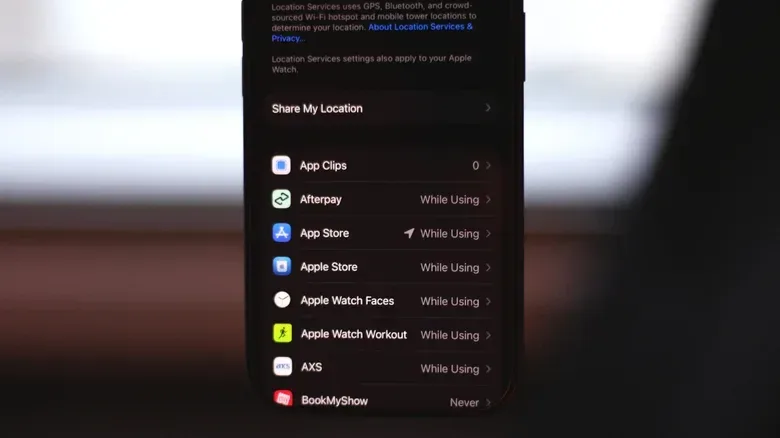
Location deserves special attention because its access settings can be more granular than a simple yes-or-no choice. An app may be allowed location access all the time, only while it is in use, or not at all. “Only while using” is often a useful middle ground: the app can use location for an active task without retaining background access. The correct setting is contextual. A navigation or ride-hailing service may lose useful behavior if access is tightened too far, while a less location-dependent app may not need continuous access.
How to audit permissions on iPhone and iPad
On iOS 27 and iPadOS 27, third-party apps request permission when they first need information or a feature such as contacts, photos, location or the microphone. The initial prompt offers choices that can be useful in the moment. For location, Allow Once permits a temporary use, while Allow While Using App allows access during active use of that app.
For a broader audit, go to Settings > Privacy & Security. This area organizes access by permission type and shows how many apps have access. Selecting a category such as Microphone displays the apps allowed to use it. Turning off the control beside an app revokes that access.
A permission-type-first review is useful for anyone wondering, “Which apps can hear me?” or “Which apps can see my photos?” It turns a vague privacy worry into a finite list. Work down the categories that would concern you most:
- Microphone: Keep access for apps that genuinely need voice input, calling or audio capture.
- Camera: Check whether an app has a clear camera-based feature you use.
- Location: Decide whether the app needs precise location, background access, or merely access while it is open.
- Photos: Consider whether an app requires the entire library or only specific images and videos.
- Contacts: Ask whether finding contacts is central to the service rather than an unrelated extra.
Photo access can be reduced without shutting down sharing altogether. When an app asks for access to the camera roll, iOS and iPadOS can use Limited Access, letting the user select the particular photos and videos to share. That is often a practical way to send a few images without providing access beyond those selected items.
For an additional layer of visibility, iPhone and iPad users can enable App Privacy Report. The report can show which apps have accessed data and sensors, and it also shows app network activity: the domains apps contacted and when. A domain is an internet address associated with an online service. Seeing one in a report does not, by itself, prove a problem, but the record gives users more information when they are deciding whether an app’s behavior fits its function.
How to audit permissions on Android
Android also asks for permissions when an app first needs access. The exact names and placement of menus can differ by phone maker, but Android supports per-app review and adjustment for sensitive areas including camera, microphone, location, contacts and other data.
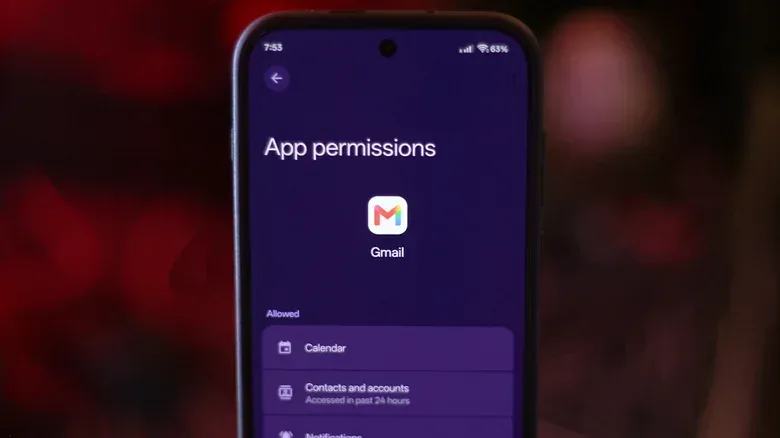
The direct route is through the app’s information page. Long-press the app icon and choose the i information icon. Alternatively, open Settings > Apps > See all apps, choose the app, then tap Permissions. From there, select a data type and choose Allow or Don’t allow.
Location may offer more nuanced choices, including All the time and Allow only while using the app. That is the same core privacy decision seen on iOS: does this app need to know where the phone is outside the moments when you are actively using it? If the answer is no, reducing access can preserve the app’s essential function while limiting its background reach.
Android’s Privacy dashboard offers another route for reviewing activity. It shows permission types and the apps that accessed them during the previous 24 hours. Depending on the device, look in the Settings app under Security and privacy, or use the Settings search box to find “Privacy dashboard.”
The dashboard is particularly useful as a review tool because it starts from recent use rather than from an individual app. Someone who notices a camera or microphone indicator can use it to understand which apps have recently accessed sensitive features. Again, the aim is context: access during an expected task is different from access that appears difficult to explain.
A low-drama checklist for permission prompts
The most effective approach is not to attempt a forensic investigation every time an app opens. Instead, build a small pause into permission decisions and run a more complete review once in a while. That keeps the process manageable and makes it more likely that permissions reflect how you use the phone now rather than how you used it months ago.
- Read the requested capability. Identify whether the app wants the camera, microphone, location, contacts, photos, files or another sensitive area.
- Match it to the feature. Think about the task you are trying to perform, not merely the app’s general category.
- Choose the narrowest access that still serves the task. Temporary access, access while using the app, and limited photo selection can be useful options where offered.
- Check the operating-system indicators. When camera, microphone or location signals appear, use the available panel to see what is active.
- Audit older installs. Apps that are rarely used or no longer serve a purpose deserve another look in the privacy settings.
- Review before installing. Both the Play Store and App Store list information an app may request, offering a chance to consider access before adding it to the device.
This is especially relevant for people who use one device for games, communication, photography and payments. The phone is not just a handheld console or a map; it is the place where many categories of personal information intersect. The best permission setting is therefore rarely an abstract rule such as “allow everything” or “deny everything.” It is a choice tied to the application’s real job and to the level of access required to do it.
Privacy controls are most useful when they are treated as adjustable settings rather than one-way doors. If a denied permission prevents an important feature from working, it can be reconsidered. If an app receives access and later seems to need more than it should, that access can be reduced or removed. The point is not to make every app feel suspicious. It is to ensure that apps get the keys they need—not the entire dungeon.
For a related look at how device choices can shape portable play, see our take on the OLED iPad mini’s gaming proposition and price challenge.