A phone contact list can become the least curated collection most people own. It survives device upgrades, absorbs entries from multiple email accounts and keeps every one-time number that seemed important for about six minutes. The result is an inventory screen packed with duplicate characters, obsolete quest-givers and names so vague that voice control has no idea who is meant.
That mess is not merely cosmetic. Contacts feed calling, messaging, calendar reminders, mapping, voice assistants and in-car systems. A bad entry can mean an old number, an ambiguous command while using Apple CarPlay or Android Auto, or an address lookup that points nowhere useful. Cleaning the list is less about achieving a pristine spreadsheet than making the information your phone relies on dependable.
The sensible approach is to treat this as a save-management job: establish one authoritative home, make a backup, consolidate the usable records, resolve duplicates carefully, and then improve the entries worth retaining. Deleting first and asking questions later is how a cleanup turns into a recovery mission.
First, understand where the contacts actually live
Modern phones generally do not work like older handsets that held every number on a SIM card or solely in internal storage. iPhones normally sync contacts through iCloud. Android phones commonly use a Google account. Adding accounts from services such as Outlook or Yahoo can introduce additional contact lists, too.
That distinction matters because a contact visible on the phone may belong to a particular online account rather than to the device itself. It can also explain the classic mystery of seeing the same person two or three times: the phone may be displaying separate records from separate services. Viewing them all together is convenient, but it does not solve the underlying fragmentation.
Some Android devices can save a contact only on the handset. That is a fragile setup. If the device breaks, those records require a manual backup to avoid loss. A synced account gives the list a continuing home across device changes, while also making bulk editing more practical through a web browser.
Choose one authoritative account
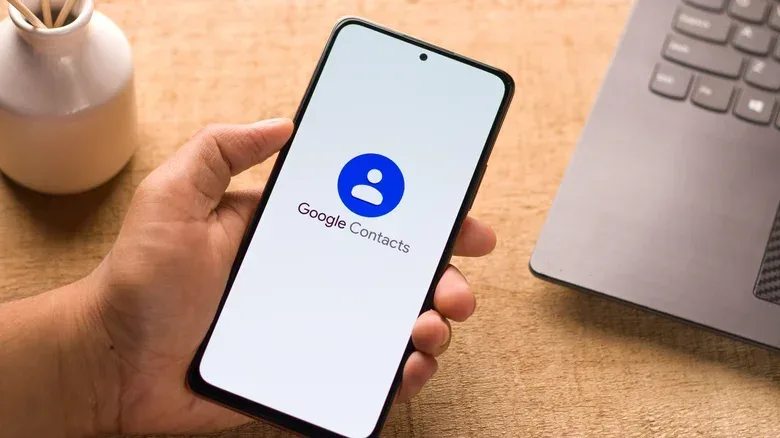
Pick a single service to be the permanent home for the contacts you intend to keep. The best choice is usually the account you expect to use across future devices. Google Contacts is a practical candidate when cross-device synchronization and its built-in management tools are priorities, while iCloud is the natural fit for an Apple-centered setup. The important part is consistency, not declaring one ecosystem universally superior.
Before making changes, export the existing contacts from every account involved. An export commonly creates a CSV or VCF file. CSV is a spreadsheet-style format; VCF, also called vCard, is a contact-card format intended for moving address-book information. These files are not exciting, but they are the rollback point if a merge or deletion goes wrong.
Then use each account’s web interface to export its contacts and import them into the chosen account. Working on the web is generally easier for this stage because it supports multi-select actions and presents the account’s data more clearly than a small phone screen.
Once the imports are complete, stop the other accounts from continuing to display or sync contacts. Otherwise, the old lists remain in circulation and the duplicates can promptly return.
- On iPhone, open Settings > Apps > Contacts > Contacts Accounts. Select accounts whose contacts should no longer appear and disable the Contacts switch. In the Contacts settings, use Default Account to make sure new entries go to the chosen service.
- On Android, open Settings > Accounts and backup > Manage accounts. Choose the account, enter Account sync, and disable Contacts if it is no longer part of the plan. Depending on the device and account setup, existing local visibility may need separate cleanup, or the unused account may need to be removed from the phone if it is not needed.
This is the difference between deleting an item from a menu and changing the system that keeps respawning it. It is also a useful reminder that cloud syncing is not magic: it follows the account rules currently enabled.
Merge duplicates, but do not let automation make every decision
With all wanted entries in one place, duplicate cleanup is the obvious next task. Google Contacts can surface potential duplicates and includes a Merge & fix tool. It may also suggest useful additions, such as an email address from someone with whom you have corresponded.
Suggestions are not verdicts. Two different people can share a name. A family may use a shared landline. An old work entry and a personal entry may look similar but contain information you still want. Review each proposed merge before confirming it. A clean list with one accidentally combined pair of people is worse than a list with a few harmless repeats.
When reviewing a likely match, compare more than the display name. Check phone numbers, email addresses, workplace details and any notes. If two entries are genuinely the same person, merge them and inspect the resulting record to make sure the useful details survived. If the relationship is unclear, leave the records separate until it can be resolved.
This careful pass is especially worthwhile because contacts operate as lookup keys elsewhere on the phone. A wrong merge can attach the wrong photo, ringtone, address or personal note to someone else. That is not a high-stakes database catastrophe, but it is exactly the sort of small digital mistake that causes awkward calls and incorrect directions later.
Sort the roster instead of pretending every contact has equal value
Groups provide a simple way to make an overgrown address book navigable. Create useful buckets such as family, work and businesses. A Favorites group should be reserved for the small group of people where speed matters most.
Also mark those people as Favorites in the phone’s Contacts app. That status can place them prominently in the Phone app and can matter for Do Not Disturb or Focus configurations. In plain terms, a Focus mode is a notification filter: it can reduce interruptions while still allowing specified people through. A contact list that accurately identifies priority callers makes that feature more useful.
The manual review is where most of the actual decluttering happens. Scroll through the consolidated list and make a decision for each entry:
- Keep: people and services you actively need.
- Group: entries that should remain but are easier to find under work, family, business or another useful label.
- Archive: uncertain contacts that may be useful someday but should not dominate the everyday view.
- Delete: obsolete entries, wrong numbers and people or businesses with no remaining reason to be stored.
An Archive group is a useful compromise for the “maybe” pile. It avoids turning caution into permanent clutter. Rather than leaving every uncertain record among current friends and family, move it out of the main flow and revisit it later. Browser-based contact pages typically let you select multiple records at once, which makes grouping or deleting batches far quicker than doing every action on the handset.
Make the surviving records work for maps, voice control and driving
After removing the obvious dead weight, upgrade the entries that remain. Full names are the starting point. If the list contains several people named Alex, Chris or Sam, a first name alone creates uncertainty. Add last names wherever possible. A useful relationship cue can also help, such as a role in brackets when it genuinely distinguishes the person.
This is particularly relevant to voice commands in Apple CarPlay and Android Auto. If a system cannot confidently match a spoken name to a contact, it may ask for confirmation. That is not only inconvenient; it creates another distraction during a drive. Clear, distinct naming lowers the chance that a contact lookup becomes a guessing game.
Photos improve recognition in group chats and calling screens, where repeated initials are easy to confuse. A profile photo from social media or a personal photo can be assigned manually. Some people may already have Google Calling Cards or Apple Contact Posters, which can provide the visual identity without a separate edit.
The contact card can also hold more than a number and an email address:
- Birthdays can appear on the calendar.
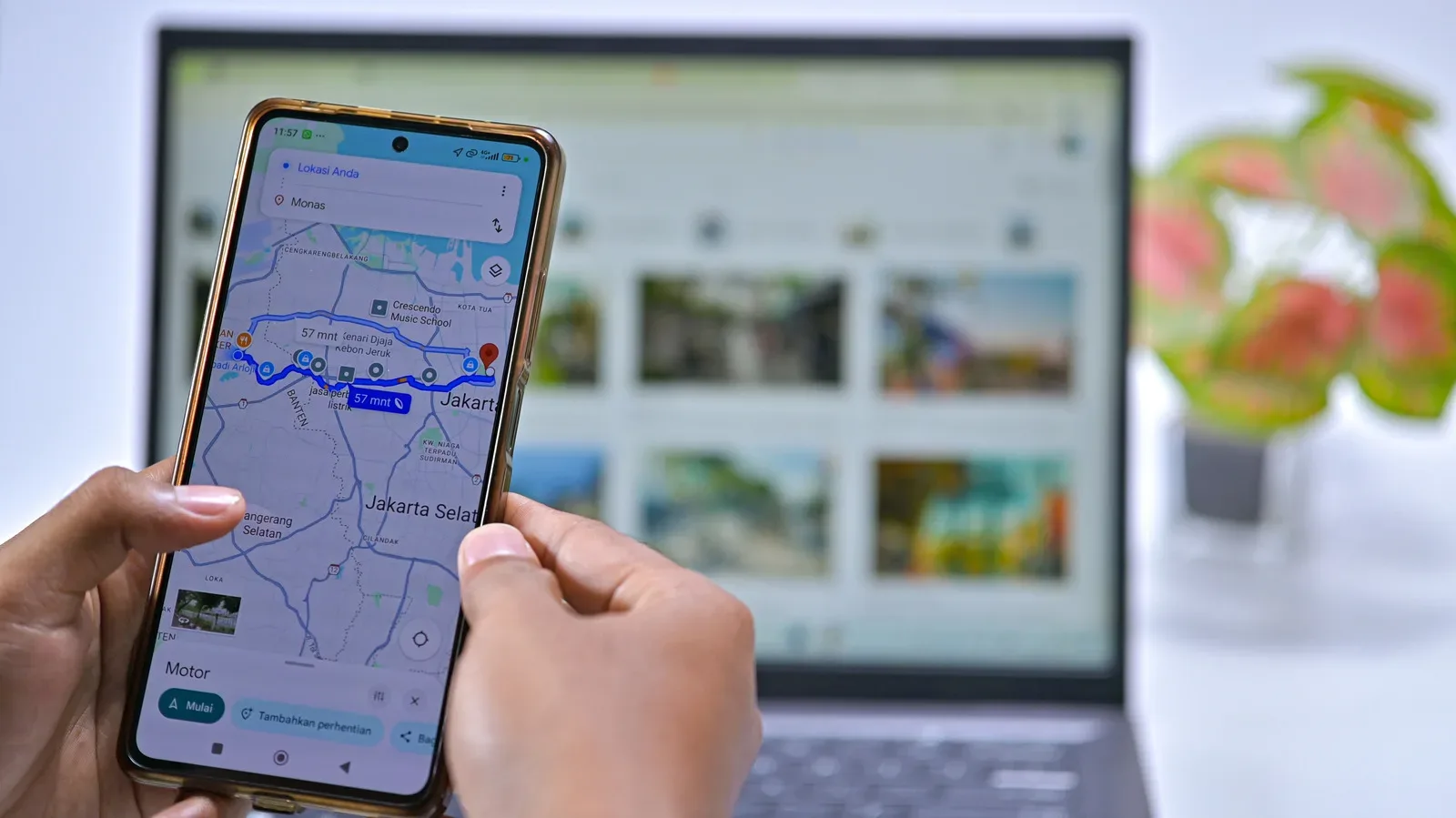
- Addresses allow a name search to become a destination in Apple Maps or Google Maps.
- Custom ringtones or text tones can identify who is reaching out without looking at the screen.
- Notes can record why a number was saved or provide relevant context.
Use restraint with notes and personal information. The goal is a functional address book, not an unnecessarily detailed dossier. Store what helps identify a contact or use a feature you rely on; skip information with no practical reason to be there.
Keeping an address current is particularly valuable. It converts a contact from a passive name-and-number record into a shortcut for navigation. Conversely, an outdated address can make the contact card deceptively dangerous: the phone can confidently guide someone to the wrong place.
Make cleanup a small maintenance routine, not a once-a-decade ordeal
Names change, numbers are retired and jobs end. Those normal changes are why a contact list gradually decays. The best defense is not an epic annual purge; it is fixing an entry when the change becomes known. If someone gets a new number, update it then. If an old contact resurfaces with no current purpose, archive or remove it rather than returning it to the active roster by default.
Connected hardware makes accurate personal data more useful, and more consequential. As phones increasingly sit at the center of calls, navigation and wearable-device workflows, basic account organization has a wider payoff. That broader device ecosystem is part of why even seemingly mundane phone maintenance deserves attention; it is the same practical question raised by products such as Even Realities’ G2 smart glasses: connected tech is only as seamless as the information it can reliably use.
Finally, export the cleaned contact list and store the file somewhere safe as a backup. Do it after the major reorganization, not as a substitute for syncing. Synchronization keeps devices aligned; an exported copy is an independent snapshot in case a mistake, account problem or bad import undoes the work.
A good contacts list is quiet infrastructure. It does not need to be exhaustive, sentimental or perfectly formatted. It needs to identify the right person, preserve the right route, support the right interruption settings and stay in one place where it can be maintained. Remove the outdated cast, keep the people who matter, and the phone starts behaving less like a junk drawer with a dialer attached.