Android is often discussed as though every phone delivers roughly the same experience with a different launcher on top. Samsung’s Galaxy devices make a strong case for the opposite. One UI, Samsung’s software layer built on Android, contains a set of tools that change how a phone behaves in a multi-device desk setup, a car, a shared speaker session, a customization rabbit hole, or a security-conscious daily routine.
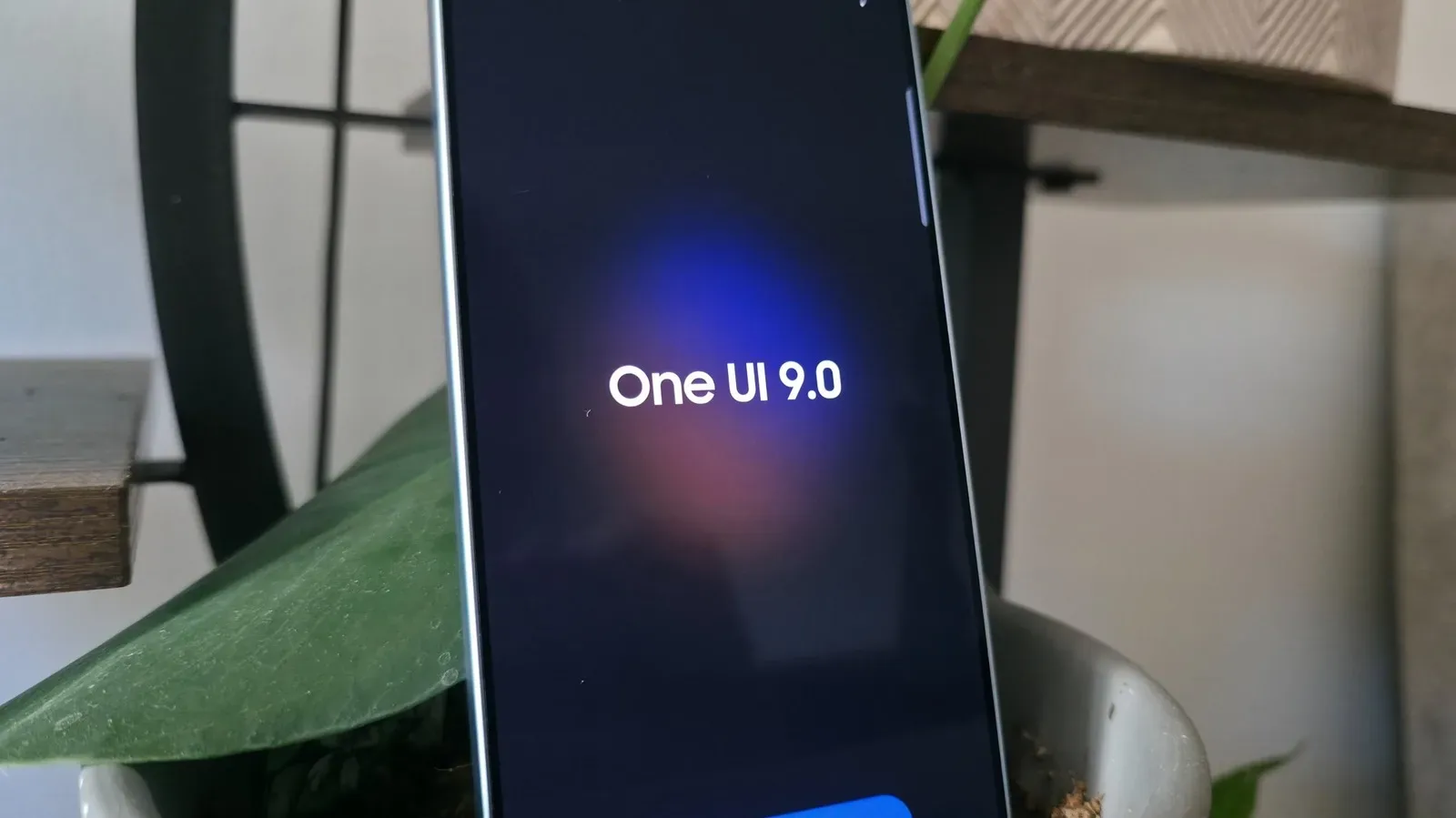
The important distinction is not that no other company attempts any of these ideas. Some do. Rather, Samsung has assembled several unusually flexible options into one Galaxy-focused environment. The five features below are available in One UI 8, with the features also present on One UI 8.5 and One UI 9. Device update eligibility still matters, so owners should check the version their particular Galaxy phone or tablet supports before expecting every menu to appear.
1. Multi Control turns separate Galaxy screens into a shared workspace
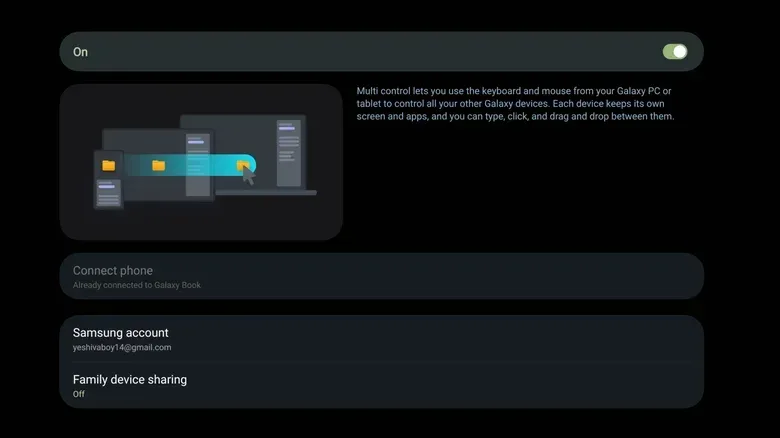
Multi Control is the feature with the most immediately visible productivity pitch: connect a mouse and keyboard to one device, then use those inputs across compatible Galaxy devices and a Windows PC. The cursor can move among screens, text can be typed into fields on connected devices, and files can be dragged between them.
That sounds straightforward, but the practical implication is bigger than merely avoiding a second keyboard. A Galaxy phone can remain on a stand beside a tablet while the tablet’s keyboard and trackpad control both interfaces. The phone becomes an active companion display for a music app, a calendar, messages, or a task list, rather than a device that must be picked up each time it needs attention.
Crucially, Multi Control is designed to work among Galaxy devices without forcing a PC to serve as the middleman. Competing cross-device systems from Lenovo/Motorola and Oppo/OnePlus offer related functionality but require a PC in the connection. Samsung’s approach allows a phone-and-tablet pairing to stand on its own, which is particularly useful for people using a large tablet with a keyboard case as a lightweight laptop substitute.
Samsung has also expanded the PC side of Multi Control beyond its own Galaxy Book machines. That makes the arrangement more broadly useful for a Windows desktop setup: a PC, Galaxy tablet and Galaxy phone can occupy the same desk while sharing cursor and keyboard control.
Why it matters: Multi Control reduces small but repeated interruptions. Copying a line into a phone app, replying to a message, moving a file, or adjusting music normally means switching hands and attention. Here, those actions can be folded into one mouse-and-keyboard flow.
What it does not mean: It does not make every device a single operating system. Each screen still runs its own native interface. Multi Control is input and file-sharing convenience, not a promise that every app, window or workflow will seamlessly span screens.
Related coverage includes Five One UI Features That Set Samsung Galaxy Phones Apart.
2. Separate App Sound gives audio a little common sense
Audio interruptions are one of mobile computing’s least glamorous annoyances. A phone is connected to a car or Bluetooth speaker for music; someone opens a short-form video; suddenly the clip’s opening audio announces itself to everyone nearby. One UI’s Separate App Sound exists to prevent that kind of accidental public performance.
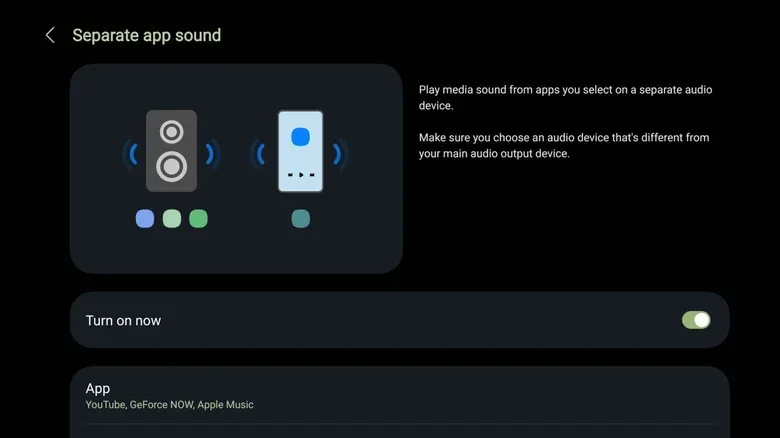
The feature assigns a chosen app to a chosen audio output. For example, TikTok or Instagram can be routed to the phone’s built-in speaker while music continues through a car’s Bluetooth system or a connected speaker. Instead of Android treating every sound as though it belongs on one currently active output, Separate App Sound creates a deliberate split.
Setup is found at Settings > Sounds and vibration > Separate app sound. Users choose an app, then choose its output device. The value is in its specificity: it is not an all-purpose promise that every sound source can be independently mixed, but a way to keep selected noisy apps from hijacking the audio destination that matters.
Sound Assistant goes further
Those who want more control can install Samsung’s Good Lock suite from the Galaxy Store and add its Sound Assistant module. Sound Assistant includes a Multi sound setting for choosing which apps may play alongside other apps. Selecting All apps prevents apps from pausing one another’s audio system-wide, pushing Android toward desktop-like behavior where multiple programs can make sound at once.
That flexibility can be useful, but it also requires restraint. Allowing every app to play simultaneously may preserve music when a video launches, yet it can produce a mess of alerts, video sound and music if notification habits are not under control. The sensible route is to start with the individual-app arrangement and use broader simultaneous playback only when it solves a real routine problem.
Practical use: Route the entertainment app most likely to ambush your speakers to the handset itself, then leave navigation, music or calls on Bluetooth as needed. It is a small setting with a high embarrassment-prevention return.
3. Music Share makes one Bluetooth connection easier to share
Music Share addresses a different Bluetooth nuisance. A phone is already connected to a speaker, but another person wants to play something. The usual answer is to open the speaker or vehicle’s pairing controls, disconnect or reshuffle devices, and eventually hope the menu cooperates. Music Share instead lets another device connect through the Galaxy phone’s existing Bluetooth link.
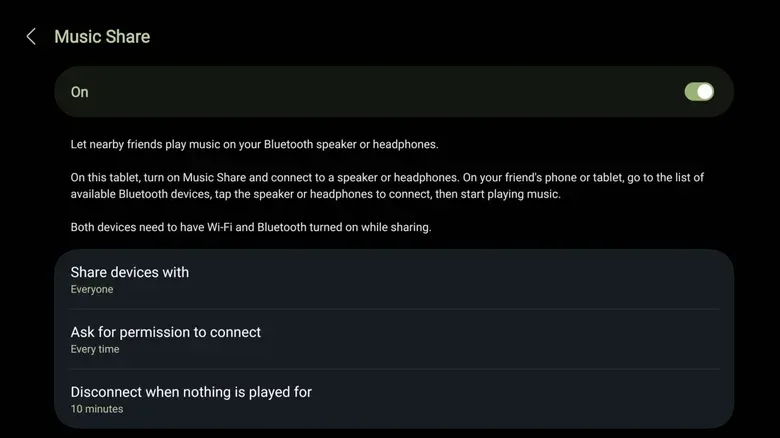
After a Galaxy device is connected to a Bluetooth speaker, enable Music Share from the Quick Panel. On another phone, the speaker appears in the form [speaker name] via [your name]. The guest device connects to the Galaxy phone, while the Galaxy phone routes that guest’s audio onward to the Bluetooth speaker.
In plain terms, the Galaxy handset acts as an audio bridge. The speaker’s direct connection remains with the original phone; friends do not need to dig into the speaker’s own Bluetooth menus simply to contribute a track.
Samsung has included useful guardrails. Music Share defaults to accepting requests only from contacts, and requests require approval. Long-pressing the Quick Panel’s Music Share tile opens settings for adjusting those permissions. The default idle disconnect timer is 10 minutes, with five-minute, 30-minute and never-disconnect choices also available. The host can disconnect someone as well.
Why those controls matter: The feature is intentionally social, but a shared speaker should not become an open invitation to every nearby device. Contact filtering, approval and timeouts put the owner back in charge of the queue.
Best use case: It is a convenience feature for a parked car, a party, or any shared speaker situation where the owner wants to allow contributions without repeatedly dismantling a working Bluetooth connection. It should never be a reason to fiddle with audio controls while driving.
4. Good Lock is Samsung’s giant box of optional knobs
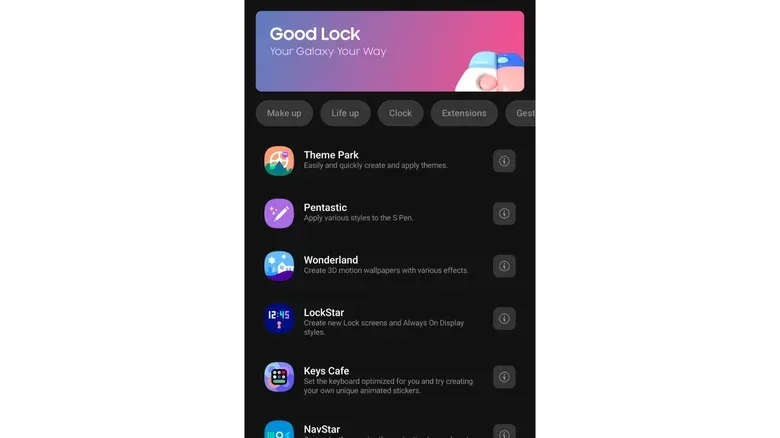
Good Lock is not one setting so much as Samsung’s sprawling laboratory for people who look at a phone and immediately wonder which parts could be rearranged. It is a Galaxy Store download that serves as a container for individual plug-ins. There were 23 plug-ins at the time described, each exposing a different cluster of customization and behavior controls.
The suite’s appeal is breadth. Home Up adjusts the home screen. Camera Assistant adds camera-app options. MultiStar expands multitasking features. NavStar can even replace a home button with a GIF. Display Assistant can apply a longer screen-off timeout to specific apps, a niche option that becomes logical the moment someone needs a particular screen to stay awake while reading, following instructions, or monitoring something.
Other described tweaks include rotating home-screen icons sideways, making icons fill the screen, manually choosing a camera lens, and reordering the Settings menu. None is essential to a basic phone experience. That is precisely the point: Good Lock makes room for preferences that would be excessive or confusing if they were placed directly in the default Settings app.
Good Lock can also be uneven. Some functions are not clearly named, and parts of its English text can be imperfect. It rewards exploration rather than presenting a polished, guided tour. For users who want a phone that works predictably with minimal intervention, that is a reason to leave it alone. For people who enjoy shaping interfaces around habits, it is a rare acknowledgement that “default” is not the same thing as “best for everyone.”
There is a gaming-adjacent appeal here, too: the same willingness to experiment with Android settings often overlaps with the crowd interested in running demanding software on phones. For an example of how actively Android-based game tooling moves, see ARMSX3 1.5.2’s Android PS3 emulation changes.
How to approach it: Do not install every module simply because it exists. Identify one irritation—a home-screen behavior, navigation preference, camera control, audio rule, or multitasking limitation—then look for the module that addresses it. That produces a more manageable phone than turning every available dial at once.
5. Auto Blocker adds defensive limits for higher-risk situations
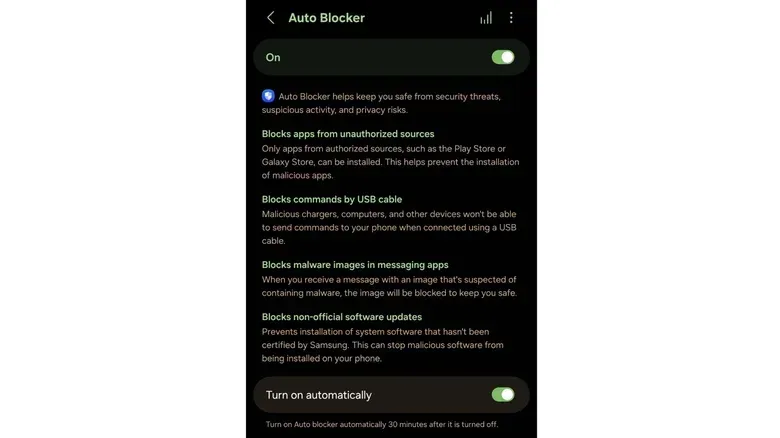
Auto Blocker is One UI’s security-oriented feature set. It is aimed at reducing exposure to advanced malware and unwanted device access by limiting several routes attackers can use. There is overlap with Google’s Advanced Protection options on newer Android devices, but the two are not identical; the most security-conscious Galaxy owners can enable both.
The first major choice is app installation. Auto Blocker prevents apps from being installed from outside the Play Store. This process is commonly called sideloading: installing an app package obtained somewhere other than the standard store. Sideloading can be useful, but it also creates a path for malicious or tampered apps. With Auto Blocker active, that path is closed.
It also blocks USB commands from reaching the phone. This matters because a malicious USB device can automatically issue commands when plugged in. Such tools are sometimes called “rubber duckies.” Risk is not limited to obvious USB sticks; unsafe cables or public charging ports can be part of an attack scenario. Auto Blocker does not make risky charging habits wise, but it can lower the chance that a USB-based command attack succeeds.
The protections extend to malware delivered through messaging apps, including zero-click malware. A zero-click attack does not require its target to tap a link or open an attachment for the attack to execute. That makes it especially concerning because the usual advice—do not click suspicious things—is not enough by itself. Auto Blocker can also automatically reactivate after it has been turned off temporarily, which helps avoid leaving protection disabled after a short-lived need, such as installing an APK.
Maximum Restrictions is the stricter setting
Within Auto Blocker, Maximum Restrictions adds further barriers. It blocks device-admin apps that could execute commands remotely, limits USB use to charging, blocks automatic connections to insecure Wi-Fi networks that may be exposed to a man-in-the-middle attack, and blocks 2G connections.
A man-in-the-middle attack is a situation where an attacker positions themselves between a device and the network communication it expects, potentially intercepting or altering information. Blocking automatic joins to insecure networks reduces the odds of connecting casually to a risky access point. The 2G block addresses another concern: 2G can be spoofed by law-enforcement tools known as Stingrays.
The trade-off is intentional: Maximum Restrictions makes a phone less permissive. Someone who routinely installs APKs, uses USB data accessories, or depends on particular connections may find it inconvenient. That does not make the option excessive; it means it should be selected based on a person’s threat model—the realistic kinds of risk they expect to face—rather than activated blindly.
One UI’s advantage is control, not just a longer settings list
These five features point to the same broader strategy. Multi Control treats a phone, tablet and PC as parts of a workspace. Separate App Sound and Music Share recognize that Bluetooth and mobile audio are social, messy and often context-dependent. Good Lock offers an unusually deep set of elective changes. Auto Blocker gives users an option to exchange some freedom for stronger guardrails.
Not every Galaxy owner needs all of them. In fact, the best experience may come from enabling only the few that remove recurring friction: Multi Control for a phone-tablet desk, Separate App Sound for a car, Music Share for a household speaker, one Good Lock module for a specific annoyance, or Auto Blocker for a more locked-down device. The appeal of One UI is not merely that it has more switches. It is that several of those switches correspond to real, recognizable ways people already use their phones.