A lag spike in the deciding moment of an online match is easy to blame on the game, the server or the internet provider. Sometimes that is fair. But a surprising number of problems begin much closer to home: with a router hidden in a bad spot, too many important devices competing over Wi-Fi, or a new piece of networking gear configured to fight the old one.
For a gaming household, a home network is shared infrastructure. Phones, tablets, smart speakers, televisions, consoles and a PC can all ask for attention at once. The goal is not necessarily to buy the most aggressive-looking router available. It is to make deliberate choices about where the signal originates, which gear gets a cable, how the network is secured and how additions are configured.
That approach is especially useful when planning the full cost of a gaming setup. The console itself is only one part of the equation, as discussed in this look at the Switch Lite’s costs beyond its sticker price. A stable connection can be just as important to the everyday experience, and it does not always require an expensive network overhaul.
Do not treat router placement as decoration cleanup
The most common physical mistake is putting the router wherever it is least visible: a far corner, an enclosed area or a spot chosen solely because that is where the provider installed a modem or gateway. That decision may make a room look tidier, but it can leave the wireless signal beginning its trip from the least useful part of the home.
A central location is generally the better target, or the closest practical alternative that does not create a hazard. This does not mean a router must dominate the living room. It does mean that hiding it at the edge of the house has consequences. A signal starting in one corner has more distance and more of the home to traverse before it reaches rooms on the opposite side.
It also pays to consider nearby electronics. Microwaves, cordless phones and baby monitors can disrupt Wi-Fi. The issue is not that every appliance automatically ruins a connection; it is that wireless performance can be affected by interference, and placing networking hardware beside potential sources of disruption is an avoidable gamble.
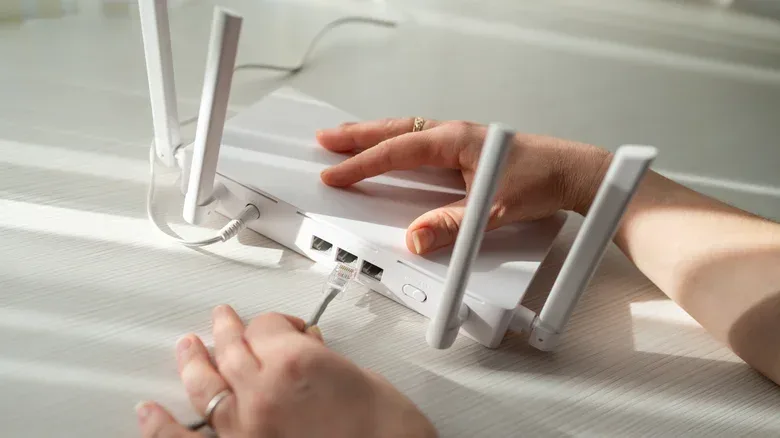
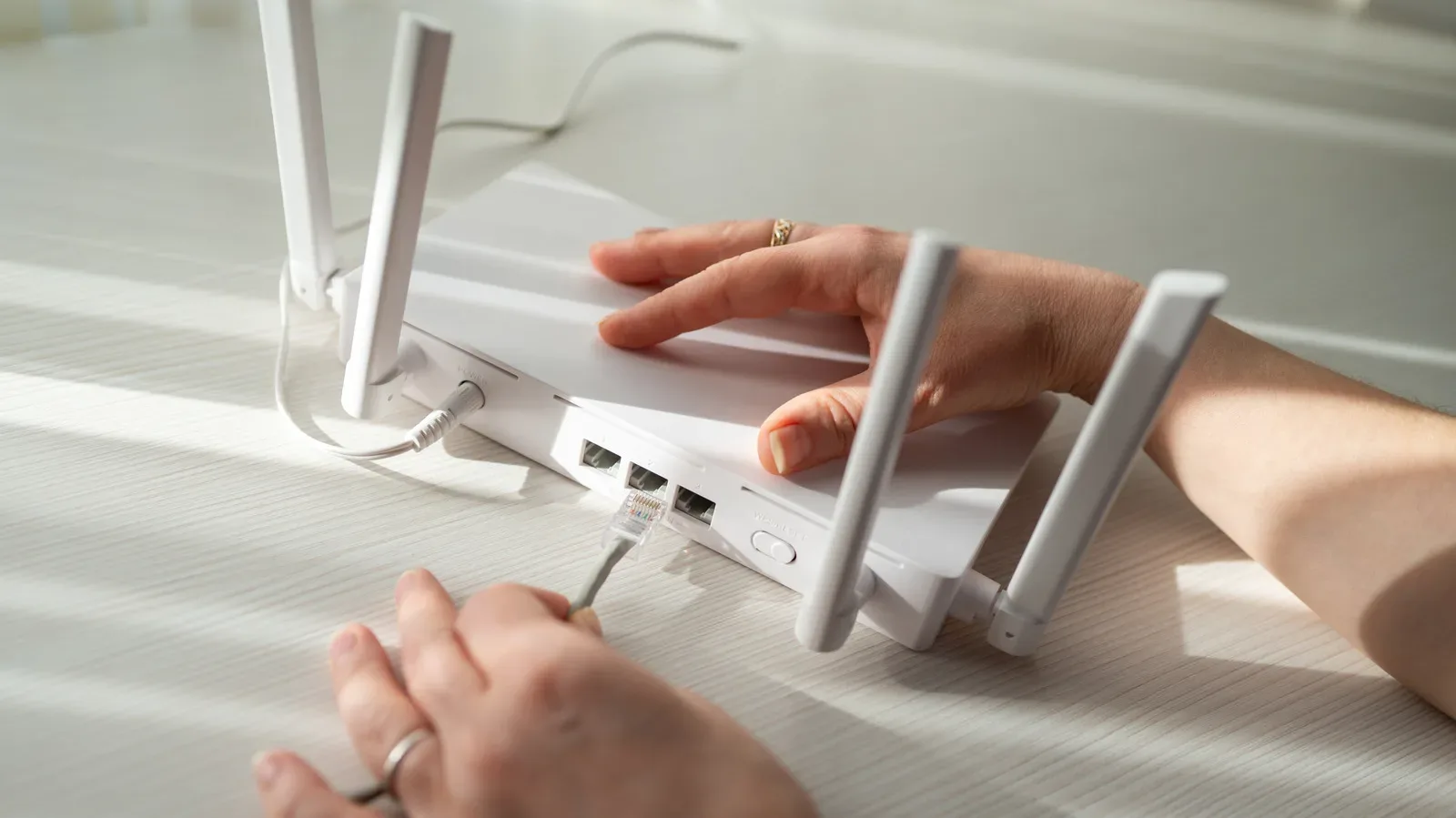
The position of a provider-installed modem or gateway does not have to dictate the final wireless layout. An Ethernet cable can connect an access point in a more suitable area. An access point is networking equipment that provides Wi-Fi access while connecting back to the network by cable. In practical terms, it can let the wireless part of the network live nearer to the devices that need it, even if the incoming internet connection enters the building somewhere inconvenient.
Running and concealing cable can be less aesthetically pleasing than relying on a single box, but it is often the sensible compromise. Network design is ultimately about serving the rooms where people actually play, work and stream—not simply making the equipment disappear.
Buy for the connection and home you have
Router marketing can make maximum speed figures feel like a universal measure of quality. They are not. Equipment should fit the internet plan and the property’s layout. If a rural home has DSL or satellite as its available service, a high-speed gaming router may be far beyond what the connection can make use of.
That does not make placement or local-network planning irrelevant. It simply means the bottleneck should be identified before money is spent. A router cannot turn a lower-speed internet service into a faster one. Conversely, a modest setup may be inadequate if it cannot provide useful coverage to the rooms where devices are used.
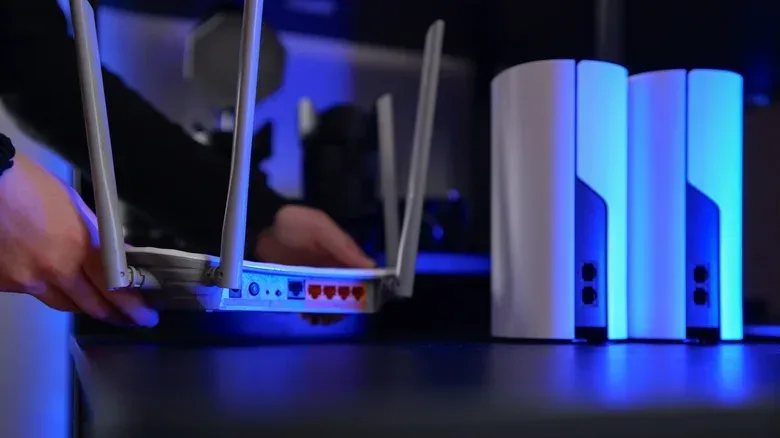
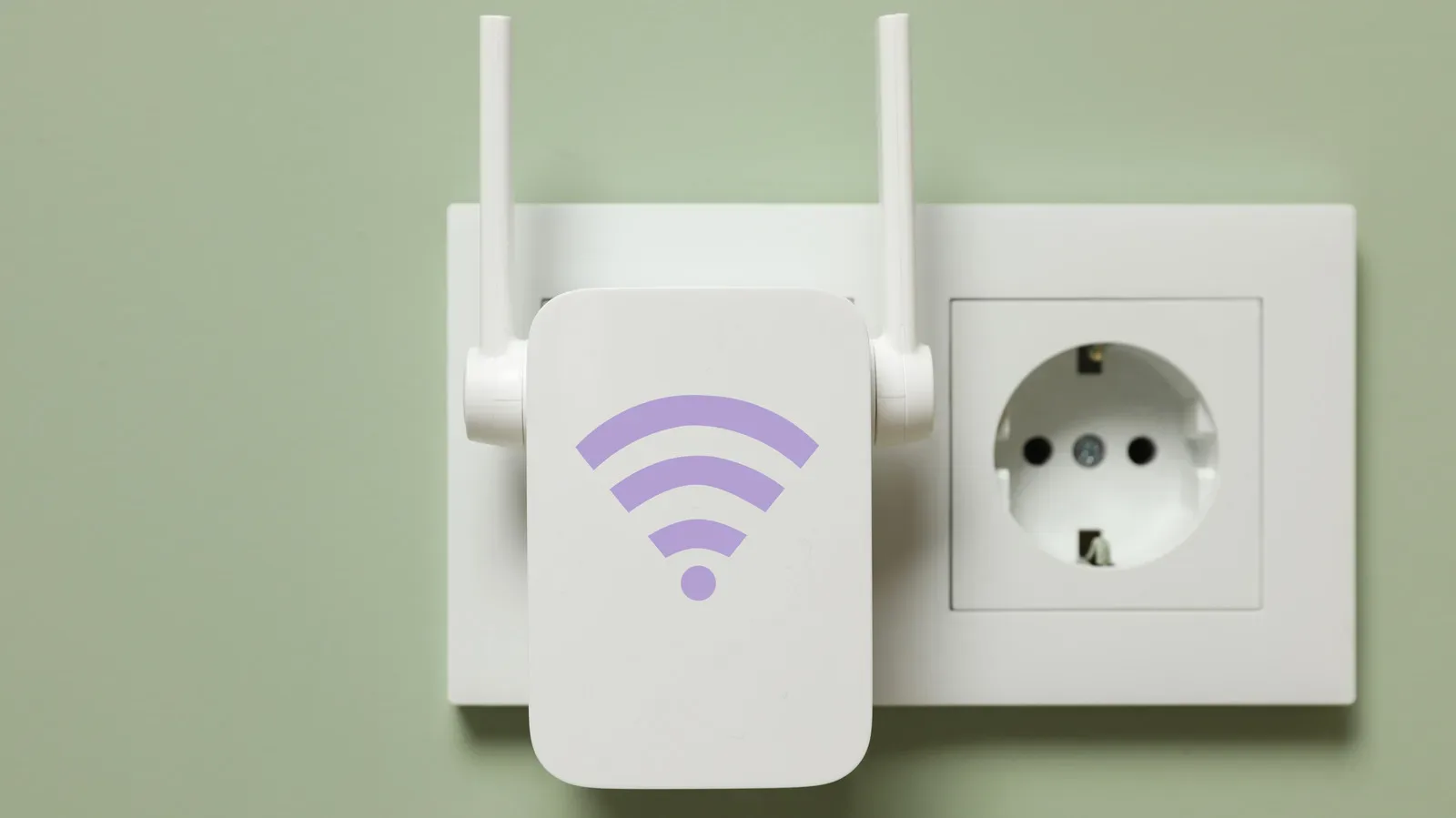
Large or multi-story homes may benefit from a mesh system. A mesh system uses multiple units to extend Wi-Fi coverage across a home. Its value is whole-home reach, rather than expecting one wireless point to serve every floor and distant room equally well. Yet mesh is not a magic answer to careless placement. Each unit still needs to be positioned thoughtfully for the coverage to work as intended.
Before purchasing anything, map the simple realities: where the primary connection arrives, which rooms need reliable coverage, where the gaming PC or console lives, and which devices could reasonably be wired. This is more useful than choosing hardware based on a label alone. It also helps distinguish a coverage problem from a service-speed limitation.
Wi-Fi is convenient; it is not the only answer
Wireless access is essential for phones, tablets and plenty of household devices. The mistake is assuming every device should use it simply because it can. Online gaming benefits from a stable, low-latency connection, and a gaming PC is often a strong candidate for Ethernet.
Latency is the delay involved in data traveling across a connection. In a game, lower latency helps actions and updates travel with less delay. Raw download speed matters for tasks such as downloading a large game, but it is not the complete story for responsive online play. A connection can appear fast in a simple speed test while still being less consistent than desired when wireless interference and household traffic enter the picture.
Ethernet offers several practical advantages in this situation: speed, lower latency, resistance to wireless interference and stronger security characteristics than a wireless link. Running a cable from the router to a gaming PC avoids making that PC compete through the air with the rest of the household’s wireless traffic.
Consider a busy home with several smartphones, bedroom TVs, tablets, smart speakers, game consoles and a desktop PC. That is a great deal of activity for one shared Wi-Fi environment. Wired connections will not solve every problem—especially if the internet service itself is the limiting factor—but they can remove one unnecessary point of contention for the devices that benefit most from consistency.
Cat6a is one cable option that can support 10-gigabit connections across channels up to 100 meters. That capability is particularly relevant for homes with extremely high-speed internet service. It is not an instruction to replace every existing cable automatically. The practical takeaway is to match the cable plan to actual needs, including distance, the devices being connected and the available service.
Make changes in stages, not in one giant troubleshooting session
A cable plan can become difficult to diagnose if a router, switch, access point and several new wired devices all arrive at once. Add hardware gradually. Confirm that each stage works before moving on to the next. If a problem appears, a smaller number of recent changes makes the cause much easier to isolate.
Label cables as they are installed. That modest bit of organization pays off later, when a connection fails and the question becomes which cable serves which room or device. Documentation is not glamorous, but it prevents a future fix from turning into a game of unplugging random leads.
- Decide first which devices truly need a wired connection.
- Add one piece of equipment or one run of cable at a time.
- Check that the new stage works before expanding the setup.
- Label connections so their route and role are clear later.
Secure the network itself, not just the Wi-Fi name
A network may seem to work normally while its security settings are weak. That is what makes configuration shortcuts easy to ignore. Two separate credentials deserve attention: the router administrator login and the Wi-Fi password.
The administrator credentials control access to the router’s management settings. Anyone who can administer the network can potentially change configuration. The Wi-Fi password, by contrast, determines who can join the wireless network. Both should be changed from defaults, and an administrator password should not be something easily guessed, such as a phone number.
For wireless security, WPA3 Personal is the recommended choice when the router and connected devices support it. WPA3 is a Wi-Fi security standard. Where older devices cannot connect using it, WPA2/WPA3 transitional mode can allow compatible devices to use WPA3 while older hardware uses WPA2 Personal with AES.
AES is the encryption method referenced in that fallback arrangement. The essential practical point is that compatibility mode can bridge an equipment transition without returning to obsolete protections. WEP and TKIP are outdated choices and should be avoided.
Firmware updates belong in the same basic-maintenance category. Firmware is the built-in software that helps networking hardware operate. Keeping it current reduces exposure to known vulnerabilities. It may feel less urgent than fixing an obvious dead zone, but an unsecured or poorly maintained router can create a much bigger problem than a temporary weak signal.
A second router can create a new problem if it is not configured correctly
Adding a router or mesh setup is not always as simple as connecting it and accepting the defaults. The existing equipment matters. In particular, avoid a situation where two DHCP servers are issuing addresses on the same network.
DHCP, short for Dynamic Host Configuration Protocol, is the mechanism that assigns network addresses to connected devices. When two DHCP servers attempt this job on the same network, address conflicts and unpredictable behavior can follow. The network may look functional at first, which makes the underlying configuration mistake harder to spot.
The fix depends on the equipment, but bridge mode or access point mode may be needed when adding another router. These modes help the newer equipment work with the established network instead of duplicating a role that is already being handled. The documentation for the specific networking gear should provide the appropriate setup path.
This is a useful reminder that “more hardware” is not automatically “more network.” Mesh units, a second router, an access point and other additions need defined roles. The best upgrade is the one that addresses the actual weakness—coverage, wired connectivity or device capacity—without creating an avoidable conflict.
A gamer’s practical home-network checklist
- Start with location. Put the router centrally where practical, away from likely wireless interference rather than hidden at an extreme edge of the home.
- Match equipment to reality. Consider the available internet plan, home size, number of floors and rooms that need coverage before buying a router or mesh system.
- Reserve Wi-Fi for what benefits from mobility. Use Ethernet for a gaming PC and other stationary, performance-sensitive devices when a cable run is practical.
- Secure both doors. Change the router administrator credentials and Wi-Fi password; they protect different kinds of access.
- Use current wireless protection. Prefer WPA3 Personal where supported, use WPA2/WPA3 transitional mode for necessary older-device compatibility, and avoid WEP and TKIP.
- Update firmware. Keep router software current to reduce exposure to known vulnerabilities.
- Prevent configuration collisions. Check whether a new router or mesh system requires bridge mode or access point mode so two DHCP servers are not competing.
- Document as you build. Label cables, test additions one at a time and keep the setup understandable for the next troubleshooting session.
The recurring theme is restraint. A dependable gaming network is usually built through sensible placement, appropriately matched equipment, a few well-chosen wired links and clear configuration—not by assuming the fastest-looking router can compensate for every other decision. When the household starts streaming, scrolling and gaming at the same time, those unglamorous choices are what give a match the best chance of staying connected.