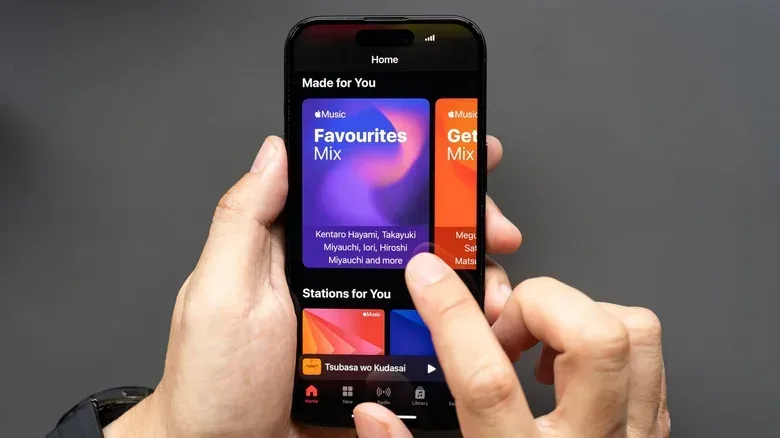
Apple Music offers more control over sound quality than its default settings may suggest. Across iPhone, Android, Mac and Windows, listeners can choose separate quality levels for streaming and downloaded music, enable lossless playback, and—in many versions of the app—adjust an equalizer. The important part is not simply switching every option to its highest setting. It is matching the setting to the device, connection and playback hardware actually in use.
That distinction matters most with Lossless and Hi-Res Lossless. Both can consume more data than standard streaming, and the higher-resolution option requires suitable dedicated hardware to deliver its intended benefit. Bluetooth support also differs between iPhone and Android, so the same Apple Music setting does not necessarily produce the same result on every phone.
First, decide whether lossless is useful for your setup
Apple Music has two lossless-quality tiers. Its Lossless setting reaches CD quality at 24-bit/48kHz. Hi-Res Lossless goes further, reaching 24-bit/192kHz. The figures describe the depth and sampling rate of the audio stream: in simple terms, they distinguish the standard lossless tier from the more demanding high-resolution option.
For many listeners using ordinary consumer headphones, earbuds or Bluetooth gear, the basic Lossless setting is already at the practical ceiling of what their equipment can deliver. Moving to Hi-Res Lossless in that situation can mean more data use without a corresponding improvement at the headphones. The higher setting is instead aimed at people with dedicated hi-fi equipment capable of taking advantage of it.
Lossless playback is not enabled automatically. That is a sensible default for anyone who primarily listens away from Wi-Fi, downloads a large library, or does not have hardware that can make use of the added quality. Enabling it is a per-device choice, so a listener who wants lossless on a Mac and an Android phone needs to set it up on both devices. The same menus also let users step back down if data consumption or storage needs become a concern.
Set Apple Music quality on iPhone and iPad
On iOS, Apple Music’s audio controls live in the system Settings app rather than inside the Music app itself.
- Open Settings.
- Choose Apps, then select Music.
- Under the Audio section, open Audio Quality.
- Turn on Lossless Audio.
- Choose the preferred quality separately for Wi-Fi streaming, cellular streaming and downloads.
The separate choices are the feature’s most practical part. A Wi-Fi connection can be treated differently from cellular data, while downloads can be handled as their own storage decision. There is no requirement to use identical settings for all three. A user can therefore reserve higher quality for Wi-Fi or local downloads and make a more conservative choice for cellular listening.
To alter the equalizer on iPhone or iPad, return to Settings > Apps > Music, then select EQ in the Audio section. iOS presents EQ presets rather than an in-app manual band-by-band editor. Pick the preset that suits the listener’s preference, then change it again later if it is not working well with a particular pair of headphones or speakers.
The key iPhone limitation: Bluetooth
iOS does not support high-resolution Bluetooth codecs. That means an iPhone cannot provide Apple Music’s 24-bit/48kHz Lossless output over a standard Bluetooth headphone connection, even when those headphones advertise high-resolution playback support. Hi-Res Lossless is further beyond that Bluetooth path.
For an iPhone user to hear lossless-quality playback, the supplied guidance points to wired listening hardware or a hi-res Bluetooth adapter dongle. This is the essential caveat behind the setting: seeing Lossless enabled on the phone is not, by itself, proof that a Bluetooth headset is receiving lossless audio.
Set Apple Music quality on Android
Android places the equivalent controls inside the Apple Music app.
- Open Apple Music.
- Tap the vertical three-dot menu in the upper-right corner of the Apple Music home page.
- Tap Settings.
- Open Audio Quality.
- Enable Lossless Audio.
- Set quality independently for Wi-Fi, cellular data and downloads.
When Hi-Res Lossless is selected, Apple Music displays a warning that dedicated hardware is required to benefit from the format. Confirming the message enables the option, but the warning should be taken literally: the setting is not a universal sound upgrade for every listening setup.
Android differs from iOS in an important way. With certain compatible wireless headphones or earbuds, Android users can use Apple Music’s Lossless quality setting over wireless playback. That does not mean every Android phone and every Bluetooth headset will do so; compatibility remains important. Still, it gives Android a route that iPhone users do not have through ordinary Bluetooth audio.
There is no Apple Music equalizer built into the Android app. Selecting Settings > Equalizer redirects to the phone’s own audio settings instead. In practical terms, Android users who want to alter tonal balance should look to the device-level EQ controls supplied by their phone, rather than expecting Apple Music to offer its own set of presets.
Set Apple Music quality on macOS
On a Mac, the controls are in the Music app’s settings.
- Open the Music app.
- Click Music in the left side of the menu bar.
- Choose Settings.
- Open the Playback tab.
- Enable the checkbox beside Enable lossless audio.
Mac users can also access a more substantial equalizer than the preset-oriented iOS option. Select Window > Equalizer. The desktop EQ has ten bands, a preamp, multiple presets and the ability to save custom adjustments as a new preset. A ten-band EQ means there are ten separate controls available for adjustment, while the preamp is an additional overall control within that tool.
The custom-preset feature is useful because an EQ adjustment is a preference, not a universal correction. A saved setting can be retained for a particular listening taste without having to rebuild it later. Presets remain the quicker route for anyone who does not want to make manual changes.
Set Apple Music quality on Windows 11
The Windows Apple Music app separates streaming quality from download quality in its own settings menu.
- Open Apple Music.
- Click the three horizontal dots beside the Apple Music logo at the top of the left navigation area.
- Select Settings.
- Use the drop-down menus in the Streaming and Downloads section to choose the desired levels.
The Streaming menu governs music played through an internet connection. Downloads governs the quality used when tracks are saved for offline use. The app may ask for confirmation the first time Lossless or High Resolution Lossless is enabled.
Windows also includes the desktop-style equalizer. It is found in the same three-dot menu used to reach Settings, and offers the same ten-band layout, preamp, presets and custom-preset saving described for macOS.
Lossless and EQ solve different problems
It is easy to group every sound-related setting together, but Lossless and EQ do different jobs. Lossless changes the quality level of the stream or download. EQ changes the sound balance through a chosen preset or, on desktop, manual adjustments. One does not replace the other.
A listener who wants to limit cellular use can keep quality conservative on mobile data while still selecting an EQ preset they prefer. Conversely, someone with suitable wired or hi-fi equipment can enable a lossless tier while leaving EQ untouched. The settings should be considered separately: one is about the audio quality delivered and the resources required; the other is about sound tailoring.
That approach is also more useful than treating Hi-Res Lossless as an automatic best choice. Start by identifying the actual playback chain: wired headphones, wireless earbuds, a compatible Android wireless setup, or dedicated hi-fi equipment. Then consider whether the listening takes place on Wi-Fi, cellular data or downloaded files. Only after that is it clear whether standard Lossless, Hi-Res Lossless or a lower setting makes sense.
A sensible setup checklist
- Mostly Bluetooth on iPhone: Do not assume enabling Lossless sends lossless audio to the headset. iOS lacks high-resolution Bluetooth codec support.
- Wired listening or dedicated hi-fi gear: Lossless may be worthwhile, and Hi-Res Lossless is the option intended for dedicated hardware that can use it.
- Frequent cellular streaming: Review the cellular setting independently instead of applying the highest option everywhere.
- Large offline library: Check the Downloads setting; higher-quality files can affect how much music is stored locally.
- Android listener seeking EQ: Use the phone’s audio settings after Apple Music redirects you there.
- Mac or Windows listener who wants more control: Use the ten-band desktop equalizer, its presets, preamp or saved custom settings.
Apple Music’s cross-platform design means the core lossless choices are broadly available on iOS, Android, macOS and Windows, even though the menus and audio limitations vary. The biggest trap is enabling a premium setting without checking whether the connection and hardware can reproduce it. For listeners who also use television speakers or external audio gear, the same hardware-first thinking applies when evaluating a budget Dolby Atmos soundbar: the label alone is not the complete listening setup.
Shop the products
Check current price, model and availability at the retailer.