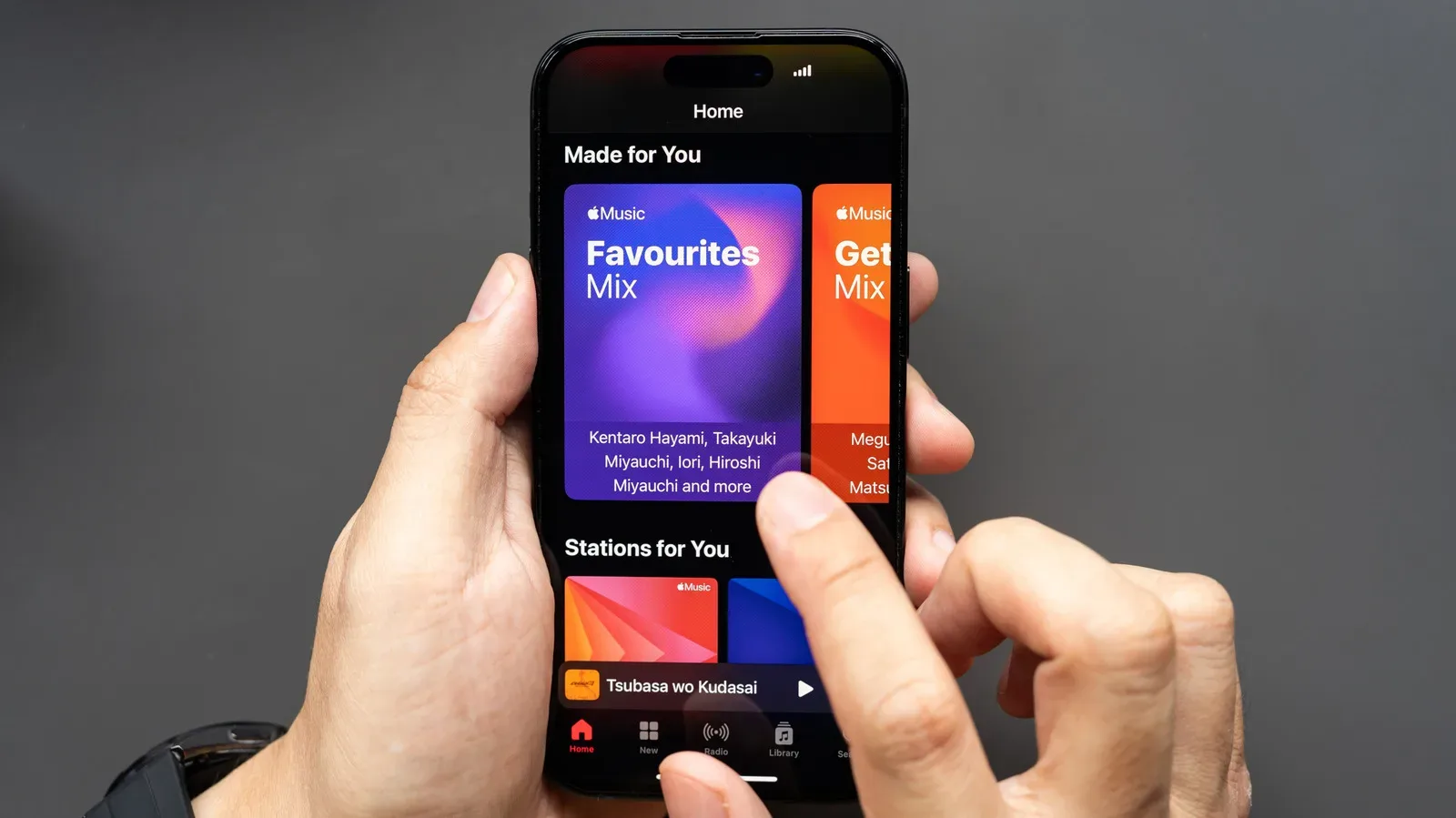

Changing music services used to mean rebuilding a listening library track by track: remaking playlists, hunting down albums and trying to remember every song saved years ago. Apple Music now includes a transfer option designed to reduce that friction for people moving from Spotify. It can bring over selected playlists and favorites, provided the user has an active Apple Music subscription, can sign in to the Spotify account being moved, and permits the required account access.
The feature is not limited to Apple hardware. Apple Music is available on iPhone and iPad, Android, desktop and through its web player, and the transfer controls are available across those routes. The precise menu labels differ by platform, but the job is the same: choose Spotify, sign in, select the material to move and add it to the Apple Music library.
That is particularly useful for a longtime Spotify listener whose library is more than a handful of themed playlists. Favorites and carefully assembled playlists are personal organization work. A transfer tool does not merely copy a list of names; it attempts to find corresponding tracks in Apple Music’s catalog and place those matches in the new library.
What to prepare before starting
There are three practical requirements. First, the destination account needs an active Apple Music subscription. Second, be ready to authenticate with the Spotify account that contains the playlists and saved songs. Third, make sure Sync Library is enabled in Apple Music.
Sync Library is the setting that keeps an Apple Music library available across devices signed in to the same account. It matters here because a successful transfer is only helpful if the resulting playlists and music appear where the listener expects to use them. Enabling it before the import also gives the transfer process a clear destination: the Apple Music library rather than a disconnected, device-specific collection.
Enable Sync Library
- On desktop: Open Apple Music settings, select the General tab, then turn on Sync Library.
- On iPhone or iPad: Open the device Settings app, choose Music, then find and enable Sync Library.
Android and web users can still initiate the transfer even though those Apple-device settings paths do not apply in the same way. The important point is to use the Apple Music account and confirm the library-sync setting where it is offered.
Start the Spotify transfer in Apple Music
Once the account is ready, open Apple Music on the device or browser you prefer. Apple’s transfer entry point is found in settings, though the button used to reach those settings varies.
- iOS: Tap My Account, then open Settings.
- Android: Tap More, then open Settings.
- Web player: Click the profile picture to open the main account menu.
Look for Transfer Music from Other Music Services. Apple Music presents compatible services there, including Spotify. Select Spotify and complete the sign-in prompt. This permission step is essential: Apple Music needs access to identify the playlists and favorites associated with the Spotify account, while Spotify login verifies that the person initiating the move is authorized to provide it.
After signing in, choose the playlists or favorites to import. This selection step is worth using deliberately. A listener does not need to move every abandoned playlist just because it exists. Start with the lists that are actively used, plus the saved music most difficult to reconstruct. Smaller, purposeful batches may also make the review stage less daunting if Apple Music cannot find every exact recording.
When the selection looks right, choose Add to Library. Apple Music then searches its own catalog for the corresponding songs. Wait for a Transfer Complete notification before treating the process as finished.
Why some songs require review
A playlist transfer is fundamentally a catalog-matching task, not a direct migration of audio files. Spotify and Apple Music may not list every recording in identical form, and Apple Music may not find a requested item in its library. That is why Apple Music can show Some Music Needs Review instead of simply declaring the transfer complete.
This message means one or more tracks were not found as direct matches. Where alternatives are available, Apple Music offers the closest matches for approval. Review those options instead of accepting them automatically. A similarly named result could be a different version of a song, and playlists built around a specific recording may lose their intended flow if substitutions are accepted without a check.
The review option remains in Apple Music settings for 30 days from the time the transfer starts. That window is useful for a measured approach: complete the initial move, listen through the most important playlists, then return to the outstanding matches. It also means a user does not have to settle every uncertainty during the first transfer session.
A sensible order for checking results
- Confirm that the most-used playlists now appear in the Apple Music library.
- Open the playlists where track order matters most, such as mixes for an event, workout or long drive.
- Visit the review section in settings and inspect proposed alternatives for missing songs.
- Approve only the alternate tracks that genuinely fit the intended selection.
- Revisit the review queue before the 30-day period ends.
It is also wise to keep the Spotify account available until the Apple Music library has been checked. That is not because the transfer process necessarily fails, but because the original playlists are the easiest reference for comparing titles and identifying what still needs attention. The practical goal is continuity: preserve the music and playlist curation that matters before making a clean break from the old service.
What this changes for listeners considering a switch
Music-service changes can be driven by price, device preferences, library experience or disagreements with a platform’s direction. Spotify has drawn criticism over artist compensation, its founder’s defense-industry investments and the growing presence of AI-generated music. Plans for a generative-AI feature that allows users to remix existing songs may give some listeners and artists another reason to reconsider where they spend their listening time.
Those concerns do not make one streaming service the automatic answer for everyone. But the transfer feature removes a major practical barrier to evaluating Apple Music: the fear of leaving behind years of saved music and playlist curation. Rather than starting with an empty library, a subscriber can bring across chosen Spotify favorites and playlists, then assess the new service on its own terms.
Streaming statistics also show why playlists are such meaningful digital possessions for listeners and performers alike; music platforms can concentrate huge audiences around catalog listening, as reflected in reported Spotify streaming figures tied to Drake’s catalog. For an individual listener, however, the value is less about a platform-wide total than the accumulated choices inside a personal library.
Apple Music’s import route does have a boundary: unmatched tracks may need human judgment, and the feature works by locating music in Apple Music’s own library. The transfer should therefore be treated as a migration aid, not a guarantee that every entry will arrive in an identical form. With Sync Library on, careful selection at the import stage and a prompt review of proposed replacements, it offers a direct path for moving the parts of a Spotify collection that matter most.