There is a particular kind of modern annoyance reserved for opening a music app on a new device and discovering that it seems to know absolutely nothing about you. The albums you added, the songs you saved and the library you carefully built are absent. The immediate instinct is to search again and start rebuilding.
For Apple Music users, that is usually the wrong first move. A missing library does not necessarily mean the music has vanished or that every device must be maintained separately. It often means one of two things: the device is using a different Apple Account, or Sync Library is not enabled where it needs to be.
That distinction matters because Apple Music is available beyond Apple hardware. A person can use the same Apple Account with Apple Music on an iPhone, iPad, Mac, Windows PC, Android phone and smart TV. The goal of syncing is to carry a single personal library across those devices rather than creating isolated versions of it.
Think of the library as a shared record of the music connected to one account. If a device is looking at another account, it is looking at another record. If Sync Library is disabled, it may not pull in the changes that belong to the account already signed in. The music app may look perfectly normal in either case, which is why the problem can be confusing.
Start with the account, not the missing songs
Before changing any settings, confirm that the same Apple Account is active everywhere. This is the highest-value check because Sync Library cannot combine libraries that belong to different accounts.
On a device where the library is incomplete, open Apple Music and select the profile picture on the Home tab. Check the email address shown there against the one used on the device where the library looks correct. If the addresses do not match, sign out on the unsynced device and sign back in with the primary Apple Account.
This step is simple, but it prevents a common false diagnosis. A newly configured phone, tablet or computer can be signed into an account that is valid but not the account used to assemble the music library. In that situation, toggling sync repeatedly will not make the intended albums appear, because the app is being asked to sync the wrong library.
What “Sync Library” actually does
Sync Library is the option that allows the Apple Music library associated with the signed-in account to stay aligned across supported devices. Practically, it saves the user from manually making the same library changes on every screen they use for listening.
Related coverage includes How to Sync Your Apple Music Library Across iPhone, Mac, Windows and Android.
It is worth separating this from simply having the Apple Music app installed. Installing an app and signing in establish access; enabling Sync Library is the setting that tells the device to synchronize the personal library. If the app is open but the saved music is missing, that distinction is the one to keep in mind.
Sync Library is also separate from audio-quality choices. Options such as lossless audio concern playback quality, while Sync Library concerns whether the library itself is shared between devices. Both may sit among music settings, but they solve entirely different problems.
How to enable Sync Library on each platform
Once the Apple Account matches, enable Sync Library on the relevant devices. The wording is similar across platforms, but the route to the control differs.
iPhone and iPad
- Open Settings.
- Select Apps.
- Find and open Music.
- Enable Sync Library.
This is easy to overlook because the control is in the system Settings app rather than on the Apple Music home screen. After enabling it, keep the Music app open for a few minutes if the library does not populate immediately.
Mac
- Open the Music app.
- Choose Music from the menu bar.
- Select Settings.
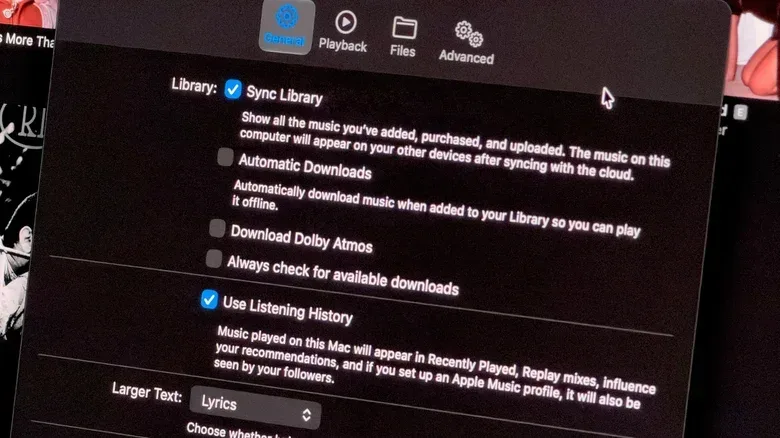
- Under the General tab, enable Sync Library.
- Click OK to save the change.
Mac users also have a more direct way to request a library refresh when sync appears stuck. In Music, choose File, then Library, then Update Cloud Library. This prompts the app to check the personal library for updates and sync again.
Windows
The Windows process is broadly similar to the Mac workflow, though the route to Settings uses the three-dot button. Find the Apple Music settings there and make sure Sync Library is enabled.
Windows also has access to an Update Cloud Library option. It can be found in the sidebar and serves the same purpose as the Mac command: it asks the app to check for changes in the personal library rather than waiting for the next routine update.
Android
On Android, Sync Library is enabled by default. That means there is usually no setting to change for this specific issue. Instead, the more useful checks are whether the correct Apple Account is signed in and whether the phone has a suitable connection to complete the sync.
Do not mistake a slow first sync for a failed one
Library syncing is not guaranteed to look instant, especially with a large collection. After Sync Library is turned on, give the app time to process the library. Leaving Apple Music open for a few minutes is the practical first response when tracks and albums do not appear right away.
This is a useful moment to avoid making multiple changes at once. Signing out, toggling the setting and changing other options before the initial sync has had time to run can make it harder to tell what fixed the issue. A deliberate order is better: verify the account, enable Sync Library, wait briefly with the app open, then use a refresh command or reset only if necessary.
It is the same basic troubleshooting principle that applies to other online services: first establish identity, then confirm the relevant synchronization control, then allow the service to communicate. For another example of how a small technical setting can have a surprisingly large effect on an experience, see our guide to what NAT type means in online gaming.
When Apple Music still will not sync
If the correct account is in place, Sync Library is enabled and waiting has not helped, work through a short escalation path rather than jumping straight to rebuilding the library.
- Refresh the cloud library on a computer. On Mac, use File, Library and Update Cloud Library. On Windows, use the equivalent option in the sidebar. This is the most targeted next step because it explicitly requests an update check.
- Check the mobile device connection. Make sure a phone or tablet is connected to Wi-Fi. Also check that Low Power Mode is not active, as it may stop the library from syncing.
- Toggle Sync Library off and back on. Return to the Music settings, disable the option, then enable it again. This is a reset of the synchronization setting, not a reason to manually recreate albums or playlists.
- Sign out and sign back in. If the issue persists, signing out of the Apple Account and logging in again is another available step.
There is an important platform difference here. iPhone and Android versions of the app do not include the Update Cloud Library command described for Mac and Windows. On mobile, connection, Low Power Mode, account verification and the Sync Library toggle are the available checks outlined here.
Why Wi-Fi and Low Power Mode deserve attention
These checks are not decorative advice. Syncing needs the device to communicate with the online library, and a phone or tablet that is not on Wi-Fi may not complete that work as expected. Low Power Mode may also prevent the process from continuing.
In practical terms, this makes troubleshooting a little less mysterious: use Wi-Fi, leave the app open, and avoid power-saving conditions while waiting for the library to update. That sequence is more useful than repeatedly searching for individual albums and adding them again, which risks turning a temporary sync delay into a confusing manual cleanup job.
Subscription libraries and offline computer libraries are not the same case
The above workflow is for Apple Music library syncing. There is a separate limitation for someone who does not subscribe to Apple Music and keeps an offline music library on a Mac or PC. In that case, the library does not sync through this setting across computers. The stated route is to manually transfer the Music folder to another computer using Apple iTunes or Apple Devices.
That distinction is worth making before troubleshooting begins. “My library is local on one computer” and “my Apple Music library has not appeared on another device” can sound like the same complaint, but they have different solutions. The first is a file-transfer task; the second is an account-and-sync-setting task.
Use the setting check as a quick device-setup routine
When adding a new phone, tablet or computer to a listening setup, it is sensible to make Sync Library part of the first few checks. Confirm the Apple Account first, enable the option where needed, then allow time for the first sync before assuming anything is missing.
After that, Apple Music settings are also a reasonable place to review listening preferences. Lossless audio is one option available to explore, though it should not be confused with the library setting. One affects how the music may be played back; the other is the bridge that helps the same saved music appear across devices.
The short version is reassuring: an apparently empty Apple Music library on a new device is often a configuration problem, not a lost-collection problem. Check the Apple Account, turn on Sync Library, use Wi-Fi and give the initial sync a little time. On Mac and Windows, Update Cloud Library provides an additional nudge when needed.