There are few library icons less inviting than the small padlock on a PS5 game tile. The game may still be installed. It may be a title you remember buying, claiming, or playing last week. Yet selecting it does not launch it because the console is treating access as unverified.
The important distinction is that a padlock is usually an access and licence check problem, not immediate evidence that the game installation has vanished or that saved data is gone. On PS5, a digital purchase is tied to the PlayStation account that acquired it, while disc games use the physical disc as a form of authentication. PlayStation Plus games, meanwhile, depend on both an active eligible subscription and the title remaining available through the applicable catalogue.
That creates several possible causes which can look identical at first glance. The console may be signed into the wrong account, PlayStation Network may be unavailable, a subscription may have ended, a catalogue game may no longer be included, sharing may have been disabled on the owner’s console settings, or the local licence information may simply need refreshing. The sensible response is not to jump immediately to a database rebuild. Start with the quickest checks that identify what kind of access the game is supposed to have.
What the PS5 padlock actually means
A padlock tells you the PS5 cannot currently validate your entitlement to start that title. An entitlement is the permission associated with an account, subscription, or disc that authorizes access to content. It is useful language because it covers several situations that players often lump together as “ownership.”
For a directly purchased digital game, the relevant entitlement is normally associated with the account used at checkout. Installing a game does not by itself establish access for every user account on a console. For a game obtained through PlayStation Plus, the entitlement additionally depends on subscription status and, where relevant, whether the game remains part of the current library. Titles can be added to and removed from those libraries, so a previously downloaded game is not necessarily still available through the same benefit.
A disc game works differently. The disc acts as the key that authenticates play, so a padlock on a disc title can be a simple signal that the correct disc is not inserted or cannot be read as expected. The installed data alone is not a replacement for that key.
Fast rule of thumb: identify how you got the game before trying repairs. Purchased digitally, claimed through PlayStation Plus, shared from another account, and installed from disc each have a different first check.
Step one: make sure the correct account is active
Account mix-ups are easy to overlook on a shared PS5. Purchases and subscriptions are attached to the PlayStation account, not merely to the machine. If one person bought the game and another account is currently selected, the padlock may be expected unless Console Sharing and Offline Play has been configured for the purchasing account.
Related coverage includes What the Padlock Icon Means in Your PS5 Game Library and How to Fix It.
Check the active sign-in and, if necessary, switch accounts. The PS5 path to sign out is:
Settings > Users and Accounts > Other > Sign Out
To sign in, use:
Settings > Users and Accounts > Account > Sign In
Once signed into the account that should hold the game, revisit the tile. If it launches, the issue was account selection rather than a lost purchase or damaged installation. This check is particularly valuable before changing console-wide settings, because it establishes the basic question: which account is meant to have the right to play?
Step two: check whether PlayStation Network is reachable
Digital licences may require PlayStation Network to confirm access. If the network service is experiencing an outage or disruption, a title can appear locked even though the account and purchase are otherwise correct. Check the PlayStation Status page before investing time in local troubleshooting.
This is also why a padlock can feel intermittent. A game might work when the console has recently authenticated its licence, then become unavailable when a later validation does not complete. That does not prove a permanent account problem. It means the next useful task is separating a network-wide issue from a local configuration issue.
Step three: verify the game’s source and your subscription status
For a digital purchase
Review the account’s transaction history to confirm that the purchase is recorded under the account currently in use:
Settings > Users and Accounts > Account > Payment and Subscriptions > Transaction History
This is the clearest built-in place to distinguish “I thought this account bought it” from “another household account bought it” or “this was accessed through a subscription.” Do not confuse a game appearing in a console library with a confirmed purchase on the selected account.
For PlayStation Plus games
First check whether the subscription remains active:
Settings > Users and Accounts > Account > Payment and Subscriptions > Subscriptions
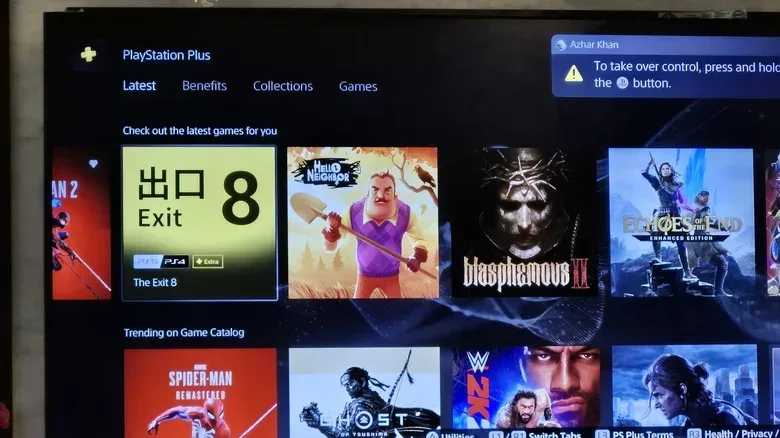
Then confirm that the specific game is still included in the relevant PlayStation Plus library. The service’s available titles change over time. If a game left the library, or if the subscription has lapsed, the padlock is not something a licence refresh can permanently override.
This is a practical consequence of subscription access: downloading a title while it is available is not the same thing as gaining unrestricted access independent of the service. Questions around what people are buying, licensing, and retaining on digital platforms also extend beyond game subscriptions; for related consumer-facing context, see the continuing scrutiny of in-game currency bundles and leftover balances.
For a game another account is sharing
Gamesharing on PS5 relies on Console Sharing and Offline Play being enabled by the account that owns the game. Find that option here:
Settings > Users and Accounts > Other
There is an important limit: each account can enable this feature on only one PS5 at a time. If the owner uses more than one console and has designated a different PS5, the console in front of you may lose shared access. The owner may need to designate the intended machine again.
That one-console limit explains why a shared library can suddenly show locks without anyone deleting a game. The status may have changed elsewhere, not on the local PS5.
Step four: restore licences
If the account, network status, purchase history or subscription status all point to legitimate access, restore licences. This asks PlayStation Network to refresh the console’s local recognition of the account’s entitlements.
For one game, highlight it in the library, press the controller’s Options button, and select Restore License. For a wider refresh, go to:
Settings > Users and Accounts > Other > Restore Licenses
The system-level option is the more efficient choice when several games are locked at once. It is also a proportionate response: it targets licence recognition directly, rather than treating the issue as an installation fault and redownloading a large game unnecessarily.
Restoring licences will not change the underlying eligibility rules. It cannot make an expired PlayStation Plus subscription active, return a title that has left a catalogue, or grant a different account’s direct purchase to an unrelated account. What it can do is correct a failure to recognize access that should already be valid.
Restart and update before deeper maintenance
If the padlock remains after the licence and eligibility checks, restart the console from the PS5 control center: press the PS Button, open the Power menu, then choose Restart PS5. A restart is a low-risk way to clear a temporary state before taking more involved action.
It is also worth checking for system software updates:
Settings > System > System Software > System Software Update and Settings
An update is not a guaranteed cure for a licensing issue, but keeping the console current removes one variable before proceeding. The key is to keep expectations realistic: restarting and updating are sensible housekeeping steps, whereas account validation, subscription eligibility, sharing designation, and disc authentication are the more direct explanations for a padlock.
If the locked game uses a disc
For a disc-based title, inspect the most basic requirement first: make sure the correct game disc is in the console. Eject it, check that it is clean, then reinsert it correctly. With the PS5 horizontal, the label should face up; with the console vertical, it should face left.
This can be counterintuitive if the game is already installed. The installation enables the console to run game data efficiently, but the disc still functions as the authorization key. A missing, incorrect, dirty, or improperly inserted disc can therefore produce the same locked appearance players associate with digital licences.
Safe Mode cache clearing and database rebuilding
If the simpler checks fail, the PS5 may have a local database problem. The database is the console’s internal organizational record for content and related information. A rebuild is a more advanced maintenance step, so reserve it for cases where there is a strong reason to suspect the console’s local state rather than the account, subscription, sharing arrangement, network, or disc.
To enter Safe Mode:
- Turn off the PS5 by holding the power button on the front of the console until a second beep is heard after a few seconds.
- After it shuts down, hold the power button again. Release it after the two beeps; the second should occur at about seven seconds.
- Connect the controller with a USB cable and press the PS Button.
- In Safe Mode, select Clear Cache and Rebuild Database.
Because the standard licence restoration tools are available in the regular settings menus, treat Safe Mode as an escalation rather than the first answer to a single padlocked game. In practical terms, a lone locked PlayStation Plus title points more naturally to catalogue or subscription eligibility, while several valid purchases locking at once makes a licence refresh, network check, or broader local issue more plausible.
When to contact PlayStation Support
Contact PlayStation Support when the account’s transaction history confirms the purchase, the account is correct, PlayStation Network is operating, a licence restore has not helped, and—where applicable—the active subscription or sharing designation is correct. The same applies if a properly inserted and clean game disc will not authenticate after the standard checks.
Before doing so, note whether the game was purchased digitally, accessed through PlayStation Plus, shared by another account, or installed from disc. Also record which troubleshooting steps were completed. That does not guarantee a faster resolution, but it makes the actual access path clear and avoids mixing together problems with very different causes.
The padlock is frustrating precisely because it is a broad warning symbol. But the repair path is usually narrow once the game’s access type is identified: correct account, service status, purchase or subscription confirmation, sharing configuration, licence restore, disc check, then Safe Mode only if needed.