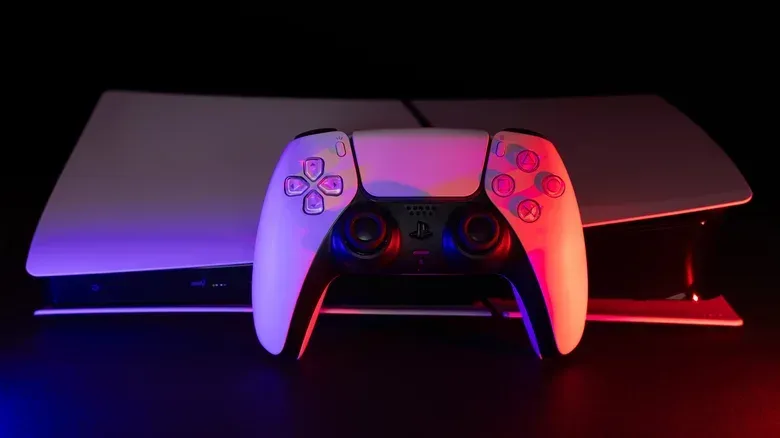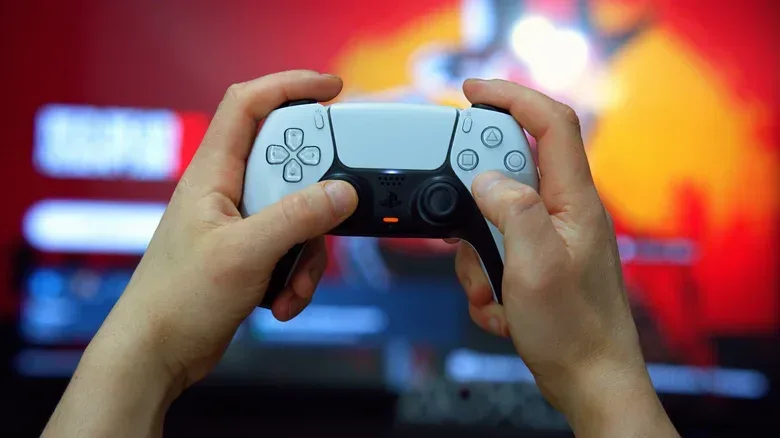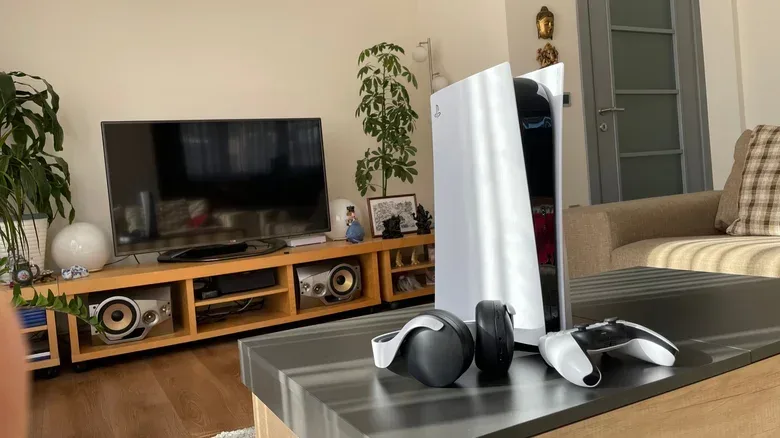
Distorted sound on a PlayStation 5 can make even a great game feel broken. Crackling dialogue, muddy effects, dropouts and missing channels are not problems that extra volume will solve. More importantly, the console itself may not be the culprit: audio travels through a chain of settings, cables, HDMI ports, a TV, and sometimes a soundbar, receiver, capture card or headset before it reaches your ears.
The most useful way to approach the problem is not to change every setting at once. Instead, reduce the number of possible causes, test one variable at a time, and repeat the same moment that exposes the fault. That might mean the same game scene, menu sound, streaming app, or a particular voice-chat situation. A controlled process makes it much easier to tell whether the issue is a bad connection, an incompatible audio format, wireless interference or a hardware fault.
Start with a full restart, not Rest Mode
First, completely turn off the PS5, television and any connected speaker hardware. If a receiver, soundbar or other audio device is part of the setup, power that down too. This is different from leaving the console in Rest Mode. Once everything is off, switch the devices back on and test the audio again.
This is a sensible first move because it clears temporary glitches without altering configuration. It also gives you a clean baseline before you begin changing cables or console settings. If the sound is now normal, there is no need to complicate the diagnosis. If it remains distorted, the next job is determining where the issue appears.
Isolate the route the audio is taking
Think of troubleshooting as a process of elimination. You are trying to establish whether bad sound follows the PS5, a particular input or cable, the TV or speaker system, or a particular game or app.
- Try a different game or app. If only one title has the problem, inspect that title's own sound settings before changing the whole console setup.
- Use headphones, if you have a spare pair. Clear headphone audio alongside bad TV or speaker audio points away from the PS5's general audio output and toward the TV, sound system or HDMI route.
- Use your smart TV's native apps. If they sound normal while PS5 audio is distorted, the TV's built-in speakers are less likely to be at fault.
- Connect a different HDMI device, such as a laptop, Roku or Apple TV, to the same HDMI cable and the same TV port used by the PS5. This can reveal whether that particular port or cable is involved.
These checks are more informative than randomly adjusting equalizers or surround modes. For example, if a second HDMI device sounds distorted through the same port and cable, the PS5 becomes a less likely explanation. Conversely, if every other device sounds fine and only the PS5 has trouble, it is time to inspect the PS5 connection and output configuration more closely.
Reseat cables, change the HDMI port, then change the cable
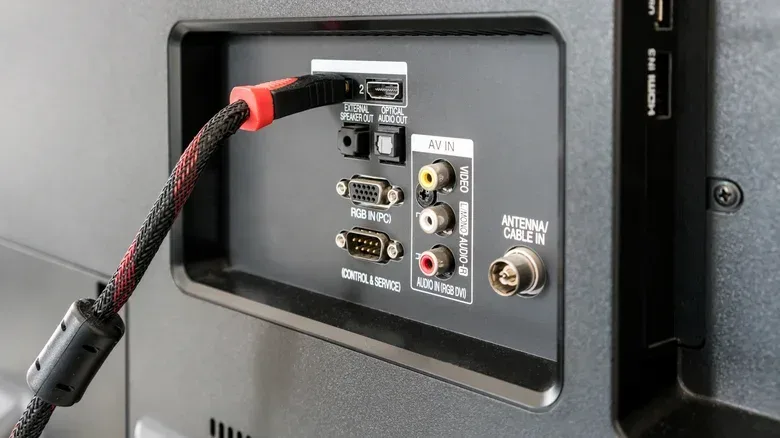
An HDMI connection carries both picture and sound, so an audio issue can be caused by the same physical link that looks perfectly fine on screen. Disconnect the PS5's HDMI cable at both ends and reconnect it securely. Then test another HDMI input on the TV. If the issue continues, test with another HDMI cable.
If external audio equipment is involved, repeat that approach for every connection in the chain. A soundbar or AV amplifier may introduce another HDMI cable, and there may be additional links between the television and the audio device. The goal is to avoid assuming a component has failed when a cable or port may be the real weak point.
Related coverage includes How to Troubleshoot Distorted Audio on PS5.
Also remove extra devices temporarily. Receivers, HDMI switches and capture cards are useful, but every device adds another handshake and another setting that can cause trouble. Connect the PS5 directly to the television and listen through the TV speakers. If the distortion disappears in this stripped-back arrangement, reconnect the other equipment one item at a time. The device or connection that makes the problem return is the one to investigate.
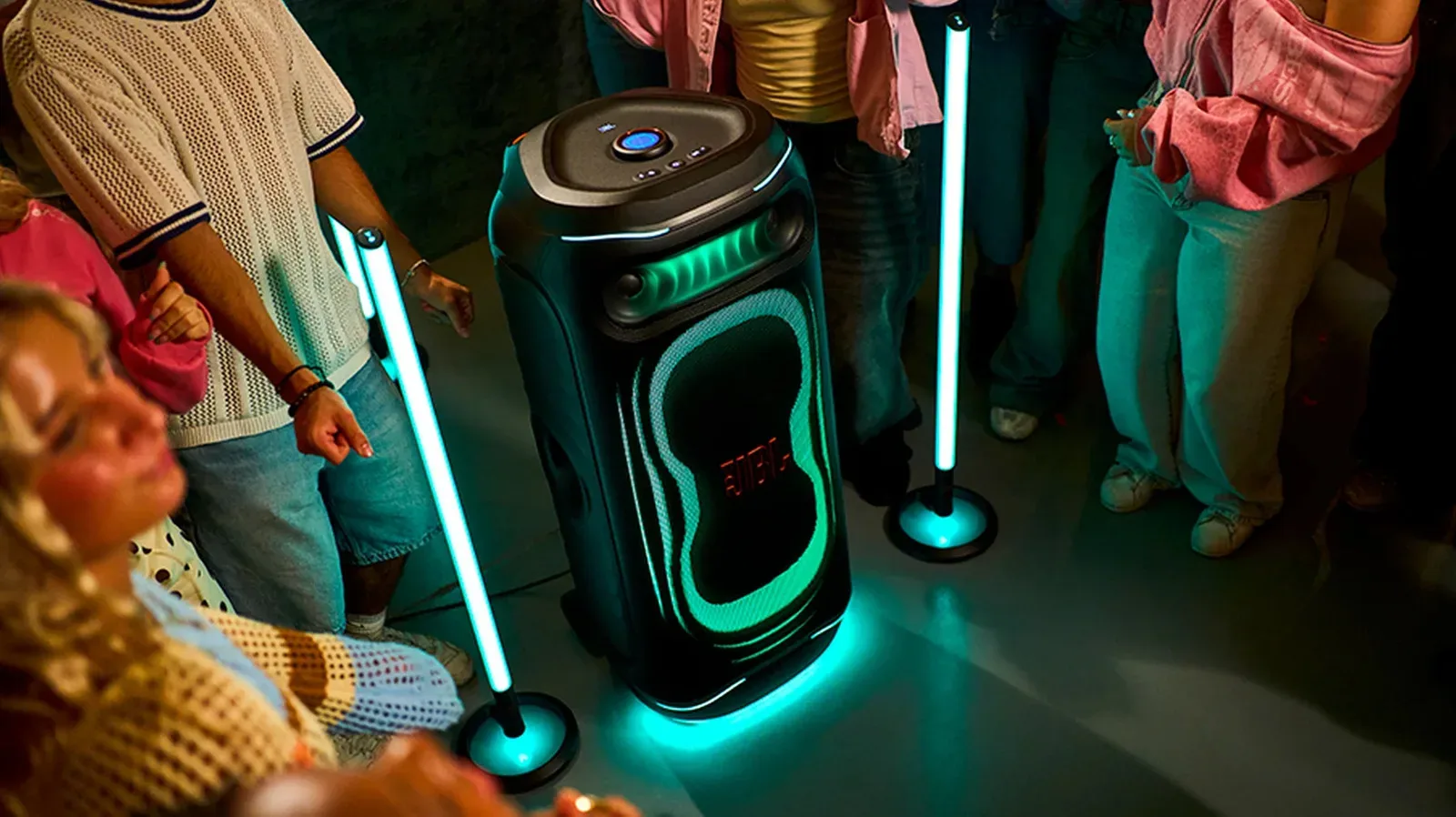
This does not mean an elaborate setup is inherently wrong. It simply means a direct PS5-to-TV test is a valuable diagnostic baseline. That distinction matters before replacing a console, TV or external speaker hardware. Audio products vary substantially in purpose and connections; a unit designed for parties, for example, is not automatically a substitute for a TV-focused sound system, as seen with hardware such as the JBL PartyBox Ultimate 2.
Check PS5 3D Audio before assuming it is distortion
PS5 3D Audio processing can change the character of sound. Some players may prefer the positional effect, while others may perceive it as muffled or otherwise less natural with their room, speakers or headphones. That makes it worth comparing the two modes rather than treating the feature as universally better or worse.
For TV speakers, open Settings > Sound > 3D Audio (TV). Compare standard stereo with 3D Audio. If you decide to use 3D Audio, follow the PS5's prompts to measure the room using the controller microphone while sitting in your usual playing position.
The calibration is tied to the acoustics around where you play. If you move the console into a different room, alter your seating position or substantially change the layout, repeat the measurement. The practical point is simple: evaluate the setting in the conditions where you actually play, not from a different place in the room.
Match the PS5 output to the equipment you actually use
Once physical connections have been checked, open Settings > Sound > Audio Output. Confirm that Output Device is correct, then check HDMI Device Type. This option needs to describe the system receiving the audio. If the PS5 is connected to an AV amplifier, select the AV Amplifier option and set the number of channels to match the real speaker configuration, such as 5.1 or 7.1.
This is not a case where a larger channel number is automatically preferable. The setting should match the speakers you have. A mismatch can lead to confusing or poor sound because the console and playback hardware are not working from the same assumptions.
What Linear PCM means here
In Audio Format (Priority), begin with Linear PCM, particularly when using the TV's internal speakers. Linear PCM is an uncompressed audio output format. In practical terms, the PS5 can send audio without lossy compression, preserving audio detail. With compatible equipment, the console supports uncompressed Linear PCM output up to 7.1 channels.
That support does not override the limits of the rest of the setup, though. The path from PS5 to television to sound system matters just as much as the console menu setting. If your TV passes PS5 audio onward to a soundbar or AV system, identify whether the link uses HDMI ARC or eARC.
ARC and eARC: the important difference
ARC is HDMI Audio Return Channel, a TV feature that sends audio from the television to a connected sound system through HDMI. Standard ARC carries stereo PCM. eARC, or enhanced Audio Return Channel, supports multichannel PCM when the television and audio equipment both support it.
This distinction matters if you want uncompressed surround sound. With standard ARC, Linear PCM is limited to stereo. Surround sound in that arrangement requires a supported compressed option, such as Dolby Audio. With eARC and compatible hardware, multichannel PCM becomes possible.
Check the TV manual to identify its ARC or eARC HDMI port, because it may not be obvious from the physical labels. Connect the sound system to that specific port and confirm eARC is enabled on the television if your setup supports it. If you only have ARC, use it with an understanding of the stereo PCM limitation rather than chasing a fault that is actually a connection-standard constraint.
Finally, inspect the TV and sound system menus themselves. Some televisions apply audio-format choices independently to each HDMI input. Virtual surround effects can also interact poorly with the PS5's selected output. If the sound became strange after enabling a processing feature, turn it off and compare.
Change one setting at a time
This is the discipline that prevents troubleshooting from becoming guesswork. Save one adjustment, replay the same test material, and note the result before moving to the next setting. Do not change the PS5 format, television processing, soundbar mode and cable all in one pass. If the audio improves, you will not know why; if it gets worse, you will not know what to undo.
A basic record can be as short as: direct to TV or routed through sound system; HDMI port used; cable tested; 3D Audio on or off; selected audio format; and whether the issue occurs in multiple games or apps. This can also be useful if the problem ultimately needs professional support, because it documents what has already been ruled out.
Wired headset audio: test the controller and connector
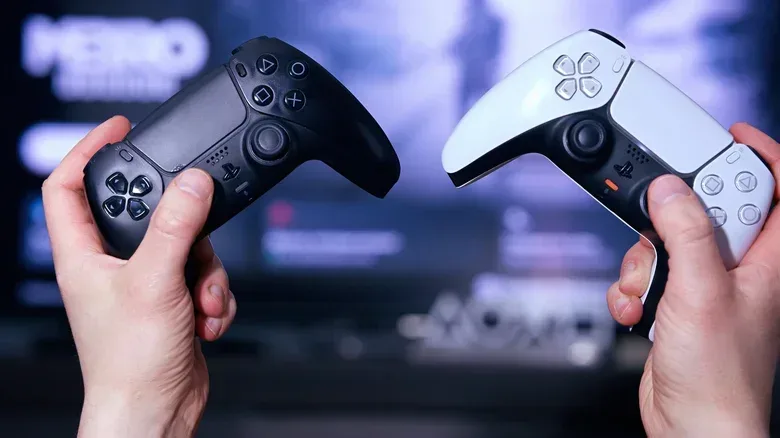
If distortion only happens through wired headphones, begin again with physical checks. Disconnect the headset cable and plug it back in fully. Then, if possible, test another headset and another DualSense controller. That separates a possible headphone fault from a possible controller or connection issue.
Next, go to Settings > Sound > Volume and check the headphone volume. Check the headset's physical volume control too, if it has one. Compare Settings > Sound > 3D Audio (Headphones) with 3D Audio enabled and disabled, since the processing can make sound seem muffled for some setups.
If the effect is isolated to one game, use that game's audio menu as part of the test. A title-specific mix, output option or voice setting is a different category of problem from distortion heard across the PS5 interface, several games and apps.
Wireless headsets: reduce interference and reset the receiver
Wireless audio adds another possible failure point: the connection between headset and receiver. Bluetooth headphones require an adapter for use with the PS5, while non-Bluetooth wireless headsets typically use their own receiver plugged into the console.
For either arrangement, unplug and reconnect the adapter or receiver, then switch the headset off and back on. Move other wireless devices away from the adapter where possible. An extension cable can give the receiver more physical space from potential interference if needed.
Wireless distortion that occurs only with one headset should be approached differently from distortion heard over TV speakers and wired headphones. In the former case, focus on the adapter, receiver, nearby wireless devices and headset connection. In the latter, focus on the HDMI path, output format and shared equipment.
When the evidence points to hardware
After testing direct TV output, another HDMI cable and port, alternative apps or games, and appropriate PS5 settings, you should have a much clearer picture. A fault that survives across several cables, ports, output devices and content sources may be hardware-related. But the component to suspect should follow the test results, not an assumption.
If only one speaker system produces the problem, that system or its connection is implicated. If only one controller-headphone combination does it, test that combination further. If distortion follows the PS5 across simplified connections and different output devices, the console may warrant closer attention. Isolation is the useful outcome: it narrows a frustrating broad symptom into a specific component or connection to address.