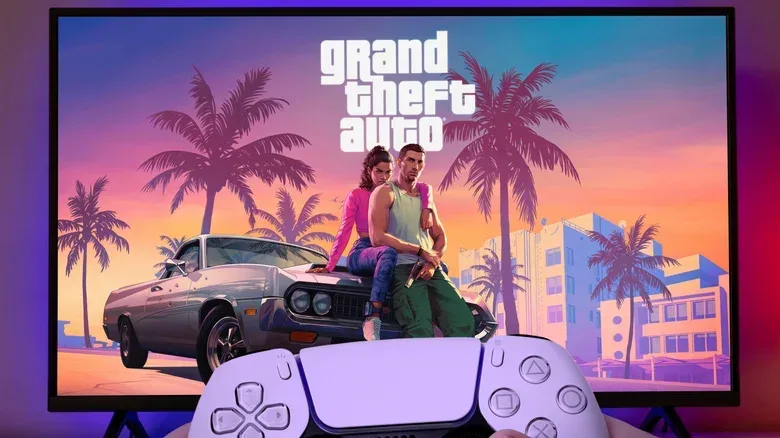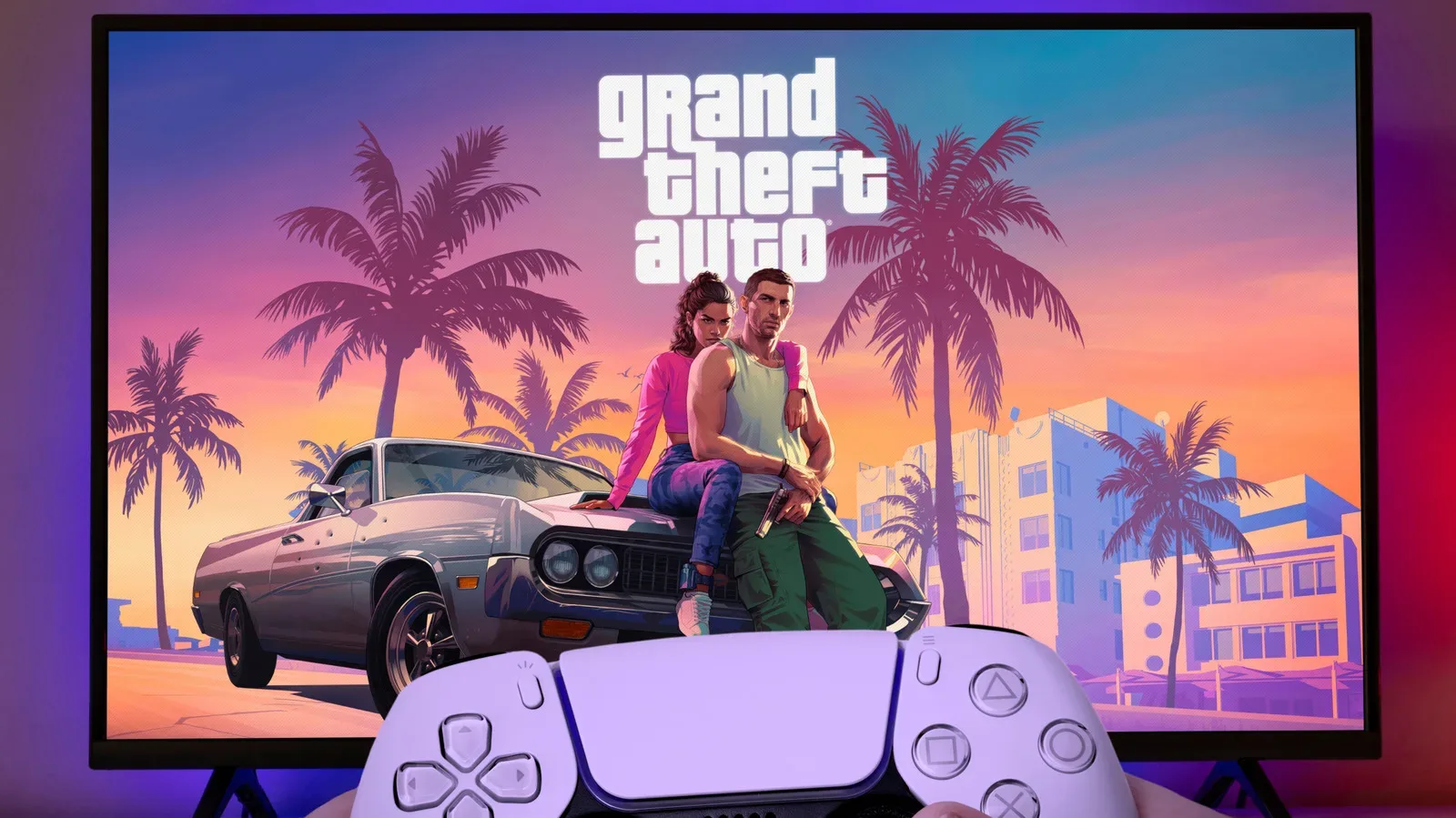
Grand Theft Auto VI is expected to place extraordinary pressure on a console’s visual and audio presentation. The setting is Leonida, and the material shown so far points toward a game of glaring sun, deep night shadows, neon-lit interiors, dense streets and constant traffic. That makes this a sensible time to check the PlayStation 5 settings that determine what reaches a television or headset.
This is not a promise that every option below will be used by GTA VI in the same way. A game must support particular display and audio features, and a TV or headset has to be compatible too. But these system-level checks can remove avoidable bottlenecks before launch and put the PS5 in a good position for whichever visual modes Rockstar ultimately provides.
There is a meaningful distinction to keep in mind: console output settings are not performance modes. Turning on a 120Hz signal does not make a game run at 120 frames per second. Likewise, variable refresh rate cannot create frames a game has not rendered. These options are about how the PS5, display and game cooperate when they are capable of doing so.
For broader GTA VI coverage as the buildup continues, including reports of related branded merchandise, see our story on the reported Travis Scott x GTA 6 Air Force 1 Low release.
Start with the TV connection, not the PS5 menu
Several useful PS5 features depend on the particular HDMI input being used. A television may have multiple HDMI ports, but they are not necessarily identical. The relevant port needs to support the required capabilities, commonly associated with HDMI 2.1, for features such as VRR and a 120Hz signal.
Before changing console settings, confirm that the PS5 is connected to a compatible input on the TV. Then enable the appropriate HDR and gaming options for that input in the television’s own menus. This matters because a PS5 can be set correctly while the display is still treating the connected input as a basic video source.
It is also worth finding the television’s low-latency or game mode setting. Low latency refers to reducing the time between the console sending a frame and the image appearing onscreen. TVs often apply image processing to video, and that can add delay. Game mode is designed to limit that processing. On a compatible setup, the PS5 can use ALLM, or auto low-latency mode, to trigger the TV’s low-latency mode automatically.
Enable VRR, with sensible expectations
VRR means variable refresh rate. A conventional television refreshes at a fixed rhythm. If a console’s frame delivery does not line up neatly with that rhythm, visible issues can include tearing or uneven-looking motion. Tearing occurs when parts of different frames appear on screen at the same time. Stutter, in this context, is the noticeable unevenness that can occur when frame pacing and display refresh do not match cleanly.
VRR allows a supported display to adjust its refresh behavior to better follow the PS5’s output. It is especially relevant to technically ambitious games where the rendering load may change from moment to moment: an open road, a packed street, a chase or a complex interior may not impose identical demands on the console.
On PS5, go to:
Settings > Screen and Video > Video Output > VRR
Turn VRR on if the TV supports it. The same area includes Apply to Unsupported Games. Sony says this can help stabilize performance in games without native VRR support, though it is not a universal improvement. If a particular game or display behaves strangely after this is enabled, turn the option back off. The practical lesson is simple: VRR is a compatibility feature that can improve presentation, not a setting that must remain enabled at all costs.
What ALLM does—and does not do
ALLM stands for auto low-latency mode. It concerns input delay rather than frame rate or image detail. With a supported television, it can automatically switch the TV to its low-latency game setting. Sony notes that using VRR causes the PS5 to use ALLM even when the ALLM option itself is set to Off.
That behavior makes it worth checking the TV’s game-mode configuration before playing. A low-latency mode may change the television’s picture processing, so make sure it still looks acceptable after HDR is calibrated. The goal is not merely to activate every feature; it is to have a stable, responsive setup that produces an image you actually like.
Turn on 120Hz output, but do not confuse it with game frame rate
The adjacent PS5 option is:
Settings > Screen and Video > Video Output > 120 Hz Output
This controls whether the PS5 can send a 120Hz output to a compatible display and game. Again, use an HDMI input that supports that signal; not every port on an otherwise capable TV will do so.
A 120Hz output is useful for games that offer higher frame-rate modes. It can also be appropriate even if GTA VI is ultimately capped at 30 frames per second on console, as many expect. Thirty divides evenly into 120: each rendered frame can be displayed for four refreshes. That is a clean cadence, meaning the timing is even rather than irregular.
The important caveat is that enabling 120Hz does not determine GTA VI’s performance target. Rockstar’s final game settings will determine that. Treat this PS5 option as readiness for compatible software, rather than an upgrade button for every title.
HDR needs calibration more than enthusiasm
HDR, short for high dynamic range, is intended to preserve more detail across bright and dark portions of an image. In a game that can move between bright Florida-inspired daylight, dark interiors and neon night scenes, it has the potential to make a major difference. Done poorly, HDR can instead look washed out, overly dim or crushed, with dark detail disappearing into black.
First, confirm HDR is enabled for the TV input used by the PS5. Then navigate to:
Settings > Screen and Video > Video Output > HDR
The PS5 offers two relevant output approaches. Always On converts content that is not HDR-compatible into HDR output. On When Supported keeps non-HDR games and apps in standard dynamic range while using HDR when supported. Either can be workable; Always On is the more hands-off choice, while On When Supported preserves standard dynamic range output for content that does not natively use HDR.
The more consequential step is the console calibration tool:
Settings > Screen and Video > Video Output > Adjust HDR
Follow the on-screen prompts in the lighting conditions in which you normally play. Room lighting changes how a display is perceived, particularly in very dark scenes. Calibration performed in a bright room may not suit an evening session with the lights down, and vice versa.
HGIG and tone mapping, explained plainly
If the television has an HGIG setting, enable it before performing the PS5 HDR calibration. HGIG is a TV mode intended to prevent the set from adding its own tone mapping on top of the console’s calibration.
Tone mapping is the process of translating brightness information for a particular display’s capabilities. The concern here is double processing: the PS5 has been calibrated to provide HDR output, then the television applies another layer of interpretation. HGIG is intended to make that interaction more direct. Run the PS5’s adjustment process after enabling the TV mode, rather than treating HDR as a one-time switch that never needs attention.
This is also why no universal HDR brightness number belongs in a guide. The correct result depends on the television, its settings and the player’s room. Follow the PS5 prompts rather than copying an arbitrary calibration value.
Set up personalized 3D Audio for headphones
Image quality is only half of an open-world presentation. PS5 3D Audio for headphones is designed to provide a more immersive spatial sound field: footsteps can seem to come from the direction of an approaching person, while traffic, crowds and surrounding activity can feel more precisely placed around the listener.
To create a profile, connect headphones and go to:
Settings > Sound > 3D Audio (Headphones)
- Select Create Personalized 3D Audio Profile.
- Follow the listening prompts and identify where sounds seem to originate.
- After the profile is created, enable Apply Personalized 3D Audio Profile.
- Confirm that Enable 3D Audio for Headphones is turned on.
The profile procedure is worth doing before a major release rather than at the moment you want to start playing. It is intended to tailor the effect to how the listener perceives positioned sounds. If personalization is not preferred, the PS5 also provides five preset profiles, used when the personalized profile is disabled.
Wired headphones are supported. The PS5 does not directly support Bluetooth audio, so wireless Bluetooth headphones require a USB adapter. Anyone choosing a new headset should look for one that supports PS5 3D Audio; Sony’s Pulse 3D wireless headset is one example designed for that use.
A quick pre-launch checklist
- Verify the PS5 is connected to a TV HDMI input that supports the features you intend to use.
- Enable the TV’s HDR capability for that specific input.
- Turn on VRR at Settings > Screen and Video > Video Output > VRR if the display supports it.
- Use Apply to Unsupported Games cautiously, and disable it if it causes problems.
- Enable 120 Hz Output on a compatible display, while remembering it does not set a game’s frame rate.
- Choose an HDR output preference and run Adjust HDR in your usual room lighting.
- Enable HGIG on the TV, if available, before the HDR calibration.
- Create a personalized 3D Audio profile for headphones, or select one of the presets.
When GTA VI arrives, its own in-game settings will be the final place to choose available presentation options. Until then, a correctly connected PS5, calibrated HDR and prepared audio profile are the useful groundwork: less menu-diving later, and a better chance of seeing and hearing the game as cleanly as the hardware allows.