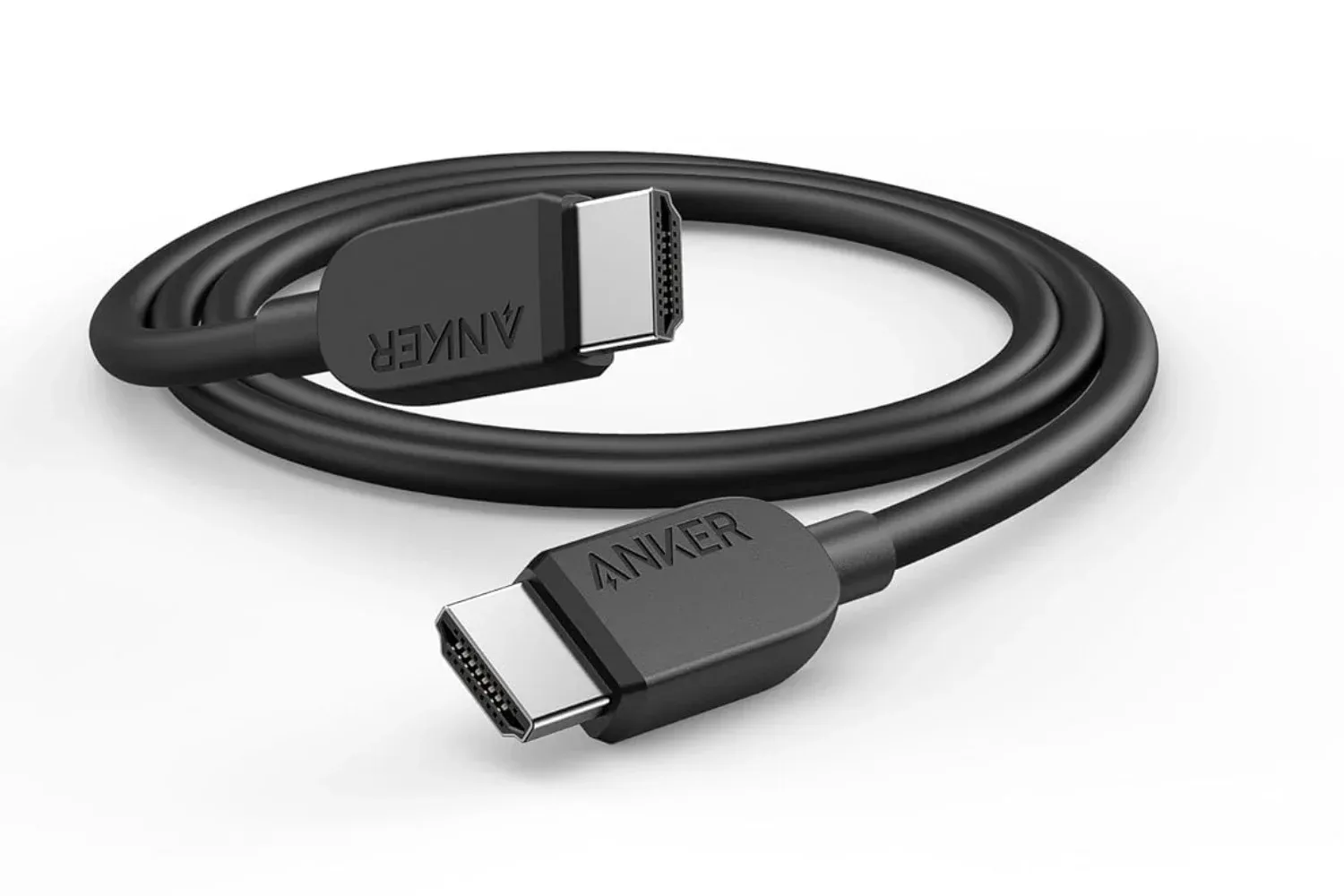
An HDMI cable is one of the least exciting parts of a gaming setup right up until it becomes the most exciting part in the worst possible way. A short connection between a console and TV is usually uneventful. Stretch that connection around a room, through a wall, across a ceiling or toward a projector, and the question changes from “does it fit?” to “can it reliably carry the mode I actually want to use?”
The short answer is that there is no official maximum HDMI cable length. A number printed in a shopping guide or product listing—10 feet, 25 feet or 50 feet—is a useful rule of thumb, not a hard technical cutoff. Whether a particular run works depends on the cable itself, the amount of data the selected video mode sends, and the source and display at either end.
For players, that distinction matters. A cable may show a console menu without complaint, then misbehave after the game switches the display to 4K at 120Hz with HDR and VRR enabled. That does not automatically mean the console, TV, monitor or game is defective. It may mean a long cable run has reached the point where its margin for carrying that higher-bandwidth signal is gone.
Length is not the whole HDMI story
HDMI uses a digital signal, but a digital connection is not immune to the physical realities of distance. Standard passive HDMI cables carry an electrical signal through copper. As the run gets longer, that signal becomes more difficult to preserve cleanly enough for the receiving device to interpret it correctly.
That is why “How long is too long?” cannot be answered with one number. A lower-demand connection—such as a device outputting 1080p—can be much easier for a cable to handle than a modern gaming configuration. 4K resolution at 120Hz, HDR and VRR asks the cable to carry substantially more information. Each setting can matter, and using them together makes a long run more demanding.
Bandwidth is the useful term here: it is the amount of information the connection can move over a given period. Resolution affects how much image data is involved, while refresh rate is how often the image updates. HDR, or high dynamic range, is a display mode that expands the range of brightness and color information. VRR, short for variable refresh rate, allows the display refresh behavior to vary in step with the game output. These are desirable gaming features, but they make a cable’s job harder than a basic video signal.
A cable that was completely dependable with 4K at 60Hz may therefore fail at 4K/120 using the same hardware and the same route. Likewise, two cables of an identical length are not guaranteed to behave alike. There is no dramatic universal cliff at which every passive cable fails. One 25-foot cable may work flawlessly in a particular setup while another starts showing faults at that distance or earlier.
The practical lesson is simple: treat cable length as part of the display specification. It is not merely a measurement for planning where furniture goes.
Know the cable category, but do not confuse it with distance
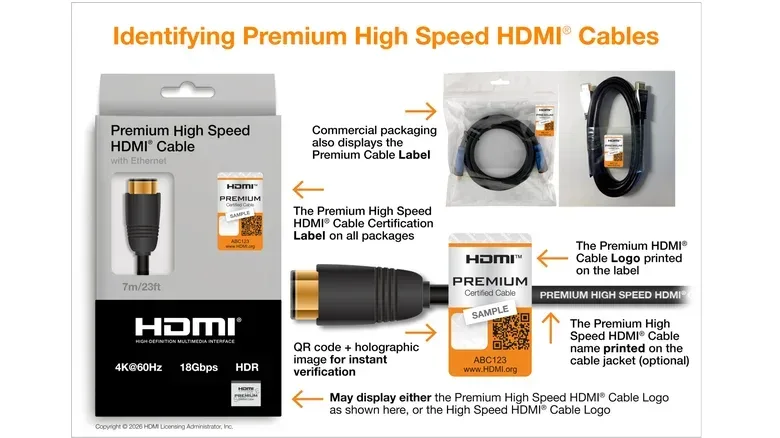
HDMI cable labels can help establish what class of signal a cable is intended to carry. Premium High Speed cables associated with HDMI 2.0 are certified for up to 18Gbps. Ultra High Speed cables associated with HDMI 2.1 support up to 48Gbps, a class relevant to uses including 4K/120 gaming. The newer Ultra96 category associated with HDMI 2.2 raises the bandwidth ceiling to 96Gbps for applications that require it.
Those figures are important, but they are not a promise that a cable can cover any distance. A higher-bandwidth format does not somehow turn a cable into a better long-distance cable. In practice, moving more information makes long runs less forgiving. A cable needs to match the needs of the connected equipment, while its construction and length still determine whether it can carry that signal reliably across the planned route.
This is also why loose “premium” marketing language is a poor substitute for a certification label. The meaningful buying question is not whether a package sounds expensive or elite. It is whether the cable has the appropriate certified category for the signal your setup needs.
For a player planning to use a console or PC at 4K/120, the target is different from someone whose display use tops out at 4K/60 or 1080p. Establish the resolution, refresh rate, HDR mode and VRR behavior you plan to use before purchasing the run. A PC user chasing stable display output may also want to deal with software-side clutter separately; our Windows 11 gaming cleanup guide covers that distinct part of maintaining a gaming machine. It will not repair a marginal HDMI link, however, because a cable signal problem is fundamentally a connection problem.
What HDMI failure actually looks like
A struggling HDMI connection usually does not provide a polite, gradual warning. It is unlike an aging analog image that simply looks softer or noisier as conditions worsen. Digital HDMI problems are often abrupt: the setup appears perfect until it suddenly does not.
Common warning signs include:
- Flickering video.
- Brief black screens or a display that repeatedly loses and regains the picture.
- Sparkling pixels or visible specks in the image.
- Audio interruptions or glitches.
- No image at all.
These symptoms can be intermittent, which is part of what makes long-run diagnosis frustrating. The cable might work in one game, at a menu, or while the display is using a less demanding mode. A higher-bandwidth setting can then expose the weakness. A home screen is not a complete test of a gaming connection.
That point deserves emphasis for anyone installing cable in a wall or ceiling: do not declare victory because a picture appears. Test the highest resolution, refresh rate, HDR and VRR combination you intend to run before committing to the installation. If the objective is 4K/120 gameplay with HDR and VRR, that complete configuration is the test. Testing only a lower-bandwidth screen gives reassurance about a different use case.
Passive copper, active copper and active optical HDMI
For shorter connections, a passive copper HDMI cable is the straightforward option. “Passive” means it is simply carrying the electrical signal through its conductors without electronics in the cable to compensate for loss. It is usually the least complicated route, and reducing unnecessary length remains the sensible first move.
When the passive run is unreliable, active copper HDMI is one potential next step. These cables include electronics designed to compensate for signal loss across longer distances. They are not just ordinary copper cables with a fancier jacket; their electronics are part of why they can be useful where a passive connection struggles.
Active optical HDMI takes a different approach, converting the high-speed signal to light for transmission. In some applications, active optical HDMI can operate well beyond 100 feet. That makes it relevant to installations where the source equipment and display are genuinely far apart rather than merely on opposite sides of a living room.
Neither active option removes the need to plan. One especially easy mistake is directionality. Many active and optical HDMI cables have a designated end for the source device and another for the display. Reversing the cable can leave a perfectly capable setup showing a black screen. It is a simple detail when the cable is visible on the floor and a deeply inconvenient one after it has been routed through a finished wall.
Before pulling an active or optical cable through a permanent route, verify which labeled end belongs at the console, PC, streaming device or other source, and which belongs at the TV, monitor or projector. Then test it end to end in the demanding mode you intend to use.
Do not overlook the rest of the signal chain
The HDMI cable is only one link. A route can include wall plates, couplers, extension accessories, switches and AV receivers. Each additional piece is another possible point of failure or compatibility issue, particularly when the selected mode is already demanding.
A direct connection from source to display is therefore the sensible baseline when troubleshooting. If the direct setup works and the full installation does not, reconnect the added parts one at a time. That approach narrows the problem rather than asking several components to explain themselves at once.
It also avoids a common error in long installations: blaming the longest cable immediately when an accessory between the endpoints may be the weak point. Conversely, removing a switch or receiver during testing can confirm whether the direct cable itself has enough headroom for the desired format.
“Headroom” here means spare tolerance: the connection is not merely functioning at the edge of what it can manage, but has room to continue working reliably. The supplied evidence does not establish a precise distance at which any individual cable has enough headroom, which is exactly why a complete test is more valuable than relying on a generic maximum-length claim.
A practical buying and installation checklist
- Measure the route, then avoid needless excess. Buy the shortest cable that reaches comfortably. Do not choose extra length merely because it seems safer; more length makes a passive high-bandwidth run harder.
- Identify the actual display mode. Decide whether the setup must handle 1080p, 4K/60, or 4K/120 with HDR and VRR. Purchase for the mode you plan to use, not only for the mode that happens to appear during initial setup.
- Match the certified category to the requirement. Premium High Speed is certified up to 18Gbps, Ultra High Speed up to 48Gbps, and Ultra96 up to 96Gbps. Seek the certification label rather than relying on broad premium claims.
- Escalate cable technology if the distance demands it. If a passive copper run proves unreliable, active copper is a logical next consideration. For substantially longer needs, active optical HDMI may be appropriate.
- Check orientation on active and optical cables. Confirm source and display ends before any permanent routing.
- Test everything at maximum intended demand. Enable the desired resolution, refresh rate, HDR and VRR, then look and listen for instability. A menu image alone is not enough.
- Test direct before diagnosing the accessories. Wall plates, couplers, switches and AV receivers all belong in the troubleshooting process.
- Plan for replacement in permanent runs. Conduit and a pull string can make a later upgrade possible. HDMI standards change, while reopening a wall is considerably less flexible.
The useful rule: shortest suitable cable, thoroughly tested
There is no single HDMI distance that separates “safe” from “too long.” The correct answer depends on the precise cable, the data load and every piece of hardware in the route. For gaming hardware, faster display modes make that uncertainty more important, not less.
That should not make cable shopping mysterious. Start with the shortest comfortable route, select a certified cable category suited to your equipment, and test the exact high-bandwidth features you expect to use. If passive copper cannot deliver a stable result at that length, active copper or active optical HDMI provides a more appropriate path for a longer installation. The boring cable can stay boring—which is exactly what it should do.