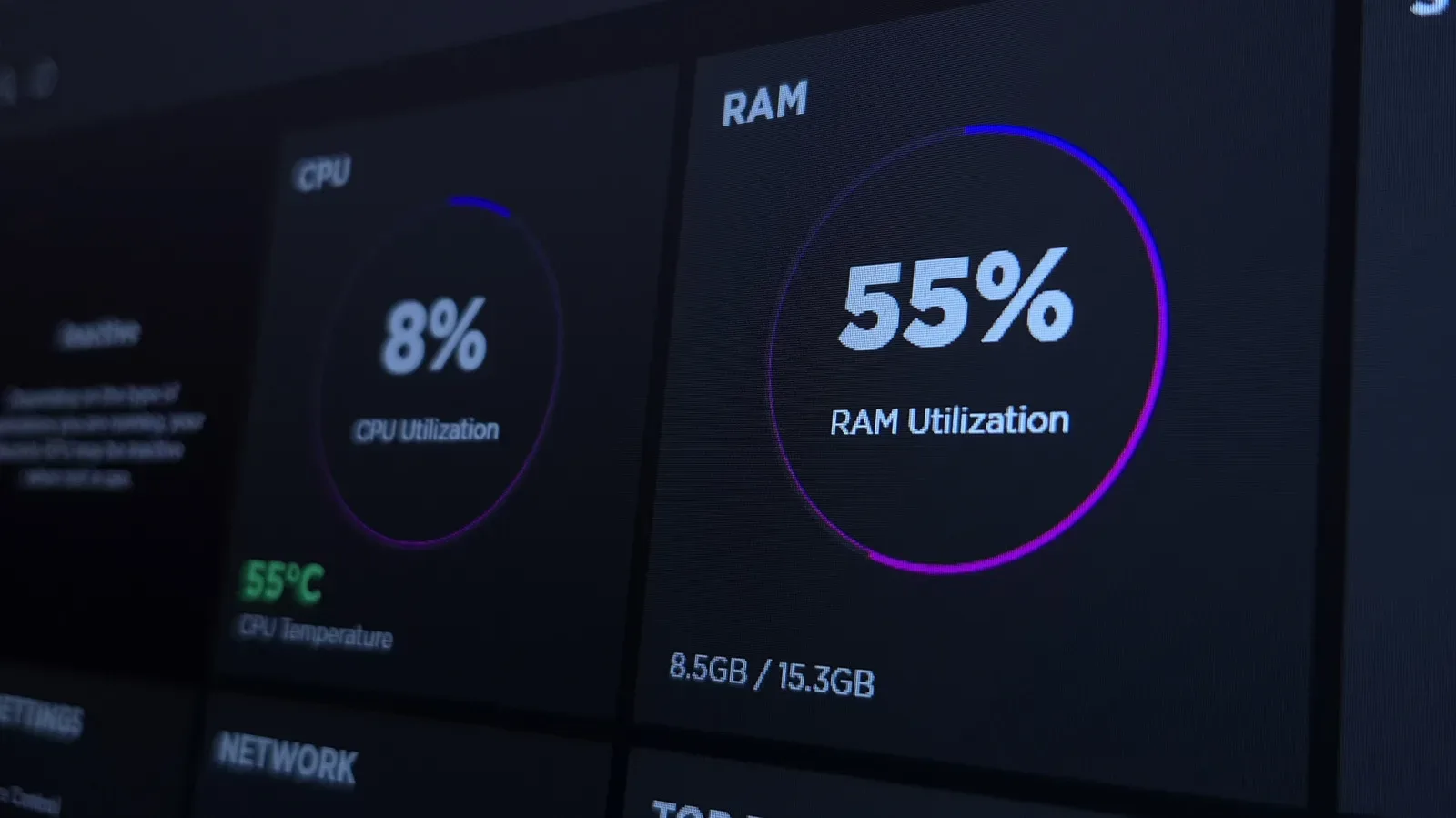
When a PC game stutters at the worst possible moment, the instinct is to hunt down every process with a name that sounds remotely nonessential and send it into the digital void. That approach is tempting, especially when a major component upgrade is out of reach. It is also an excellent way to trade a minor annoyance for a broken Windows feature you actually needed.
A better approach is selective. Windows 11 runs background components for many legitimate reasons, but a handful can compete with games for processor time, memory or internet bandwidth depending on how a PC is used. Reducing that competition may make a system feel more consistent during play. It should not be treated as a substitute for a graphics-card or other hardware upgrade when a game is fundamentally limited by rendering performance.
In other words: this is a tidy-up, not a frame-rate miracle. The sensible goal is fewer avoidable interruptions, fewer redundant overlays, and fewer programs waking up to perform work while a game needs the machine’s attention.
First, understand what is actually being reclaimed
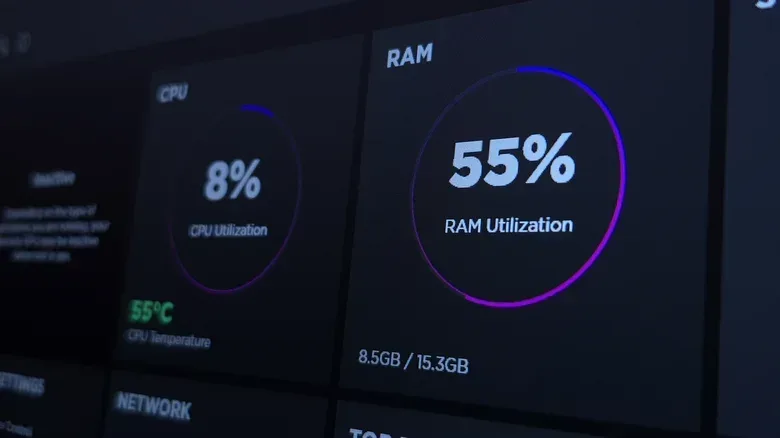
CPU is the processor capacity shared by Windows, games and background programs. RAM is the system memory holding active programs and their data. Network bandwidth is the internet connection capacity used by online games, cloud syncing and other transfers. Any one of these can become an issue, but the effect varies from PC to PC and from game to game.
Graphics workloads are usually the biggest demand in modern games. That is why changing background settings should come with realistic expectations: it is unlikely to transform a struggling game into a high-frame-rate showcase. It can, however, remove unnecessary work from the background and reduce the chance that a sync job, indexing task or duplicate game overlay decides to become busy at an inconvenient time.
Start by identifying whether a feature is genuinely redundant in your setup. If you regularly use a Windows feature for captures, controller-related Xbox functions, printing, quick file search or cloud backup, disabling it permanently may be the wrong answer. A temporary pause or a narrower setting is often the better compromise.
Disable Xbox Game Bar background activity if you do not need it
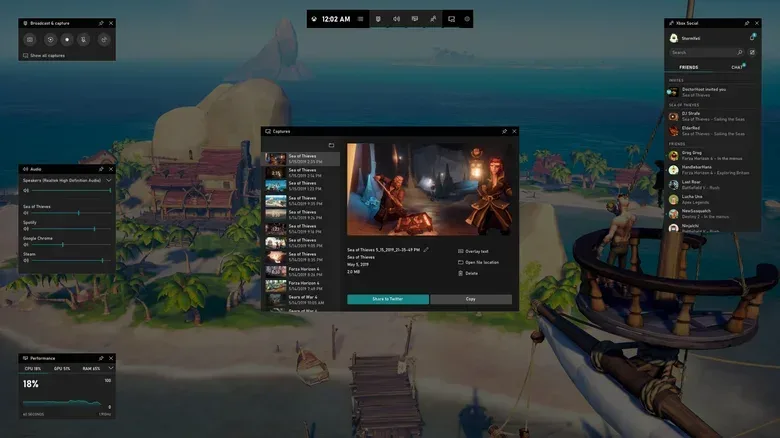
Xbox Game Bar is designed to provide game launching and controls for functions such as music playback and clip recording. That can be useful, particularly for people using its specific features or playing with friends on Xbox consoles. But players already relying on another PC game platform’s overlay and capture tools may be running overlapping features for little benefit.
To stop Game Bar from operating in the background in Windows 11:
- Open Settings.
- Go to System, then System components.
- Find Game Bar, select the three-dot menu, and choose Advanced options.
- Set Background component permissions to Never.
- Select Terminate to stop the component if it is active.
The key word here is if. Game Bar is not inherently bad software; it is potentially unnecessary overhead when its job is duplicated elsewhere. Players who use it for recording or other game-adjacent tasks should leave it available. The practical principle is avoiding duplication, not treating every Windows gaming feature as an enemy.
Change Search indexing from Enhanced to Classic
Windows Search indexing is a classic trade-off between convenience and background work. An index is effectively a catalogue that helps Windows locate files more quickly. In Enhanced mode, Windows can index the whole computer, making broad file searches more capable. The cost is that the system has more locations and content to keep track of, which can affect CPU activity and battery life.
For a gaming-focused system, especially one where immediate searches across every folder are not essential, Classic indexing is a more restrained option. It limits indexing to the Documents, Pictures, Music and Desktop folders.
To make the change:
- Open Settings.
- Select Privacy & security.
- Open Search.
- Choose Classic rather than Enhanced indexing.
This is a particularly reasonable adjustment for players who tend to launch games from a library application or desktop shortcut rather than searching the entire drive. The compromise is straightforward: searches outside the core folders may be less comprehensive, but Windows has less indexing work to do.
It is also an example of why blanket optimization checklists can mislead. Enhanced search is functionally superior for someone who needs to retrieve files across their PC often. Classic is not universally “better”; it is better aligned with a narrower, game-first use case.
Pause OneDrive and other cloud syncing before playing online
Cloud storage utilities have a purpose: files and settings need to synchronize eventually. The problem is timing. A sync operation can temporarily use processor resources and network capacity, neither of which is ideal while playing an online match.
OneDrive can be paused directly from the system tray. Right-click the OneDrive icon and choose Pause syncing. Windows offers pauses of two, eight or 24 hours.
The temporary nature of this setting is its strength. Rather than disabling cloud storage and forgetting about it, pause it for the session and let synchronization resume later. The same logic can apply to other cloud tools: a program that is useful throughout the week can still be unnecessary during the couple of hours reserved for a game.
For online play, this is less about chasing a specific performance number than avoiding avoidable network spikes. A multiplayer game needs a stable connection; letting a background application begin transferring files at the same time introduces a competing demand that serves no immediate gaming purpose.
Consider disabling SysMain, but know the trade-off
SysMain is a Windows service intended to speed up application launches. It attempts to anticipate what a user will open and load those items into memory ahead of time. That prediction can be useful in ordinary desktop use. It can be less useful when the computer’s next priority is a demanding game rather than the browser, spreadsheet or other application Windows expects.
To disable it:
- Use the Windows taskbar search and look for Services.
- Open the Services tool.
- Find SysMain in the list.
- Right-click it and choose Properties.
- Change Startup type to Disabled.
This is the setting that deserves the most deliberate decision-making. SysMain exists to improve perceived responsiveness by preloading likely applications. Disabling it removes that predictive behavior, which may fit a PC dedicated to gaming sessions but can be a poorer fit for a machine where fast access to everyday apps matters more.
The safe way to approach the change is to be prepared to reverse it. If the computer feels worse in normal use, return to the same Properties window and restore the startup behavior. Optimization is not a loyalty test; the configuration should serve the person using the PC.
Do not turn the Services menu into a demolition derby
The Services tool contains many entries that may sound irrelevant. Names alone are not a reliable guide to whether a service matters. Some services support critical Windows or application functions, and disabling them can temporarily break the task currently being performed until software is relaunched or the PC is rebooted.
The print spooler illustrates the difference between “safe in a narrow case” and “meaningful for gaming.” If a PC never prints, disabling the print spooler can be acceptable. It is also unlikely to make a noticeable difference to game performance. That makes it a low-value tweak: a possible change, but not an especially useful one.
Only disable a service when you understand what it does, do not use its associated feature, and can accept the feature no longer working.
That rule is more valuable than any massive disable list. The likely gains from increasingly obscure services are marginal, while the chance of losing a function rises. Game performance tuning should prioritize settings with a clear connection to a current workload: an overlay that duplicates another overlay, a whole-drive search index, a live cloud transfer, or a preloading service that does not fit the way the machine is used.
Audit third-party startup apps too
Windows components are only one side of background activity. Third-party applications can have an equal or larger effect, particularly when they start automatically and remain resident all day. The startup list is therefore one of the most practical places to check before assuming Windows itself is the sole culprit.
To review it, open Settings, go to Apps, then select Startup. Turn off programs that are never used or are only needed periodically. If an app is already active, disabling its startup switch will not close it immediately; close it through the system tray or Task Manager.
Focus on software whose permanent background presence does not provide value between launches. The objective is not to remove every program from startup. It is to make startup intentional. A utility used constantly may deserve to remain; a program opened once in a while likely does not need to claim resources every time Windows starts.
A practical, low-risk pre-game routine
For most players, the best version of this cleanup is modest and repeatable:
- Decide whether Game Bar duplicates tools you already use, then restrict its background permissions if it does.
- Use Classic search indexing if whole-PC search is not important to your daily workflow.
- Pause OneDrive or another cloud client for the length of a gaming session, especially for online games.
- Evaluate SysMain based on how the PC is actually used, and reverse the setting if it makes everyday use less convenient.
- Review Startup apps and stop rarely used programs from launching automatically.
Hardware still determines the ceiling in demanding games, and service trimming cannot rewrite that reality. For players weighing broader PC hardware decisions, it is worth keeping an eye on the wider machine market as well, including recent PC hardware discounts. But no purchase decision changes the immediate value of keeping a current system focused on the game rather than a collection of unattended background chores.
Make one change at a time, use the PC normally, and retain the settings that improve your own experience. That is less dramatic than deleting half the Services list, but it is much more likely to leave Windows usable when the game is over.