A sluggish PC game does not automatically mean it is time to buy a graphics card. A new GPU can of course change the equation, but there are several useful adjustments to make before spending anything: remove competing background tasks, choose a sensible graphics preset, make sure Windows is prioritizing the game, and use the reconstruction tools supported by the hardware already in the system.
The key is to decide what matters most. If the goal is a stable 60 frames per second, or fps, visual features that make a still screenshot more impressive may be the first things worth sacrificing. In fast-moving games, a steady frame rate can be more valuable to the experience than maximum-quality shadows, reflections, or effects that are difficult to notice during play.
Not every change has the same impact. Turning off a background recorder may help at the margins; lowering internal render resolution or disabling ray tracing can make a dramatically larger difference. Work through the bigger levers first, change one setting group at a time, and favor consistency over a frame-rate counter that swings wildly between highs and lows.
Start by freeing the resources your game already needs
Before opening a game’s graphics menu, close applications that are not needed for the session. Background software competes for system resources that the game could otherwise use. Recording features are a particularly sensible place to look. If recording through the NVIDIA app or Xbox Game Bar is enabled when it is not required, turning it off can reduce that extra load.
Physical maintenance matters, too. A PC case full of dust makes cooling harder work. Cleaning a neglected system does not turn it into a different class of machine, but it removes an avoidable obstacle to the system keeping itself cool while gaming.
Drivers are another basic check. Keep AMD or NVIDIA graphics drivers current, along with the relevant vendor application. A driver update can improve how a game behaves, though newer is not unconditionally better in every situation. If an update causes a game to stop working correctly, reverting to the previous driver is a reasonable response rather than endlessly changing game settings around a new problem.
Set Windows 11 to favor performance
Windows 11 includes two useful switches for this job. Go to Settings > System > Power & battery > Power Mode and choose Best Performance. This is especially relevant on a gaming laptop, where the power plan can influence how aggressively the system favors performance. The trade-off is battery life, so it is better suited to a plugged-in session or a situation where runtime is not the main concern. Anyone weighing that trade-off can also keep an eye on the broader reality that battery health is only one part of the story.
Then visit Settings > Gaming > Game Mode and confirm that Game Mode is enabled. Its purpose is to lower the priority of other processes while a game is running. It is not a substitute for an appropriate graphics configuration, but it is an easy setting to verify before moving on to the more consequential changes.
Related coverage includes How to Improve PC Game FPS Without Buying New Hardware.
Lower the settings that cost the most
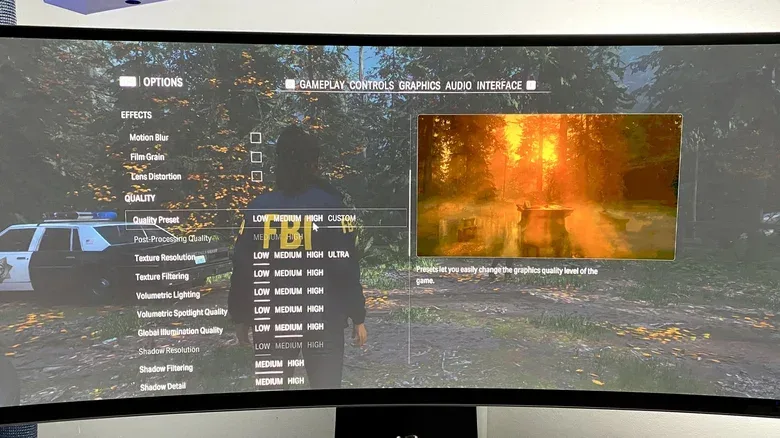
Graphics presets are the direct route to better performance because rendering more detailed scenes requires more work from the GPU. Begin with the game’s automatic configuration if it offers one. Many newer games inspect the installed hardware on first launch and propose optimized settings, which can eliminate much of the initial guesswork. Automatic setup has been noted as particularly helpful in Forza Horizon 6 and GTA V: Enhanced Edition.
That starting point should not be treated as sacred. If the result is still unstable, lower the options that are likely to be costly:
- Texture quality: higher texture settings can put greater demands on the GPU.
- Shadows: detailed shadows can be expensive, and reducing them to medium or low is a common compromise.
- Ambient occlusion: this effect adds shading where surfaces meet or sit close together, helping scenes appear deeper but adding rendering work.
- Other effects: reduce demanding visual extras before treating an inconsistent frame rate as unavoidable.
The practical point is not that every player should use low settings. It is that “High” or “Ultra” is often a poor target when the cost is persistent stutter or a failure to hold the intended frame rate. The image-quality difference between settings may be modest during quick action, while the responsiveness and steadiness gained by a lower preset can be immediately noticeable.
Motion blur, V-sync and frame caps solve different problems
These three settings are often discussed together, but they address different things. Motion blur is a visual effect; disabling it may be preferable for a clearer image during movement. V-sync, or vertical synchronization, is intended to prevent screen tearing, but disabling in-game V-sync can reduce input lag. Input lag is the delay between an input and its visible result on screen.
Disabling V-sync does not mean accepting tearing as the only outcome. A frame-rate cap can instead be applied through NVIDIA Control Panel or AMD Radeon software to help control it. The useful approach is to consider the display, the game and the desired target together: set a cap that supports a stable experience rather than asking the PC to render unlimited frames it cannot consistently sustain.
Upscaling: render fewer pixels, then reconstruct the image
One of the biggest modern performance tools is commonly described as supersampling or upscaling. In this context, the game renders at a lower internal resolution than the resolution sent to the display, then uses reconstruction techniques to produce a higher-resolution output. The central benefit is simple: the GPU has fewer pixels to render natively.
NVIDIA’s DLSS 4.5, AMD’s FSR 4, the older open-source FSR 3, and Intel XeSS are the relevant options mentioned here. Hardware support and the game’s own menu determine which choices are available. DLSS 4.5 is positioned as a particularly strong solution, while FSR 4 is an option for RDNA 4 hardware such as Radeon RX 9000 Series cards. FSR 3 remains an alternative for older GPUs, and XeSS is worth enabling on systems using an Intel Arc card.
These options usually provide quality modes. A less aggressive mode preserves more native detail; a more aggressive mode renders fewer pixels and can deliver a larger fps increase. With DLSS, the Quality preset renders 66.7 percent of the pixels of native output, while Ultra Performance renders 33 percent. That reduced native workload is why the latter can raise frame rates so sharply, although it represents a more forceful image-quality trade-off.
Practical implication: start with a quality-oriented upscaling mode rather than immediately selecting the fastest one. If performance remains short of the target, move down through the available modes. This preserves as much image quality as possible while still identifying whether upscaling can solve the problem without broader cuts to the settings.
Frame generation can raise the number—but not always the feel
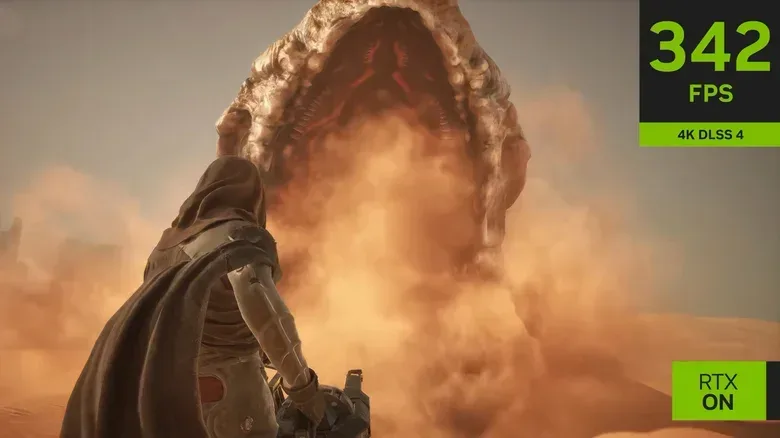
Frame generation is related to upscaling but is not the same thing. It creates interpolated, AI-assisted frames between frames conventionally rendered by the GPU. This can substantially increase the fps number and make motion appear smoother. NVIDIA DLSS 4.5 Multi Frame Generation, for example, can push Cyberpunk 2077 with path tracing at 4K beyond 200 fps using its x6 multiplier.
That impressive result comes with an important limitation: latency can rise considerably. Buffering generated frames can increase the gap between input and the screen’s response. So a game may look smoother in motion without necessarily feeling more immediate to control. The reported fps figure should therefore not be read as a complete description of responsiveness.
Frame generation is best treated as an option to test selectively on supported modern GPUs, particularly in games where ray tracing is otherwise very demanding. Players sensitive to input lag should be cautious, evaluate it for themselves, and avoid assuming that a higher displayed frame rate automatically produces a better competitive or action-focused experience.
Ray tracing is usually the first major feature to disable
If a PC is struggling, ray tracing should be near the top of the list of settings to switch off. Traditional rasterization uses pre-calculated effects. Ray tracing instead simulates lighting, shadows and reflections in real time by tracing how rays move around a virtual scene. That can make lighting and shadows exceptionally convincing, as illustrated by the ray-traced work in Cyberpunk 2077 and Resident Evil Requiem.
The visual payoff is real, but so is the performance bill. Ray tracing can reduce fps by half or more, including on capable GPUs. Even the RTX 5090 can lose substantial performance with ray-tracing settings at their maximum. For a mid-range or aging graphics card, turning RT off can be the fastest way to reclaim a usable frame rate.
Rasterization is not a failure mode or a lesser version of a game. It is the conventional rendering approach games use without these advanced real-time ray calculations. Choosing it is a rational trade: less physically elaborate lighting in exchange for a much easier workload and, often, a steadier game.
Path tracing is an even steeper demand
Path tracing goes beyond the more limited implementation of ordinary ray tracing. Where ray tracing may be applied to selected elements such as lighting, shadows or ambient occlusion, path tracing handles the entire lighting system. It is available in only a small number of games, including Cyberpunk 2077, Resident Evil Requiem and Doom: The Dark Ages.
The result can look remarkable, but it is an extreme setting rather than a baseline expectation. The RTX 5090 can fall to around 30 fps at 4K in Cyberpunk 2077 when DLSS and frame generation are disabled. Unless the system uses an RTX 5090 or RTX 5080, path tracing is generally a feature to avoid when the priority is gaining performance without new hardware.
A sensible order for troubleshooting lower FPS
- Close unneeded background applications and disable recording tools that are not in use.
- Make sure the PC is clean enough to cool effectively, and check the graphics driver and vendor application.
- Enable Windows 11 Game Mode and select Best Performance power mode, while accounting for laptop battery drain.
- Use the game’s automatic settings as a baseline, then lower textures, shadows, ambient occlusion and effects as needed.
- Disable motion blur if desired, turn off in-game V-sync to reduce input lag, and use a driver-level frame cap to help manage tearing.
- Enable the appropriate upscaler—DLSS, FSR or XeSS—and begin with a quality-focused setting.
- Try frame generation only if supported and only after considering its potential latency cost.
- Turn off ray tracing; leave path tracing disabled unless the machine is genuinely equipped for it.
The best free performance upgrade is not one magic toggle. It is a sequence of clear compromises: preserve the settings you can see and value, remove the expensive effects you do not, and use reconstruction technology to reduce native rendering work. That method can turn a game that merely looks spectacular in a settings menu into one that actually runs smoothly on the hardware already under the desk.