DLSS settings have reached the point where choosing “Quality” or “Performance” is only part of the job. NVIDIA’s DLSS 4.5 model presets—K, L and M—add another decision: which image-reconstruction model best fits the graphics card, target resolution and game being played.
The useful way to approach these letters is not as a universal quality ranking. They are tools intended for different compromises. Preset K prioritizes image quality on powerful hardware; M is aimed at DLSS Performance use and a 1080p internal rendering resolution; L is built for the more aggressive Ultra Performance scenario, including a 720p internal image. Those starting points matter because an upscaler has more or less visual information to work with depending on the resolution at which the game actually renders.
There is also a separate set of presets for Multi Frame Generation. These are not the K, L and M options, and mixing up the two menus can lead to a lot of aimless setting changes. Frame-generation settings concern the AI-assisted frames added between rendered frames, while Super Resolution settings concern the reconstruction of the game’s rendered image to the chosen display resolution.
Where to change DLSS 4.5 model presets
In the NVIDIA app, the global path is:
- Open Graphics.
- Choose Global Settings.
- Open DLSS Override – Model Presets.
Global overrides can be convenient, but they also make restraint important. A setting that works beautifully in one path-traced showcase may not be the best answer for every game. Change one variable at a time, then return to the game and look for the issue you were trying to solve: unstable fine detail, motion ghosting, insufficient performance, UI shimmer, or a combination of those problems.
That approach is particularly sensible for PC players who already juggle ray tracing, resolution, frame-rate targets and latency. It is the same kind of platform-specific tuning relevant to a game’s broader support updates, such as a PC update that added Steam Deck touch controls alongside Mac and Linux support: the right configuration depends on the machine and the intended way to play, rather than a single magic toggle.
The short version: what K, M and L are for
- Preset K: The image-quality-first choice, best suited to high-end systems and especially appealing when aiming for 4K output.
- Preset M: A performance-oriented option tailored to DLSS Performance mode. It is a strong fit for mid-range hardware, with an RTX 4070 given as an example, and works from a 1080p internal image for 4K output.
- Preset L: The choice geared toward DLSS Ultra Performance mode and older RTX 20- and RTX 30-series cards. It works from a 720p internal resolution and can deliver usable high-resolution output, with greater risk of instability and ghosting during fast movement.
In other words, K asks the GPU for more in pursuit of a cleaner final image; M is the middle-ground choice for extracting more performance without throwing away too much stability; and L is the lifeline for games where ray tracing or overall graphical load makes a 720p internal resolution necessary.
Preset K: the high-end image-quality option
Preset K is designed to produce the best image quality of the three. That makes it the logical starting point for a high-end gaming PC, especially one connected to a 4K monitor or television. At 2160p output, the difference between “technically 4K” and an image that holds together in motion can be conspicuous around fine geometry, foliage, thin lines and high-contrast edges.
Related coverage includes How to Choose NVIDIA DLSS 4.5 Presets K, L and M.
Image stability is the key term here. It describes how consistently an image holds together over successive frames. A scene can look sharp in a paused screenshot but appear to crawl, flicker or break up when the camera moves. K is positioned as the option for players who have enough graphics horsepower to prioritize that steadier, more native-like presentation.
For 4K, K can be paired with options in DLSS Override – Super Resolution Mode. The relevant choices are DLAA, Quality and Balanced.
- DLAA renders at 100% resolution and applies DLSS anti-aliasing rather than upscaling. It offers the highest image-quality route here, with the trade-off that demanding games can impose a serious frame-rate cost. A 50-series GPU is the practical expectation for this route in especially demanding modern games.
- Quality upscales to 4K from 1440p, approximately 66.7% of native 4K resolution.
- Balanced starts from 2227 x 1253, roughly 58% of a 4K image, reducing rendering cost further.
Quality is the more conservative recommendation when there is room in the performance budget. Balanced is the pragmatic pairing for many otherwise capable 4K systems: it retains the K model’s image-quality emphasis while giving the GPU a lower-resolution image to render. The supplied guidance identifies K plus Balanced as a combination likely to provide strong performance and an attractive image on most 4K displays.
A custom input resolution is also available in that sub-menu. That flexibility is useful, but it should be treated as fine tuning rather than an automatic upgrade. A lower input resolution can improve performance; it does not create extra source detail. Conversely, increasing internal resolution can improve the information provided to reconstruction, but it raises GPU demand. The right result is the one that stays smooth while looking stable in the particular game and scene being played.
Preset M: the balanced recommendation for mid-range 4K
Preset M is tailored to DLSS 4.5 Performance mode. Its cited 4K use case begins with a 1080p internal resolution, which means the GPU renders the scene at 1920 x 1080 before DLSS reconstructs it for a 3840 x 2160 display.
That is a meaningful performance reduction compared with rendering native 4K. It is also a less severe starting point than Ultra Performance’s 720p baseline. The result is why M occupies a valuable middle position: it can offer pleasing 4K results and strong image stability without being as taxing as the high-end-focused options.
An RTX 4070 is an example of the kind of mid-range card for which M makes sense. This is not a claim that every game will behave identically on that GPU—ray tracing level, path tracing, the rest of the system and the game’s own demands still matter—but it expresses the intended hardware fit. If a player is seeking more frames in an advanced title without immediately accepting the more visible compromises of a 720p source image, M is the sensible first experiment.
Practically, M is the preset to favor when a system can no longer maintain the desired frame rate with K, or when the difference in image quality is less noticeable than the performance recovered. That assessment should be made in motion. Rotate the camera through detailed environments, watch thin objects against contrasting backgrounds and inspect effects during fast traversal. Those are the conditions where reconstruction weaknesses are more likely to reveal themselves.
Preset L: performance for older RTX cards, with clear trade-offs
Preset L is designed around DLSS Ultra Performance mode. For a 4K output target, that means reconstructing from a 720p internal resolution. It is the most performance-focused of the three choices discussed here and is presented as especially appropriate for RTX 20- and RTX 30-series graphics cards, particularly when ray tracing is enabled.
Its appeal is straightforward. Ray tracing can be expensive, and path tracing pushes visual demands further still. If the alternative is a frame rate that feels too low, L can make higher-resolution output viable on older hardware. It can produce convincing results on 1440p and 4K displays despite the very low internal resolution.
The compromise is stability. With fewer source pixels, there is less information available for reconstruction. The supplied guidance specifically warns that L may be less stable than M and that ghosting can become apparent during quick camera movement.
Ghosting is a visual trail or echo that can appear around moving objects or edges. It is not the same thing as ordinary display motion blur: ghosting is an incorrect temporal artifact, where remnants of a previous frame remain visible. It may be tolerable in slow-paced sequences, but it can become distracting in a fast action game.
That does not make L a bad preset. It makes it an honest performance choice. Players on older RTX hardware who want ray tracing and a 1440p or 4K display output should consider it when higher internal-resolution modes do not deliver acceptable speed. Just enter the change expecting a trade: considerably lower rendering demand in exchange for a greater chance of motion artifacts.
How to choose for a 4K display
Resolution alone does not pick the preset; the GPU’s available performance does. Still, the following decision order keeps the choices clear:
- Start with K if the PC is high-end and image quality is the priority. Use DLAA only when the system can sustain the resulting load; otherwise, try Quality or Balanced.
- Use M when targeting 4K from a mid-range GPU and needing a more meaningful performance gain. Its 1080p internal starting point offers a more forgiving balance than Ultra Performance.
- Move to L when performance is the overriding need, notably on RTX 20- or 30-series cards running difficult ray-traced games. Check motion carefully for ghosting and reduced stability.
This order also avoids a common mistake: treating DLAA as inherently best regardless of the game. DLAA runs at the display resolution, so it can deliver excellent anti-aliasing but does not supply the performance savings associated with upscaling. For demanding 4K rendering, Quality and Balanced are often the more realistic options.
Multi Frame Generation uses a different preset choice
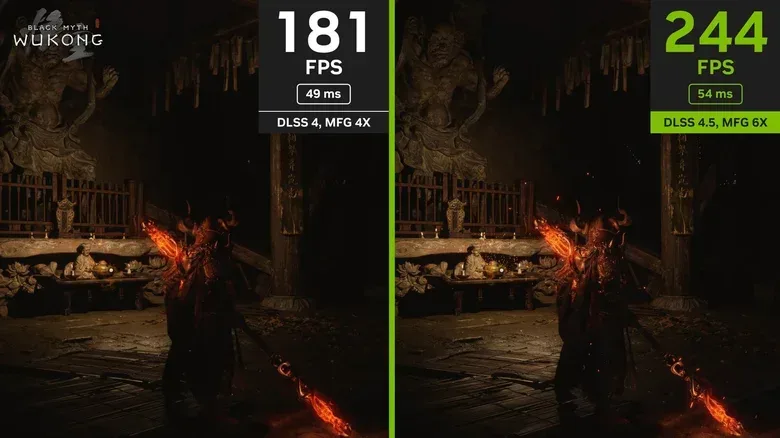
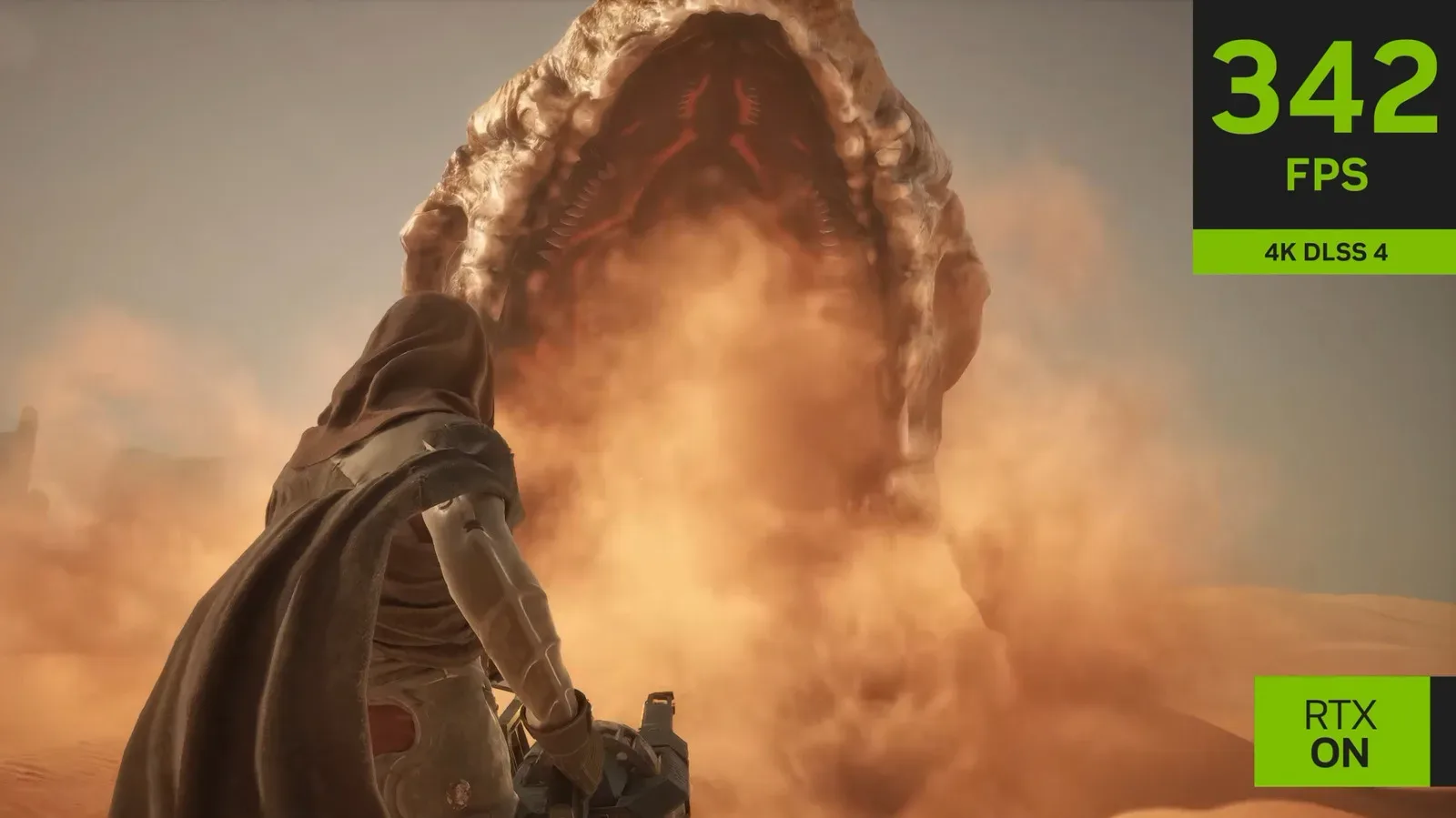
Multi Frame Generation can produce dramatically larger displayed FPS figures by creating AI-assisted frames. In an extremely demanding path-traced game, an x6 multiplier can push performance beyond 200 FPS. But that number is not the whole experience. Latency can rise significantly, and visual artifacts may occur.
Latency is the delay between an input and the visible result on screen. High frame counts can look smoother, but they do not automatically mean that control response has improved by the same amount. This is why a frame-generation decision should account for responsiveness as well as the FPS counter.
To adjust the related override, stay in DLSS Override – Model Presets and open the Frame Generation tab. Its options are separate from K, L and M:
- Use 3D app setting: the default behavior, allowing the game’s own setting to determine the choice.
- Recommended: marked as the option intended to balance quality and performance in most situations.
- Preset A and Preset B: alternate frame-generation model choices.
Preset B is generally the more promising alternative when a game supports it. The older A preset has been associated with obvious bugs in some games, including distracting shimmer around two-dimensional interface elements such as on-screen icons. In examples including Resident Evil Requiem and 007 First Light, switching from A to B has reduced or removed that shimmering.
Compatibility remains the caveat. Not every Multi Frame Generation-supported game works with preset B. If B is unavailable or causes its own problems, testing A may still be worthwhile. The cleanest troubleshooting sequence is to identify whether the fault began after enabling frame generation, try the default or Recommended option, then test B and A separately where supported. Do not simultaneously switch Super Resolution mode, K/L/M and frame-generation preset; doing so makes it impossible to know which change helped.
A practical tuning checklist
- Decide whether the immediate problem is low frame rate, unstable image quality, or frame-generation artifacts.
- For high-end 4K systems, begin with K and choose DLAA, Quality or Balanced based on the performance budget.
- For a mid-range 4K setup, test M before dropping to Ultra Performance.
- For RTX 20- and RTX 30-series hardware under ray-tracing pressure, L can be the practical performance option; inspect rapid camera movement for ghosting.
- Keep K/L/M changes separate from Multi Frame Generation A/B testing.
- When using Multi Frame Generation, remember that a larger FPS number can come with higher latency or visual glitches.
- If interface elements shimmer with frame generation enabled, test preset B where the game supports it; test A only if needed.
The best DLSS 4.5 setting is therefore situational rather than absolute. K is the quality play, M is the 1080p-to-4K compromise for capable mid-range PCs, and L is the performance-forward answer when older cards need help with demanding ray-traced rendering. Frame Generation’s A and B choices belong to a separate diagnostic path, where artifact reduction and responsiveness matter as much as the headline frame rate.