Windows 11’s Xbox mode is designed to make a gaming PC feel less like a desktop full of windows, taskbars and launcher icons. It moves the experience into a full-screen Xbox app layout that is easier to navigate with a controller, while keeping access to games installed through several PC storefronts.
That distinction matters: Xbox mode is an interface and convenience feature, not a promised frame-rate boost. It can reduce the amount of Windows navigation required before starting a game, but players looking for background-process management should also check the separate Windows Game Mode setting.
The feature began arriving on Windows 11 PCs in May. If it is available on a system, it lives in the Gaming section of Settings and can be entered through a keyboard shortcut, Game Bar, the Xbox app or Task View. Here is how to set it up and what to expect once it is running.
What Xbox mode is on Windows 11
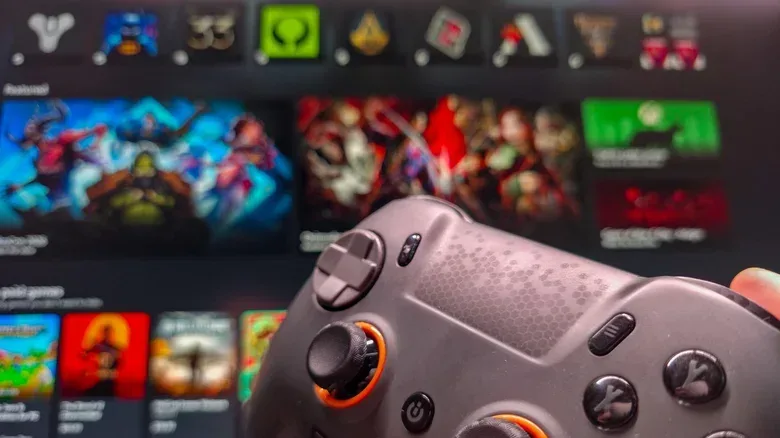
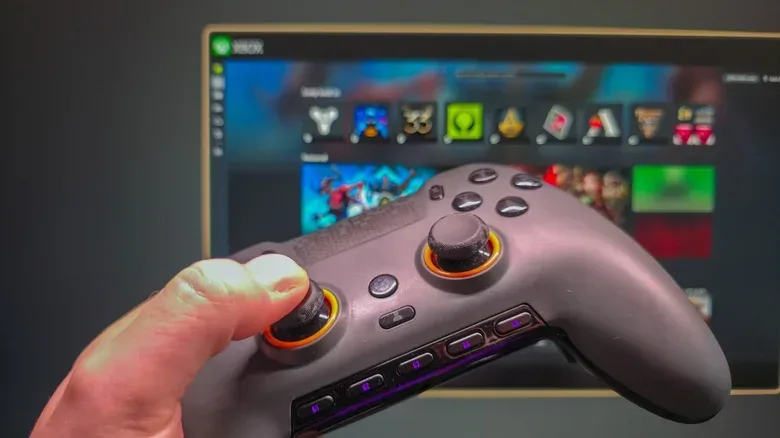
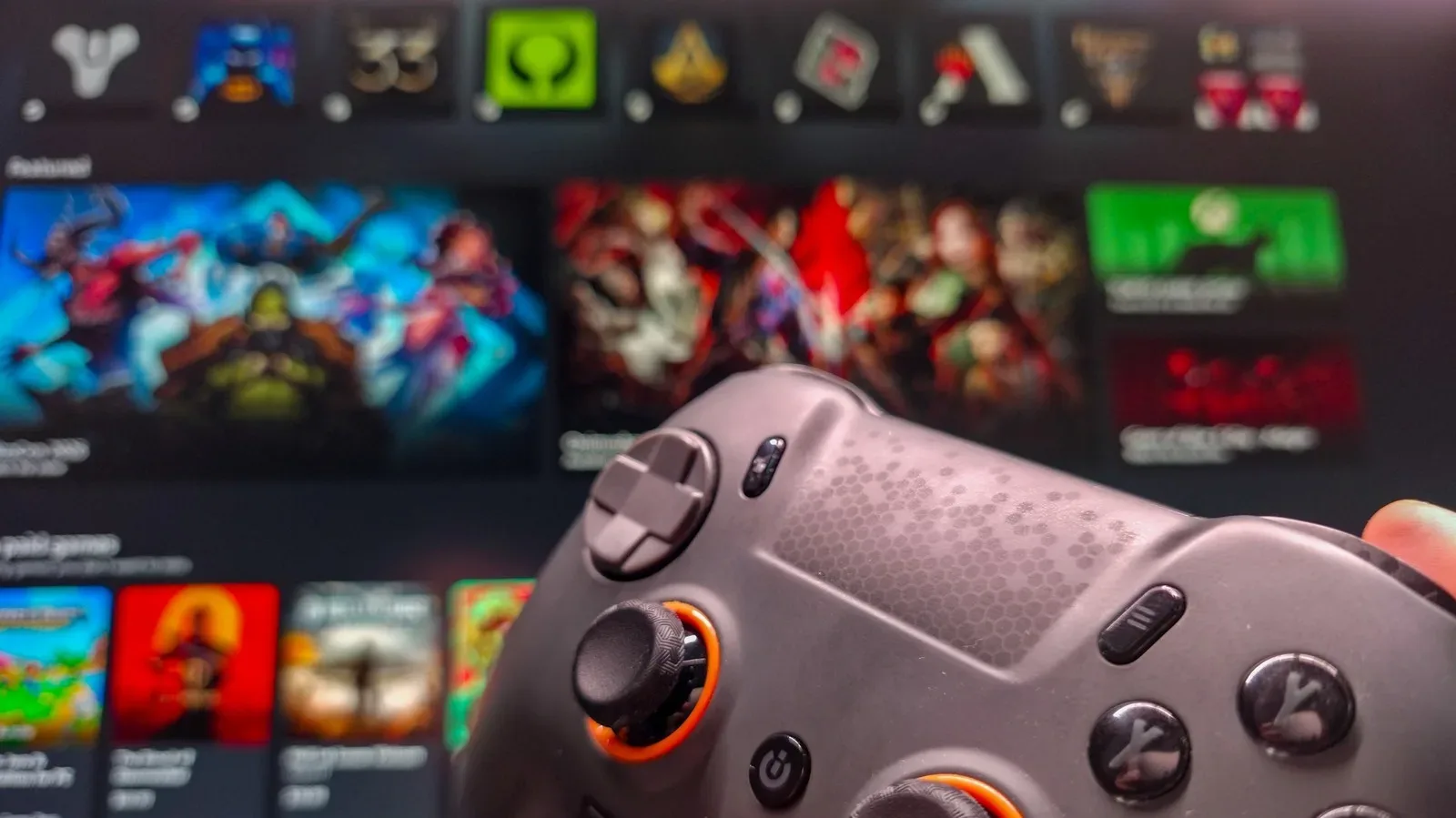
Xbox mode replaces the usual taskbar-centric desktop presentation with a controller-friendly gaming space centered on the Xbox app. Think of it as a dedicated front end: a single full-screen starting point for choosing a game, opening a library or reaching gaming-focused controls.
It is comparable in purpose to Steam’s Big Picture Mode. The aim is not to turn a Windows PC into an Xbox console in a technical sense, nor to eliminate the PC launchers that games rely on. Instead, it places a more console-like layer in front of Windows so that players do not have to hunt through the desktop every time they want to play.
This can be especially useful in two situations:
- Living-room PCs: A machine connected to a television is often used from a couch, where a mouse and keyboard are less convenient.
- Handheld gaming PCs: Smaller screens and built-in controls benefit from larger, controller-readable navigation.
On a conventional desktop setup with a monitor, keyboard and mouse always at hand, Xbox mode may be less transformative. Its value is largely organization and easier controller navigation, rather than a fundamental change to how Windows runs games.
Before you enable it
Connect a gamepad before entering Xbox mode. Xbox controllers, PC controllers and PlayStation controllers are supported. Xbox mode can still be used with a keyboard and mouse, but its layout and controls are intended to make a controller practical across the entire game-selection process.
It may also be helpful to open the storefront or launcher you expect to use before switching modes. Xbox mode can start games from supported libraries, but a game’s own launcher may still need to start in the background. Opening that software beforehand can make the path into a game smoother.
This is an important practical limitation. A unified library view is not the same thing as a single universal launcher. The individual services behind a game remain relevant, even if Xbox mode saves players from manually opening each one from the desktop.
How to enable Xbox mode in Settings
- Press Win + I to open Windows Settings.
- Choose Gaming.
- Open Xbox mode.
- If an Enable Xbox mode slider appears, turn it on.
The same settings page includes several options that determine how prominently the mode appears in everyday Windows use.
- Choose home app: Select Xbox so the Xbox app is used as the home experience for this mode.
- Show Xbox mode in Task View: Turn this on if you want an additional shortcut in Task View.
- Enter Xbox mode on startup: This is most useful for a PC used almost exclusively for games. It removes the extra step of entering the mode after every restart.
The startup option is a preference, not a requirement. A shared household computer or a PC that is also used for work may be better served by entering Xbox mode only when it is time to play.
Four ways to open Xbox mode
Once enabled, Xbox mode has multiple entry points. The fastest choice will depend on where you are when you decide to switch.
1. Use the Win + F11 shortcut
Press Win + F11 to toggle between the standard Windows desktop and Xbox mode. This is the most direct shortcut to remember, particularly for keyboard users who want a quick way in and out.
2. Enter from Game Bar
Press Win + G to open Game Bar. In the bar at the top of the screen, select the gear icon and choose Enter Xbox mode.
Game Bar is Windows’ gaming overlay, separate from Xbox mode itself. In this case, it works as a route into the larger full-screen environment rather than replacing it.
3. Select the control in the Xbox app
Open the Xbox app and look at the top-right of its home page. An Xbox mode shortcut is available there. This is a natural route for anyone who already uses the app to browse Game Pass or manage their PC library.
4. Use Task View
If the Task View setting was enabled, press Win + Tab. The Xbox mode shortcut appears to the right of the open desktops along the bottom of the Task View screen.
Task View is ordinarily used to manage windows and virtual desktops. Adding Xbox mode there makes it easier to regard gaming mode as another destination in the Windows workspace, rather than a buried application setting.
How to leave Xbox mode
Leaving is just as simple. Return to the Xbox app home screen and select Exit Xbox mode in the top-right corner. The Win + F11 shortcut also toggles back to the desktop.
Pressing the Windows key while playing opens a task-oriented view that can provide access to the usual Windows desktop and shortcuts at the top of the screen. That means Xbox mode is not a locked-down console shell. Windows remains available when it is needed; the feature simply tries to keep it out of the way during game selection and play.
Xbox mode is not the same as Game Mode
The two names are easy to confuse, but they address different things.
Xbox mode changes how Windows presents the gaming experience. It provides a full-screen Xbox app, controller mapping and settings intended to reduce the need to interact with ordinary desktop elements.
Game Mode is the separate Windows setting associated with reducing background activity to improve the gaming experience. It is found at Settings > Gaming > Game Mode.
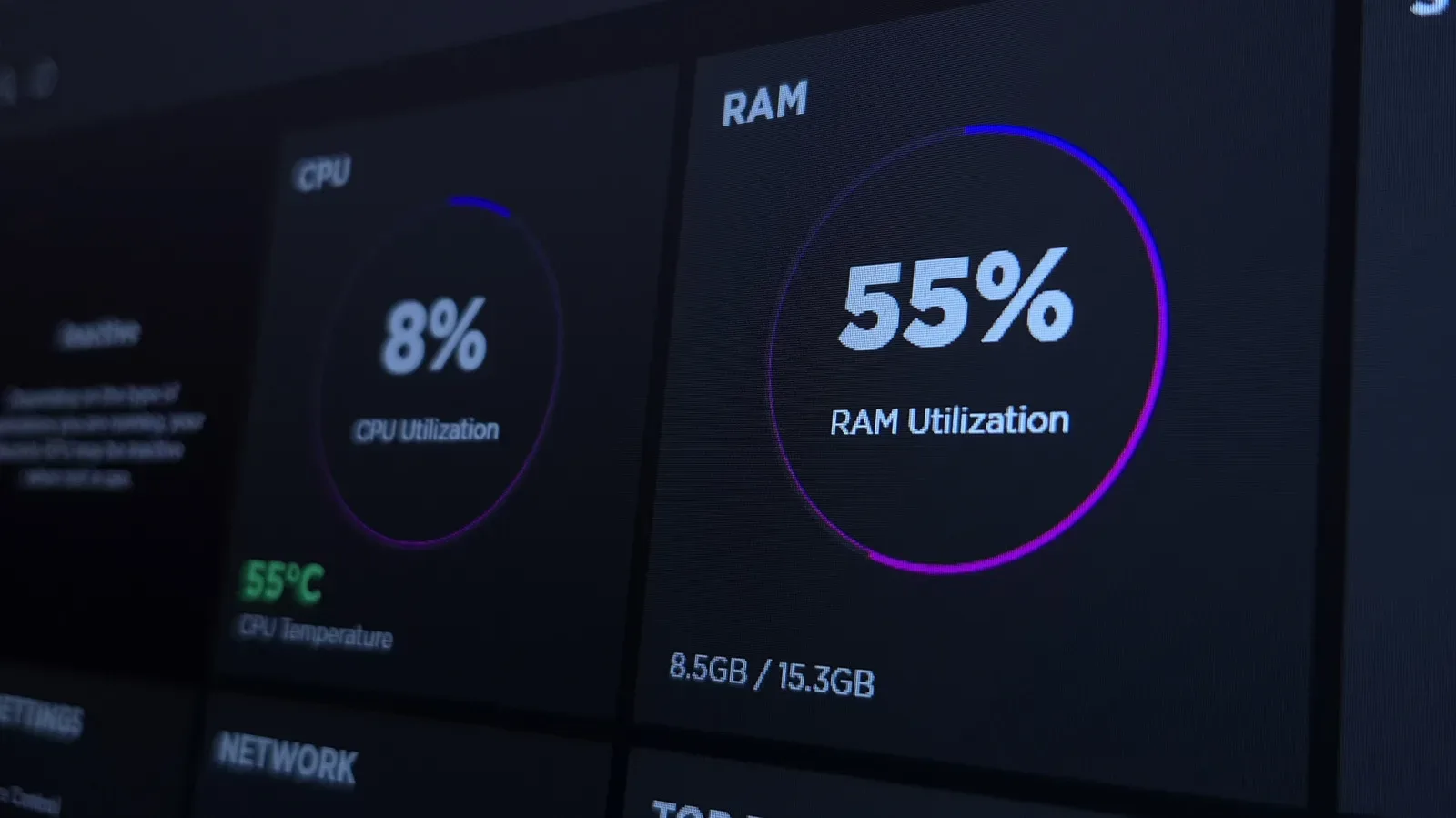
Microsoft has not claimed that enabling Xbox mode alone produces under-the-hood performance gains. Players should not expect it to raise frame rates simply because the taskbar is gone or because games are launched from the Xbox app. If performance is the priority, confirm that Game Mode is enabled rather than treating the two features as interchangeable.
For Windows users who regularly jump between devices and services, this difference is worth keeping clear. Interface friction and system performance can both affect how pleasant a PC is to use, but they are separate problems with separate switches.
How the combined library works
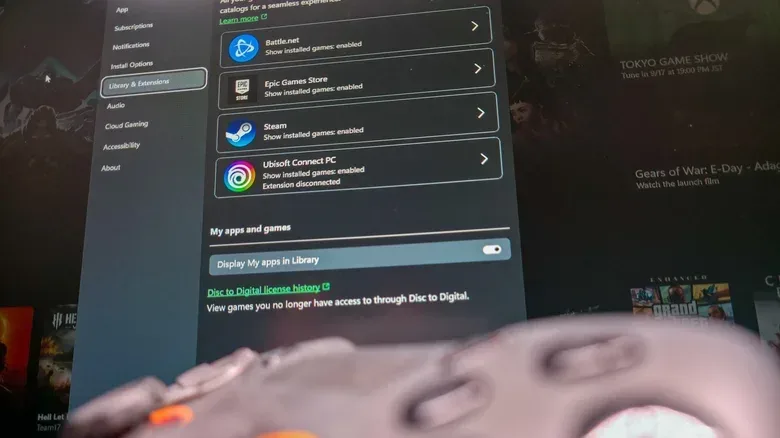
The strongest argument for Xbox mode is library consolidation. PC games can be split among storefronts and publisher launchers. For example, a player with World of Warcraft, Fortnite and Counter-Strike has games associated with Battle.net, Epic Games and Steam respectively.
Xbox mode can show games from those libraries in one place, alongside Ubisoft Connect and Humble Launcher. Rather than opening several standalone applications just to remember where a particular game lives, players can begin from the Xbox app’s library.
If a title does not appear automatically, use the plus icon in the top-right of the Library tab to add it to the Xbox app. That is useful for keeping a personal selection of installed games visible, though it does not change the ownership or installation rules associated with the original platform.
When a game is launched from the Xbox app, the app targets the game executable—the file used to start the game. Any required launcher software can then start behind the scenes. In principle, that removes a manual step. In practice, launch behavior may not always feel instantaneous, which is why pre-opening third-party launchers can still be worthwhile.
The practical takeaway is straightforward: Xbox mode can centralize the choice of what to play, but it does not erase the services that distribute, authenticate or update those games.
Game Pass and cloud streaming options
Xbox Game Pass subscribers can reach the service’s library through Xbox mode. That makes the feature a natural fit for players who already spend much of their time in the Xbox app, while the combined-library approach gives it a role beyond Microsoft’s own catalog.
The Cloud Gaming tab also allows Nvidia GeForce Now to be selected as the default streaming service in the Xbox app settings. That option is notable because it means the cloud section is not confined solely to Microsoft’s streaming offering.
Cloud streaming, in this context, means a game is run on remote hardware and delivered as a video stream rather than being rendered entirely by the local PC. Xbox mode does not alter that basic model; it provides an Xbox-app-based place from which to reach the configured service.
Who should use Xbox mode?
Xbox mode is a sensible option for a player who wants Windows to behave more like a gaming hub without abandoning Windows or their existing libraries. It is particularly well suited to controller-first setups, multi-launcher libraries, handhelds and television-connected PCs.
Those with a single storefront and a desk-based keyboard-and-mouse routine may find fewer reasons to switch. The feature does not replace every launcher, guarantee a faster game boot or claim a performance increase. Its benefit is reducing ceremony: fewer trips through the desktop, fewer launcher icons to locate and a more consistent controller-oriented starting screen.
For related Windows basics outside of gaming, see our guide to joining a FaceTime call on Android or Windows with a link.
Xbox mode therefore works best when expectations are calibrated. It is not a new operating system and not an automatic optimization tool. It is a cleaner route from turning on a PC to choosing a game—and for the right hardware setup, that small reduction in Windows friction can be genuinely useful.