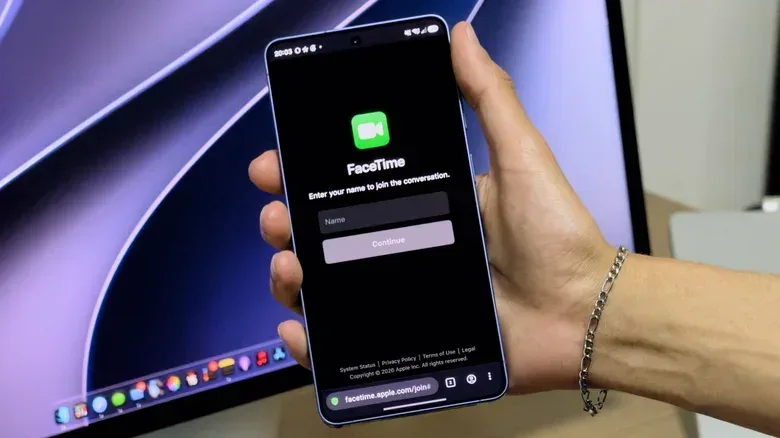
FaceTime still begins on Apple hardware, but it no longer has to end there. A person using an Android phone or a Windows PC can join a FaceTime audio or video call through a web browser, provided somebody using an iPhone, iPad, or Mac creates and shares the invitation link.
That distinction is important. This is not a full FaceTime app for Android or Windows, and it does not turn either platform into a FaceTime call host. It is a browser-based guest option designed to let someone participate when the organizer is using an Apple device. For a family call, a quick catch-up with friends, or a group that otherwise defaults to FaceTime, that can be enough to avoid excluding the one person without an iPhone.
The cross-platform option arrived with iOS 15 and macOS Monterey in 2021. It remains easy to miss because FaceTime is pre-installed on Apple devices, making it feel like an iPhone-to-iPhone service first. In practice, the link feature creates a usable bridge: the Apple-device user starts the process, while the Android or Windows participant opens a current browser, supplies a name, permits camera and microphone access, and joins.
What Android and Windows users can—and cannot—do
The central limitation is simple: Android and Windows users cannot start a FaceTime call themselves. A call link must come from somebody on an iPhone, iPad, or Mac. Once the recipient has that link, however, they do not need an Apple Account to enter the call.
This makes the feature closer to joining a web meeting than installing a native communications app. A native app is software installed directly on a device; here, FaceTime runs in the device’s web browser instead. That approach lowers the barrier for a guest, since there is no separate FaceTime download or Apple sign-in requirement, but it also means the experience does not include every Apple-device feature.
On a supported non-Apple device, the available basics include:
- Joining FaceTime audio calls.
- Joining FaceTime video calls.
- Using full-screen video.
- Muting the microphone.
- Switching or flipping the camera to show what is in front of the device.
There are meaningful omissions. Screen sharing is unavailable for participants joining from Android or Windows. SharePlay is also unavailable on those non-Apple devices. SharePlay is FaceTime’s shared-activity feature, intended for experiencing supported music, films, games, and other content together during a call.
That means browser guests can be present for a conversation, but they should not expect the complete collaborative layer that someone using Apple hardware may see. If the purpose of the call is simply talking face to face, the limitation may not matter. If the group needs to demonstrate a screen, watch or listen together, or otherwise use SharePlay, FaceTime is not an equal cross-platform solution.
Related coverage includes How to Join FaceTime Calls on Android and Windows.
How to join a FaceTime link on Android or Windows
The receiving side is deliberately straightforward. Before joining, make sure the device has a stable internet connection and an up-to-date browser. Chrome and Edge are the recommended browser options. A stronger connection is especially useful for video because both the camera picture and live audio need to travel over the internet at the same time.
- Receive a FaceTime call link from an iPhone, iPad, or Mac user.
- Open that link on the Android phone or Windows PC.
- Enter the name you want other people on the call to see.
- When the browser requests access, allow it to use the camera and microphone if you want to appear and speak on video.
- Select Join.
Browser permissions are the prompts that let a website access hardware such as a webcam, phone camera, or microphone. They are necessary because a web page normally cannot automatically activate those devices. If camera or microphone permission is declined, the call will not work as intended for video or spoken conversation. In that situation, revisit the browser’s permission controls and allow access before attempting to join again.
It is also worth checking the practical basics before the call begins: confirm that the correct camera is selected, make sure another application is not already controlling the microphone, and use a quiet setting where possible. Those are general browser-call concerns rather than FaceTime-exclusive rules, but they can determine whether an otherwise simple invitation becomes a scramble to fix audio.
Why a current browser matters
A browser is the software used to open websites and web-based services. When FaceTime is used on Android or Windows, the browser is doing the work a dedicated FaceTime app would otherwise handle. Using the latest available Chrome or Edge version helps ensure the browser can support the call’s camera, microphone, audio, and video functions.
This is also why the experience is different from simply having FaceTime built into an Apple device. Apple users can open the FaceTime app and place a call directly. The Android or Windows participant is instead entering a web session from the organizer’s link. It is a practical compatibility route, not a complete platform expansion.
How an iPhone user creates the invitation
The person with the Apple device has the extra step because they are the one who creates the link. On an iPhone, the process begins in the FaceTime app:
- Open FaceTime.
- Select New Call.
- Find the green link button in the lower-left area of the screen.
- Create the call link.
- Send it to an individual or group using a preferred method, such as Messages or WhatsApp.
Once that link arrives, an Android or Windows recipient can follow the browser steps above. The invitation can be particularly useful in mixed-device groups because the organizer does not need everyone to own the same brand of phone or computer just to take part in a basic FaceTime conversation.
The workflow also clarifies who needs what. The Apple user needs an iPhone, iPad, or Mac to generate the invitation. The guest needs an internet-connected Android device or Windows PC and a current supported browser. The guest does not need an Apple Account.
Choose FaceTime for the situation, not the logo on the phone
FaceTime links solve a narrow but common problem: one person or a small number of people are outside Apple’s hardware ecosystem, while the rest of the group is already planning to use FaceTime. In that case, a link prevents the conversation from becoming device-exclusive.
It is not necessarily the best choice for every group call. WhatsApp, Telegram, Zoom, and Google Meet are among the cross-platform alternatives available for video conversations. A cross-platform app can offer a more consistent experience because everyone is using the same service in a native application rather than asking some participants to work through a browser.
The trade-off is convenience. If the Apple-device owner already has FaceTime ready and only needs to bring in an Android or Windows user, a browser link can be faster than moving an entire group to another service. Conversely, if screen sharing and shared media are key to the call, or if people regularly use a mixture of platforms, a service built around cross-platform participation may be the clearer long-term fit.
That kind of decision is a reminder that connected-device features often involve capability trade-offs rather than a single universal setting. Similar considerations arise elsewhere in home tech, including the update and power questions covered in this look at smart TV standby and update trade-offs.
A quick checklist before the call starts
- Make sure an iPhone, iPad, or Mac user has created and sent the FaceTime link.
- Use an Android phone or Windows PC with a solid internet connection.
- Update Chrome or Edge before joining.
- Open the link, enter a name, and choose Join.
- Allow camera and microphone access when prompted.
- Expect normal calling controls such as mute, full-screen video, and camera switching.
- Do not rely on screen sharing or SharePlay from the non-Apple device.
The result is not full parity with FaceTime on Apple hardware, but it is a functional way to join the conversation. For people who thought an iPhone was mandatory even to appear on a FaceTime call, the link-based browser option is the useful part: an invitation, an updated browser, and a dependable connection are enough to take part.