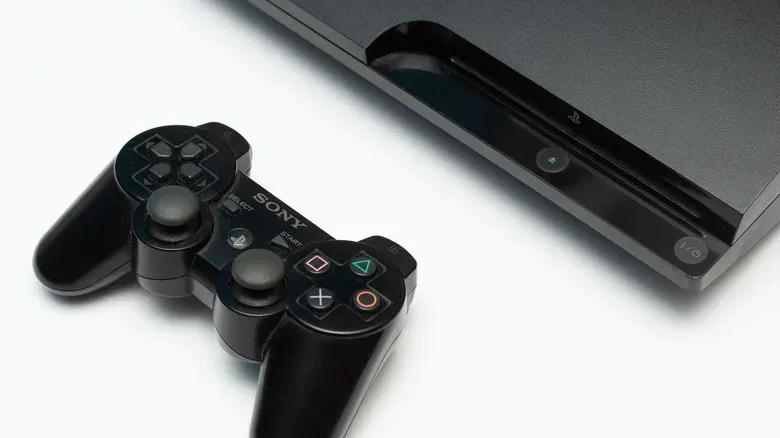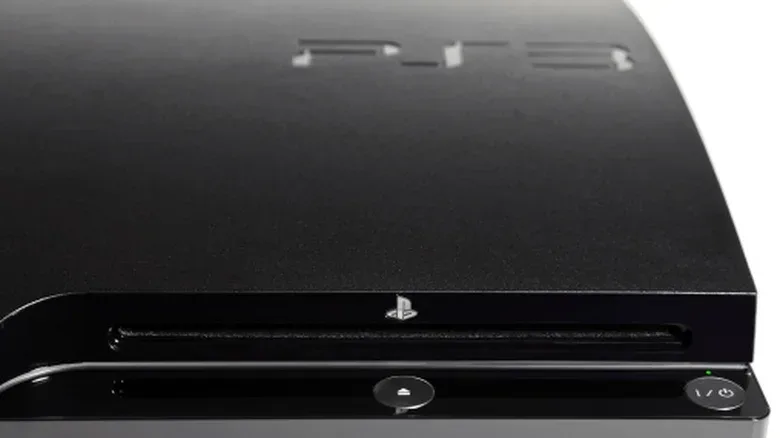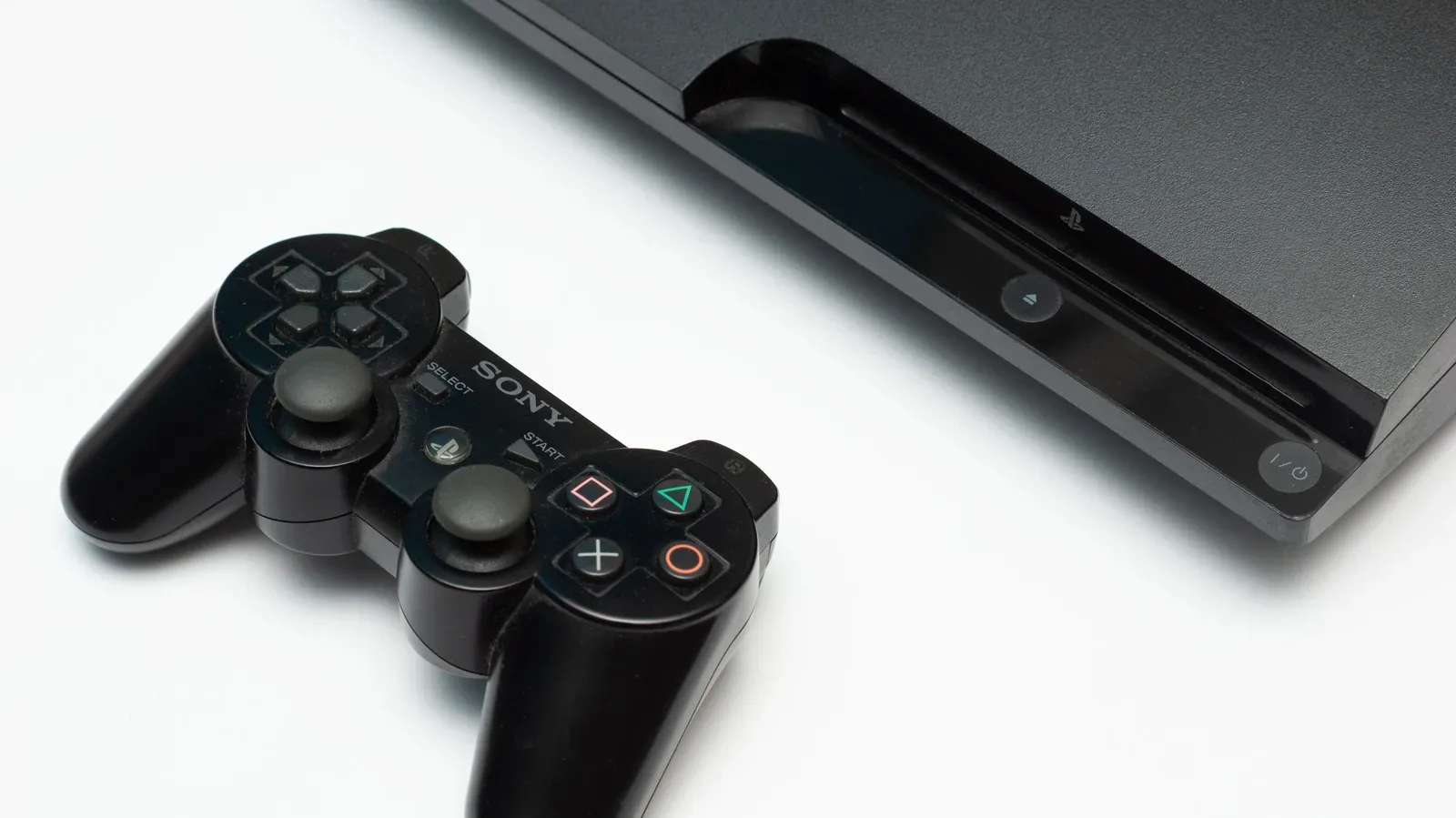
The PlayStation 3 is firmly in its late-life era. Big streaming names have steadily departed: Crunchyroll’s app was removed in 2022, Plex followed in 2023, and Netflix left in March 2026. That makes the console a poor choice for an all-in-one streaming box, but it does not make it dead weight.
Its remaining strengths are mostly local and practical. A PS3 can still handle physical media, play music CDs, display compatible files from a computer or USB storage, and provide a straightforward route back to PlayStation-era games. If it no longer suits your setup, it can also be prepared for sale or carefully broken down for components that still have a purpose.
Here are six sensible paths for an old PS3—plus the limitations worth knowing before turning the console back on.
1. Make it a dedicated CD, DVD and Blu-ray player
The most immediate use requires no modification, network setup or specialty software: put a disc in the drive. The PS3 natively plays audio CDs, DVDs and Blu-ray discs in addition to its game library. For someone with shelves of physical movies or music, that alone may be enough to keep one connected to a television.
It also offers an option for standard-definition DVDs when the console is connected over HDMI. Its BD/DVD Upscaler can scale DVD output to as much as 1080p. Upscaling does not create extra detail that was absent from the original DVD; it is a processing step that enlarges the image for an HD display. Still, it can make an older disc library more comfortable to watch on a modern screen.
To find the setting, navigate through:
- Settings
- Video Settings
- BD/DVD Upscaler
The available choices are Normal, Double Scale, Full Screen and Off. The right pick is partly a matter of taste and screen shape, since full-screen scaling can change how a film’s original framing appears. Try an option with a familiar disc before committing to one.
A dedicated PS3 BD Remote can make this role feel more like a conventional player, but the standard DualShock 3 remains enough to start playback and navigate the console.
Blu-ray playback has an update caveat
For Blu-ray films, system updates matter because of AACS, or Advanced Access Content System, the copyright-protection technology used by Blu-ray. Sony continues to issue an update roughly once a year for this purpose. A PS3 that is not connected to the internet can instead receive the update from a USB drive after it has been downloaded from Sony.
This is an important distinction between a game console that can play a disc today and a long-term, completely offline movie device. Before building a PS3 into a media cabinet, check that its software is current enough for the Blu-rays you want to watch.
2. Put locally stored PC media on the television with DLNA
Streaming subscriptions are not the PS3’s strongest remaining media option, but files you already have on a home computer are another story. The console supports DLNA, short for Digital Living Network Alliance. It is a home-networking standard that lets compatible devices discover and play media shared by another device on the same network.
In practical terms, that can mean accessing locally stored films, home videos, photos and music from a PC on the PS3, then watching or listening through the TV and speakers attached to the console. It is not cloud streaming, and the computer hosting the library needs to be available on the same home network.
Enable the receiving side on the PS3 at:
- Settings
- Network Settings
- Turn on Media Server Connection
Shared libraries should then appear under the Photo, Music and Video areas of the PS3 menu. Windows Media Player can serve as the PC-side option on Windows, although the PS3 supports a limited range of formats. That is where a program such as Universal Media Server can be useful: it is available on Windows, macOS and Linux, and can convert unsupported files in real time for the console.
Real-time conversion is commonly called transcoding. Rather than permanently making a separate copy of a video, the server changes it into a playable form while it is being sent to the PS3. The trade-off is that the computer does the work, so this approach depends on the host machine and the file involved. The benefit is that the PS3’s narrow format support does not automatically end the project.
The lower-tech alternative: a correctly prepared USB drive
For a simpler, entirely file-by-file approach, use a USB flash drive. The drive must be formatted as FAT32, and the PS3 expects root folders named VIDEO, MUSIC and PICTURES.
FAT32 is an older drive format with a notable restriction: no individual file can exceed 4GB. That limitation can rule out some high-bitrate or longer video files even when the drive has plenty of free capacity. Video is also limited to 1080p. It is therefore best viewed as an easy solution for compatible files, not a universal answer for every modern media download or backup.
3. Turn it into a focused retro PlayStation machine
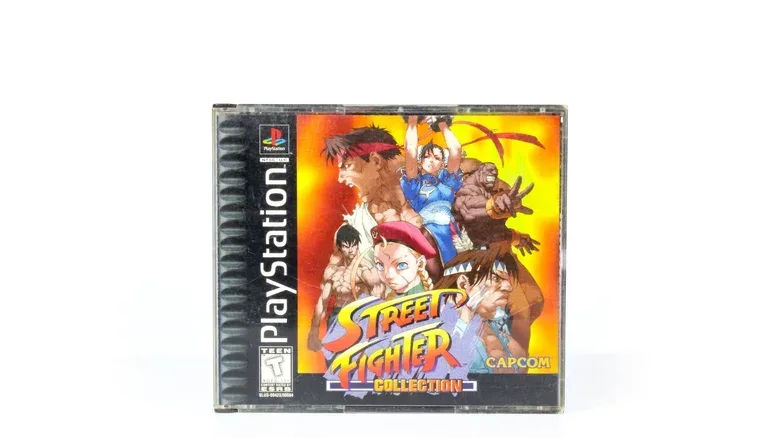
The PS3 still offers a direct route to earlier PlayStation games, although compatibility depends heavily on which model is sitting under your TV. Every PS3 model is backward compatible with original PlayStation discs. That makes the machine a practical way to revisit PS1 games without setting up a separate first-generation console.
PS2 disc compatibility is narrower. Only early “fat” PS3 models can run PlayStation 2 discs. Owners of later PS3 revisions should not assume a PS2 game library will work simply because the console bears the PlayStation name.
There is another official avenue for systems without PS2-disc support: Digital PS2 Classics on the PlayStation Store. The store remains accessible on PS3, though it no longer accepts credit cards or PayPal directly. A PlayStation gift card is required for purchases.
The practical lesson is to identify the job your particular PS3 can actually do. A console that reads PS1 discs is already a compact retro setup. An early model that also runs PS2 discs is more flexible. A later system may still have value through its supported digital PS2 offerings, but it should not be represented as a universal PS2 player when selling it.
Some owners consider jailbreaking to run emulators for systems such as Super Nintendo or Sega CD. That route requires technical knowledge, violates Sony’s licensing terms, and carries a genuine risk of bricking the console—rendering it unusable. It is not a casual extension of the official backward-compatibility features. Anyone whose priority is preserving a working PS3 should weigh that risk carefully rather than treating modding as a default upgrade.
For a newer PlayStation console in the same entertainment center, basic system-state knowledge can also prevent confusion; this guide explains the meaning of the PS5 orange light and Rest Mode.
4. Use the PS3 to import CDs into a portable music library
The PS3’s CD support is not limited to playback. It can import tracks from an audio CD to its internal hard drive without a PC or custom software. Insert the disc, open the Music area of the main menu, highlight the CD icon, press the Triangle button and select Import.
Imported tracks can be organized into playlists and played directly from the console. On supported PS3 games, music stored on the system can also play in the background, which gives the feature a particularly period-appropriate use: replacing a game’s soundtrack with your own library where the game allows it.
There are quality constraints. Some copy-protected CDs are unsupported, and the resulting files are lossy rather than perfect archival copies. Lossy means the encoding reduces data to make a smaller digital file, so it is not the same as retaining every part of the original CD audio.
The default import setting is 128 kbps AAC, which is serviceable for casual playback. Higher-quality import settings are available under:
- Settings
- Music Settings
- Audio CD Import
MP3 at 320 Kbps or AAC are the higher-quality choices cited here. Once imported, tracks or albums can be copied to a FAT32-formatted USB drive: find the item under Music, press Triangle, choose Copy, then select the USB device.
This will not replace a specialist lossless archive workflow, but it remains a surprisingly self-contained way to digitize compatible CDs for convenient listening.
5. Sell it—but protect your account and data first
If the PS3 no longer fits your space or habits, selling it can be more useful than leaving it in a cupboard. There are three broad choices, each prioritizing a different mix of speed, effort and potential return.
- Retail trade-in: the quickest and most convenient route, generally with the lowest value. GameStop offers cash and credit options.
- Direct marketplace sale: services such as Facebook Marketplace can potentially return more money, but the owner handles the listing and sale process.
- Electronics buyback service: a middle ground that is more hands-off than a marketplace, although payment comes after the company receives and inspects the console. BuyBackWorld is one example.
Whichever route you choose, a proper handoff involves more than unplugging the machine. Back up anything worth keeping to a FAT32-formatted USB drive through Settings > System Settings > Backup Utility > Back Up.
Then deactivate the PS3 in the PlayStation Network account settings: PlayStation Network > Account Management > System Activation > PS3 System > Deactivate. Sony limits the number of PS3 systems activated on a single account, so this is an account-management step as well as good resale hygiene.
Finally, use Settings > System Settings > Restore PS3 System and select Full Format. It takes longer than Quick Format, but removes data more thoroughly. Back up first: formatting is the last step, not the first.
6. Reuse the parts—or recycle the machine responsibly
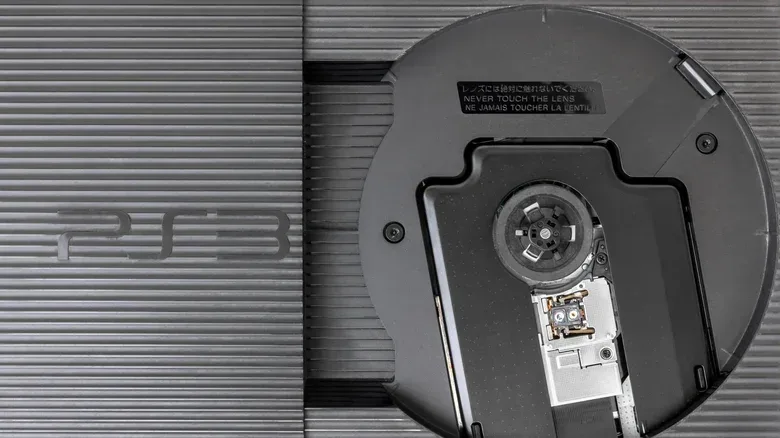
A PS3 can also become a source of hardware rather than remain a whole console. The most approachable component is its hard drive. Sony designed it to be user-replaceable, and it uses a standard 2.5-inch SATA drive. After wiping it, an inexpensive USB enclosure can turn that drive into portable storage.
That is a meaningful distinction: you are not extracting an exotic console-only component, but reusing a standard storage format in a new role. As with any reused drive, wiping it is essential before it leaves your control or begins storing new files.
More ambitious disassembly can yield fans, heat sinks and other components that may be reused or sold through marketplaces such as eBay, but it calls for technical competence. The PS3 was powerful enough in its prime for the US Air Force to use more than 1,700 units in a 500-teraflop supercomputer. That history does not turn a single aging console into a modern compute project, but it does underline that there is real hardware inside the plastic shell.
The DualShock 3 has a second life as well. Steam supports the controller natively, while many other platforms require specialized PC software. If neither the controller nor the internal parts have a use, do not send the console to ordinary trash. Responsible electronics recycling is the better endpoint for hardware that has reached the end of its usable life.