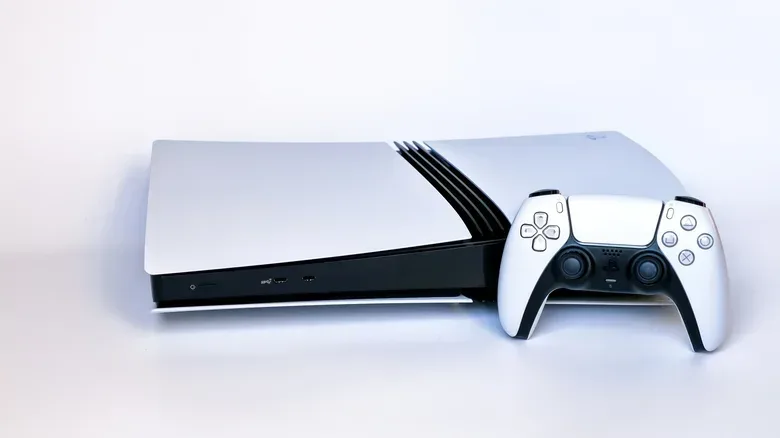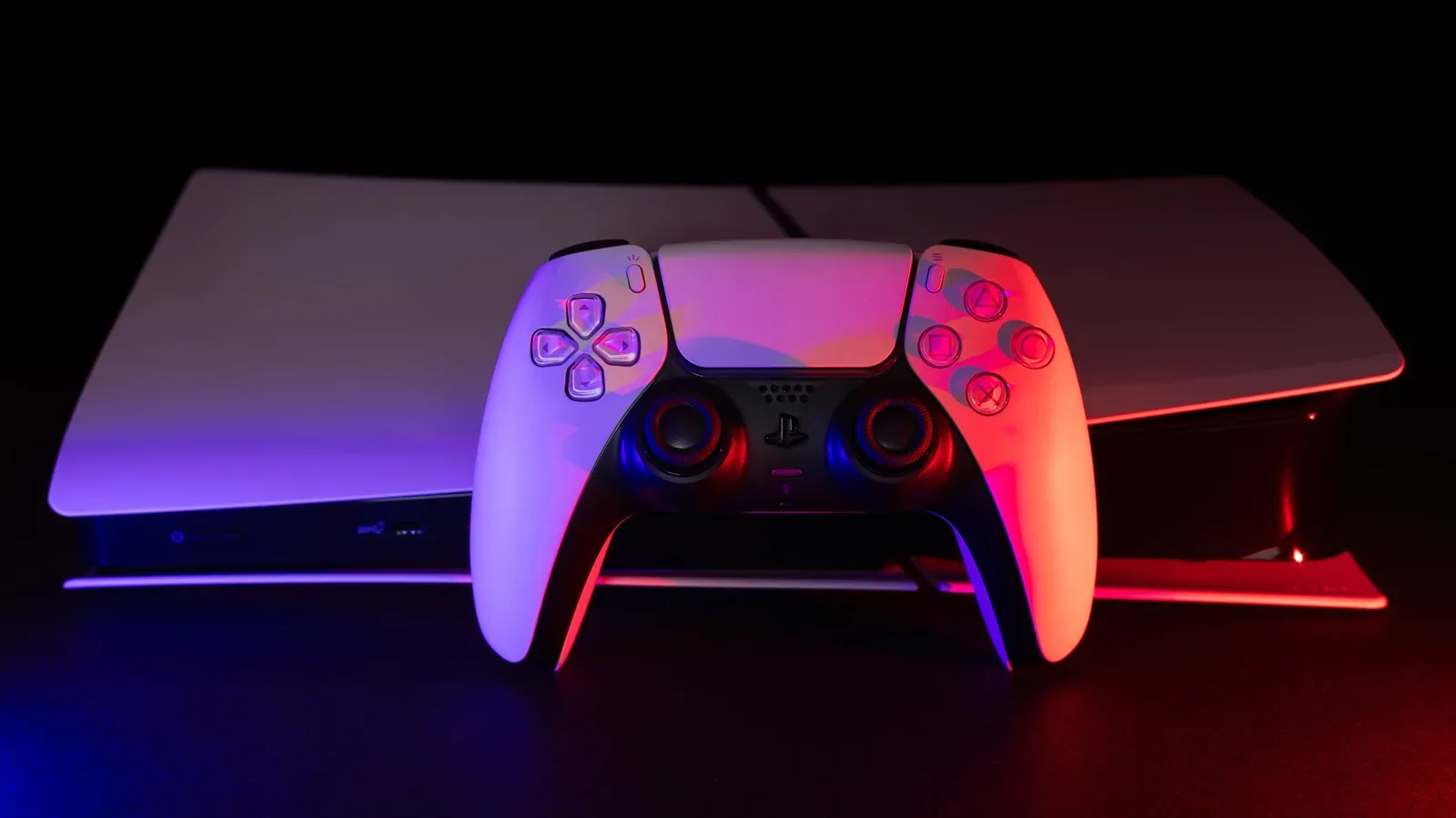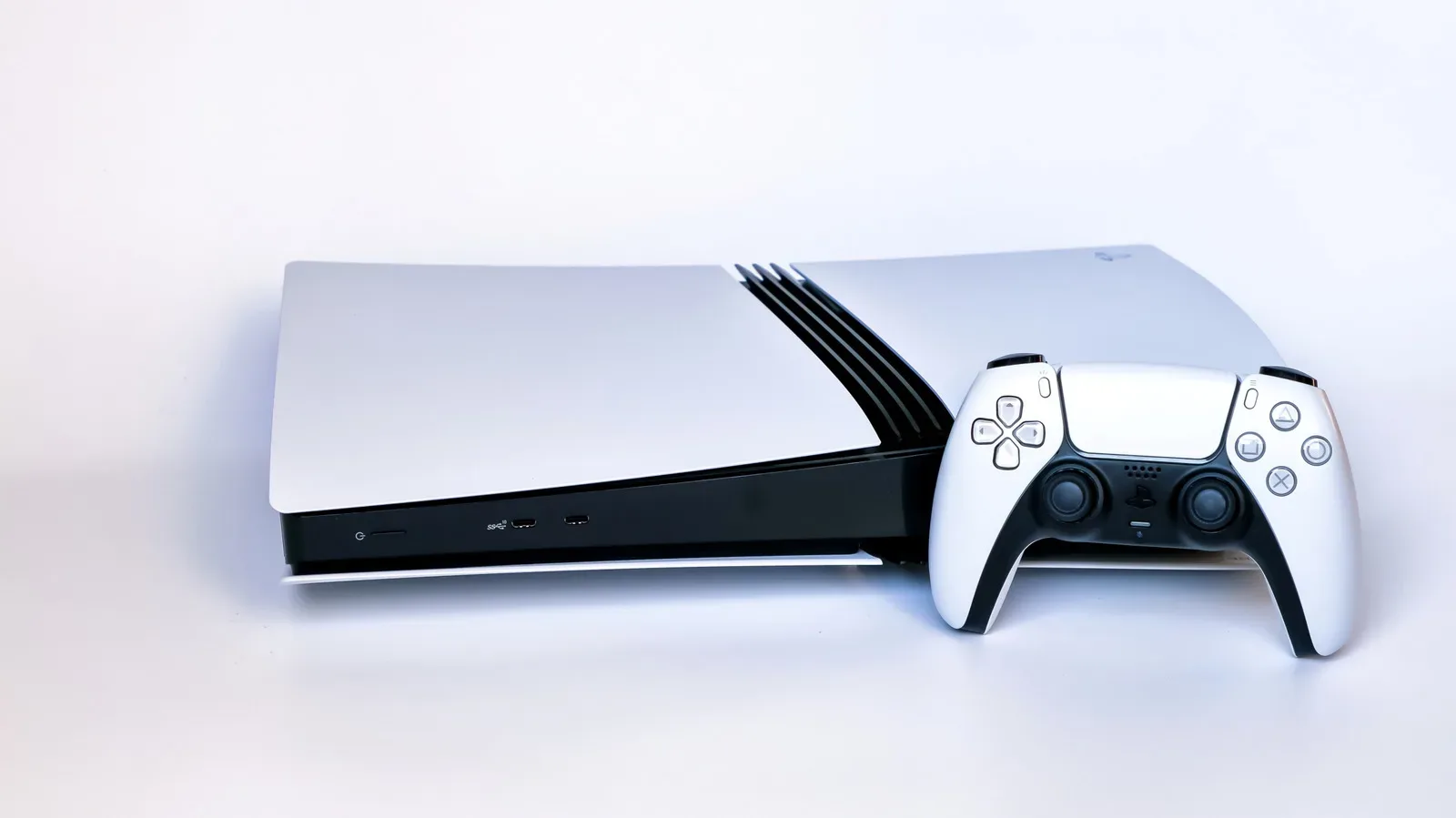
An orange light on a PlayStation 5 can look more alarming than it is. On the console itself, that color indicates that the system is in Rest Mode: a low-power state rather than a warning that the hardware has failed. The important practical detail is that Rest Mode is not the same thing as a complete shutdown. The PS5 remains partially active and, depending on its configuration, can keep performing selected background jobs.
That distinction matters most when moving, cleaning, disconnecting, or troubleshooting the console. An orange-lit PS5 should not be unplugged simply because gameplay has ended. If the goal is a full power-off, use the system’s Power menu to select Turn Off PS5, then wait until the console lights have gone out before disconnecting power.
There is also a separate orange indicator that players may encounter on the DualSense controller. An orange light below the controller’s PS button means the microphone is muted. It is unrelated to the console’s Rest Mode status, and pressing that button toggles the microphone back on.
What the orange light means on a PS5
The orange console light is a status indicator for Rest Mode. In plain terms, Rest Mode reduces power use while leaving the PS5 able to carry out certain basic functions. It can charge controllers and download games while using only a few watts, subject to the settings selected on the console.
That makes the feature useful for players who do not need the system fully running between sessions. A download can continue without leaving the console operating at its usual active level, and a controller can receive power through USB if that capability is enabled. The exact combination of background activity is not fixed: it is determined through the PS5’s Power Saving options.
Rest Mode can also happen automatically. The console’s factory configuration includes an inactivity timer, so an orange light may appear after the PS5 has been left untouched for a period. This is ordinary behavior, not evidence that a game crashed or that the system has unexpectedly powered down.
Rest Mode versus turning the PS5 off
It helps to treat these as two distinct states:
- Rest Mode: The PS5 is conserving power but has not shut down completely. Its orange light is on, and selected background features can remain available.
- Turn Off PS5: The console is shut down. Wait for the system lights to turn off before unplugging it.
For most day-to-day use, Rest Mode is a convenience choice. It can reduce the wait associated with returning to the console and can allow downloads or controller charging to continue. A complete shutdown is the appropriate choice before unplugging the system. The key safety rule is simple: orange does not mean off.
That rule also prevents a common misreading of the indicator. The color may resemble an alert on other types of electronics, but in this case it communicates a deliberate power state. The context is the console itself, not a universal color code shared across every device.
How to put a PS5 into Rest Mode
There are two supported routes described by the system’s controls. The first is to press the power button on the front of the console briefly. The second uses the controller interface:
- Press the PS button to open the control center.
- Choose Power.
- Select Enter Rest Mode.
Players who regularly install large games or want a charging option between sessions may find this workflow especially useful. For example, it can be a sensible routine before returning to an online title with ongoing updates, such as those covered in our Helldivers 2 Scope of Authority Warbond guide. The broader point is not that every download needs Rest Mode, but that the state can be configured to support background downloads instead of keeping the console fully active.
How to change when the PS5 enters Rest Mode
If the PS5 moves into Rest Mode sooner than desired, the inactivity behavior can be changed directly in the console settings. From the home screen:
- Select Settings in the top-right corner.
- Select System.
- Open Power Saving.
- Select Set Time Until PS5 Enters Rest Mode.
The menu provides separate timers for media playback and gameplay. This separation is useful because someone watching media may want a different inactivity window from someone pausing a game. It is also possible to set the PS5 so that it does not enter Rest Mode after prolonged inactivity.
There is no universally correct timer. A shorter setting prioritizes lower-power behavior when the console has been forgotten or left idle. A longer setting reduces the chance that a paused game or media session is interrupted by a power-state change. Disabling automatic Rest Mode entirely puts that decision in the player’s hands each time, although it also removes the safety net of an automatic transition after inactivity.
Choosing what stays available in Rest Mode
The other relevant section is Settings > System > Power Saving > Features Available in Rest Mode. This menu determines what the system is permitted to do while resting. Available choices include powering USB ports, updating games, uploading saves to the cloud, and using Remote Play with a PlayStation Portal or another device.
These are worth reviewing individually rather than treating Rest Mode as one all-or-nothing switch. USB power affects whether connected controllers can charge. Game update permissions affect whether downloads can proceed in the background. Cloud-save uploads concern keeping saves synchronized. Remote Play settings concern access to games from another compatible device.
In practical terms, that menu lets owners balance convenience against a more limited low-power state. A player who primarily wants controller charging may care most about USB power. Someone with limited time for downloads may prioritize game updates. A person who has no interest in remote access can leave that feature out of their Rest Mode plan. The orange light itself does not reveal which of these choices are enabled; it only signals that the PS5 is resting.
When an orange light is not the problem
Because the Rest Mode light is normal, it should not be confused with actual symptoms of a hardware problem. The more meaningful warning signs discussed for a PS5 involve behavior, heat, or image output—not the ordinary orange standby indicator.
Possible overheating symptoms
Overheating can present as unexpected shutdowns, unusually hot or loud airflow from the vents, or an on-screen temperature warning. Blocked exhaust vents and dust can contribute, while a cooling system may also degrade over time. The first practical checks are environmental: make sure the console is in a well-ventilated location and clean out dust.
If heat-related trouble persists after those steps, professional help may be appropriate. Replacing thermal paste is identified as a possible repair consideration when cleaning and ventilation have not solved the issue. Thermal paste is material used to support heat transfer between components and cooling hardware; this is not presented as a routine DIY requirement, but as a possible professional repair path for a persistent issue. Repeated overheating can damage internal components, which makes early attention worthwhile.
Display glitches and possible GPU trouble
Screen flickering, static, and multicolored lines may point to a graphics processing unit issue. The GPU is the component responsible for producing the visual output sent to the display. However, those same symptoms can also arise from a faulty or unsuitable HDMI connection, so a GPU failure should not be the immediate assumption.
A sensible process begins with the simpler external variables: try another high-quality HDMI cable, use a different HDMI port on the television, and connect the PS5 to another TV or monitor. These checks help separate an issue with the console from one caused by the cable, display port, or display itself. If the visual problems remain after those alternatives have been tried, GPU failure becomes more plausible.
Should that occur, the realistic repair avenues are sending the console to Sony or taking it to a specialist repair shop. The specific parts used in the PS5 make this a case where replacing a cable is not comparable to replacing the underlying graphics hardware.
A quick PS5 light and power checklist
- Console orange light: The PS5 is in Rest Mode; it is not fully off.
- Controller orange light below the PS button: The controller microphone is muted; press the button to unmute it.
- Need to unplug the console: Choose Turn Off PS5 and wait until all system lights are out.
- Rest Mode starts too soon: Adjust the inactivity timer under System, Power Saving.
- Want background functions: Review Features Available in Rest Mode to control USB power, updates, cloud uploads, and Remote Play.
- See shutdowns, extreme heat, or temperature warnings: Check dust and ventilation, then consider professional service if the problem continues.
- See flickering or colored visual artifacts: Test another HDMI cable, port, and display before concluding that the GPU is at fault.
For PS5 owners, the useful takeaway is reassuring but specific: the console’s orange light is a normal Rest Mode signal. It deserves attention only in the sense that it tells you the system is still receiving power and should not yet be unplugged. Actual concern should be reserved for persistent heat problems, unplanned shutdowns, or display symptoms that survive basic cable and screen checks.