Crackling, popping and stuttering audio are among the most misleading emulator problems because the sound is often where the failure becomes noticeable, not where it begins. If emulation briefly falls behind, the audio buffer can run out of data even though the speakers, headphones and game files are fine. Changing several audio options at once can then trade a pop for delay, pitch changes or desynchronization without addressing the slowdown.
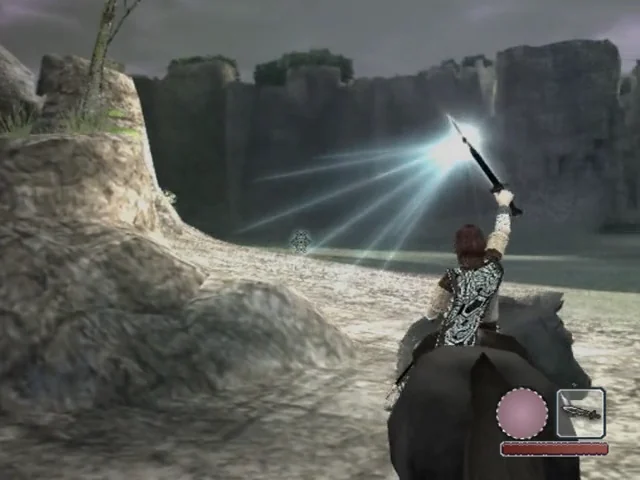
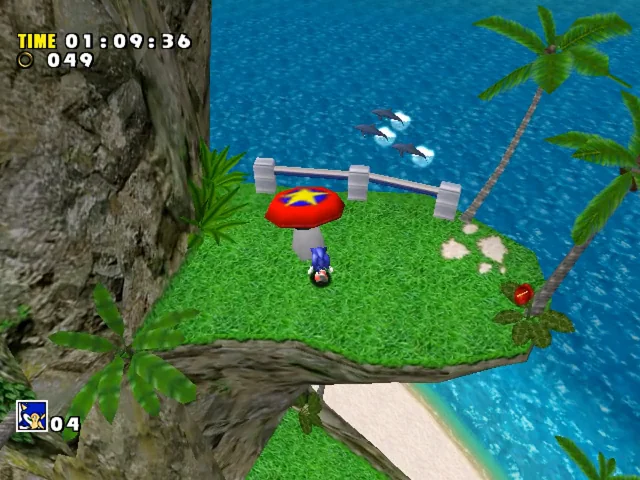
This guide uses PCSX2 with the PlayStation 2 version of Shadow of the Colossus, Dolphin with the Wii version of Super Mario Galaxy and Flycast with the Dreamcast version of Sonic Adventure as examples. The exact menu names vary by emulator and release. The safe method is consistent: establish a repeatable baseline, change one variable, test the same scene and return to the last stable configuration when a change creates a new problem.
Identify the sound you are actually hearing
Begin by describing the symptom rather than searching for a universal audio fix. A short pop or gap during a visible hitch suggests that the emulator temporarily stopped producing data. Audio that slows and drops in pitch while gameplay visibly slows points toward emulation speed or time-stretch behavior. Clean sound with noticeable delay points toward buffering or latency. A regular wobble or gradual drift suggests synchronization between the emulator, audio system and display may be wrong.
The distinction matters because these symptoms can overlap. A larger buffer might hide brief underruns, but it cannot make an underpowered configuration run the game at full speed. Time-stretched audio may make slowdown sound less abrupt while adding latency. A backend switch may help one operating-system setup and make another less stable. Treat every change as a testable hypothesis, not as a permanent recommendation.
- Write down whether the problem is a pop, gap, warble, slow pitch, delay or gradual desynchronization.
- Note whether gameplay slows at the same moment as the sound.
- Test speakers or headphones outside the emulator only if the symptom also appears in other applications.
- Do not change audio, graphics and speed settings before recording the original state.
Make a baseline before touching configuration
Choose a repeatable scene: a menu followed by a short piece of gameplay, a save point, or a location where the fault reliably appears. Avoid comparing a quiet menu with a busy gameplay sequence. Use the same game edition, save state or in-game location for each test, and allow a test long enough to include the original symptom. If the issue only happens during loading or shader compilation, record that separately instead of treating it as constant playback failure.
Create a rollback point by copying or preserving the emulator configuration before making changes. Where the emulator supports per-game properties, prefer those for a title-specific experiment. A global change can affect every game and make it harder to determine which problem was actually solved. Record the emulator name and version, game edition, renderer, resolution, speed display, synchronization mode, audio backend, buffer or latency value, host power state and whether the test improved, worsened or changed the symptom.
A simple log is more useful than memory. Use entries such as “Dolphin, Super Mario Galaxy, native resolution, full speed, unchanged audio, brief gap during scene transition.” If the next test adds a renderer change and the sound improves, you still will not know whether the renderer or a coincidental reduction in host load caused it. One change per test preserves that information.
- Preserve the last known-good configuration before changing synchronization, speed, backend or per-game overrides.
- Use one repeatable scene for comparisons.
- Record the emulator version and original settings.
- Change one setting or one tightly related group only when the documentation treats it as a single option.
- Restore the previous configuration immediately when a test introduces latency, graphical errors or new crackling.
Confirm full-speed emulation first
The first technical question is whether the game is running at its intended speed. Watch the emulator’s performance indicators and the gameplay itself. A high average frame rate does not automatically prove stable emulation: brief stalls, uneven frame delivery and shader compilation can still empty an audio buffer. Conversely, if the speed counter drops while gameplay and pitch slow together, audio configuration is not the first layer to adjust.
Dolphin’s official troubleshooting guidance treats audio stutter commonly as a performance problem and recommends reaching full speed before investigating audio settings. The same reasoning applies across emulator families, although the counters and terminology differ. PCSX2’s performance documentation recommends using its on-screen indicators to locate a bottleneck rather than diagnosing from sound alone. PCSX2 also notes that games place different demands on hardware, so a configuration that handles Sonic Adventure in Flycast says little about Shadow of the Colossus in PCSX2.
Do not use a speed hack, emulated CPU-clock override or frameskip as a default cure. These can alter game timing, produce internal lag or break software that depends on expected timing. Dolphin specifically warns that lowering the emulated CPU clock can make a game lag internally, while changing the emulation engine is not a general performance remedy. First establish whether the existing configuration can sustain the title without changing the game’s timing model.
- Check the emulator’s speed and frame-pacing indicators before changing audio.
- Compare the sound with visible gameplay slowdown.
- Test a demanding scene rather than relying on an undemanding menu.
- Do not treat frameskip, speed hacks or CPU-clock changes as safe audio fixes.
- Record whether the fault affects one title or several games in the same emulator.

Remove host-system interruptions
Once you know whether the emulator is falling behind, inspect the computer hosting it. On a laptop, test while connected to power and check that the operating system is not using a power-saving profile. PCSX2’s performance guidance identifies power-saving modes as a possible limitation, particularly on battery. A background scan, browser tab, recording application, overlay, streaming tool or update process can create a short interruption that is long enough to empty an audio queue.
Thermal behavior also belongs in this stage. If the problem appears after several minutes rather than immediately, watch for a change in performance or fan behavior and allow the system to return to its normal state before testing again. Close unnecessary overlays and capture utilities temporarily, but record that you did so. The purpose is diagnosis, not a permanent promise that every background program must be disabled.
Storage can matter as well. PCSX2 documents that storage latency may affect emulation when game images are kept on slow or unsuitable external storage. This does not mean moving every file is the answer, but it gives you a reversible test: compare the same title from a suitable local location, without changing audio settings at the same time. Keep legal, self-dumped or otherwise authorized game images backed up separately; troubleshooting should not involve unauthorized downloads.
- Test on external power when using a laptop.
- Temporarily close overlays, capture software and unusually heavy background tasks.
- Check whether the problem begins only after sustained play.
- Compare suitable local storage with slow external storage when disk activity is implicated.
- Log the host power state and background applications for each test.
Separate frame pacing, resolution and shader hitches
A game can report an acceptable average speed while still delivering frames unevenly. That uneven delivery can coincide with audio gaps, especially when a shader is being generated or a graphics workload briefly spikes. Dolphin’s performance documentation treats graphics backend, resolution, shader behavior and synchronization as separate variables. Keep them separate in your tests instead of lowering resolution, changing the renderer and altering audio in one attempt.
Begin with a reversible graphics test. Return enhancements to a conservative baseline or reduce internal resolution temporarily, then replay the same scene. If the crackle disappears only at the lower workload, the audio symptom was likely downstream of performance pressure. That does not prove the original renderer is defective; it shows that the previous graphics workload or frame-pacing behavior needs further investigation.
Shader compilation deserves its own note. A first-run hitch may not behave like continuous audio instability. Repeat the same area only after the relevant shader work has settled, if the emulator supports that behavior, and record whether later passes differ. Do not call a shader-compilation hitch a permanent audio failure. Likewise, changing renderers can affect frame pacing even when the displayed frame rate looks similar, so test renderer changes independently.
- Test resolution changes separately from renderer changes.
- Record whether the fault occurs only the first time an area or effect appears.
- Do not stack graphics, synchronization and audio changes in one test.
- Compare stable lower-load settings with the original configuration.
- Restore enhancements individually after identifying the workload that triggers the problem.
Adjust synchronization only after performance is stable
Synchronization controls determine how the emulator, audio system and display maintain a shared sense of time. They are not interchangeable with performance settings. RetroArch’s official troubleshooting material explains that crackling and video stutter can come from incorrect synchronization, and that Dynamic Rate Control is intended to synchronize audio and video together. It also stresses that the configured display refresh rate must be accurate enough for reliable synchronization.
If the game is visibly slow and the sound follows that slowdown, synchronization changes may only disguise the problem. Dolphin’s time-stretched audio can make slowdown sound smoother, but it adds audio latency and does not restore lost performance. Dolphin’s Granule Synthesis Audio System, introduced in newer releases, is designed to conceal small audio gaps from minor hitches without the same latency tradeoff as traditional stretching. It should still be evaluated as a particular Dolphin feature rather than a universal fix.
Change one synchronization-related setting at a time and test for three outcomes: crackle, latency and timing. A setting that removes pops but makes button presses or dialogue noticeably late is not automatically a successful result. If using RetroArch, verify its refresh-rate and rate-control assumptions before judging an individual core. Standalone PCSX2, Dolphin and Flycast expose different timing models, so do not transfer a RetroArch instruction directly into them.
- Confirm stable emulation speed before changing synchronization.
- Check display-refresh configuration when using a frontend with rate-control settings.
- Test for both reduced crackle and increased latency.
- Do not describe time stretching as a performance fix.
- Rollback if the game becomes clean but audibly or visibly delayed.
Treat buffer, latency and backend as the final layer
Only after speed, host load, frame pacing and synchronization are reasonably stable should you adjust audio buffering or the backend. A larger buffer can reduce underruns on some systems by providing more queued audio, but it also increases the amount of sound waiting to be played and may increase perceived delay. A smaller buffer can reduce delay while leaving less protection against brief scheduling interruptions. There is no safe universal value across operating systems and emulator builds.
Flycast’s maintained configuration exposes separate concepts for audio buffer size, automatic latency and audio backend. That separation is useful: “audio settings” are not one control. Test buffer behavior without changing the backend, then test the backend separately if the option is available. In Dolphin, audio accuracy modes are also distinct from smoothness. DSP-HLE is the normal choice for most games, while DSP-LLE is a specialized mode that can be required for particular audio-timing cases. Accuracy and crackle-free playback are related but not identical diagnoses.
PCSX2’s current documentation favors current configuration concepts rather than old plugin-era instructions. Use the controls provided by your installed build and record their exact labels. If a per-game audio override fixes one title but harms another, keep it local. Never assume a setting that helps Super Mario Galaxy should be applied to Shadow of the Colossus or Sonic Adventure.
- Change buffer size, latency behavior and backend as separate tests.
- Listen for input and dialogue delay after every buffer increase.
- Use specialized accuracy modes only when the title or documentation gives a reason.
- Prefer per-game overrides for title-specific behavior.
- Record the exact option label and emulator version because labels change across releases.
Use the three example games to narrow the cause
Shadow of the Colossus, Super Mario Galaxy and Sonic Adventure are useful comparison points because they belong to different original platforms and emulator families. A problem in PCSX2 with Shadow of the Colossus should be investigated through PCSX2’s performance counters, per-game properties and current diagnostic guidance. A Dolphin issue with Super Mario Galaxy should be compared against Dolphin’s full-speed, shader and audio documentation. A Flycast issue with Sonic Adventure should keep Flycast’s buffer, latency and backend concepts separate.
Do not use the games as proof that one platform is inherently easy or difficult. Workload varies by title, scene, resolution and host hardware. Instead, compare scope. If several games crackle in different emulators at the same time, inspect the host, audio device and operating-system synchronization. If only one title fails, preserve the global configuration and investigate a per-game property, title-specific timing behavior or a reproducible compatibility issue.
The original-platform edition must remain explicit. The PlayStation 2, Wii and Dreamcast versions do not share an emulator, audio model or menu structure merely because their titles are familiar. A fix described for Dolphin cannot be assumed to apply to PCSX2, and a Flycast backend option cannot be treated as a PCSX2 setting.
- Name the original platform and emulator in your log.
- Compare another game in the same emulator before changing global audio settings.
- Compare the affected title with conservative graphics settings.
- Keep title-specific changes in per-game properties when supported.
- Do not transfer menu instructions between PCSX2, Dolphin, Flycast and RetroArch.
Stop tuning and preserve evidence
If the last stable configuration still has a repeatable fault, stop cycling through random combinations. Restore that configuration, update the emulator from its official project source when appropriate, and retest before changing anything else. PCSX2’s current troubleshooting guidance recommends updating before investigating a problem that may already have been fixed. An update is itself a configuration event, so record the old and new versions and keep the earlier rollback point.
When reporting a persistent issue, reproduce it once with logging enabled rather than repeatedly restarting and overwriting evidence. PCSX2’s diagnostic guidance recommends preserving the resulting emulog. Include the game edition, emulator version, host operating system, hardware description, renderer, resolution, speed indicators, synchronization state, audio settings and a concise description of the repeatable scene. Avoid claiming that the audio device is defective when the log shows emulation stalls, and avoid claiming that the emulator is broken when the problem disappears under a stable baseline.
A good stopping point is a stable configuration with a known limitation, not an endless search for a perfect setting. If a larger buffer removes crackles but adds unacceptable delay, return to the lower-latency configuration and document the tradeoff. The rollback log turns future updates into controlled experiments instead of another round of guesswork.
- Restore the last stable configuration before collecting new evidence.
- Update from the official emulator source and record the version change.
- Enable logging only for a controlled reproduction when the documentation supports it.
- Preserve logs instead of overwriting them with repeated launches.
- Report the exact title, edition, scene and settings when seeking help.
The reliable order is simple even when the underlying causes are not: identify the symptom, record a baseline, confirm full-speed emulation, remove host interruptions, test frame pacing and graphics load, verify synchronization, then adjust buffers and backends. Each stage eliminates a different class of causes without sacrificing the evidence needed for the next one.
For Shadow of the Colossus, Super Mario Galaxy and Sonic Adventure, the emulator family matters as much as the game title. Keep PCSX2, Dolphin, Flycast and any frontend-specific timing controls in their own lanes, use per-game overrides where possible and roll back any setting that trades crackle for delay or altered game timing.