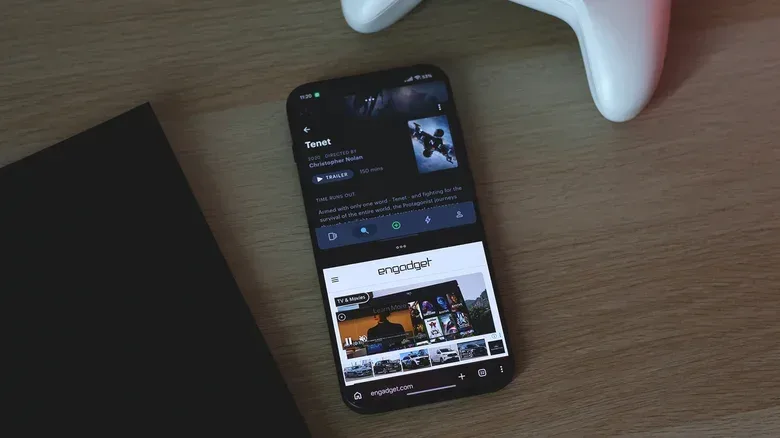
Foldable phones have made multitasking look like an expensive party trick: a large screen, several apps open, and enough room to pretend a pocket-sized device is an office. But the useful part of that equation—putting two apps on screen at once—has long been available on ordinary Android phones.
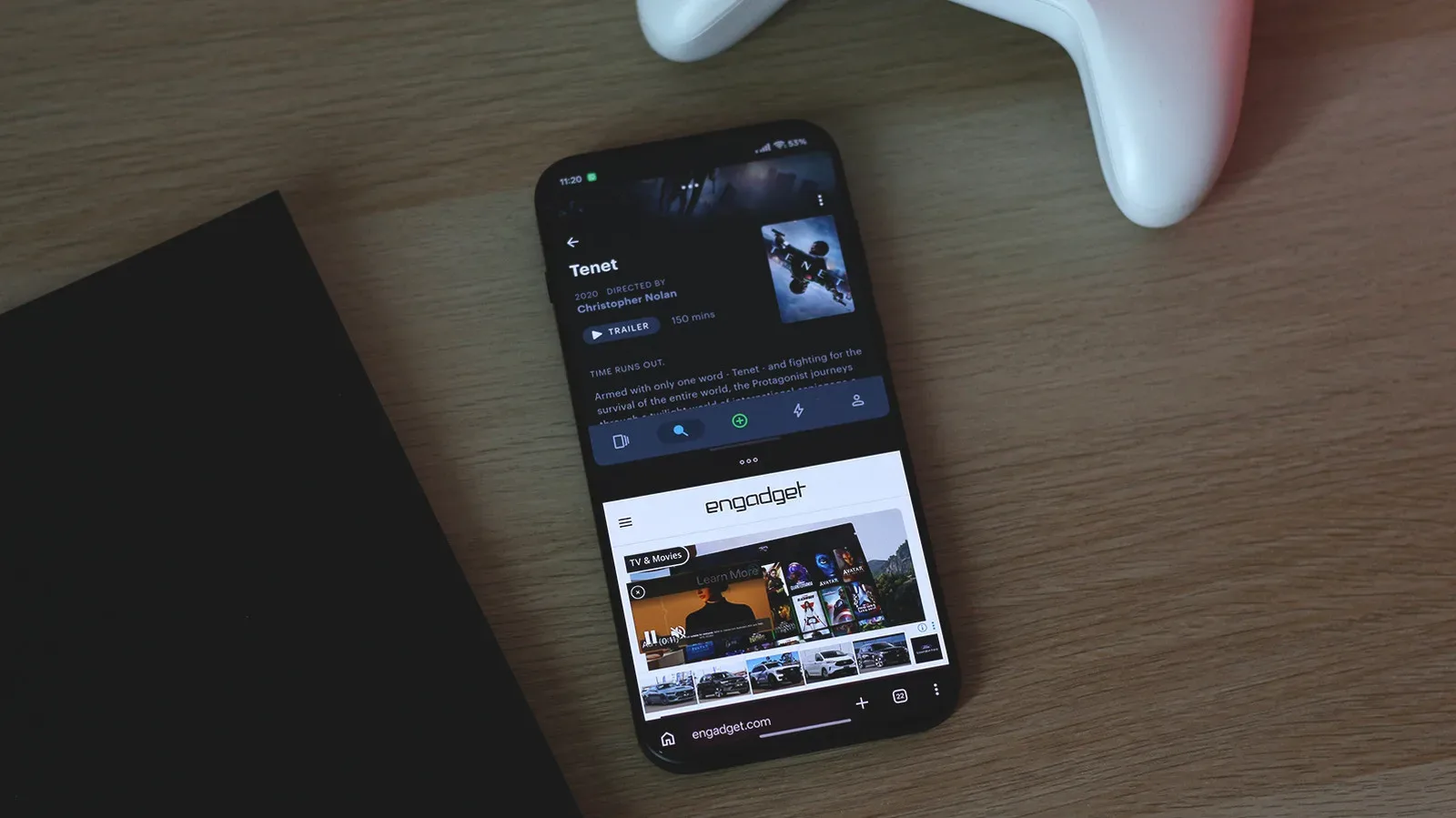
Android’s split-screen mode lets a conventional “slab” phone display two apps simultaneously, separated by an adjustable divider. It is not a replacement for the extra physical space offered by a book-style foldable, and it will not make every app cooperate. Still, for checking a message while looking at a browser page, comparing information between apps, or keeping a video visible while doing something else, it is a practical feature that does not require buying a premium folding handset.
The core capability arrived with Android 7.0 Nougat in 2016. It had appeared earlier in Android 6.0 Marshmallow in a form that required root access. Today, modern Android phones should offer multitasking out of the box, although the precise labels, menus, and behavior can change with a manufacturer’s software and Android version.
How to open split screen from Recent apps
On phones from Google, Samsung, Motorola, and many other Android makers, the usual route begins in the Recent apps screen. This is the interface that shows apps currently open in memory.
- If the phone uses gesture navigation, swipe upward from the bottom edge and hold briefly.
- If it uses classic three-button navigation, tap the Recents button.
- Find the first app to place in the two-app layout.
- Tap that app’s icon in its Recent apps card.
- Choose the option labelled Split Screen, or a closely related label such as Split View.
- Select the second app to open beside it.
The display then divides between the two apps. Drag the divider to give one app more room and the other less. Moving it all the way to the top or bottom exits split-screen mode.
That procedure is straightforward, but it is worth understanding what the mode is and is not doing. Split screen is a form of multiwindow multitasking: two apps remain visible and interactive at the same time. It differs from ordinary app switching, where one app is foregrounded while the other is merely available to return to later. The point is not simply fast switching; it is keeping two contexts present together.
Where split screen is most useful
Two apps on a phone-sized panel can become cramped very quickly. The best uses tend to involve brief reference tasks rather than trying to reproduce a desktop workstation on a small display. A person may want a browser in one half and messages in the other, or a video playing while another app is open below it. The adjustable divider matters because the two apps rarely need equal space.
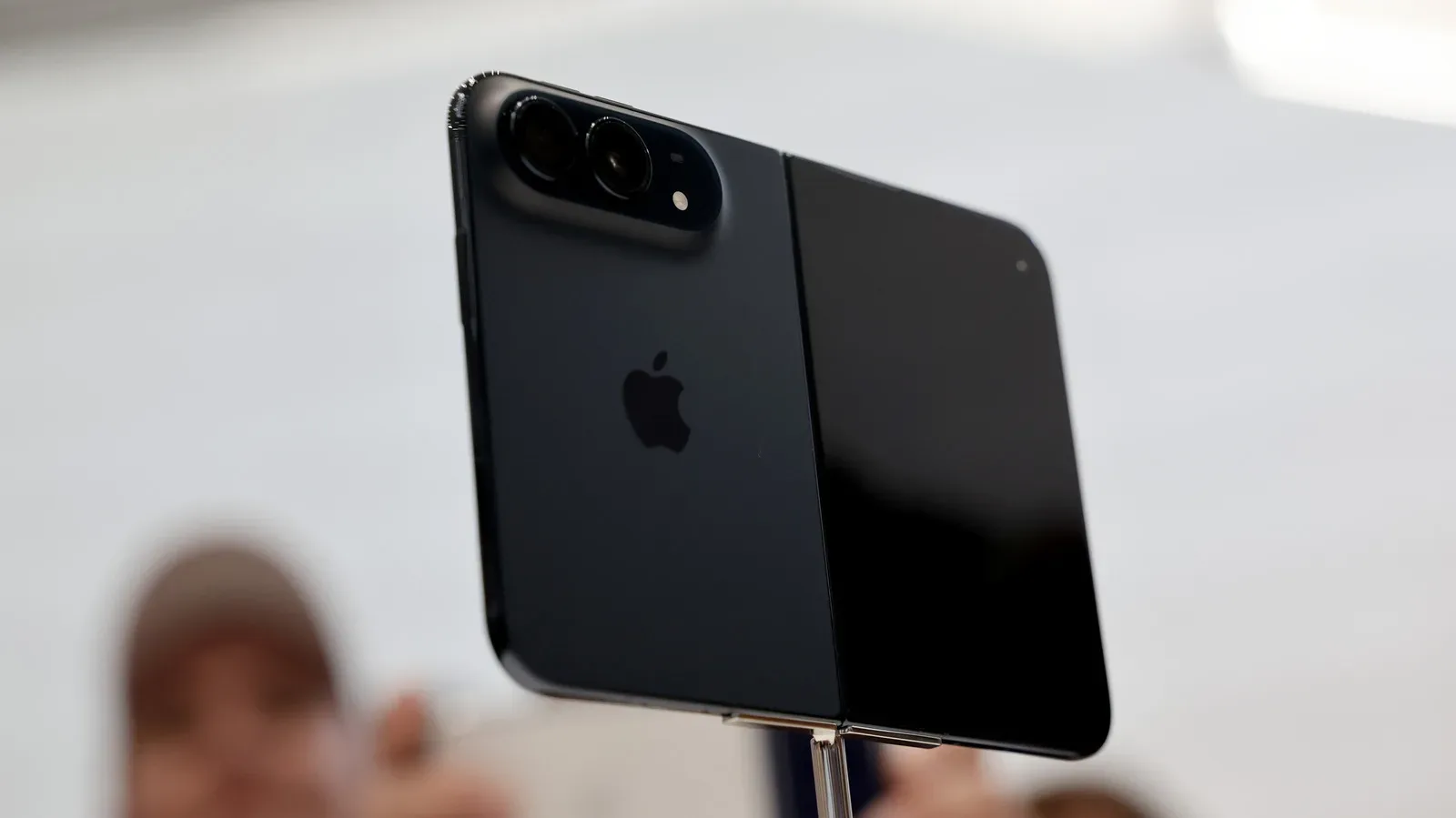
This is also why a foldable still has a legitimate advantage. Larger book-style foldables can accommodate three or more apps at once, which makes more sense when the unfolded screen has enough physical room. A regular handset generally tops out at two apps in split view, and forcing more information into less screen space can undermine the productivity benefit it was supposed to provide.
In other words, split screen is a feature of Android, not an exclusive privilege of expensive folding hardware. The larger display changes how comfortably and how extensively it can be used.
Floating windows are a different Android multitasking option
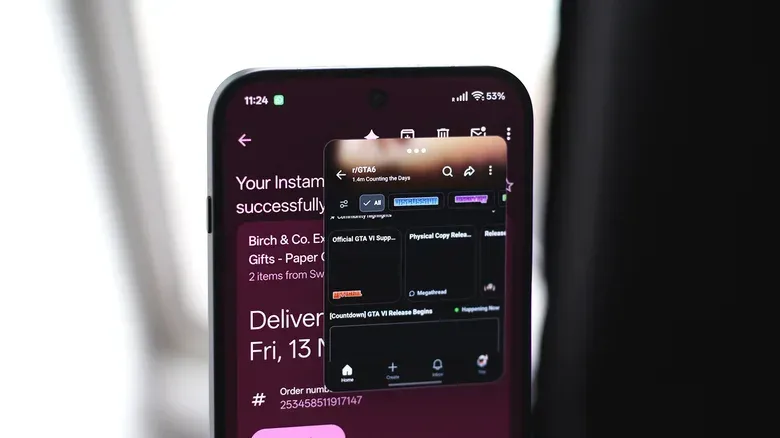
Split screen is not Android’s only route to using more than one app. Many modern Android devices support floating app windows. Rather than cutting the screen into two fixed sections, a floating window sits over the current app.
The window can generally be moved around the screen and resized by dragging its edges or corners. This changes the multitasking trade-off. Split screen gives each app a defined portion of the display; a floating window preserves one primary app in the background, while keeping a smaller secondary app immediately accessible on top.
Manufacturers do not use one universal name for this. Samsung calls the feature Pop-up view. OnePlus and Oppo use Floating Windows. Pixel phones running Android 17 offer Bubbles, which can minimize compatible floating apps into chat-head-style icons that remain available without leaving the current app.
Those labels matter when searching a phone’s settings or help pages. A person who cannot find “floating windows” on a Samsung device may have better luck looking for Pop-up view. Likewise, Bubbles describe a particular Pixel approach rather than a blanket promise that every Android app can become a resizable window.
ColorOS 17 goes further by permitting aspect-ratio changes for certain floating windows. On compatible OnePlus hardware, it is possible to combine two split-screen apps with a third app in a floating window. Technically, that is a powerful amount of flexibility on a conventional handset. Practically, it will only be comfortable in selective situations, since each app is competing for limited screen area.
Why the Split Screen choice may be missing
If the Split Screen or Split View option is greyed out, absent, or refuses to launch, the problem may be app compatibility rather than a mistake in the steps. Although multiwindow support has improved over the years, some apps still do not support it.
First, update the app through the Play Store. A newer release may add or improve compatibility. This is the sensible, low-risk step because app developers can change their support for resizable windows through updates.
If an app still does not offer the feature, Android contains a more advanced setting called Force activities to be resizable. It is located in Developer Options and may allow split screen for apps that do not officially support multiwindow use.
The word force is important. The setting is an attempt to override an app’s declared limitation, not a guarantee that the app has been designed for the resulting layout. Results can vary between apps and devices. An unsupported app might work in split screen, fail to do so, or display poorly when squeezed into a resized area. A successful launch is not necessarily evidence that every control or layout will behave properly.
Finding Developer Options without changing more than necessary
Developer Options is hidden by default because it contains advanced system controls. Enabling the menu itself is not inherently dangerous, but settings within it can affect a phone’s stability or performance.
- Open Settings.
- Go to About.
- Find Build Number.
- Tap Build Number seven times.
- Enter the device PIN or password if prompted.
- On most phones, find the newly available Developer Options menu under Settings > System.
From there, locate the Force activities to be resizable toggle if an app’s lack of split-screen support is worth investigating. Change only the setting needed for that experiment, and leave unfamiliar developer controls alone. These menus are intended for advanced configuration and testing, not routine phone customization.
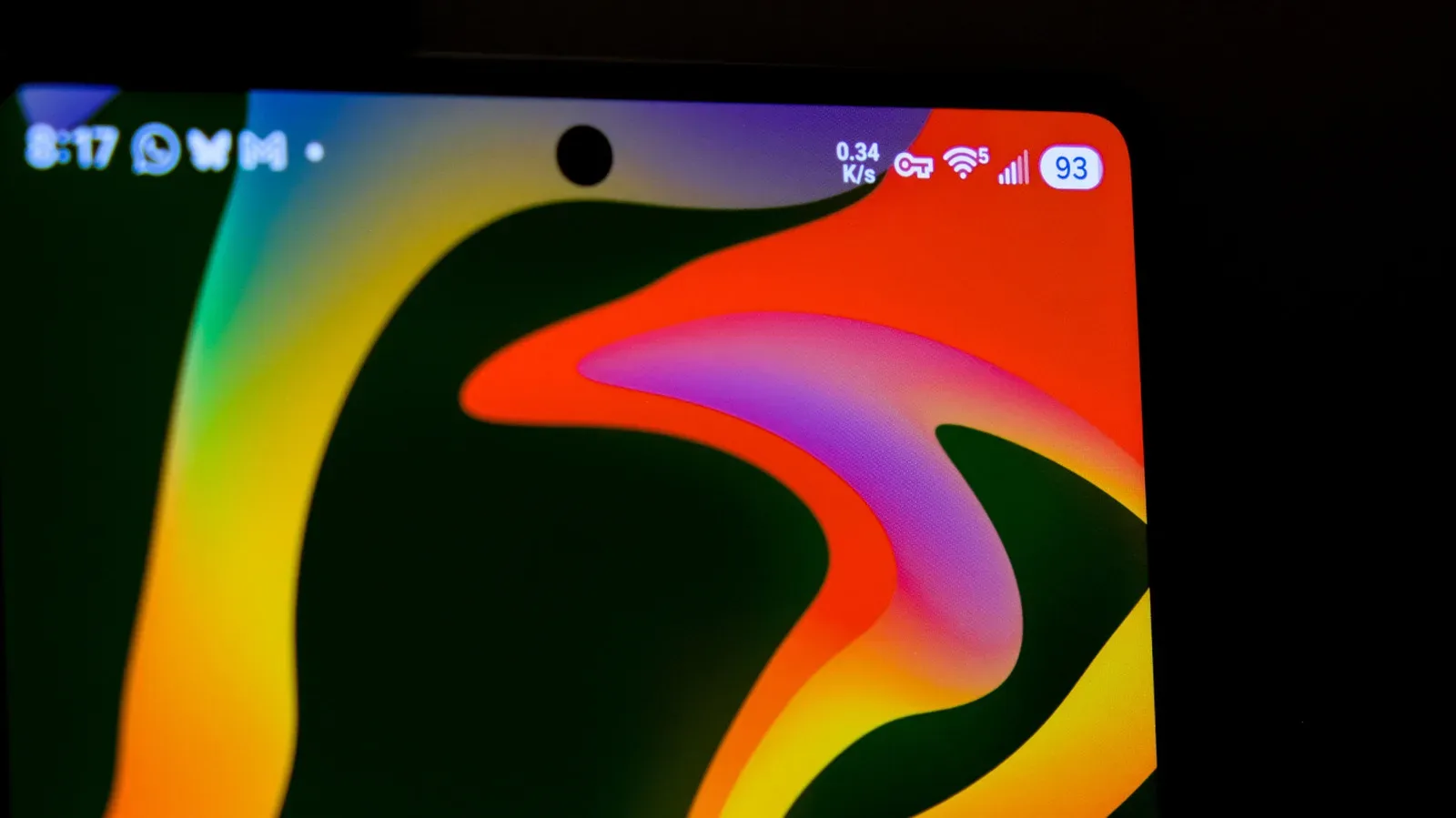
The same cautious approach applies to icons and status indicators elsewhere in Android. For example, a small key symbol can indicate an active VPN connection rather than an urgent problem; this explanation of Android’s VPN key icon covers what that indicator means.
What this means for ordinary Android owners
The useful takeaway is modest: before treating a foldable as the only way to work across two apps, try the Recent apps menu on the phone already in hand. Android split screen has existed for roughly a decade, works on modern devices, and is often just a few taps away.
For two-app tasks, a standard phone can handle the job. For heavier multitasking involving three or more simultaneous apps, a larger foldable screen has a clearer ergonomic case. And when an app is incompatible, updates should come before developer-level workarounds. Split screen is most valuable when it reduces switching without turning the display into a collection of unusably tiny panes.