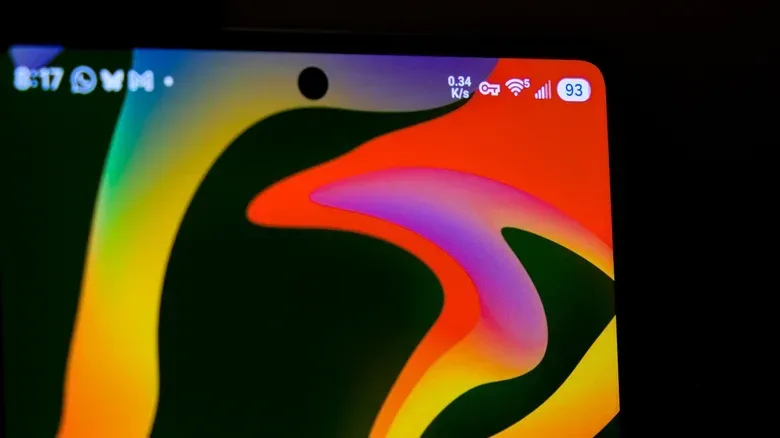
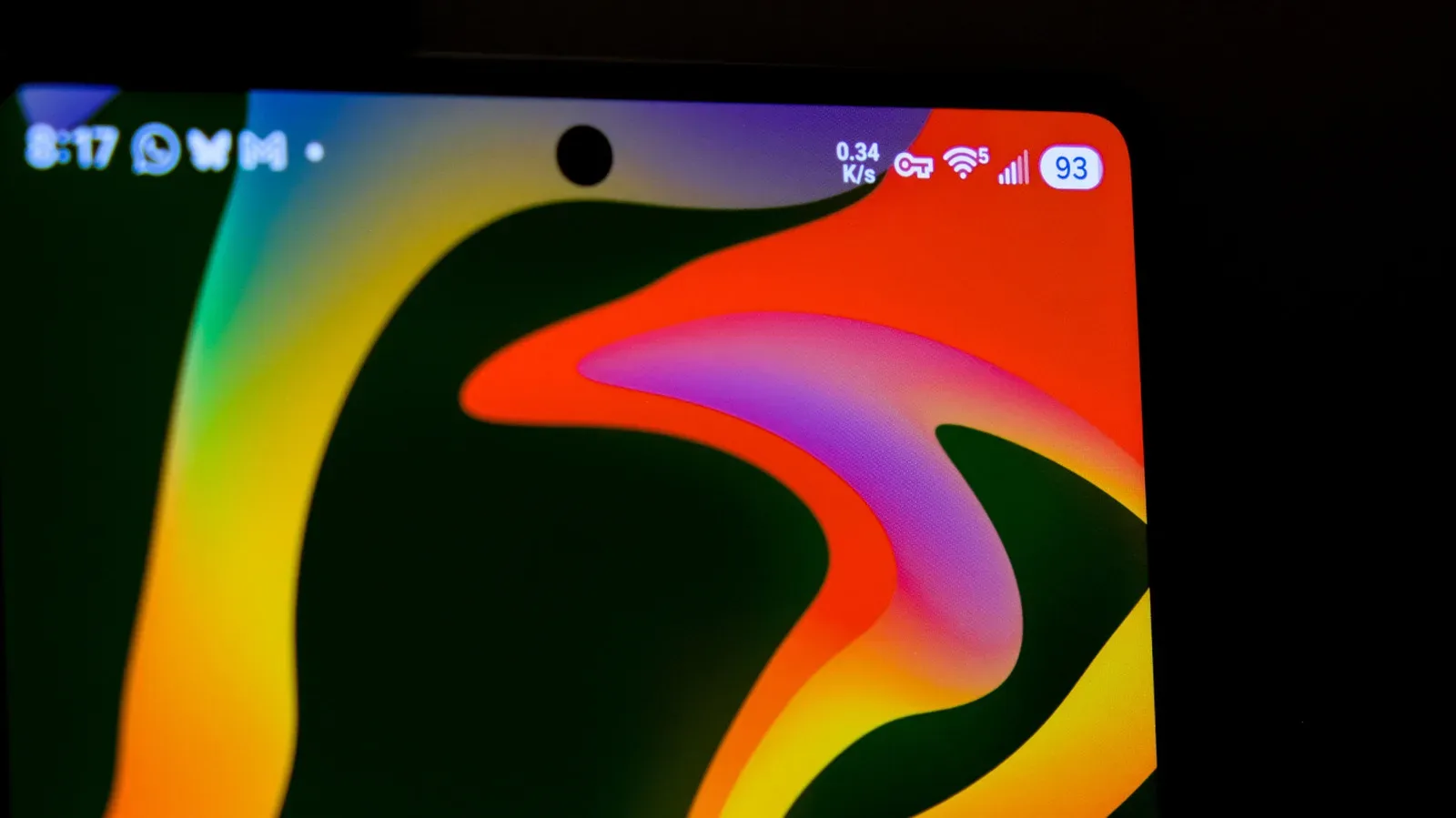
Android status-bar symbols are supposed to make important information instantly readable, but a screen crowded with Wi-Fi, battery, notification and app icons can turn that narrow strip into a tiny visual puzzle. One symbol that can look particularly alarming is the small key: a round handle with teeth pointing to the left.
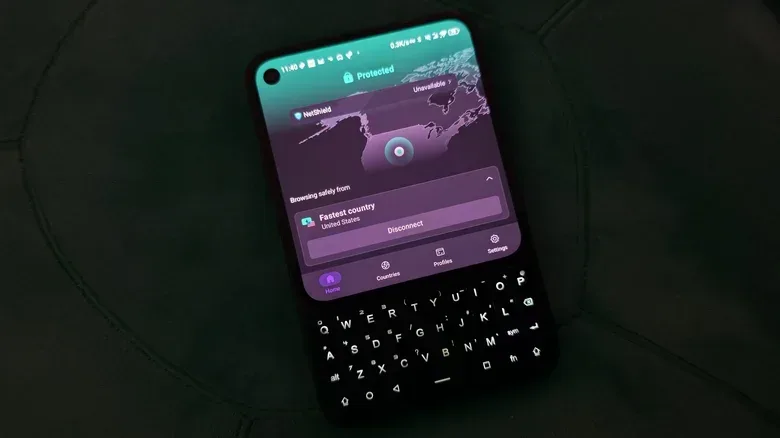
In this case, the key is good news. It indicates that a virtual private network, or VPN, is currently active on the phone. In simple terms, the device is routing its internet traffic through a VPN connection that encrypts that traffic against third parties on the route. The key is Android’s persistent visual confirmation that the VPN is running rather than an alert that the phone has been compromised.
That distinction matters because VPNs are easy to forget once they are enabled. A VPN app may connect automatically, run in the background and only become noticeable when a site asks for a CAPTCHA, declines to load, or appears to think the user is in a different location. The key icon gives the owner a fast way to check the current state of that connection without digging through settings.
What the Android key icon actually means
The key appears when a VPN is active. A VPN creates an encrypted connection for the phone’s web traffic, helping prevent an internet service provider or a potentially untrustworthy public-network operator from viewing that activity. The icon therefore works as a status indicator: VPN on, key visible; VPN disconnected, key gone.
Encryption is the process of converting information into a form that is not readable to parties that do not have the means to decrypt it. In the VPN context, this protects traffic travelling between the phone and the VPN service. It is useful protection, but it should not be mistaken for total anonymity.
A VPN can obscure the phone’s IP address from networks, ISPs and sites being visited, but it does not make somebody invisible online. Logging into an account that recognizes the user still identifies that user to the account provider. Cookies can preserve information about previous browsing, and device fingerprinting—identification based on a device’s particular blend of hardware and software characteristics—can contribute to tracking as well. The practical takeaway is that a VPN is one privacy tool, not a universal disguise.
The key symbol is best read as a connection-state indicator: it says a VPN is active, not that every form of online tracking has disappeared.
Why the icon is hard to remove
For most Android phones, there is no built-in switch to hide the key while leaving the VPN connected. That is by design. Because the icon communicates an active privacy and security state, Android generally keeps it visible in the status bar instead of treating it as ordinary decorative clutter.
There is a notable Samsung Galaxy exception. Galaxy owners can use Samsung’s Good Lock customization suite from the Galaxy Store, then open its QuickStar module, to toggle the key indicator along with other status-bar icons. That option is specific to Samsung’s customization tools; it should not be expected on Pixel phones or other Android devices.
For everyone else, disabling the VPN is the usual way to make the key disappear. That changes more than the status bar, though: it ends the VPN connection and removes the encryption protection provided by that VPN. It is worth deciding whether the extra few pixels of screen space are really worth losing a connection that was intentionally enabled.
How to identify the VPN behind the key
If the key has appeared unexpectedly, the first question is not necessarily whether it is dangerous, but which VPN is active. It may be a third-party VPN app that was turned on earlier, one that reconnects automatically, or a connection added in the phone’s system settings.
On a Pixel or similarly close-to-stock Android device, check the VPN list with the following path:
- Open Settings.
- Select Network & internet.
- Tap VPN.
The active service should be shown in the list with a Connected label. Selecting it provides the option to disconnect. Selecting the gear icon beside a listed VPN opens additional configuration controls.
Samsung Galaxy phones place the same basic function elsewhere:
- Open Settings.
- Tap Connections.
- Choose More connection settings.
- Tap VPN.
Again, an active entry is marked Connected, and selecting it allows the connection to be disconnected. If a VPN is listed but inactive, tapping it may send the user to that VPN’s own app to connect.
Android also permits manual VPN configuration through the plus icon in the VPN settings area. That route is generally better suited to advanced users who have the required connection details. For ordinary consumer VPN services, the provider’s app is typically the place to connect, disconnect and manage service-specific options.
Quick ways to turn it off
If the VPN is from a third-party app, opening that app and using its disconnect control is the straightforward option. Some VPNs retain an active notification with a stop or disconnect button, which can make the task quicker.
On Pixel and close-to-stock Android software, Quick Settings can also reveal running background apps. Swipe into Quick Settings, tap the number next to the profile icon at the bottom of the display, then look for the VPN and tap Stop. This is useful when an app is active but its normal interface is not immediately obvious.
Remember what that action does: it removes the key because it turns off the VPN, not because it hides the icon. If the phone needs the VPN for a privacy preference or a particular network situation, disconnecting is a real trade-off rather than a purely cosmetic fix.
When a VPN can be useful on a phone
How worthwhile a VPN is depends on an individual’s privacy priorities, browsing habits and whether they already have access to a service. One practical use is reducing the ability of an ISP or the owner of a public network to inspect web activity. That can be especially relevant when connecting a phone to networks outside one’s control.
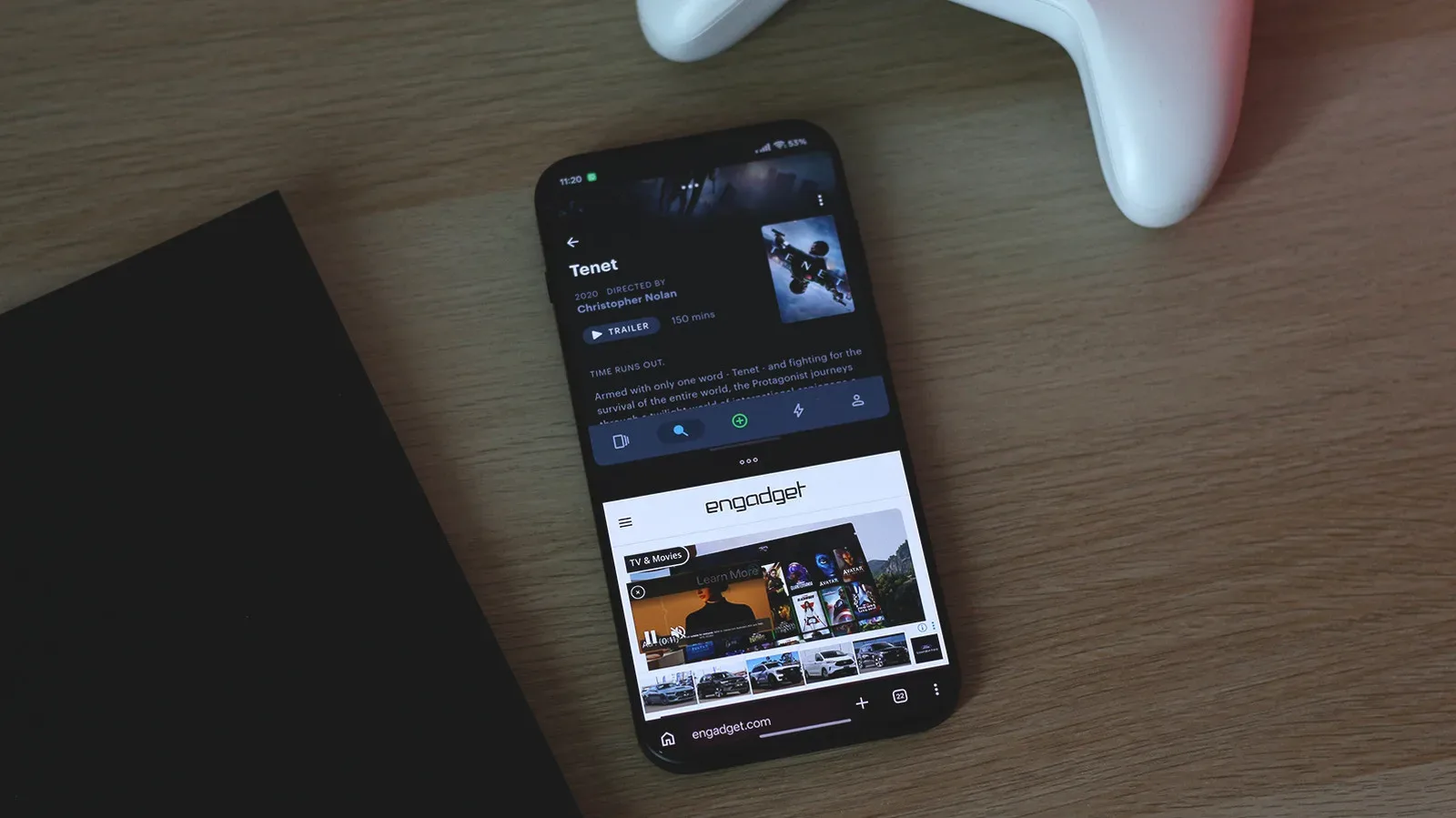
VPNs are also commonly used to make a connection appear to originate from a different region. Streaming catalogs can vary between countries because of licensing arrangements, and a VPN can set the apparent location to another region. That capability is one reason some people use VPNs on phones, although it does not change the fact that services can still recognize logged-in accounts and apply their own access rules.
For players using an Android phone as part of a wider gaming setup—whether checking accounts, downloading companion apps or browsing gaming communities—the key can simply be a reminder that the device’s connection is being routed differently than normal. It does not, by itself, diagnose lag, fix a network problem or promise a particular performance result. It is a privacy-state symbol, not a speedometer.
Anyone trying to manage mobile connectivity more broadly can also review other phone-side settings. Our guide to iPhone mobile-data settings that actually matter covers the separate question of keeping cellular data use under control on iOS.
The everyday downsides of leaving a VPN on
The key icon can sometimes be the first clue when browsing starts behaving oddly. Websites may regard traffic from a VPN IP address as suspicious and respond with more CAPTCHA challenges. A CAPTCHA is the human-verification prompt designed to deter automated traffic. In some cases, a site may not respond until the VPN is disconnected.
That does not automatically mean the VPN is broken. It can be a site’s decision to be more cautious with a shared or recognized VPN address. Still, it creates a practical choice: keep the VPN active and work through the additional checks, or temporarily disconnect when a particular site will not function.
A sensible habit is to treat the key as useful context when troubleshooting. If a page refuses to load or repeatedly asks for verification, check whether the VPN is on before assuming the browser, Wi-Fi network or site has failed. Conversely, if the key disappears when it is normally present, that is a prompt to check whether the VPN was disconnected and, if desired, reconnect it.
A small icon with a clear purpose
The Android key is not an error symbol, a password warning or an indication that someone else has taken control of the device. It means a VPN connection is active and traffic is being protected by that service’s encrypted route. Its visibility is intentional: the icon makes a background privacy setting visible at a glance.
Users who do not recognize the key should first inspect the VPN list in Android Settings and identify the connected service. Users who recognize it but dislike its presence have limited choices: keep the connection and accept the status icon, use Samsung’s Good Lock and QuickStar tools on compatible Galaxy phones, or disconnect the VPN entirely. Knowing which of those situations applies turns one of Android’s more cryptic symbols into a straightforward piece of useful information.