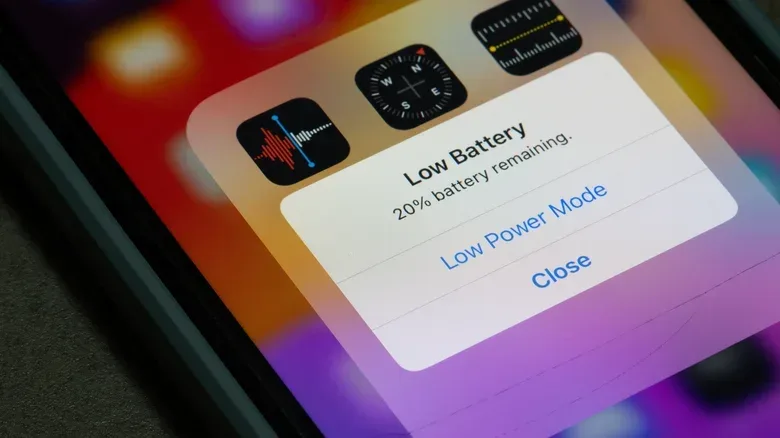
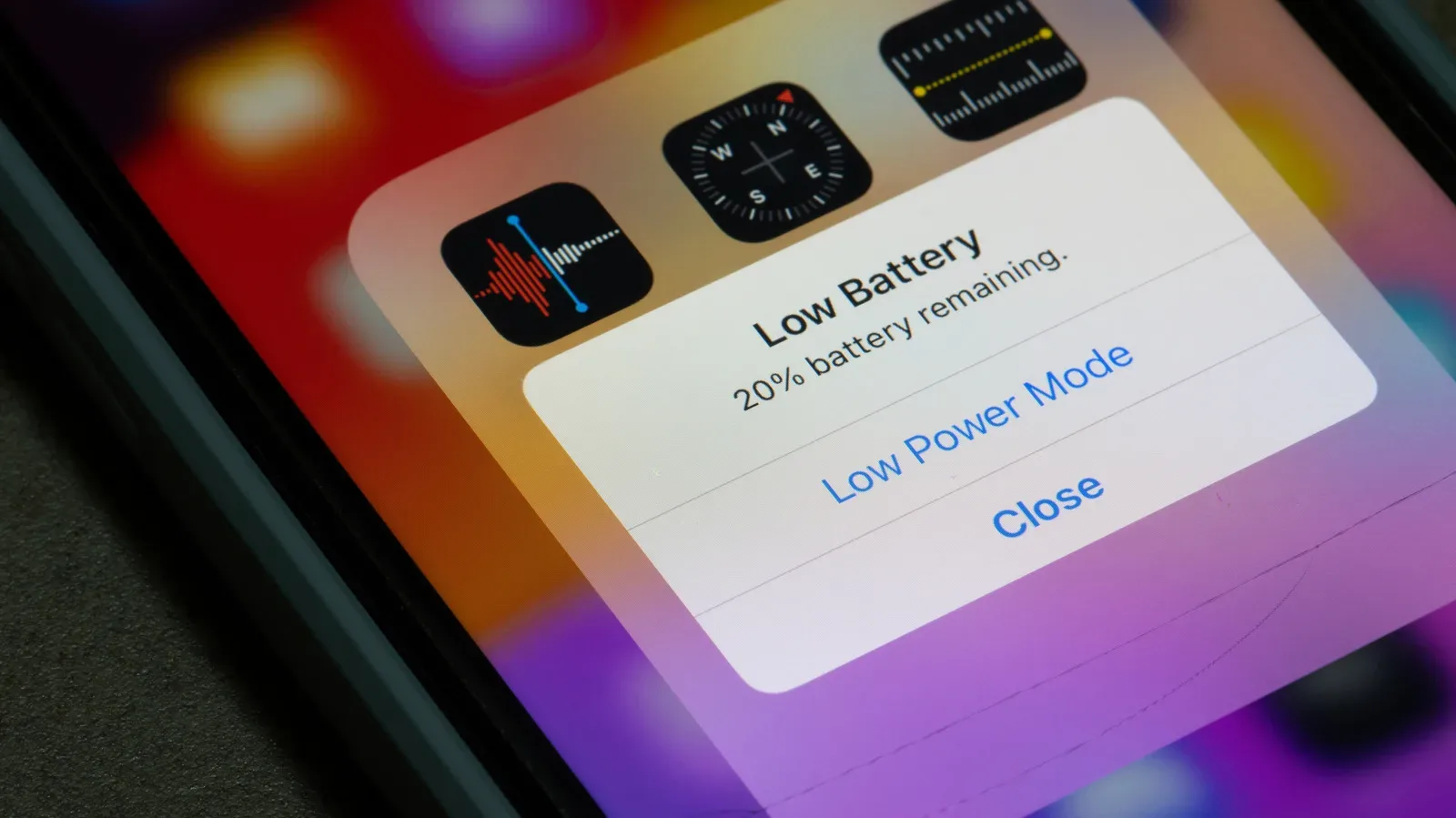
Your phone sitting at a respectable battery percentage and then abruptly losing a large chunk of it is one of modern life’s least welcome jump scares. One moment, there seems to be plenty of charge left; the next, the battery meter has fallen far more quickly than your normal use would suggest.
That does not automatically mean the handset is finished. Browsing and music playback generally ask less of a phone than camera use, navigation or games, so different habits will always produce different battery life. But a sharp fall when usage has not changed can point to a handful of more specific causes: the battery gauge correcting an imperfect estimate, high temperature, an operating-system update still doing work in the background, an app running when it should not, or a battery that has aged enough to deserve replacement.
The practical response is not to make a snap diagnosis from one bad afternoon. Check what the phone reports about battery usage and battery health, consider whether the issue began after an update, and give the device time to cool if it is hot. Those steps distinguish a temporary drain from an issue that will keep returning.
The percentage is an estimate, not a fuel gauge
A phone does not directly know precisely how much usable charge remains. Its software estimates the percentage using readings including battery voltage and current. Usually the calculation is close enough to feel smooth and predictable. Sometimes it is not.
When the system later revises that estimate, the number displayed to the owner can appear to plunge instead of drifting down normally. In other words, a sudden percentage drop can partly be a reporting correction: the available charge was not necessarily lost in the single instant the meter moved, but the software’s understanding of it changed.
This is more likely with a lithium-ion battery in poor condition. Chemical aging reduces the amount of charge a battery can retain. It can also make the battery less capable of supplying a quick burst of power when the phone demands one. Opening the camera or using GPS are examples of tasks that can create this kind of demand.
That distinction matters. A meter that suddenly drops after launching a demanding feature is not proof that the camera or maps app somehow consumed that entire missing percentage in a few seconds. It can instead reveal that the battery could no longer meet the expected power demand as reliably as the software assumed.
What battery aging changes
Battery aging is chemical, and it changes both capacity and behavior under load. Capacity is the amount of charge the battery can hold compared with when it was new. As it falls, the phone naturally spends less time away from a charger. Behavior under load is the separate problem of whether the battery can provide the power needed for a more intensive task without a large voltage-related correction to the estimate.
Related coverage includes Why Your Phone Battery Percentage Can Suddenly Drop.
That is why an older device may feel acceptable during light use but become erratic when the camera, GPS or other more demanding functions enter the picture. On iPhones, there is a system intended to detect battery-related conditions and reduce performance in order to help avoid large demand spikes. That may be inconvenient, but it reflects the same underlying issue: a compromised battery has less headroom.
Heat can accelerate the drain
Temperature is a major battery-life variable. Most phones are rated for use from 0° to 35° C, or 32° to 95° F. Above that range, battery life can be significantly reduced. If the phone is unusually hot and the percentage is dropping quickly, the sensible first step is to stop using it until it returns to a normal temperature.
Do not attempt a dramatic cooldown by putting a warm phone in a refrigerator. Introducing cold air to a warmer device can create condensation inside it. Letting it cool naturally avoids adding a moisture risk to an already warm piece of electronics.
For gamers, heat also gives useful context to a seemingly mysterious drain. Games are among the more demanding smartphone activities, and a phone that is already hot has less favorable conditions for lasting through that session. The important clue is the combination: a hotter-than-normal device and faster-than-normal drain merit a cooldown before drawing conclusions about battery health.
Updates can cause temporary battery drain
A battery problem that begins right after an iOS or Android update is not necessarily permanent. Both systems can carry out optimizations after updating, organizing files and completing indexing work. That extra activity can increase power consumption for several hours or even days.
Indexing here means the operating system processing and organizing information so it can be handled properly afterward. It is background work, and it can make the device use more battery than its newly updated owner expects. Once that process finishes, consumption should return to normal.
The key word is temporary. A short stretch of heavier drain after an update calls for patience and monitoring rather than an immediate battery replacement. But if the issue persists after that period, it makes sense to inspect the battery menu and app activity rather than assume the update is still responsible.
Phones often do more than gaming, messaging and calls in the background. If you also use your device as a controller or hub for other gear, it can help to understand which connected-device features are active; Apple’s Switch Control feature can, for example, use one Apple device as a controller for others. Whatever the use case, the battery settings remain the place to verify what is actually consuming power rather than guessing.
Background apps and location access are the most actionable checks
An app that is buggy, or a process that keeps running in the background, can consume battery rapidly. Location activity deserves special attention because it can keep triggering GPS. The effective basic fix is to review privacy permissions and limit location access to times when an app is open, where that fits the app’s purpose.
This does not mean turning off every permission indiscriminately. Navigation and location-focused apps have obvious reasons to use location while they are in use. The goal is to prevent applications from repeatedly invoking GPS when that background access is not needed.
Close apps that are running in the background and see whether the drain settles. Then inspect the phone’s own battery report, which is available on both iOS and Android and identifies which apps use the most power. That sequence provides a simple test: if one app stands out and the battery behavior improves after closing it or reducing its access, software activity is a more plausible explanation than a suddenly failed battery.
A sensible troubleshooting order
- Check temperature. If the phone is hot, stop using it and allow it to cool normally. Avoid the refrigerator.
- Consider timing. If the behavior started just after an iOS or Android update, remember that background optimization may raise consumption temporarily.
- Close background apps. Watch whether ordinary battery behavior resumes.
- Review location permissions. Set location access to only while an app is open when constant access is unnecessary.
- Open the battery report. Look for apps with unexpectedly high consumption.
- Check battery health or diagnostics. If the pattern continues, use the device-specific tools to assess the battery itself.
This order is useful because it begins with the least disruptive, most reversible explanations. It also helps avoid treating every sudden dip as proof that a new handset is required.
Where to find battery information on iPhone, Pixel and Galaxy phones
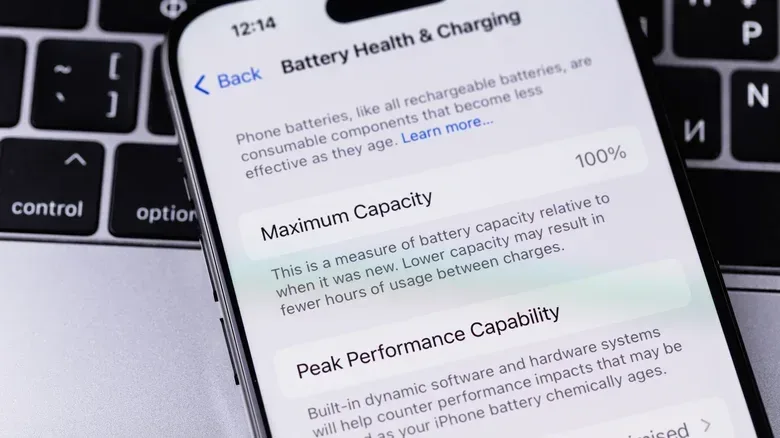
On an iPhone, open Settings and then Battery. The menu provides battery-use details and typically includes battery-health information. Apple says its latest iPhones are designed to retain 80% of original capacity through up to 1,000 charge cycles.
On a Pixel 6 or later, Battery Diagnostics is available under Settings. On a Samsung Galaxy phone, go to Settings, select Battery, then choose View Details. These built-in menus are more useful than trying to infer the cause solely from a single percentage swing, because they can separate heavy app usage from the device’s reported battery condition.
A battery-health figure below 80% is a strong practical signal to consider replacement. Replacing the battery can be considerably cheaper than replacing the entire phone, and it directly addresses the capacity loss and instability that accompany an aging lithium-ion cell.
How to read the signs without overreacting
A sudden drop once, especially after an update or while the phone is very hot, is different from a repeated pattern. Repeated large corrections, rapid loss under ordinary use, and poor battery-health results together make an aging battery a much more credible diagnosis. On the other hand, a brief increase in drain after updating, or a battery report dominated by one location-hungry app, points toward temporary system work or software behavior.
There is no need to force one explanation onto every percentage drop. The battery meter is estimating, software has background responsibilities, demanding tasks draw more power, and heat changes the equation. The useful move is to take the device’s reports seriously, remove avoidable background demand, and replace the battery when its health has clearly fallen rather than letting a frustrating percentage meter make the decision alone.