Apple’s Switch Control is an accessibility feature with an unusually broad definition of “controller.” It can translate alternate inputs—including adaptive hardware, hand gestures and head movements—into actions on an iPhone or iPad. Once configured, it can also extend those same controls to another compatible device on the same Wi-Fi network through the Use Other Device setting.
That matters first and foremost as an accessibility option. A person who has found an input method that works for them should not have to build an entirely different control setup every time they move to another device. But it also creates a potentially useful multi-device arrangement for people who use Apple hardware alongside a gamepad, keyboard or specialist adaptive controller.
The key distinction is that Switch Control is not simply a remote-control app that mirrors a screen or offers a traditional desktop-style pointer. It is an interface-navigation system. A switch, in this context, is an input assigned to an action: selecting an item, moving through on-screen choices, or carrying out another configured command. That input can be purpose-built accessibility hardware, but it does not have to be.
What Switch Control is designed to do
Switch Control is intended to help people navigate a device and choose on-screen items when conventional touch interaction is difficult or unavailable. The available input options can range from external adaptive controllers to gesture-based methods involving hand or head movement.
Its strength is flexibility. Rather than assuming everybody will tap, swipe and pinch directly on a display, the feature lets a user define an input and map it to a device action. Apple’s setup menu labels these inputs as switches, even if the physical object being used is not literally a single-button switch.
For gaming-adjacent setups, that terminology is useful: a standard game controller can serve as an external input device, while compatible Bluetooth or USB accessories such as keyboards may also be assigned. Microsoft-made adaptive controllers are another example of non-Apple hardware that can be mapped as switches.
That does not turn every controller into a bespoke mobile-game control scheme, nor does it guarantee that every game or app will behave in an ideal way. The important point is more fundamental: Switch Control can interpret supported external inputs as the controls used to navigate iOS or iPadOS.
Requirements before device switching will work
Before attempting to control a second device, the devices involved need to meet two stated conditions:
Related coverage includes How to Use Switch Control to Operate Other Apple Devices.
- They must be connected to the same Wi-Fi network.
- They must be signed in with the same iCloud account.
Those conditions are central to the feature, not incidental setup details. If a device does not appear in the available-device list, checking the network and account first is the sensible starting point. Network consistency can matter for plenty of connected-device tools; readers looking for more general context can also read why Wi-Fi reliability can matter more than a headline speed figure.
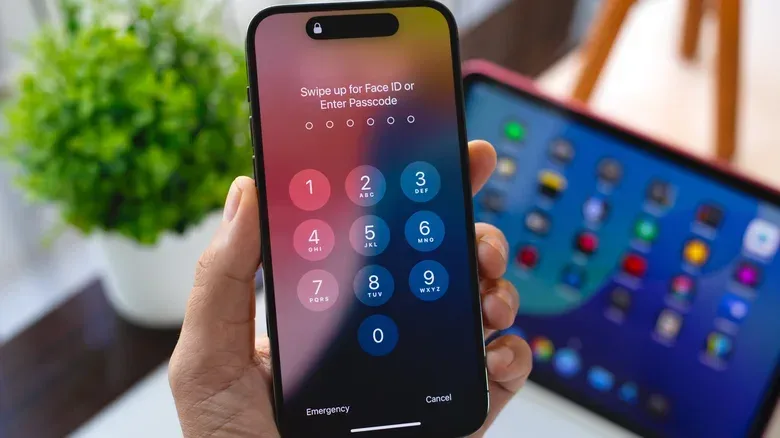
Switch Control must also be enabled on the relevant mobile devices. On an iPhone or iPad, open Settings, choose Accessibility, then turn on Switch Control. From there, the Switches area includes Add New Switch, which walks the user through assigning an external controller or gesture to an action.
It is worth taking time at this stage. The remote-control portion of the feature relies on switches already configured on the controlling device. In practical terms, the setup is not “connect a second device, then decide how to control it.” Establishing dependable inputs and actions comes first; device switching builds on that foundation.
How to use one configured device with another
After switches are set up and the shared network and account requirements are in place, return to the main Switch Control menu on the iPhone or iPad being used as the controller.
- Open Device in the Switch Control menu.
- Select Use Other Device.
- Choose a compatible device from the list linked to the network.
- Use the switches already assigned on the controlling device to operate the selected device.
The stop command is deliberately direct: return to the same area and choose Stop Using Device. This is helpful for a setup that may be used only at certain moments, rather than treating device switching as a permanent state.
The available-device list is the functional checkpoint in this workflow. It is where the earlier requirements become visible: the iOS devices need the same Wi-Fi connection, the same iCloud sign-in, and Switch Control needs to be enabled. If the intended target is absent, there is no indication here that adding random controller mappings will solve the issue; those mappings govern input, while account and network conditions govern device discovery.
Mac setup has an additional permission
A Mac desktop computer requires an extra setting before it can be controlled through this arrangement. On the Mac, open the Apple menu, go to Accessibility, open Switch Control, and select Allow platform switching to control your computer.
The language here is important. “Platform switching” refers to moving Switch Control operation between devices, rather than merely pairing a controller to a Mac. The Mac-side permission makes the computer available to this cross-device accessibility workflow.
For someone with a desktop Mac and an iPhone or iPad positioned more conveniently, that can reduce the need to repeatedly change physical position or reconnect an accessory. For users relying on adaptive controls, it can preserve a familiar input arrangement across hardware. It is also a reminder that accessibility settings can occasionally solve ordinary workflow problems because they are built around alternative ways of interacting with technology, not around one assumed way of using it.
Controllers, keyboards and adaptive hardware
The feature’s compatibility with non-Apple external inputs is one of its more practical aspects. A standard game controller can be mapped as a switch, as can a Bluetooth or USB device that connects to an iPhone or iPad. A Bluetooth keyboard is one cited example. Adaptive controllers from other manufacturers, including Microsoft, can likewise be assigned.
For a player, the useful takeaway is not that Switch Control replaces conventional game controller support. These are separate ideas. Conventional controller support is an app or game responding directly to a gamepad’s expected inputs. Switch Control instead lets the operating system use alternate inputs to carry out configured navigation actions. Where a game, app or task involves repetitive selection and predictable interface movement, the latter may offer an additional route to interaction. Where fast, complex, highly variable input is required, the feature’s accessibility-navigation purpose should remain the expectation.
That distinction also helps avoid overpromising. The supplied capabilities establish that game controllers can be assigned as switches and that switch inputs can control eligible devices. They do not establish universal support, a particular game layout, or a guarantee that every controller input will correspond neatly to a game action.
Recipes can replay a prepared sequence
Switch Control includes another advanced concept: Recipes. A Recipe can record and replay a sequence of inputs. The term does not mean an automated response for every situation; it means a prepared set of actions that can be invoked again.
Users have applied Recipes to repeat actions in mobile games and other apps, and to turn pages in the Kindle app. These examples show why the option may attract attention beyond its central accessibility role. A repeated sequence can be useful whenever the same small set of input steps occurs again and again.
Still, “can be used” is not the same as “should be used everywhere.” A sequence-based tool is best understood as a configurable accessibility mechanism with possible automation-like uses, not as a blanket solution for app interaction. Whether it makes sense depends on the particular task, how stable the on-screen interface is, and whether repeating a fixed sequence is actually helpful.
A sensible way to approach the feature
For anyone exploring Switch Control for accessibility, start with the smallest viable configuration: enable it, add one input method, and make sure its assigned action feels understandable and reliable. Only then add the shared-account, same-network device-switching setup. Breaking the process into those stages makes it easier to identify whether a problem lies with the input itself or with finding the other device.
For people approaching it from a controller or multi-device angle, the same advice applies. A Bluetooth keyboard or game controller may be physically familiar, but Switch Control requires deliberate mapping through Add New Switch. Think of it as teaching the system what an input means within the feature, rather than assuming the accessory will automatically control every interface in the desired way.
Ultimately, the most valuable aspect of Switch Control is that it broadens the idea of what an input can be. Its cross-device controls can carry an established setup from one Apple device to another on the same network, while its support for external and adaptive hardware leaves room for users to build around the tools they can use most effectively.