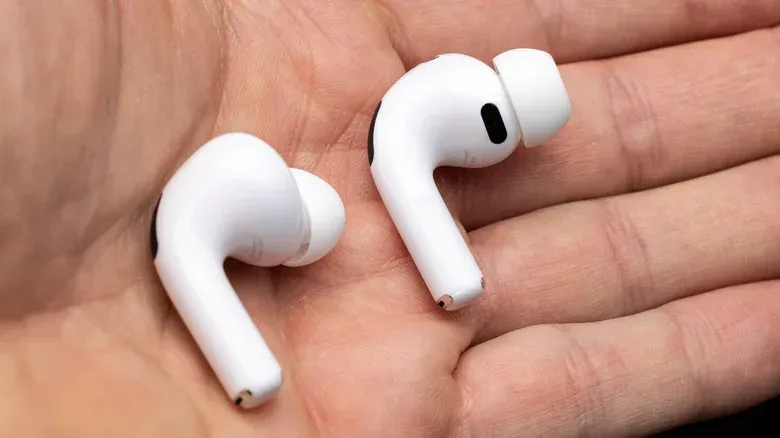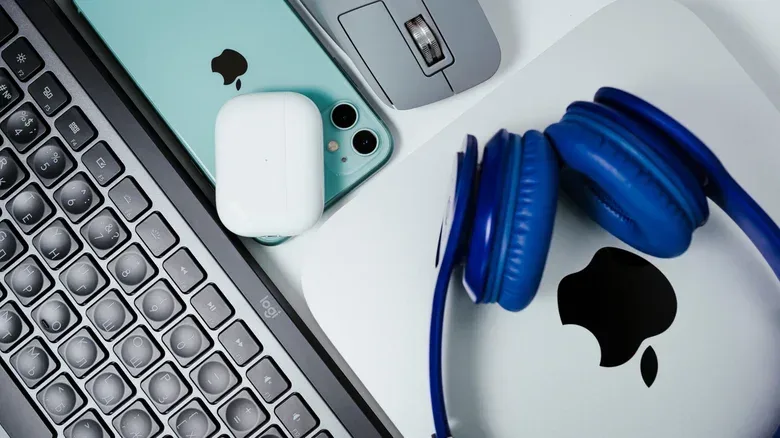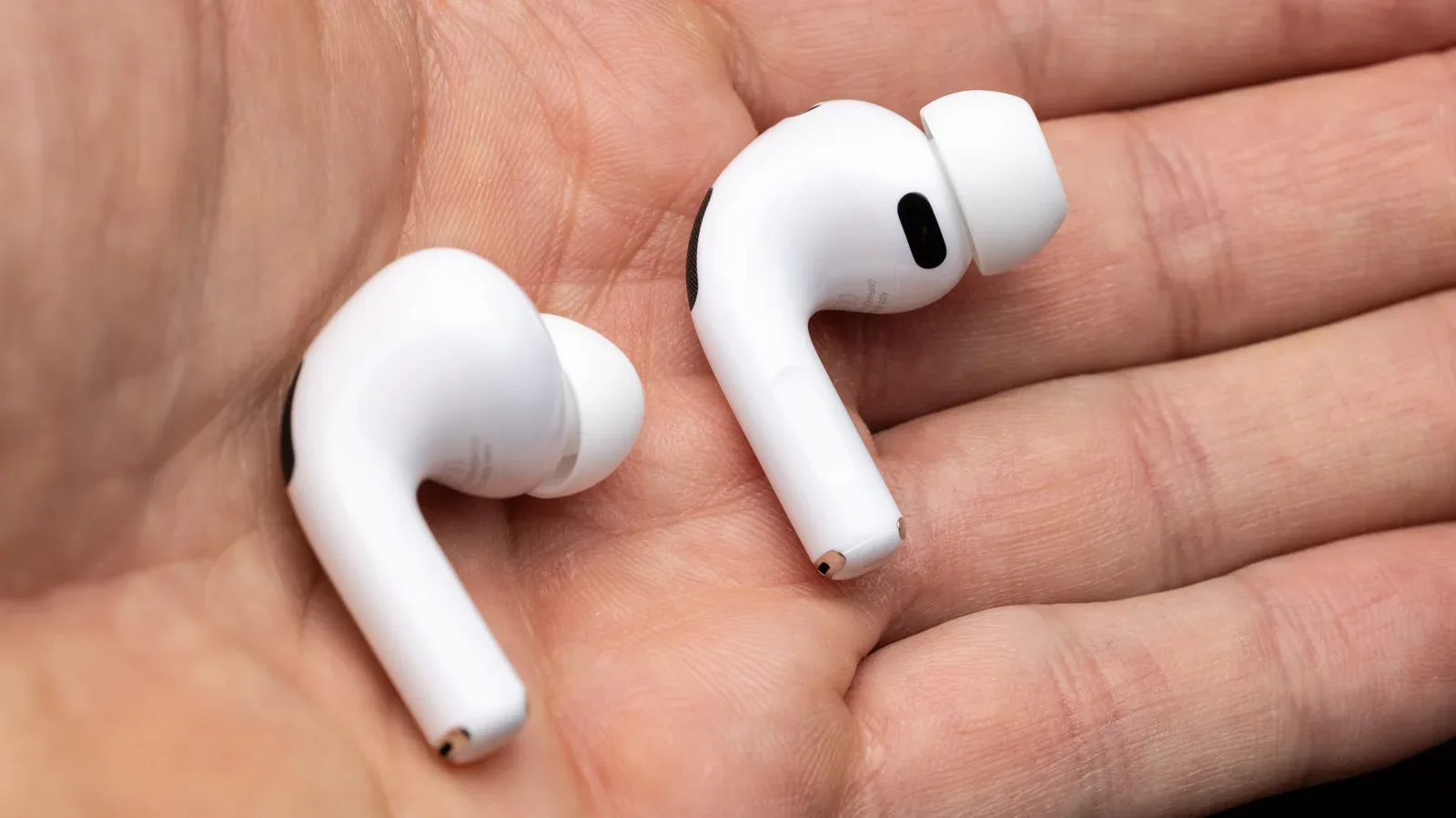
AirPods problems have an annoying habit of sounding more catastrophic than they are. Music stops, a Mac unexpectedly grabs the audio, or an iPhone appears to have forgotten the earbuds. The instinct is to blame Bluetooth or assume the hardware is failing. But for people using AirPods with an iPhone, iPad and Mac, the first suspect should be a much less dramatic culprit: the earbuds may be receiving conflicting instructions from several devices.
That distinction matters. A genuine disconnect means the Bluetooth connection has ended. A pause caused by a sensor, a switch to another Apple device, or audio stuttering because a stream is struggling can look and feel identical in the moment, while requiring entirely different fixes. The most efficient response is therefore a process of elimination rather than immediately resetting everything.
Automatic switching is available on AirPods Pro, AirPods Max and AirPods 2 or later. It is designed to make Apple’s multi-device setup feel seamless: put in the earbuds and they should move to the device you are using. The downside is that convenience can become a small custody dispute when more than one nearby device is awake, playing audio, or has not been fully closed down after use.
Start with automatic switching, not a factory reset
If AirPods have been paired with multiple Apple devices, what seems like a random dropout may instead be a handoff. A tablet waking up, a computer launching audio, or a phone becoming active can prompt the earbuds to bounce between devices. The practical answer is to tell each device how eager it should be to claim the connection.
The relevant setting is Connect to This iPhone/iPad/Mac. On iPhone or iPad, wear the AirPods, open Settings, select the AirPods shown near the top, then go to Audio & Routing. Choose Connect to This iPhone/iPad and set it to When Last Connected to This iPhone/iPad.
On a Mac, open System Settings, choose Bluetooth, and select the circular information button beside the AirPods. If they are not connected, select Connect to This Mac and choose When Last Connected to This Mac. When they are connected, the same choice is reached through the AirPods’ Audio & Routing menu.
Pick a primary device deliberately
There is no requirement to turn automatic switching off everywhere. For someone who nearly always listens through one device, a more sensible compromise is to leave Automatically enabled on that primary iPhone, iPad or Mac, while selecting When Last Connected on the other devices. The AirPods can still automatically join the device that matters most, but the less frequently used hardware will no longer invite itself into the session.
This is not a universal cure for every failure, but it directly addresses a common multi-device problem. It also preserves the option to connect manually when needed rather than removing flexibility altogether.
Related coverage includes How to Stop AirPods From Disconnecting Across Apple Devices.
For devices that are no longer part of the routine, use Forget This Device in their Bluetooth settings. Removing old pairings reduces the number of places where the AirPods can be asked to connect. It is a simple housekeeping step, particularly useful for an old tablet or computer that still lives nearby.
The behavior is worth keeping in mind for gaming setups. A player might have game audio coming from a Mac while an iPhone nearby opens an app with sound. If the earbuds move to the phone, the interruption can resemble an unstable wireless connection even though the AirPods have followed an automatic-switching rule. Before changing more drastic settings, check which device is listed as the current audio output.
Confirm whether playback paused or Bluetooth actually disconnected
The next time audio stops, inspect the Bluetooth menu before assuming the connection dropped. AirPods use Automatic Ear Detection by default. As the name suggests, it detects when an earbud is removed and pauses playback. This is useful when someone wants to hear a person speaking without fumbling for pause controls. However, a sensor that reacts unexpectedly can halt audio with no obvious explanation.
That is a playback interruption, not necessarily a Bluetooth failure. The distinction narrows the troubleshooting path considerably. If the AirPods are still marked connected, attention should move to fit, cleanliness and ear-detection behavior rather than pairing.
Fit and cleanliness can affect the experience
Before disabling Automatic Ear Detection, check that the earbuds fit securely. With AirPods in place, go to the AirPods settings menu and run Ear Tip Fit Test. The check evaluates whether the tips form a good seal. Tips that are the wrong size, dirty, or prone to slipping can make the earbuds less secure and may contribute to unexpected behavior.
Cleaning is useful maintenance here, both for comfortable wear and charging reliability. Earwax or debris in the charging case can obstruct electrical contact points, potentially leaving one or both earbuds without a proper charge. That creates a different class of apparent connection issue: the earbuds may be paired correctly, but one may not have sufficient battery because it was not charging as expected.
If fit is acceptable and pausing continues, wear the AirPods and return to Settings > AirPods > Audio & Routing. Disable Automatic Ear Detection, then use the AirPods normally and see whether the problem returns. The same general setting is available through the AirPods controls on iPad and Mac.
Turning the feature off trades a convenience for consistency. Playback will no longer automatically stop when an earbud is removed, so the user will need to pause audio manually. But as a diagnostic step, it can cleanly separate a sensor-related interruption from an actual connection problem.
Separate streaming trouble from wireless trouble
If the AirPods remain connected but audio is breaking up, compare a downloaded file with streamed audio. Trouble that appears only during streaming points toward the network path rather than the earbuds themselves. In plain terms, the AirPods may be doing their job while the audio source is not arriving smoothly enough to play without stutters.
That test is especially helpful because “Bluetooth issue” is often used as a catch-all label for any wireless audio annoyance. A download versus stream comparison gives the problem a clearer boundary: if downloaded material plays normally while streams do not, investigate the connection serving the stream first.
There is also the possibility of interference. Being close to a microwave, a concentration of other Bluetooth devices, or heavy Wi-Fi activity can cause AirPods to misbehave. The useful action is not to assume one specific device is guilty, but to notice whether interruptions correlate with a particular room, appliance, or densely connected environment.
Wireless audio is only one component in a larger entertainment chain. A viewer troubleshooting hard-to-hear speech on a television may need a TV-side feature rather than a headphone fix; Fire TV’s Dialogue Boost, for example, is intended to make spoken dialogue easier to hear. Identifying where the issue occurs—source audio, network delivery, output device, or earbud connection—prevents settings changes from becoming a guessing game.
Siri is another possible source of interruption
Siri can interrupt playback when the assistant activates. It can be ruled out by opening Settings > Siri > Requests and turning the top option off. There is an important limitation: this disables Siri for the entire device, not just for the AirPods. There is no AirPods-only toggle described for this purpose.
That makes it a more consequential troubleshooting step than adjusting ear detection. It is best treated as a targeted test if Siri activation appears plausible, rather than a default change for every instance of interrupted audio.
A Mac-specific checklist for AirPods that keep dropping out
Mac users should still begin by addressing automatic switching on their other Apple devices. A Mac may look like the problem simply because it is where the listener notices the missing audio, even if another device initiated the switch.
Then open Control Center from the top-right area of the Mac screen, select Sound, and confirm that AirPods are selected as the output. This verifies the immediate, visible part of the chain: the Mac is sending sound where it is expected to go.
Next, close apps that may be competing for control of the AirPods, and make sure the Mac is up to date. Pending AirPods firmware can also be allowed to install through a straightforward waiting process: connect the case to power, put both earbuds in it, close the lid, and leave the case within Bluetooth range of a Wi-Fi-connected Mac, iPhone or iPad for at least 30 minutes.
Firmware is the operating software used by the AirPods themselves. The practical takeaway is not that every audio hiccup needs a firmware update, but that leaving the earbuds ready to receive any pending update removes one possible variable before escalating further.
When to unpair, re-pair and reset
If the earlier checks do not resolve persistent failures on a Mac, unpair the AirPods from the Mac, restart the computer, and pair the earbuds again. This is more disruptive than changing a routing preference, but less sweeping than a full AirPods reset.
A full reset is the last-resort option in this sequence. Reset instructions vary by AirPods model, so the correct procedure should be checked against Apple’s reset guidance for the specific model. That caution matters: a reset may be appropriate after routing, sensor, network, software and re-pairing checks have been exhausted, but it should not be the first move when the real issue could simply be an iPhone, iPad and Mac all attempting to be helpful at once.
A practical troubleshooting order
- When audio stops, check Bluetooth status to determine whether the AirPods actually disconnected.
- Set a primary Apple device to Automatically if desired, and use When Last Connected on the others.
- Forget the AirPods on devices that are no longer used with them.
- Run Ear Tip Fit Test, clean the earbuds and case, and test with Automatic Ear Detection disabled if needed.
- Compare downloaded audio with a stream, and watch for nearby interference patterns.
- Consider Siri only if assistant activation may be interrupting playback.
- On Mac, verify Sound output, close competing apps, update the Mac, and allow time for any pending AirPods firmware update.
- Finally, unpair and re-pair; reserve a model-specific full reset for stubborn cases.
The central lesson is modest but valuable: an interrupted listening session is not proof that the earbuds are broken. Check which device has control, establish whether playback paused or the connection ended, and change one variable at a time. That approach is far more likely to expose the real cause than treating every silence as the same Bluetooth mystery.