
Fast cellular service can make an iPhone feel as permanently connected as a home Wi-Fi network, particularly on 5G. That convenience has a less visible side: a monthly mobile-data allowance can be spent by far more than an obvious movie download or a long video stream. Background refreshes, automatic app downloads, cloud backups, media downloads and an iPhone quietly switching away from weak Wi-Fi can all contribute.
The useful approach is not necessarily to switch cellular data off forever. It is to decide which activities deserve mobile data, which can wait for Wi-Fi, and which apps should be unable to use cellular service at all. iOS includes controls at the device and app level, while several major apps offer their own data-saving options.
That distinction matters. A single global setting is fast, but blunt. An app-by-app review takes a little longer, yet it can preserve the services that matter on the move—such as navigation or messaging—without leaving every social, streaming and backup process free to use the connection in the background.
Start with the per-app cellular-data list
The most informative first step is to check which installed apps have been using cellular data. Go to Settings > Cellular, scroll to the Cellular Data area and choose Show All. iOS presents usage for individual apps, and the list can be arranged by app name or by usage.
Sorting by usage gives the more actionable view: it identifies the apps worth investigating first rather than asking the owner to guess. Streaming, social feeds and apps that automatically fetch photos or videos are sensible candidates for scrutiny, but the setting provides the actual device-specific evidence. An app that seems harmless may turn out to be unusually active, while an app expected to use a great deal of data may simply be used mostly on Wi-Fi.
Each app has a toggle. Turning it off prevents that app from using cellular data. In practical terms, the app will wait for Wi-Fi to update content in the background. It may also stop delivering some notifications. When the app is opened later without Wi-Fi, iOS can warn that cellular access is disabled and offer a route to turn it back on.
That is the trade-off to make deliberately. Blocking cellular access is strongest for apps whose updates are nonessential away from Wi-Fi. It is less suitable for an app a person expects to refresh immediately while travelling. Rather than disabling every toggle, treat the list as a permission screen: cellular access is an exception each app should earn.
What “background” use means here
Data consumption is not limited to a person actively staring at a screen. An app can refresh content or transfer information while it is not being used. Automatic update behavior and cloud syncing can also move data without a specific download button being pressed at that moment. This is why a monthly allowance may appear to fall faster than expected even when video viewing has been limited.
Per-app cellular restrictions address part of that issue. They do not mean an app cannot function at all; they mean that, when Wi-Fi is unavailable, it cannot use the mobile connection for its data needs.
Choose between a total shutoff and Low Data Mode
For the most absolute control, use Settings > Cellular and turn Cellular Data off. With the mobile-data connection disabled, the phone cannot use that connection for online activity. This can be useful for people who rely mainly on Wi-Fi or need to make certain they do not consume mobile data. It can also reduce battery drain.
The obvious cost is that internet-based features will not be available away from Wi-Fi. That makes a total shutoff a situational tool rather than the ideal everyday choice for many people.
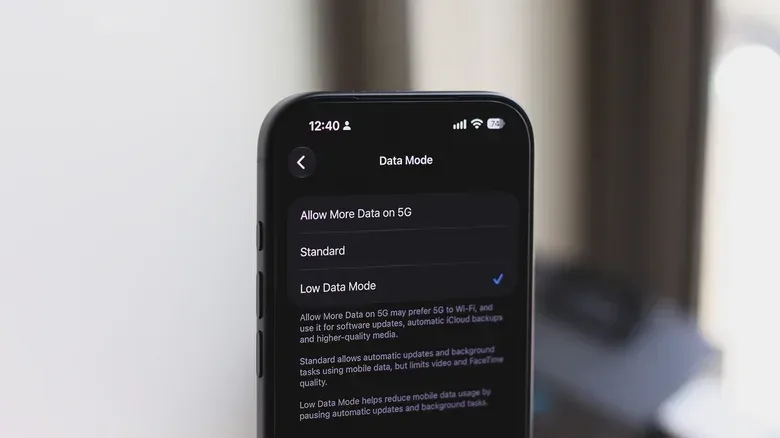
For a middle ground, open Settings > Cellular > Cellular Data Options > Data Mode and select Low Data Mode. The standard mode can permit automatic updates and background activity while the phone is on mobile data. Low Data Mode restricts that behavior, reducing routine cellular consumption without removing cellular connectivity altogether.
In other words, Low Data Mode is about limiting discretionary automatic activity; disabling Cellular Data is about eliminating mobile-data access. Someone nearing a plan cap but still needing maps, messages or occasional browsing may find the former more practical. Someone who wants no possibility of mobile-data use can choose the latter.
Stop weak Wi-Fi from silently becoming cellular data
Seeing the Wi-Fi icon does not always mean the phone will use only Wi-Fi. iOS includes Connectivity Assist, a feature designed to keep the internet connection working when Wi-Fi is weak or congested. When that happens, it can use cellular data instead.
To disable it, go to Settings > Wi-Fi, scroll down and turn off Connectivity Assist. On versions before iOS 27, the feature was named Wi-Fi Assist and appeared under Settings > Cellular.
This is one of the more important settings for anyone puzzled by data use at home, at work or in public Wi-Fi environments. The feature exists to favor continuity: a stalled page, interrupted stream or slow social feed may recover because the iPhone moves the traffic to cellular. The downside is that the rescue connection consumes the data plan.
Turning it off does not improve a poor Wi-Fi network. It simply prevents the phone from automatically filling the gap with mobile data. The trade-off is potential disruption or sluggishness when Wi-Fi is unreliable. For users who prioritize avoiding surprise usage, that is often a worthwhile compromise; for those who need the most seamless possible connection, leaving it enabled may be preferable.
Put app downloads and iCloud backups on Wi-Fi
Automatic downloads are convenient because they keep apps current without requiring attention. They can also be unexpected cellular activity. To restrict them, navigate to Settings > Apps > App Store and, in the Mobile Data section, turn Automatic Downloads off.
This does not suggest avoiding app updates altogether. It changes the network on which automatic downloading can happen, making Wi-Fi the preferred opportunity. It is a useful rule for anyone with a modest allowance, particularly if apps are installed or updated without close monitoring.
Cloud backups deserve a separate check because backups can include substantial personal data. Open Settings, tap the account name at the top, go to iCloud > iCloud Backup, and ensure Back Up Over Mobile Data is unchecked. The setting is simple, but the practical benefit is clear: backups will not become an unplanned cellular-data event.
This is also a reminder that “automatic” is not synonymous with “wrong.” Automatic downloads and backups solve real convenience and protection problems. The goal is to match them to Wi-Fi when a cellular plan makes their mobile use undesirable.
Streaming quality is a major lever
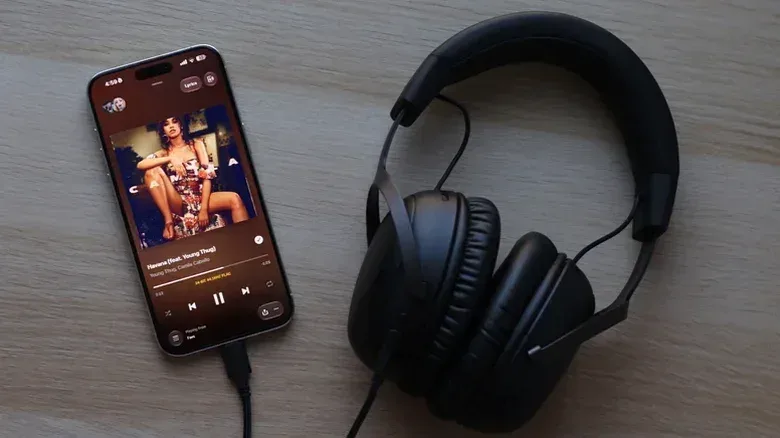
When an app is intentionally playing audio or video, quality settings can be more consequential than background restrictions. Higher-quality media requires more data to deliver. Music listeners can check the streaming-quality controls in their chosen service rather than assuming every service handles mobile connections the same way.
For Apple Music, the route is Settings > Apps > Music > Audio Quality > Data Streaming. Lossless audio can offer higher fidelity, but it uses substantially more data. Tidal, Spotify and YouTube Music also provide ways to reduce audio quality on mobile data.
The key technical idea is straightforward: quality is not just a sound or picture preference when cellular data is involved. It is also a consumption setting. Choosing a lower mobile streaming quality is not the same as deleting a music service or ceasing to listen while away from Wi-Fi. It is a compromise that maintains access while putting a lower ceiling on the amount of data used by the stream.
Video follows the same logic. Reducing YouTube playback to 720p can help manage use. Whether the visual difference is worthwhile depends on the screen, the content and the viewer, but the data-saving direction is unambiguous: lower video quality reduces the amount of mobile data needed.
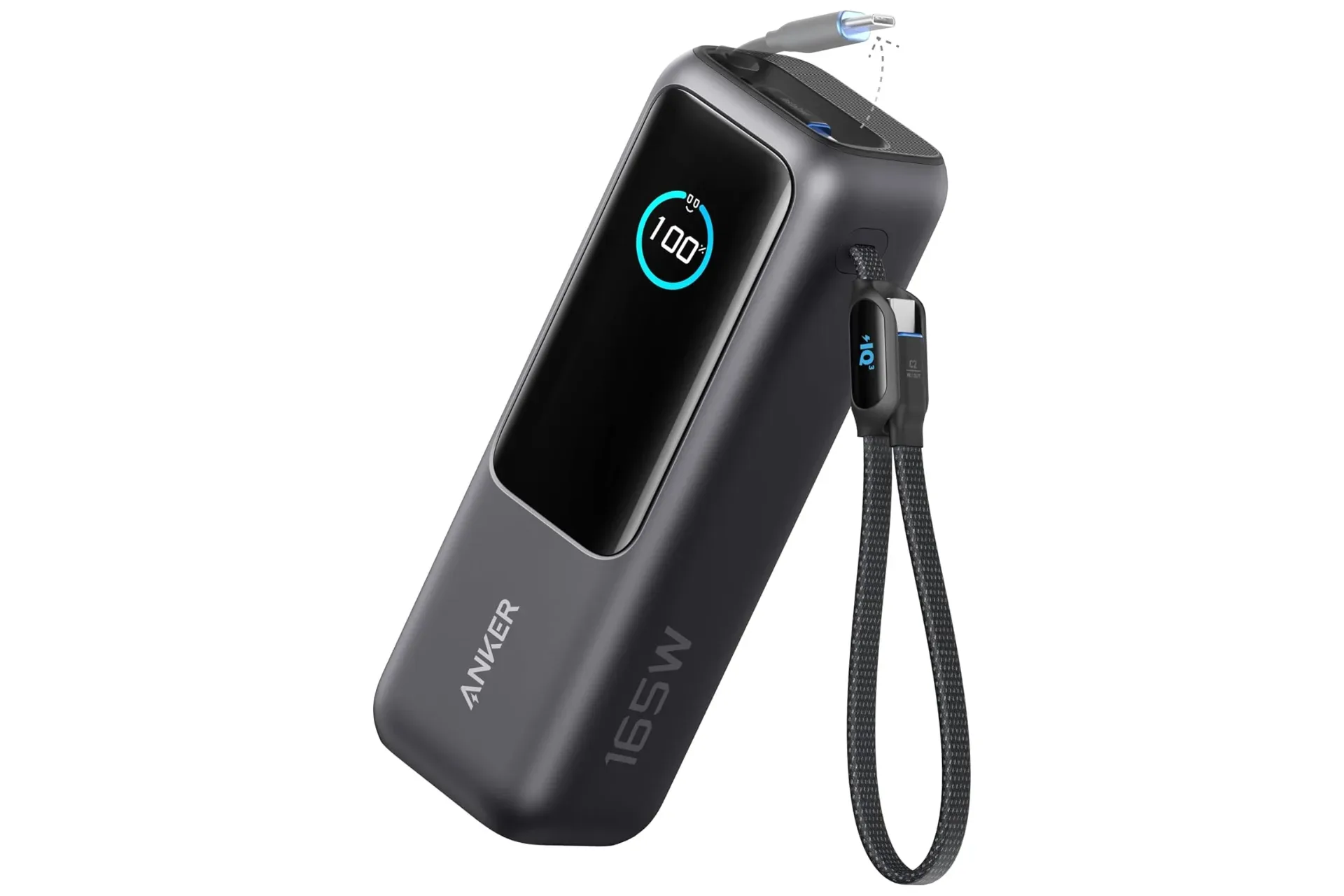
For a broader look at mobile accessories that can support time away from an outlet, see this guide to a high-capacity power bank with built-in USB-C cables. Battery capacity and data allowances are separate concerns, but lengthy mobile use often makes it sensible to plan for both.
Download maps before leaving Wi-Fi
Navigation is a category where mobile data can be important, particularly when travelling. Rather than disabling it and hoping for the best, download maps for offline use in advance. Both Apple Maps and Google Maps support offline maps.
Offline maps shift preparation to a Wi-Fi connection. That can reduce navigation-related mobile-data use later while preserving access to map information when it is needed. It is a more targeted strategy than treating all travel apps as expendable, and it illustrates the wider principle behind effective data management: download predictable content in advance, then reserve cellular service for information that genuinely needs to be current.
Check media-heavy third-party apps individually
System settings establish a baseline, but app-specific options are often necessary for the final layer of control. Messaging and social apps commonly handle photos, documents and videos in ways that can substantially change consumption.
In WhatsApp, automatic media downloads from new chats can be restricted to Wi-Fi. Tap the profile picture, open Storage and data, then set Media auto-download for photos, videos and documents to Wi-Fi. This is particularly useful because it separates receiving messages from automatically pulling down every attached file over cellular data.
Instagram includes a Use less mobile data option under Media quality in its settings. That makes it possible to keep using the app while favoring less cellular-intensive media behavior.
The same review habit can apply beyond these examples: open the settings inside an app that frequently plays, displays or receives media, then look for references to mobile data, cellular data, media quality, downloads or Wi-Fi-only behavior. The exact labels can differ, but the question is consistent: does the app need permission to download high-volume material immediately over cellular, or can it wait?
A sensible order for tightening an iPhone data plan
- Check Settings > Cellular and sort the app list by usage.
- Disable cellular access for apps that do not need to update away from Wi-Fi.
- Enable Low Data Mode if cellular service should remain available but background activity needs restraint.
- Turn off Connectivity Assist if unexpected fallback from weak Wi-Fi is a concern.
- Disable App Store automatic downloads over mobile data and uncheck mobile-data iCloud backups.
- Lower music and video streaming quality on cellular connections.
- Download offline maps and set media-heavy apps to use Wi-Fi for automatic downloads where possible.
The result is not a single magic switch. It is a set of clear boundaries: what the phone may do automatically, what it may do only over Wi-Fi, and what remains available over cellular when it is genuinely useful. That makes data use more predictable, reduces the chance of overage charges or speed throttling after a plan allowance is exceeded, and still leaves the iPhone connected when it counts.