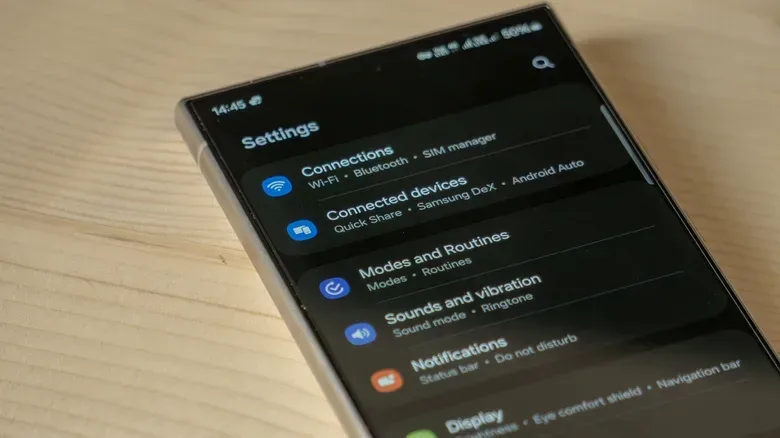

An Android phone has a built-in view that can show which services are active in the background and how much memory they are using. It is tucked away in Developer options, so it is not the kind of setting most people encounter while adjusting a ringtone or installing an app. That placement is sensible: the screen can be useful when a phone is behaving oddly, but it is not a general-purpose “close everything to make it faster” button.
The most important distinction is between looking and stopping. Checking Running Services can help identify an unusually memory-hungry process when troubleshooting. Stopping a process without knowing what it supports, however, can interfere with phone functions such as Bluetooth, the keyboard, or location-related behavior. On Android, a service name that looks obscure is not automatically unwanted software.
How to find Running Services on Android
Menu names and placement can vary by phone model and Android version, but the usual route starts by enabling Developer options.
- Open Settings.
- Go to About phone, generally near the bottom of the Settings list.
- Look for Build number. On some phones it may be inside a Software information submenu.
- Tap Build number repeatedly until Android confirms that developer mode has been enabled or asks for confirmation.
- Return to the main Settings screen.
- Open Developer options. Depending on the device, it may be on the main page or inside System.
- Select Running Services.
That screen is Android’s closest equivalent to a task-manager view. It lists services that are currently running and reports their memory use. A service is a background component that helps an app or system feature continue doing work without necessarily presenting an app window on screen. In other words, the list is broader and more technical than a list of apps a person has manually opened.
There is also an optional view for cached processes. In Running Services, use the three-dot menu in the upper-right corner and choose Show cached processes. Cached processes have recently been suspended but are still being held in memory. They are not necessarily actively doing meaningful work at that moment; Android may be retaining them so they can return more quickly if needed.
What the memory figures can—and cannot—tell you
RAM, or random-access memory, is the short-term workspace a phone uses while apps and system components are operating. It is different from storage space used for photos, downloads, and installed apps. A service using memory is therefore not, by itself, evidence that it is malfunctioning or that it should be shut down.
Running Services and Android’s Memory menu are best treated as diagnostic tools. They are potentially useful when there is a specific symptom: an app seems to be causing trouble, the phone is unusually unstable, or something appears wildly out of proportion in its memory use. A single process consuming the majority of available memory is a more meaningful clue than a screen full of unfamiliar technical labels.
That still does not turn the screen into a reliable one-tap performance fix. Desktop PC habits do not map neatly onto a phone. On a computer, users may routinely end a program they recognize as unnecessary. Android’s processes can instead support essential services and frameworks. Killing the wrong one may not improve responsiveness at all, and it can leave an expected feature unavailable until the phone is restarted.
Related coverage includes How to View Running Services on Android Without Disrupting Your Phone.
Practical rule: use Running Services to observe a problem first. Only consider stopping a related process temporarily when there is a clear reason to do so, and be ready to restart the phone if the result is disruptive.
This is particularly relevant when the process is associated with a system function. Bluetooth connectivity, keyboard behavior, and location settings are examples of functions that may rely on background services. A process that does not have a friendly app name may be part of the operating system’s normal work rather than an errant app consuming resources.
Why force-closing background work is often the wrong fix
Closing processes can feel productive because it changes what is visible immediately. But Android is designed to manage background activity and memory dynamically. Repeatedly cutting off apps and services can create a different cost: when an app is opened again, the phone may have to start it over rather than resume it. That means a larger performance hit at the moment of reopening, and it makes switching between apps less convenient.
For that reason, the useful question is not simply “How do I free RAM?” It is “Which behavior am I trying to change?” If the concern is one app continuing to do too much after it is no longer on screen, Android provides controls that target background behavior more directly. If the concern is a device-wide problem, Running Services can help create a more informed picture before changing anything.
Users should also separate a temporary troubleshooting action from a permanent configuration choice. Stopping a process may help narrow down whether it is connected to a problem. It does not repair the underlying cause, and it may introduce new issues. A restart is the appropriate recovery step if a change causes unexpected behavior.
Use Background process limit carefully
Developer options also includes a setting named Background process limit, found under the Apps heading. It controls the number of apps Android permits to remain in the background at once. By default, Android applies an automatic limit based on the device’s available RAM.
That default matters because phones do not all have the same memory capacity. An older phone, in particular, may benefit from Android’s ordinary background-management decisions as it balances available RAM. The setting can be changed to allow between one and four background processes, which can free memory by reducing how many apps remain ready in the background.
The trade-off is straightforward: fewer retained apps can mean less smooth multitasking. Switching back to an app may take longer because Android needs to fully restart it rather than resume it from memory. The option is therefore a control for prioritizing available memory over fast app switching, not a no-downside speed setting.
- Keep the default when regular multitasking is more important and there is no specific problem to solve.
- Consider a lower limit when memory pressure is a clear concern, especially on an older device, while accepting slower returns to recently used apps.
- Do not assume lower is always better. A very restrictive limit can make normal phone use feel less fluid precisely because apps must be restarted more often.
Any adjustment here should be made with the expected compromise in mind. The setting does not eliminate the work an app needs to do; it changes when the phone has to do that work.
Restrict an individual app instead of changing the whole phone
For a concern tied to one app, an app-specific battery setting is often more targeted than a device-wide background-process limit. Open Settings, go to Apps, choose the app in question, and tap Battery.
The default mode is Optimized. This lets Android adjust an app’s background permissions based on how that app is used. The alternative, Restricted, limits the app’s activity when it is suspended.
This approach is more precise because it does not impose the same restriction on every application. It is useful when the goal is to curb background behavior from a particular app rather than reduce the number of apps Android can retain generally. As with the wider limit, the compromise is that an app may not resume its work as readily after it has been placed in the background.
Battery and background-management choices are only one part of phone upkeep. For related device-level settings around endurance, location tracking, and daily use, see these battery, GPS, and comfort settings worth reviewing.
A sensible troubleshooting order
The hidden Running Services screen is most valuable when used methodically rather than aggressively. Start by observing the list and, if useful, the cached-process view. Look for behavior that is unusually out of order rather than trying to interpret every system entry. If a particular app is the concern, consider its Battery setting before making a broad system change. Use Background process limit only with the understanding that it can slow multitasking. And if stopping a related process is necessary as a temporary diagnostic step, expect that a restart may be needed.
Android does offer visibility into its background work, but visibility is not an invitation to shut it all down. The safer takeaway is that the phone’s hidden task-manager-like screen can help pinpoint a potential issue, while Android’s background limits and individual app restrictions are the more deliberate tools for changing how that work is handled.