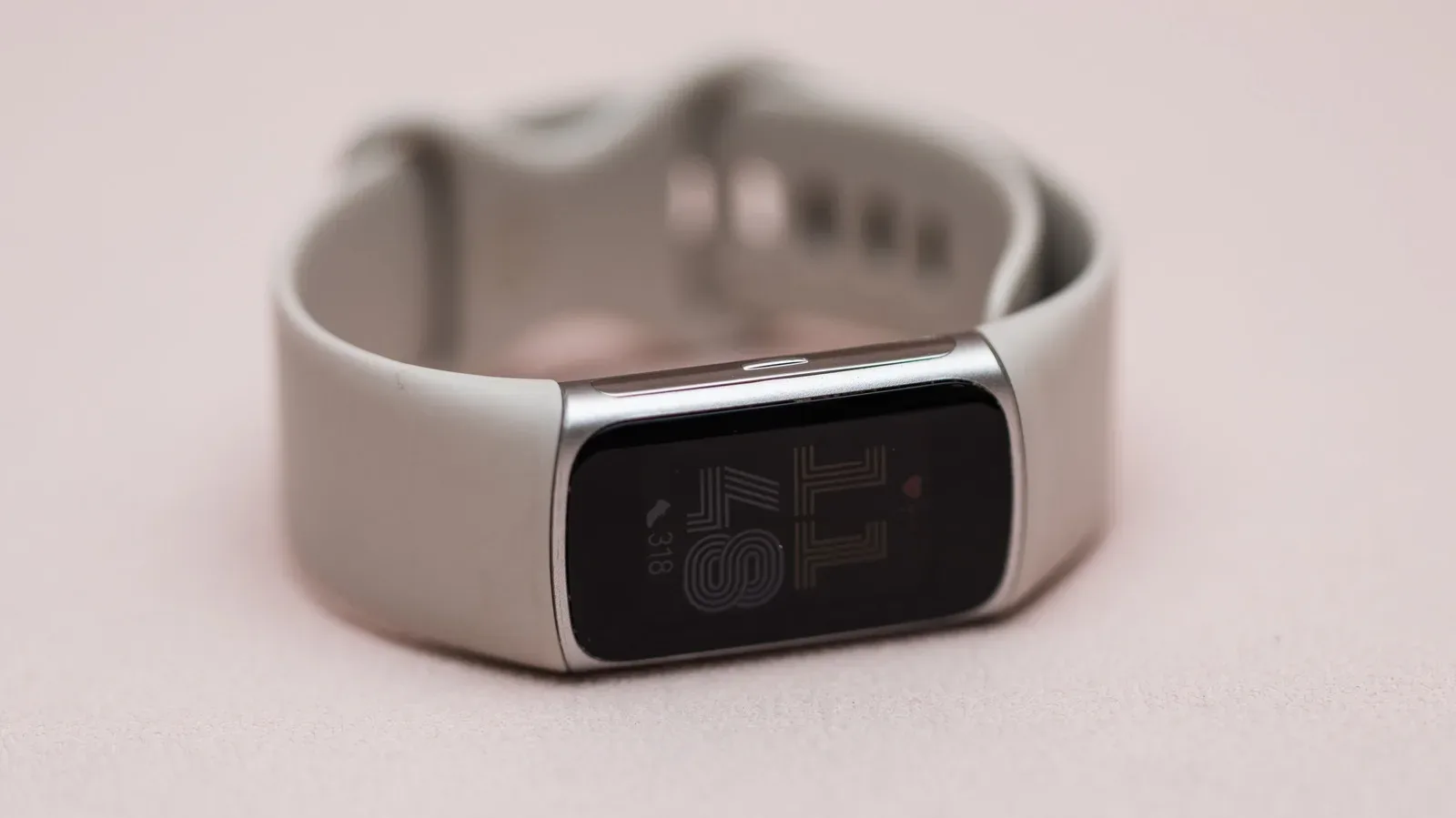
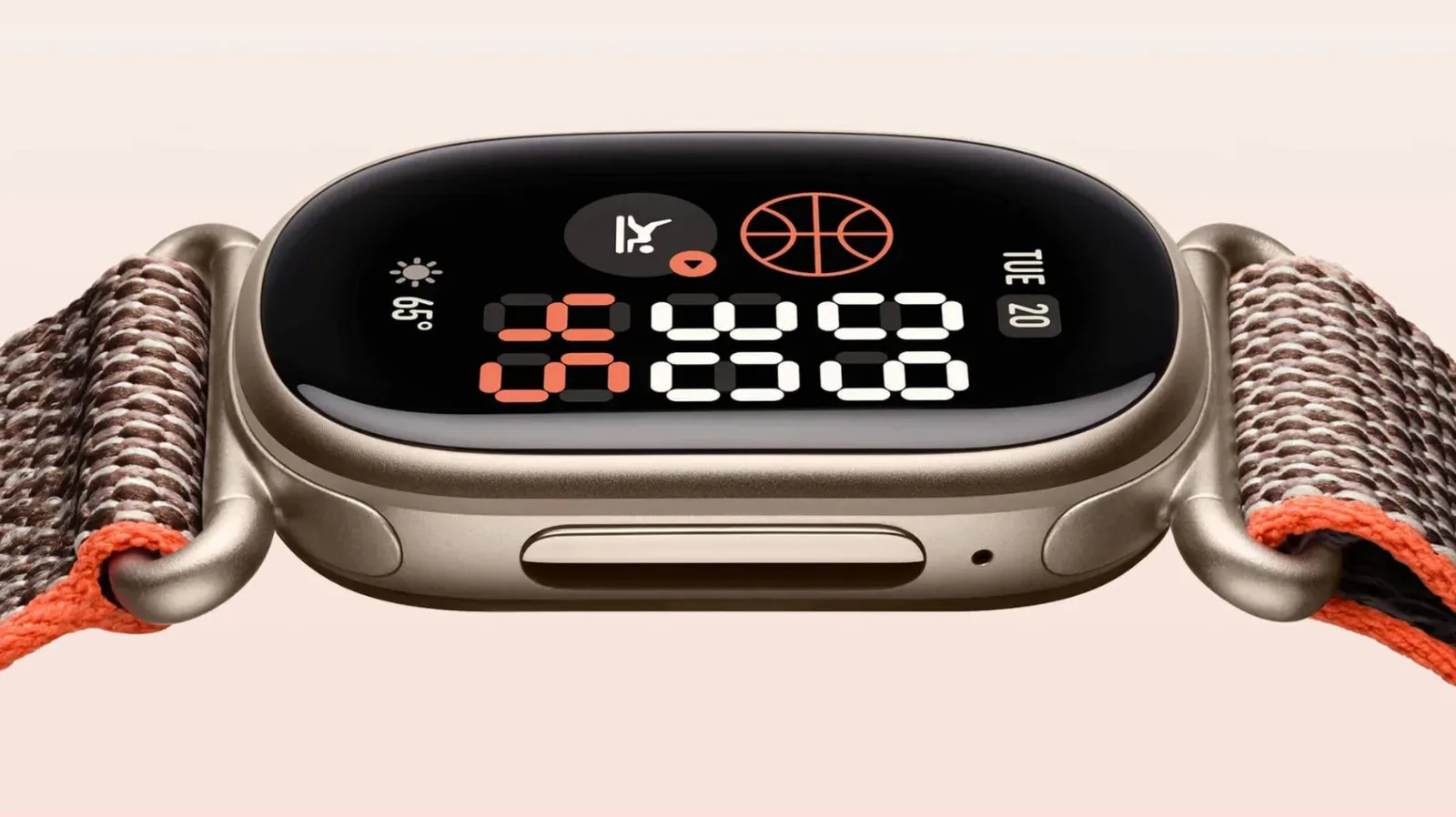
A fitness tracker’s default settings are designed to be broadly useful, not necessarily right for the way any one person trains. The Fitbit Edge gives its owner several meaningful choices around what appears on the screen, which wrist orientation works best, how location is recorded, and how aggressively the display uses power.
None of these are mandatory changes. The useful approach is to match them to the activity rather than treating a single configuration as permanently optimal. A person who carries a phone on every walk can make a different GPS choice from someone who swims or runs without one. Likewise, a screen that is ideal for checking heart rate during a workout may not be the best fit for somebody who prioritizes a week away from the charger.
The central trade-off is simple: more visible information and more independence usually demand more power. A few minutes spent setting up the Edge can make that trade-off intentional instead of surprising.
Start with the clock face: it is a data layout, not just decoration
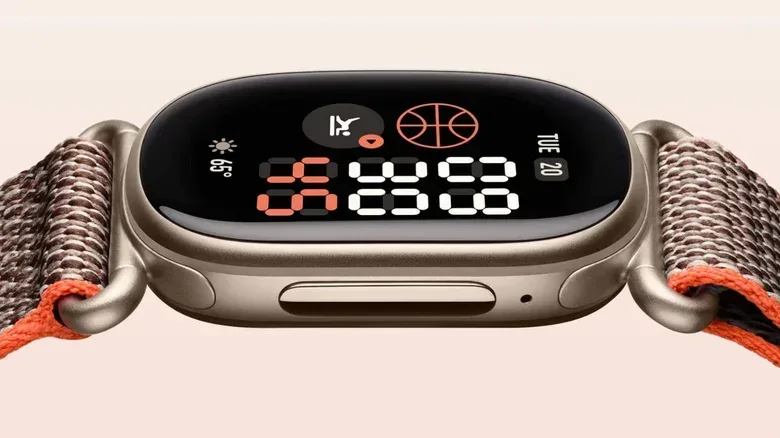
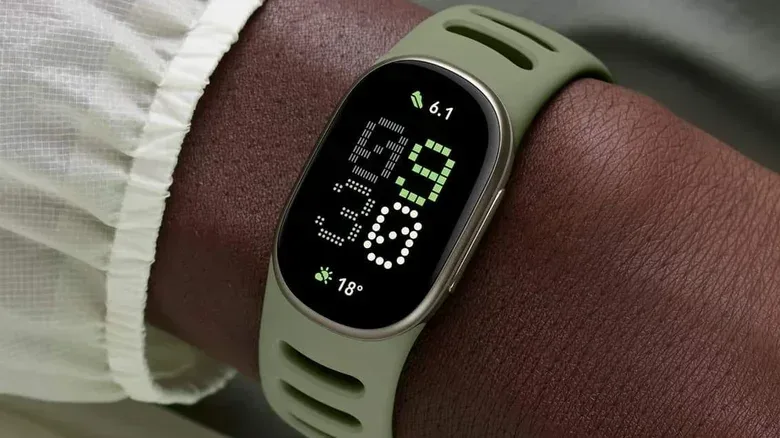
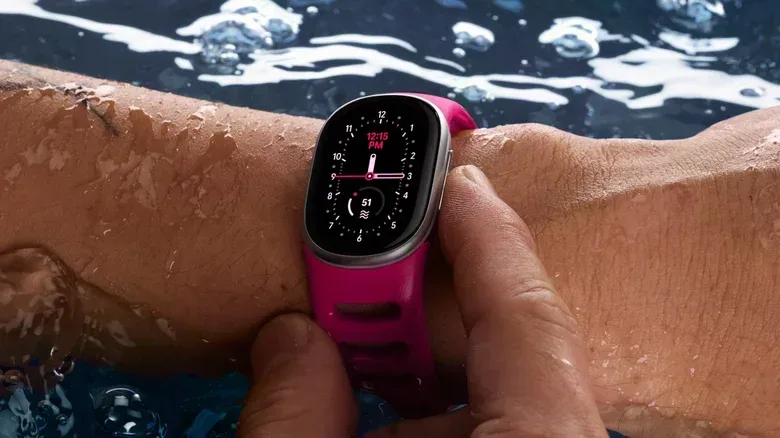
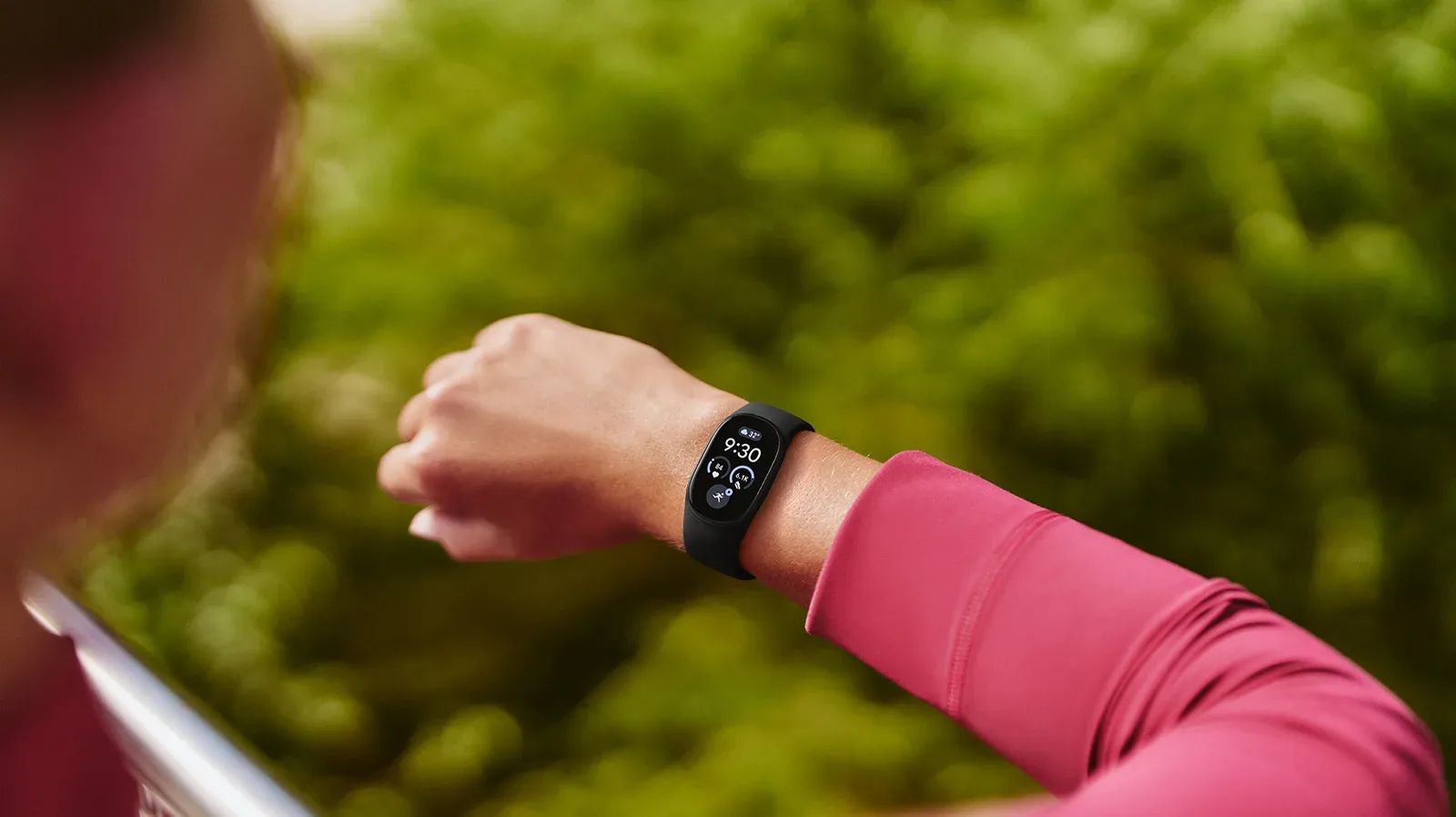
Fitbit refers to its watch faces as clock faces, and the choice affects more than appearance. Some faces support more on-screen tiles, also commonly called complications or widgets. These are small information panels that can show data such as calorie burn and heart rate without requiring a trip into a menu.
The Modular clock faces are the most practical option for people who want several metrics in view. They can support up to four or five tiles. That makes them especially useful when the Edge is being used as a glanceable tracker: time remains available, but fitness information does not have to compete for a single spot.
There is a reasonable case for picking a simpler face, too. If the Edge is mainly a background recorder and the owner prefers a quieter display, extra tiles can become visual clutter. The important part is understanding what the face changes: it alters the information available at a glance, not the underlying tracking data.
How to install and switch clock faces
- Open Google Health.
- Go to Connections > [your device] > Watch faces > Clocks.
- Choose a face and tap Install.
- To switch among faces already installed on the Edge, tap and hold the tracker’s screen.
Installing a few distinct layouts can be more useful than hunting for one perfect face. For example, a dense Modular layout may suit workout days, while a cleaner layout may be preferable at work or when notifications and stats are not the priority.
Set Tracker Orientation before a button press ruins an activity
Tracker Orientation, found in the Edge device settings within Google Health, determines whether the physical button sits to the left or right in relation to the on-screen content. It is a small setting with a very physical consequence: it can reduce accidental button presses.
Related coverage includes Fitbit Edge Settings to Adjust for a More Useful Tracker.
This matters most when a wrist bends repeatedly, presses against straps, or meets equipment during strength work. Deadlifting is one example where a strap can come into contact with a tracker’s button. Moving the device farther up the arm may help in some situations, but changing the orientation gives the owner another option when the normal position is awkward.
Orientation is not about a universally correct wrist or button side. It is about the specific way a tracker sits on the body during motion. If a button is being activated by accident, or if reaching it feels unnatural, that is the signal to revisit this setting.
Decide whether Coach Insights are useful coaching or needless noise
Fitness summaries can be useful when somebody is learning patterns in their training or wants prompts to review their data. They can be much less valuable for people who already know how to interpret their workout volume, recovery, pace, or strength progress. The Edge’s associated Google Health settings allow Coach Insights to be turned off when those unprompted summaries become a distraction.
To disable them, open Google Health and follow [Profile icon] > Google Health Settings > Coaching, then select No Coach Insights.
The practical benefit is not that coaching is inherently bad; it is that notifications should earn their place. Anyone syncing fitness records to another service may already have a preferred place to review trends. Others may simply want their phone to be less interruptive throughout the day. Disabling Coach Insights preserves the tracking itself while removing unsolicited interpretations.
This is also a useful distinction between data collection and data commentary. The Edge can still collect activity information even if the owner chooses not to receive automatic advice about it. For experienced athletes especially, cutting redundant prompts can make the tracker feel more like a tool and less like a backseat coach.
GPS is the Edge’s biggest battery-life decision
GPS, short for Global Positioning System, is what allows activity tracking to attach location information to a workout. On the Edge, the key choice is whether location should come from the paired phone or from the tracker’s built-in GPS.
In the device settings in Google Health, the Edge can be configured to always use the phone for location. This can significantly extend battery life because the tracker is not relying on its own GPS hardware. The limitation is crucial: leave the phone behind and there will be no location data.
That makes phone-based GPS a logical choice for routines where the phone is always along for the ride. It is less suitable for activities in which carrying a phone is impractical, including swimming. A map-free record can still have value, but it is not the same as choosing to capture a route and discovering after the fact that the tracker had no location source.
For people whose habits vary, Dynamic GPS is the more flexible setting. It uses the Edge’s built-in GPS when the phone is not present, while allowing the phone to provide location data when it is available. This may not deliver the maximum possible battery life, but it avoids making every activity depend on remembering a handset.
A quick way to choose a GPS setting
- Always carry the phone: using the phone for location can be a sensible battery-saving choice.
- Sometimes leave the phone behind: Dynamic GPS better protects against missing route data.
- Need location for phone-free activities: avoid an always-phone configuration, since it cannot provide location data without the phone.
The choice is best made before an activity begins. GPS cannot reconstruct a route it never recorded, while battery conservation can usually be addressed by charging ahead of time.
Always-On Display has a steep, stated battery cost
An always-on display keeps the screen visible instead of letting it go dark between interactions. It is convenient: the time and selected information remain immediately readable. But it is one of the clearest power compromises available on the Edge.
With Always-On Display enabled, maximum battery life drops from seven days to around two days. Actual endurance can be lower, particularly if built-in GPS is also active. In other words, the display choice does not operate in isolation; it stacks with the demands of location tracking.
For a long event, a busy travel schedule, or anyone prone to forgetting to charge, leaving Always-On Display off is the safer choice. Turning it off does not mean the display becomes unusable. It means the owner accepts an extra interaction to see it in exchange for substantially more time between charges.
It can help to regard seven days and around two days as different modes of ownership rather than a minor spec-sheet variation. One supports a low-maintenance routine. The other asks for much more regular attention to charging. Neither is wrong, but the latter can be a bad surprise just before a marathon or another long activity.
Battery concerns extend beyond wearables, and the same basic principle applies to other portable devices: identify the feature using power, then decide whether its convenience is worth the cost. For a related PC-side example, Windows Powercfg can create a battery report before a laptop’s next shutdown.
Use short daily charging sessions to avoid last-minute trouble
The Edge can restore up to a full day of use from five minutes of charging when its battery is very low, provided its cable is paired with a 30W power adapter. That creates a simple maintenance option: brief, regular top-ups rather than waiting for a near-empty battery.
Putting the tracker on charge while showering is a practical example. It is not a claim that every short session will solve every low-battery situation, and it does not remove the need to plan around GPS-heavy use or an always-on display. It does reduce the chance that a neglected battery becomes a problem at the exact moment a workout starts.
The 30W adapter requirement matters. The quick top-up figure is tied to using that power adapter with the cable, so it should not be assumed with every charger a household happens to have available.
Build a setup around the next activity, not a permanent checklist
A sensible Edge setup could be as simple as a Modular clock face for readily available stats, an orientation that keeps the physical button out of the way, and Coach Insights disabled if automatic commentary is unwanted. From there, the main decision is situational: select phone-based GPS for battery economy when the phone will be present, or Dynamic GPS when going untethered is possible.
Finally, treat Always-On Display as a deliberate luxury rather than a harmless default. Its convenience is real, but so is the difference between a quoted maximum of seven days and roughly two. Combining a sensible display choice with occasional short charging sessions gives the Edge a better chance of being ready when it is needed.