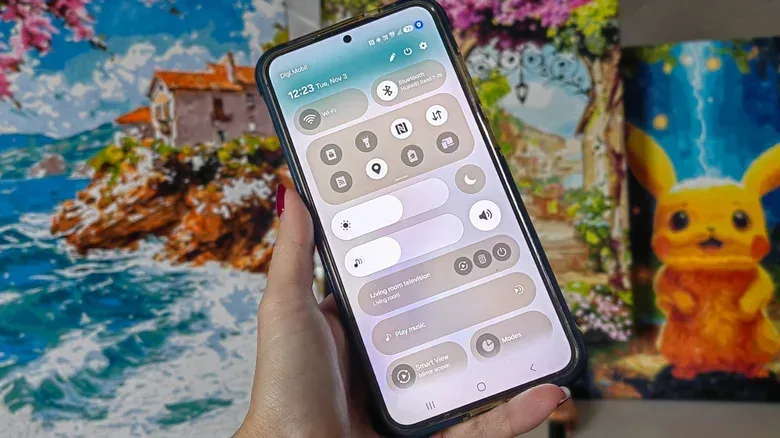
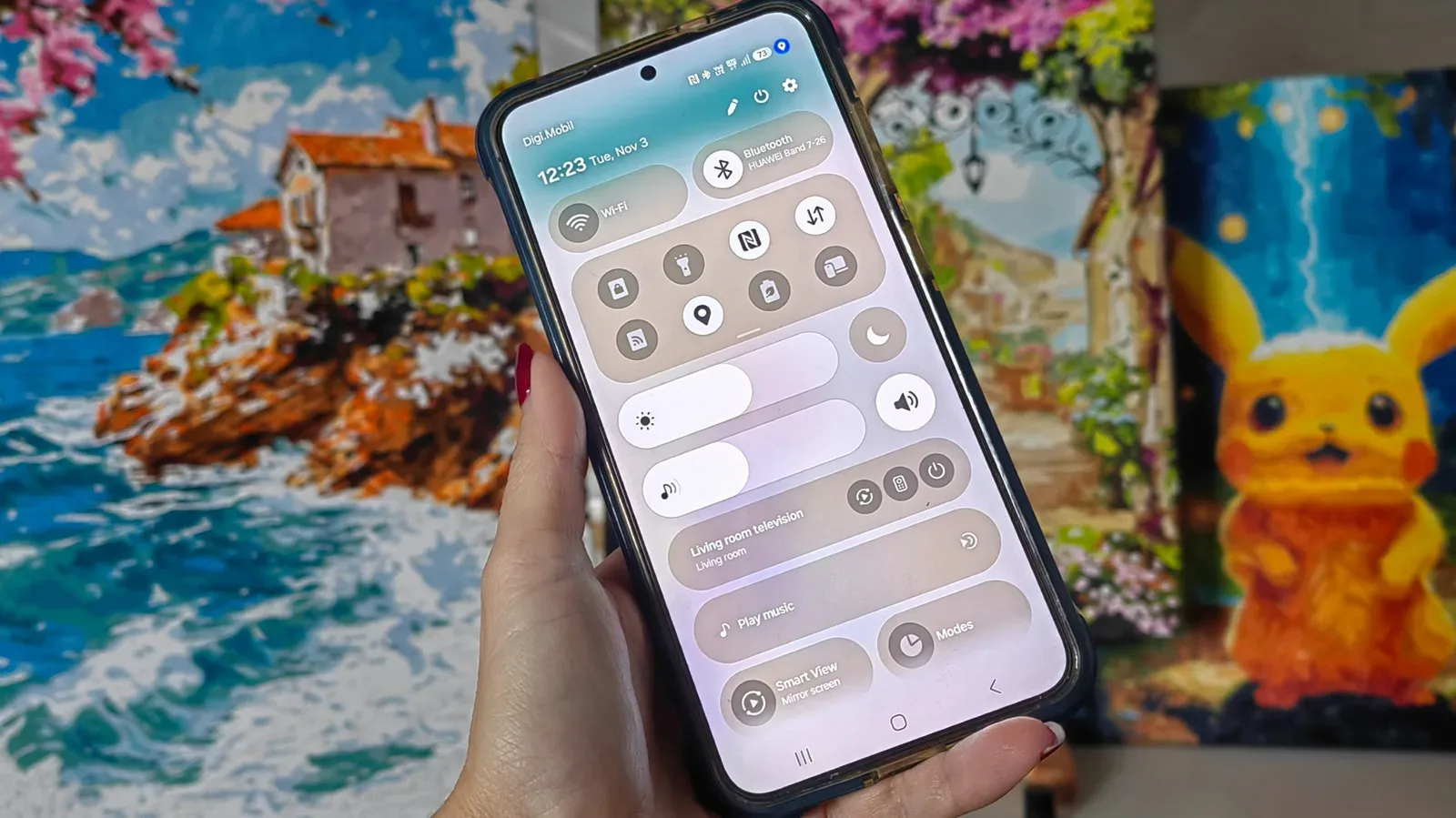
A tiny blue dot near the top-right corner of an Android screen can be easy to mistake for a visual hiccup, an unread notification, or one more inscrutable status icon. It is more useful than any of those: the dot is a privacy indicator showing that an app has accessed the phone’s location.
That matters because location information can paint an unusually detailed picture of a person’s routine. Repeated location checks may reveal places such as home, work, shops, and leisure destinations. Plenty of apps have legitimate reasons to request it. Navigation needs location to provide directions, while a weather service may use it to provide a local forecast. The blue dot is not a verdict that an app is behaving badly. It is a prompt to notice that the access occurred and decide whether it made sense.
The useful part is its placement. Rather than requiring users to dig through settings first, Android surfaces the signal alongside familiar Wi-Fi, battery, and cellular-status icons. If it appears when a map is open, the explanation is likely straightforward. If it flashes while no app seems to need location, Android provides routes to identify the app and adjust its permission.
What the blue location dot means
The blue dot is an Android visual indicator for location access. It normally appears in the status-bar area near the battery, signal, and Wi-Fi icons. An app can determine a device’s approximate or more specific position using sources including GPS, nearby Wi-Fi signals, and cellular towers. The indicator tells the user that location data has been used; it does not itself explain the app’s purpose, whether the use was necessary, or whether the app retained any data afterward.
On Android 17 and newer, developer documentation ties the location indicator to foreground-app behavior that is occurring now or that happened within the previous 10 seconds. Foreground generally means the app is actively in use on screen, as opposed to operating in the background. That short time window explains why the dot can appear briefly and then vanish before someone has a chance to inspect it.
It is therefore best understood as a near-real-time cue, not a complete historical ledger. A missing dot does not mean no application has ever been granted location access. Conversely, a visible dot does not automatically indicate continuous tracking. It flags present or very recent access, which is precisely why it is worth checking in context.
Android also uses another privacy indicator: a small green dot indicates camera or microphone access. The two signals are related in spirit. They make sensitive activity visible at the moment it happens instead of leaving users to discover it later in a long permissions menu.
Why location access deserves attention
Location permissions are often presented as a convenience decision, but they are also a privacy decision. A route-planning app cannot sensibly provide turn-by-turn navigation without knowing where a user is. A local weather tool likewise has an obvious reason to request a position. In those cases, seeing the blue dot may be expected.
The question becomes more important when the app is not one the user associates with location. A brief indicator does not establish wrongdoing, but it is a reasonable reason to investigate. An app may have a feature that uses location, or it may be checking it for a reason the user no longer wants. The practical value of Android’s indicator is that it replaces guesswork with a visible starting point.
This kind of on-device transparency is particularly helpful because people commonly grant permissions during setup and forget about them. The permission can remain in place long after the original feature was used. Reviewing access periodically is less about assuming every app is malicious and more about making sure permissions still match how the phone is actually being used.
How to see which app triggered it
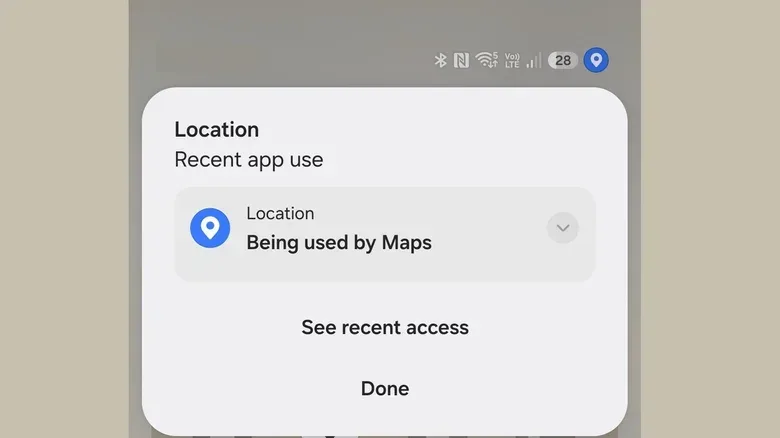
If the blue dot is visible, swipe down from the top of the screen and tap the indicator. Android can show which application triggered the location access, removing the need to infer the culprit from whatever apps happen to be installed.
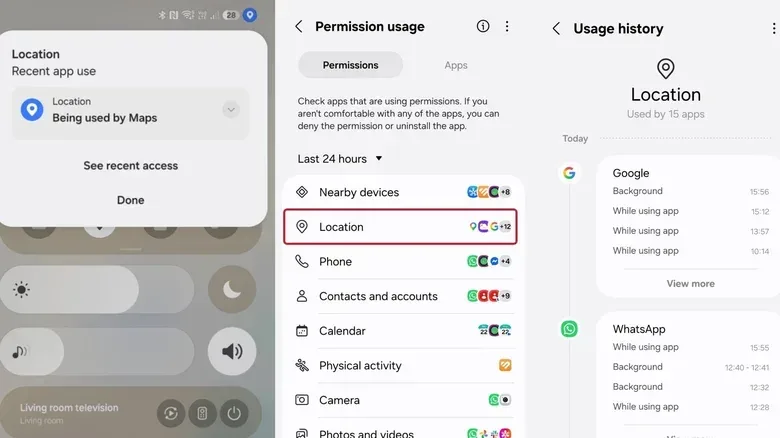
For a broader view, use the recent-access controls. After opening the relevant privacy prompt, select See recent access, then choose Location. This history can show when location was checked and distinguish between access while the app was in use and activity that occurred in the background.
That distinction is worth understanding. Background access refers to location use while the app is not actively open in front of the user. It can be appropriate for certain functions, but it deserves a higher level of scrutiny because it is less immediately obvious. A recent-access list turns an unexplained dot into something actionable: a named app, a time, and an indication of how the access occurred.
Android’s settings labels may vary by device, but the longer route is generally:
- Open Settings.
- Go to Security and privacy or Privacy Controls.
- Choose Privacy.
- Open Permissions used in last 24 hours.
- Select Location.
Selecting an entry takes the user to that application’s location-permission controls. This is the point to evaluate the permission against the app’s actual purpose, rather than reacting to the dot alone.
Choosing a permission that fits the app
For apps that need a current position only while they are being actively used, allow only while using the app is a practical middle ground. A weather service can still use location to provide local conditions, and a navigation app can still provide directions during a trip. Once the app is closed, it cannot continue tracking movement through that permission.
That setting will not be right for every possible use case, but it is a sensible default for apps whose location-related features are primarily interactive. If an app does not need location for the way it is being used, its access can be restricted through the same controls. The key is to choose deliberately rather than treating every request as an all-or-nothing technical obstacle.
- Expected dot: It appears while using directions or checking a location-based forecast.
- Worth reviewing: It appears repeatedly when no currently used app seems to require a position.
- Next action: Open the indicator or recent-access history, identify the app, and inspect its permission setting.
- Balanced setting: Use location only while the app is open when that still supports the function you want.
Samsung users may notice a presentation difference depending on software version. Older One UI releases used a location-pin icon in the status bar. Beginning with One UI 9, Samsung adopted the blue pin-style indicator also seen on Pixel devices. The underlying takeaway remains the same: an application has accessed location, and the phone is offering a visible chance to verify that access.
What the indicator cannot tell you by itself
The dot is intentionally concise, which means it has limits. It does not identify the app until the user opens the associated prompt. It does not provide an all-time log just by remaining visible. And it does not determine whether an app’s use of location was justified. Those are questions for the recent-access view and the app’s permission settings.
Still, a brief dot can be a valuable cue because it arrives at the relevant moment. It encourages a simple privacy habit: notice the signal, check the app if the timing seems odd, and set access to the narrowest level that still supports the features you use. As phones become more central to navigation, communication, and local services, small indicators like this make otherwise invisible data requests easier to spot.
For more consumer-tech coverage on devices beyond Android, see our report on the Apple HomeView pre-order and launch timing.