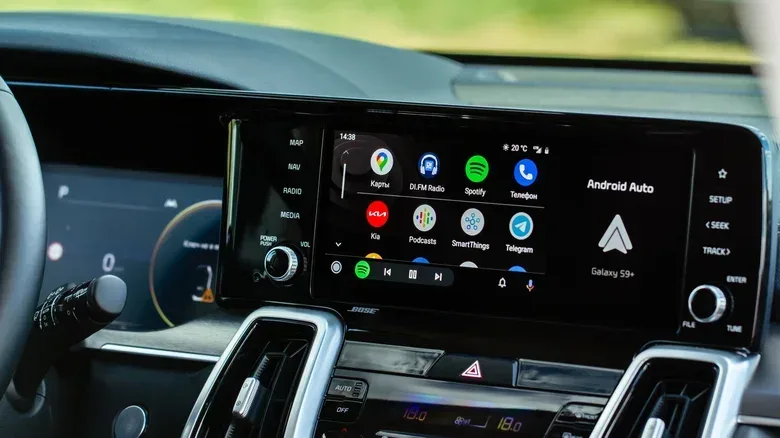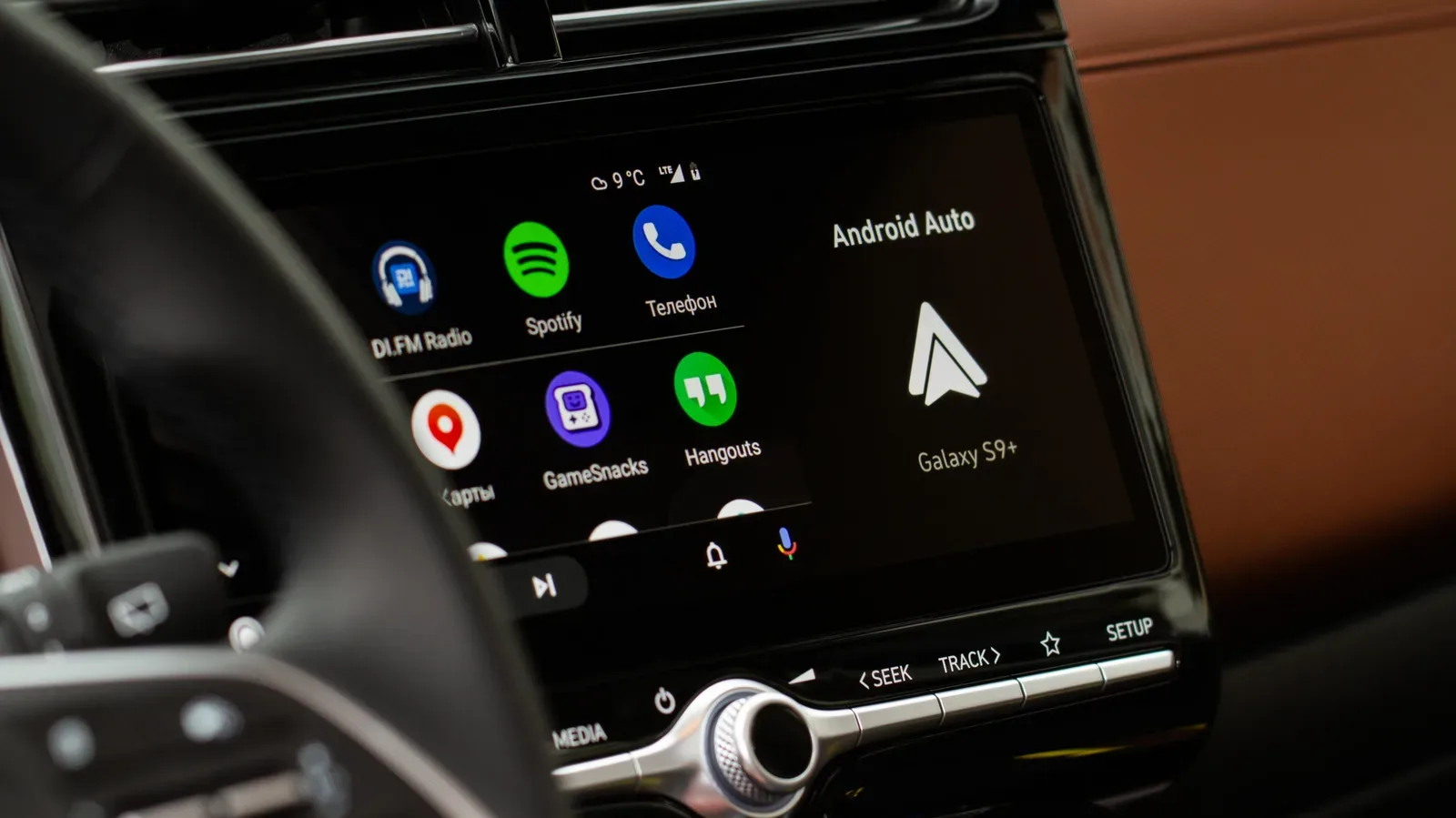
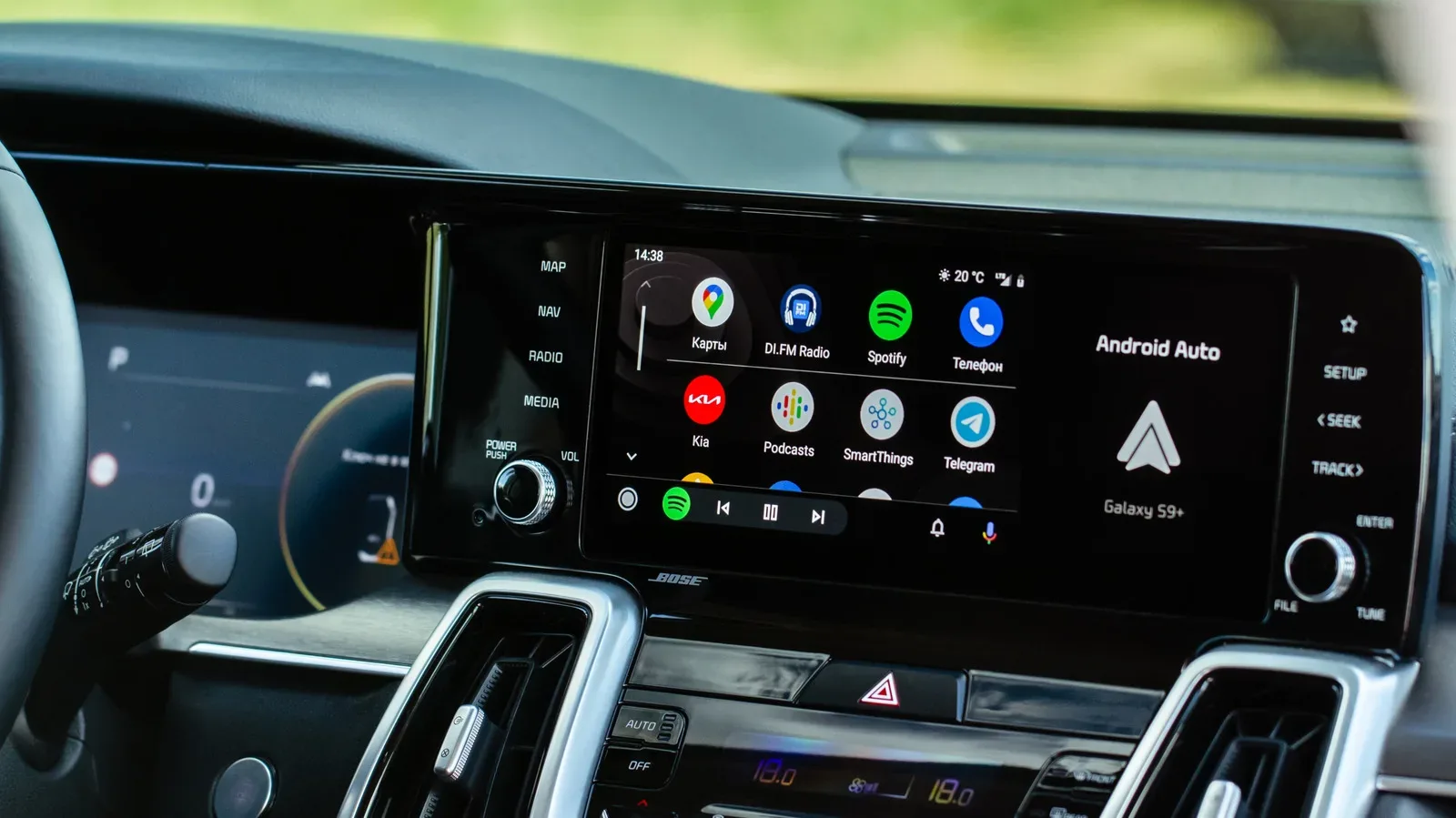
Wireless Android Auto is wonderfully convenient: get in, start the car and let navigation, music and calls appear on the vehicle display without taking a cable out of your pocket. The convenience has a cost, though. With navigation and music active, an hour of wireless Android Auto use can consume up to 16% of a phone’s battery.
That drain is not simply an inconvenience at the end of a trip. It can become a heat problem, especially when a phone is also charging. The device is handling navigation, data traffic and media while keeping Bluetooth and Wi-Fi active for the car connection. Put it on a wireless charging pad in a warm vehicle or direct sun and several heat sources pile up at once. When a phone gets too hot, it may deliberately slow charging, reduce processor performance or partly disable mobile data functions, including 5G.
The practical answer is not one magic Android Auto switch. It is reducing the workload and, just as importantly, giving the phone a cooler place to operate. For a long drive, a wired USB connection and a vent-mounted phone can be more useful than a wireless charging cradle on a sunny dashboard. If going wired is not practical, switching the phone from 5G to LTE, downloading maps beforehand and simplifying Google Maps can lessen the pressure.
Why wireless Android Auto draws so much power
Wireless Android Auto relies on both Bluetooth and Wi-Fi throughout the journey. Bluetooth handles connection-related duties, while Wi-Fi is needed as part of the wireless Android Auto setup. Those radios remain enabled while the car interface is in use rather than briefly waking up for an occasional sync.
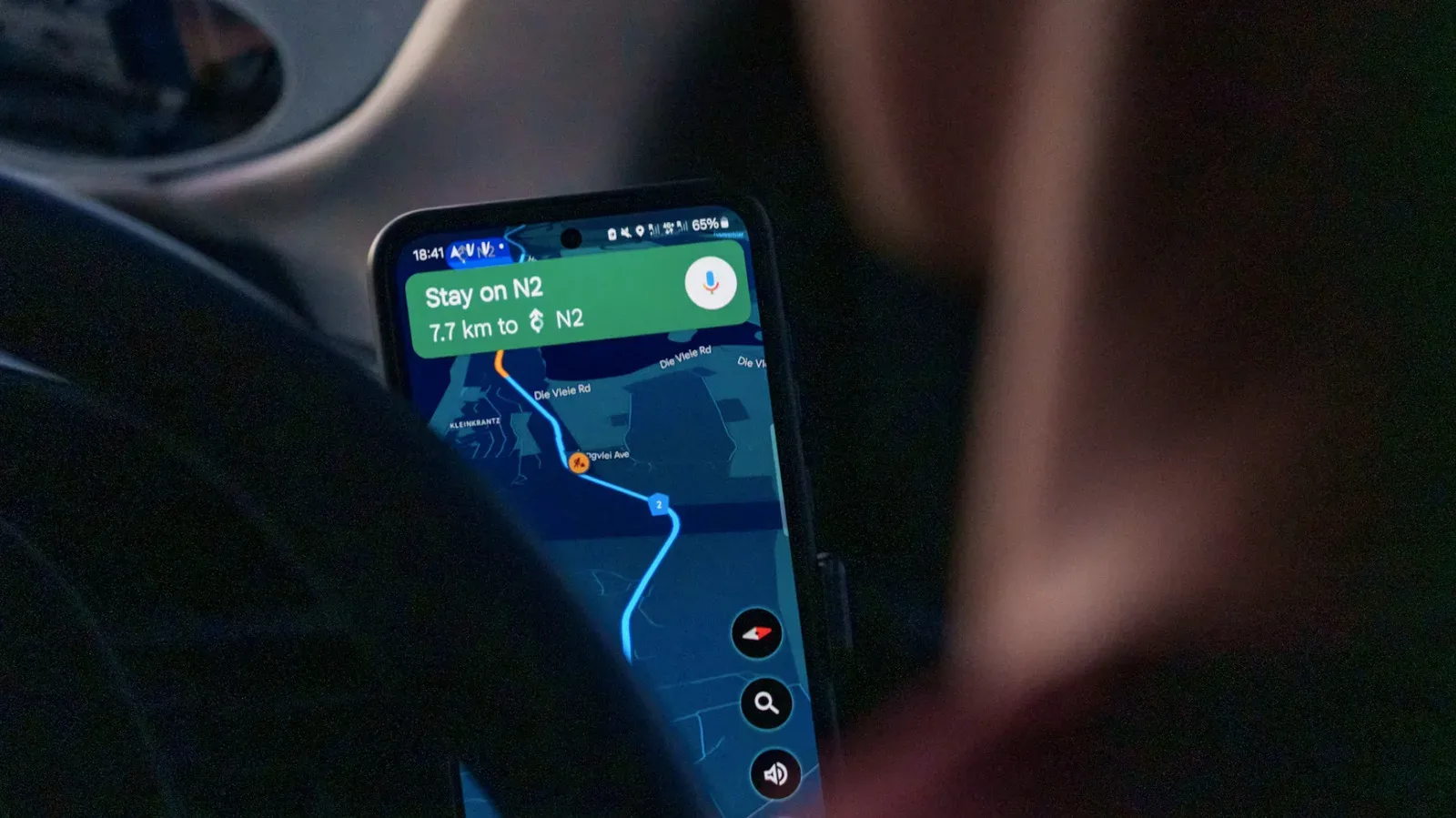
Navigation then adds a sustained workload. Maps needs location information, route guidance and screen updates; streaming music adds another active task; and cellular data may be serving map information and audio at the same time. The phone is doing this work while its display may be off or locked, which can make the resulting battery loss feel surprising.
Heat is the second half of the equation. Battery charging itself creates thermal energy, and wireless charging can add more. Google has cited heat management as a reason the Pixel 10 and Pixel 10 Pro are capped at 15W wireless charging. A handset running navigation on a wireless pad can therefore be receiving heat from charging, generating heat through processing and radios, and absorbing heat from a sunlit dashboard or hot cabin.
That matters because charging is not guaranteed to overcome the drain. A phone that heats up can reduce its charging rate as a protection measure. In the worst practical case, the phone remains hot, gains little charge and may still finish the trip with less battery than it started with.
This is a phone-management issue, not evidence that the vehicle’s main battery is failing. The systems have different jobs and constraints; concerns about an EV’s traction battery and range are a separate subject, as discussed in our look at EV battery replacement costs and fading range.
First choice for long trips: use a cable and improve airflow
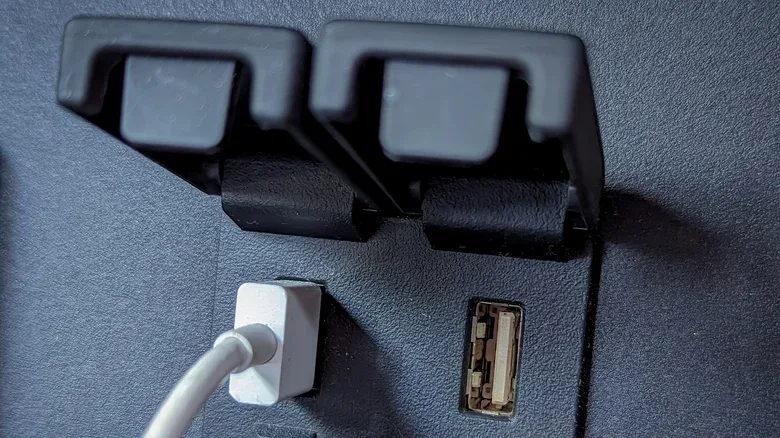
For the most dependable reduction in heat, consider using a USB cable for Android Auto instead of maintaining a wireless connection while the phone sits on a wireless charger. A wired USB connection can generally charge the device more effectively and keep it cooler than wireless Android Auto paired with a wireless charging mount.
There is one important limitation: not every vehicle USB port supplies the same amount of power. Depending on the carmaker’s specifications, a port can be too slow to fully offset the phone’s drain. A cable can still be worthwhile because it eliminates the additional thermal contribution of the wireless charging pad, but drivers should not assume every port will add battery at the same pace.
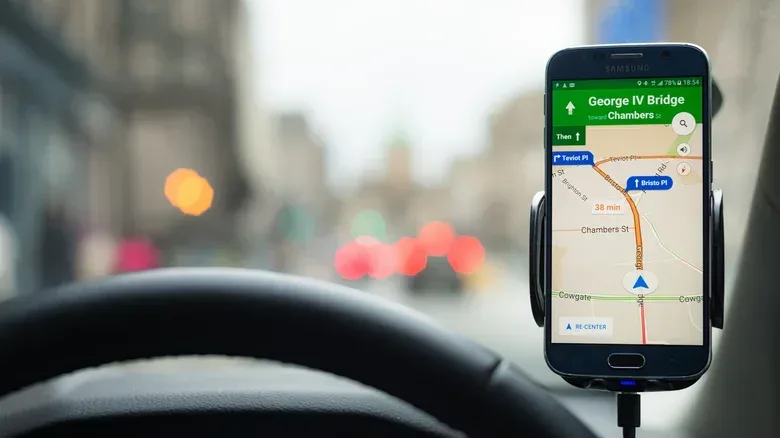
The phone’s physical location is equally important. Keep it out of direct sunlight, away from hot or poorly ventilated areas, and ideally near air conditioning. A vent mount with cold air flowing through the vent is a sensible alternative to a dashboard cradle baking in full sun. Even if a driver does not charge the phone, better airflow can substantially reduce the thermal load during wireless Android Auto use.
How to disable wireless Android Auto for a wired setup
The ordinary Android Auto settings no longer include the wireless Android Auto switch; it was removed from the regular settings in version 8.7. The control remains in Android Auto’s hidden developer settings, however. That means drivers who prefer the reliability and lower-heat potential of a cable can disable the wireless mode there and connect with USB.
Because this setting is tucked away, it is worth making the change while parked and before a trip. The key point is simple: use the developer menu to turn off wireless Android Auto, then connect the phone by cable. Do not attempt to navigate settings while driving.
Reduce cellular demand: LTE is often enough
Switching from 5G to LTE appears to make one of the biggest differences to battery use. On some networks, a phone maintains an LTE connection alongside 5G. Maintaining both can consume more power than LTE alone. For turn-by-turn directions and music streaming, LTE remains fast enough for the task.
On Samsung Galaxy phones, the route is:
- Open Settings.
- Select Connections.
- Open Mobile networks.
- Choose Network mode.
- Select LTE preferred.
Other Android phones may label the relevant option Network mode or Preferred network type. Names and layouts vary by manufacturer, but the goal is the same: favor LTE rather than 5G when a lower-power connection is preferable.
This is best understood as a trip-specific compromise, not a claim that 5G is inherently bad. If the phone has adequate battery, stays cool and needs 5G for another reason, leaving it on is reasonable. But when the priority is arriving with battery remaining, LTE can cut an unnecessary source of demand without undermining ordinary navigation and audio playback.
Make Google Maps less demanding before you leave
Google Maps offers two practical ways to trim the job your phone is performing. First, turn off 3D buildings. With the vehicle parked, open Google Maps on the car screen, enter its settings and disable 3D buildings. This removes a visual feature that is not essential to route guidance and can help reduce heat.
Second, download an offline map for the route area before departure. In Google Maps on the phone, tap the profile picture, then use:
- Offline maps
- Select your own map
- Resize the selected area so it covers the intended route.
- Tap Download.
Offline maps reduce mobile-data use and the strain associated with fetching map data during the drive. They are most suitable for predictable journeys: long highway runs, familiar routes or trips where a live re-route is unlikely to be important.
There is a meaningful trade-off. Offline maps cannot dynamically route around live traffic or newly reported road problems as they emerge. That makes them a poor fit for a drive where changing conditions, detours or congestion avoidance are central to the plan. For those journeys, keeping live mapping may be worth the additional battery use.
Cut background location scanning, but know what Android Auto still needs
Android’s Wi-Fi and Bluetooth scanning features can help apps obtain more precise location information. They also constitute background work that can be removed when it is not needed. To disable both, go to Settings > Location > Location services and switch off Wi-Fi scanning and Bluetooth scanning.
That should not be confused with disabling Wi-Fi and Bluetooth themselves. Wireless Android Auto still requires both radios to be on. Turning off scanning cuts optional background location activity; turning off Wi-Fi or Bluetooth would prevent wireless Android Auto from working.
There is also a separate control for avoiding unwanted Android Auto starts. Turning off Start Android Auto while locked can stop Android Auto from launching while the phone is locked. Calls can still connect through Bluetooth, so this is a way to limit automatic Android Auto behavior rather than a way to disable the car’s Bluetooth calling capability.
A practical order of operations
Drivers do not need to change every setting for every journey. Start with the changes that address the largest heat sources: move the phone out of sunlight, give it cold airflow and avoid wireless charging if the handset is already getting hot. For a long trip, use a USB cable where possible.
- Phone is hot on a sunny dash: move it to a vent mount with air conditioning rather than adding more charging heat.
- Battery drops during wireless Android Auto: try LTE preferred and turn off Google Maps 3D buildings.
- Taking a familiar long route: download the relevant offline map in advance.
- Wireless convenience is not worth the drain: disable wireless Android Auto through its developer settings and use USB.
- Android Auto launches more often than desired: turn off Start Android Auto while locked.
The broad lesson is that charging alone is not a cure for a hard-working, overheated phone. Wireless Android Auto can combine persistent wireless connections, mobile data, navigation and media in a setting that is often hot by default. Reducing one or two parts of that workload—and keeping the handset cool—can make the feature much more manageable on the road.