A tiny clock in the status bar can make a Samsung Galaxy phone feel like it has quietly assigned you a side quest. Before assuming something is wrong, look closely at the symbol. Several Galaxy indicators can resemble a clock, but they point to three very different things: an active alarm, a waiting software update, or the Light performance profile.
For most people, the answer is pleasantly mundane: an alarm remains active in Samsung’s Clock app. For players, though, the speedometer-like symbol with a leaf deserves a closer look. That one indicates a battery-saving performance setting which lowers processing speed for ordinary phone use, but turns itself off when a game starts.
Here is how to identify each icon, remove it if that is what you want, and understand the practical trade-off behind Samsung’s Light performance setting.
The ordinary clock: an active alarm is set
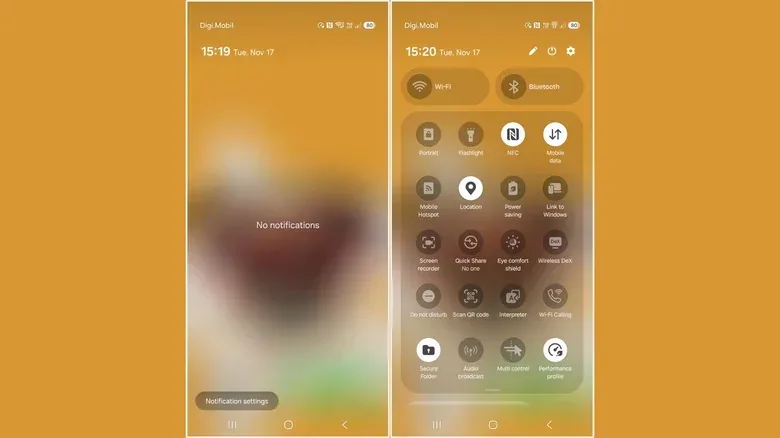
The most likely clock icon is a reminder that at least one alarm is enabled in Samsung’s Clock app. With the full Quick Settings panel open, it appears beside the Wi-Fi indicator. As an alarm gets closer, the icon can also appear toward the left side of the status bar next to the time whenever the phone is checked.
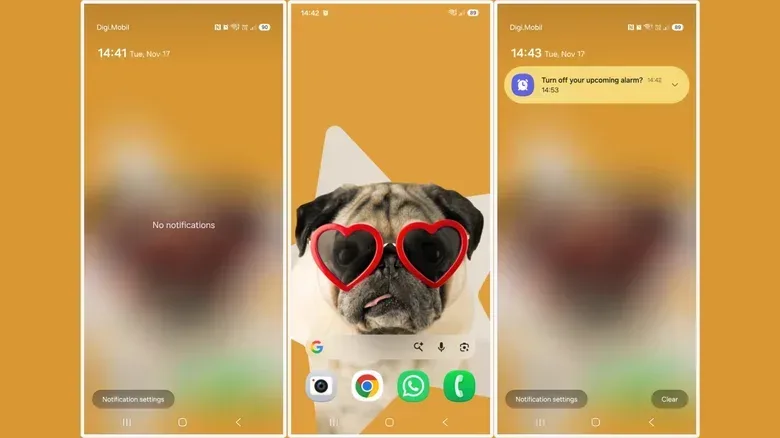
The icon may show up when an alarm is 30, 15, or five minutes away. It can also appear at 20- and 10-minute points. Pulling down the notification shade may reveal a notification offering an option to turn off the imminent alarm.
Dismissing that notification does not disable the alarm. It simply clears the prompt. The smaller icon can remain near Wi-Fi and reappear more prominently as the alarm time gets close. In other words, the phone is not reporting a fault or a mysterious background task. It is making sure tomorrow morning still happens.
How to remove the alarm icon completely
- Open the Clock app.
- Select the Alarm tab at the bottom.
- Find every enabled alarm.
- Toggle an alarm off, or delete it if it is no longer needed.
Once no alarms are active, the alarm clock indicator should immediately disappear from the status bar. If the goal is merely to stop the imminent alert, switching off the relevant alarm is enough; deleting it is only necessary if you no longer want that entry saved.
The clock inside a rounded square: a software update is waiting
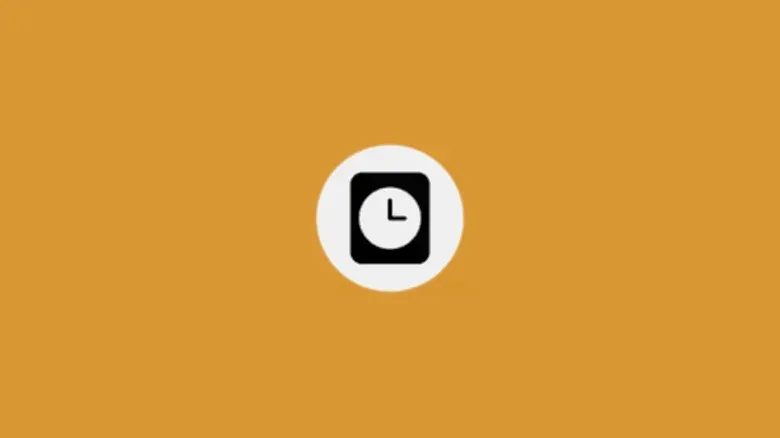
A rounded-square icon containing a small clock is not an alarm. It means a software update is available for the Galaxy phone. It is effectively a compact status-bar nudge for an update notification that has not been acted on yet.
Related coverage includes Why a Clock Icon Appears on a Samsung Galaxy Phone.
This distinction matters because it changes the solution entirely. Turning off alarms will not affect an update reminder, and clearing a notification will not necessarily make the symbol disappear for good. Installing the available update is the route to removing it permanently.
Where to check for the update
- Open Settings.
- Scroll to Software update.
- Select Check for updates.
- Follow the on-screen steps to install the latest available One UI version.
One UI is Samsung’s software interface layered onto Galaxy phones. It governs much of the visual layout and behavior users see, including settings menus, Quick Settings, notifications, and status indicators. One UI 9 is rolling out across more Galaxy devices, although it is the final major update for some older phones.
There is a useful gaming angle here, even if the icon itself is not a gaming alert. System updates may change the interface and device behavior, so treating a pending update as an alarm problem can send users down the wrong menu path. The symbol is asking for maintenance, not warning that an app or game has gone rogue.
It also helps to separate this kind of device-level notification from the controls inside a game. A game may have its own update prompt, but the rounded-square clock described here belongs to the phone’s software-update system.
The clock lookalike with a leaf: Light performance profile
The third icon is the one most likely to matter to anyone who uses a Galaxy phone for games. It is not truly a clock: it resembles a speedometer and includes a small white leaf. It indicates that Light performance mode is enabled.
Light performance mode is designed to curb power consumption by reducing processing speed. Processing speed, in this context, means how aggressively the phone’s hardware is allowed to run through tasks. Lowering it can help extend battery life in lighter workloads such as social feeds and video playback.
That does not mean the phone is permanently hobbled. When a game starts, Light performance mode automatically turns off so the device can operate at its full capability for gameplay. For players who see the leaf-and-speedometer symbol and worry that every game is being forced into a slower setting, that automatic behavior is the key detail.
The icon is available only on newer Galaxy flagships: Galaxy Z Flip 4 and later models, Galaxy Z Fold 4 and later models, and Galaxy S23 and later models. Owners of older or different Galaxy models may therefore be looking at an alarm or update icon rather than this performance-profile marker.
For wider battery-management context, our look at settings that can buy more time away from the charger explores the same basic principle on another device: convenience, power use, and performance frequently pull in different directions.
What the setting means in everyday use
- Scrolling and video: Light mode is intended as a battery-conscious choice for these less demanding tasks.
- Gaming: The mode automatically disables itself when a game launches, allowing the phone to use its normal full performance.
- Status icon: The leaf and speedometer indicate the profile is active, rather than a timer or a scheduled alert.
It is worth being precise about what the indicator does not establish. Seeing it is not evidence that a game is malfunctioning, that the battery has a fault, or that the device is locked into reduced performance during gameplay. It is simply a visible signal that the light profile is enabled for applicable everyday activity.
How to turn Light performance mode off
If the setting was enabled accidentally, swipe down from the top of the display to open Quick Settings. Find the Light performance tile and tap it again to disable the mode. The most plausible accidental trigger is tapping that Quick Settings tile while moving through the panel.
Quick Settings is the panel reached by swiping down from the top of the screen. It provides rapid access to frequently changed device controls. That convenience is useful, but it also explains why a profile can be enabled without a user remembering changing a deeper settings menu.
A quick identification checklist
When a clock-like mark appears, do not start by changing random settings. Match its shape and location to the appropriate check:
- Plain clock near Wi-Fi or next to the time: Open Clock and inspect active alarms.
- Small clock inside a rounded square: Go to Settings, then Software update, and check for the pending One UI update.
- Speedometer-style symbol with a white leaf: Open Quick Settings and check whether Light performance mode is enabled.
This order avoids a common source of confusion: three visually similar indicators demand three different actions. An alarm can be switched off or deleted. An update notice is resolved by installing the update. Light performance mode can be toggled in Quick Settings, and it already steps aside automatically once a game launches.
Why the distinction is useful for mobile players
Status bars compress a lot of information into very little space, so symbols are built to be recognized quickly rather than explained at length. The downside is that an icon can seem more alarming than it is, especially when it resembles something as general as a clock.
For a Galaxy owner who games, the distinction between an alarm and the Light profile is particularly practical. The first is a scheduling reminder. The second is a power-management choice for lighter use. Neither is, on its own, a verdict on game performance. The update symbol is a separate maintenance prompt altogether.
So the next time a miniature timepiece appears near the signal and battery icons, its silhouette is the clue. Check the Clock app for a conventional alarm; check Software update for the clock in a rounded square; and look in Quick Settings for the leaf-bearing speedometer. Most of the time, the answer is much less dramatic than the status bar makes it seem.