Every Android phone has an inventory screen. It is just less likely to contain potions than an alarming tally of notifications, unlocks and minutes spent in whatever app was supposed to be “just a quick check.” On many devices, that screen is Digital Wellbeing: a built-in Google tool that is commonly tucked inside Settings rather than placed proudly on the home screen.
That placement helps explain its strange status. The tool has been installed more than 10 billion times and has 1.49 million Play Store reviews with a 4.1-star rating, yet it is easy to overlook because it often arrives as part of the phone rather than something a person deliberately downloads. It does not shout for attention. In fact, its entire job is to make other software slightly worse at shouting for attention.
For mobile players, that makes it more useful than a vague promise to “use the phone less.” A usage dashboard can distinguish a long, intentional game session from the much harder-to-notice pattern of bouncing among games, social apps and notifications throughout the day. The numbers do not make a moral judgment about games or screen time. They simply provide a record that is harder to argue with than one’s own estimate.
What Digital Wellbeing actually tracks
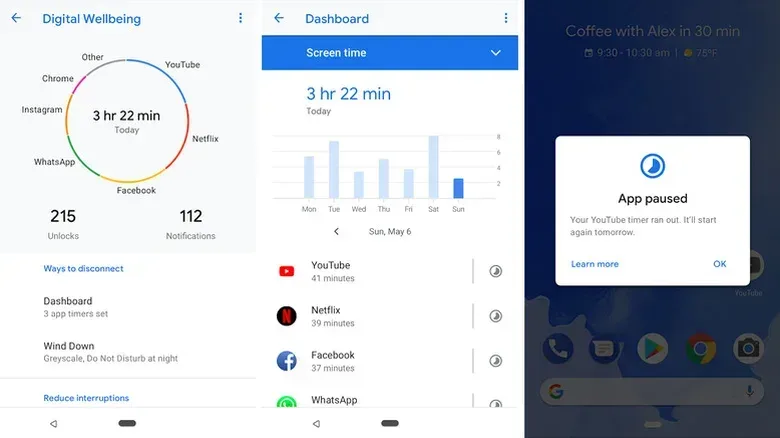
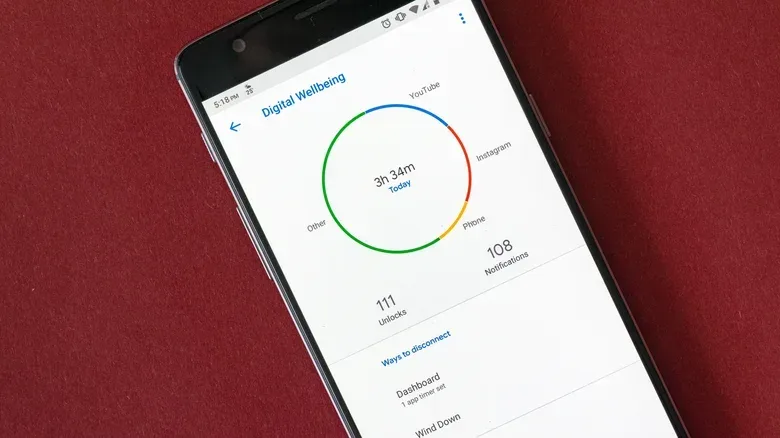
Google’s free Digital Wellbeing app is listed as a Tools app and is preinstalled on many Android devices. Open it through Settings and it presents a daily view of phone activity. The overview includes total screen time, device unlocks, notification volume and the apps used most often. Selecting an individual app reveals the amount of time spent in it that day.
The important distinction is between tracking and restriction. Tracking is the measurement side: how often the device was unlocked, how many alerts arrived, and where time went. Restriction is the optional intervention side: timers, muted distractions and scheduled changes to the phone’s behavior. Someone who only wants a clearer picture can use the first part without enabling limits at all.
That is a sensible place to begin. A total screen-time figure can be too blunt to mean much on its own. A phone can be used for messaging, work, finance, maps, video, games and countless other tasks. The app-by-app breakdown supplies the context. It lets a person ask a narrower and more actionable question: which activity kept pulling them back, and did it take as much of the day as expected?
Notification counts are useful for the same reason. A player might believe a game session is the problem, only to discover that repeated alerts are what keep restarting the session, or that social-media notifications are creating the most frequent detours. Digital Wellbeing cannot decide what should matter to a user. It can make the interruptions visible.
App timers: a boundary with a clock on it
Digital Wellbeing’s most direct control is the app timer. A user assigns a daily time cap to a particular app, or to a selection of apps such as social platforms. When the allotted time is used up, the relevant icon dims and the app closes for the rest of that day. Timers reset at midnight.
That behavior is deliberately simple. An app timer is not a ban, a parental judgment or a claim that every minute in an app is wasted. It is a daily boundary. It can be especially practical for the applications that are easy to open without a specific purpose: the quick match, the endless feed, the store check or the notification that somehow becomes an hour of swapping between apps.
For games, a timer can be tailored to the actual problem rather than imposed as a one-size-fits-all “no games” rule. A player who likes a particular game but loses track of weekday time could cap that app while leaving other phone functions alone. A grouped timer may be more appropriate when the issue is not one title but the loop between several entertainment apps. Conversely, a player who finds timers disruptive during a planned session may prefer to use the dashboard only, then make a choice based on the data.
There is one practical detail worth remembering: the reset happens at midnight. That makes a timer a daily tool, not a rolling 24-hour allowance. If the goal is to protect a morning routine, a bedtime routine or a work block, the scheduled features below may fit better than relying solely on a daily cap.
Focus mode and Bedtime mode solve different problems
Focus mode pauses chosen distracting apps with a single tap and blocks their notifications. The key term here is “chosen.” It is not intended to turn the phone into a brick; it allows the user to designate which apps are likely to break concentration. That could mean a mobile game during study or work, but it could equally mean a social platform that keeps pulling attention away from a game, task or conversation.
The useful idea is friction. Opening an app automatically is easy. Having the phone pause that app adds a moment in which a person has to decide whether this is really the time. That small interruption can be more realistic than expecting willpower to win every battle against a lock-screen alert.
Bedtime mode addresses a different setting: the point at which the phone follows someone into bed. It can schedule Do Not Disturb and shift the display into grayscale. Grayscale means the screen loses its normal colors, which can make the device less visually inviting. Do Not Disturb reduces interruptions on the chosen schedule. Together, these changes are designed to encourage putting the phone down before sleep rather than beginning another round of feeds, messages or mobile gaming.
Neither mode requires an all-or-nothing approach. Focus mode is useful when attention is the scarce resource in the moment. Bedtime mode is useful when the problem is a repeated end-of-day habit. App timers are useful when a specific application needs a numerical limit. The dashboard is useful when it is still unclear which of those interventions, if any, is needed.
Not every Android phone calls it the same thing
Android’s screen-time tools are not identical across manufacturers. Google requires Android device makers to place screen-time and parental-control tools at the top level of Settings, but manufacturers can use Google’s implementation or an equivalent of their own. That is why a person may not see the exact Digital Wellbeing app described above even though their phone has a comparable feature.
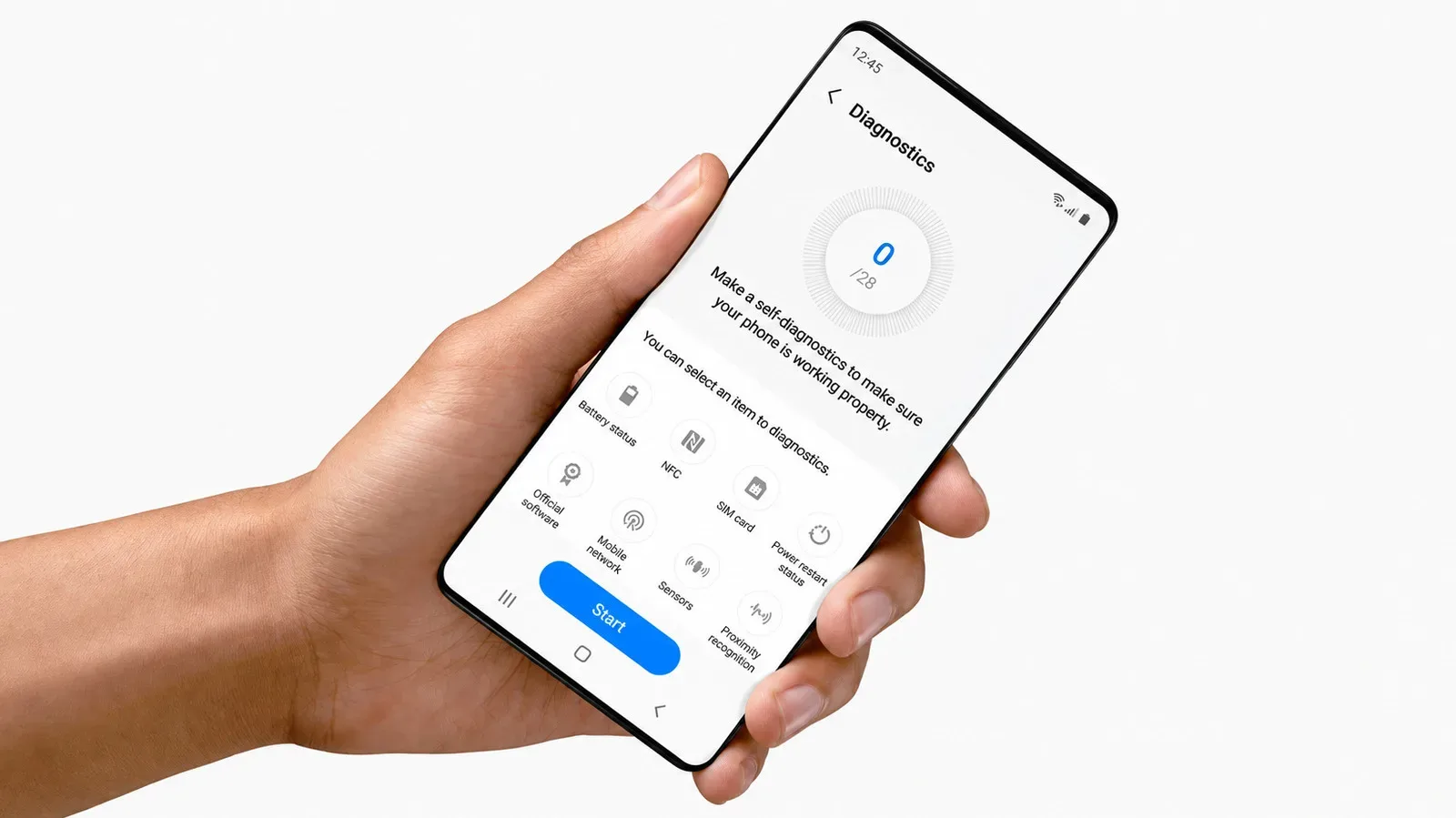
Samsung Galaxy phones use Samsung’s own version, while Huawei is another manufacturer that has chosen its own approach. The common thread is that these tools generally cover similar ground: visibility into phone habits and controls intended to set boundaries. The interface and extras may differ, so the right first move is to search Settings for the phone’s screen-time, wellbeing, parental-control, modes or routines options rather than assuming every menu will match another Android device.
Samsung’s version adds a more category-based view of activity. It can compare time spent gaming with time spent on social media, productivity apps and finance apps. It can also track time spent using the phone while driving or walking. That comparison can be more revealing than a raw total: gaming time may be perfectly intentional, while small fragments spent in several other categories add up to the larger source of distraction.
This is also why it is worth avoiding simplistic conclusions from a dashboard. A category label is a tool for understanding patterns, not a scorecard. What matters is whether the phone behavior matches the user’s priorities—whether that means creating uninterrupted work time, reducing late-night use, playing more deliberately, or simply finding out why the battery and attention both disappeared before lunch.
Samsung Modes and Routines go beyond a timer
On Samsung devices, Digital Wellbeing connects with Modes and Routines for more situational control. Work mode, for example, can set the phone to vibrate only and enable power saving. It can be customized to begin at certain times, on certain days, when a particular app such as a company messaging tool opens, or when the phone is at an office location. Location-based activation requires GPS to be turned on.
The significant part is the automation. A mode is a saved set of device behaviors for a context. A routine determines when that set should trigger. Instead of remembering to silence notifications, alter power behavior and avoid a distracting app every time work starts, the phone can apply the preferred setup when the defined conditions are met.
Samsung also offers modes and routines for situations including the theater, driving, exercise, relaxation and gaming, with the option to create custom ones. That flexibility makes these settings more than a scolding notification about screen time. A gaming setup, for example, can be treated as a context with its own desired phone behavior, rather than as an activity that automatically needs to be eliminated. The supplied information does not specify every available action within each mode, so users should review the controls on their own device before building an automated routine around them.
There is a useful broader lesson here. The best settings are often the ones that reduce decisions at the inconvenient moment. If the recurring issue is playing during work hours, make the work context do more of the work. If it is notifications during rest, schedule Bedtime mode. If it is one app that reliably absorbs more time than intended, try a timer. If none of those descriptions fit, the usage chart may show a different pattern.
A low-pressure way to start
Digital Wellbeing is most helpful when treated as an audit before it becomes a rulebook. Open the relevant Settings section, look at a normal day’s chart, and identify one number that is genuinely surprising: an app total, unlock count or notification count. Then choose one narrowly targeted adjustment, if one is needed.
- Check the daily breakdown rather than guessing where time went.
- Pick one app or group of apps that merits a boundary.
- Use an app timer if a daily maximum makes sense.
- Use Focus mode for a temporary concentration block.
- Use Bedtime mode when late-night phone use is the repeating issue.
- On Samsung, consider a mode or routine when the same context keeps causing the same distraction.
That approach is less dramatic than declaring a total digital exile, but it is more likely to expose a real habit and address it with the right tool. It also leaves room for intentional play. A game can be entertainment, a social connection or a planned break; the data is there to distinguish that from reflexively opening the phone because it buzzed.
For another playful way to think about tidying up the device side of daily life, see this inventory-screen guide to phone contacts. Digital Wellbeing applies a similarly useful principle: before changing the loadout, look at what is actually taking up space.