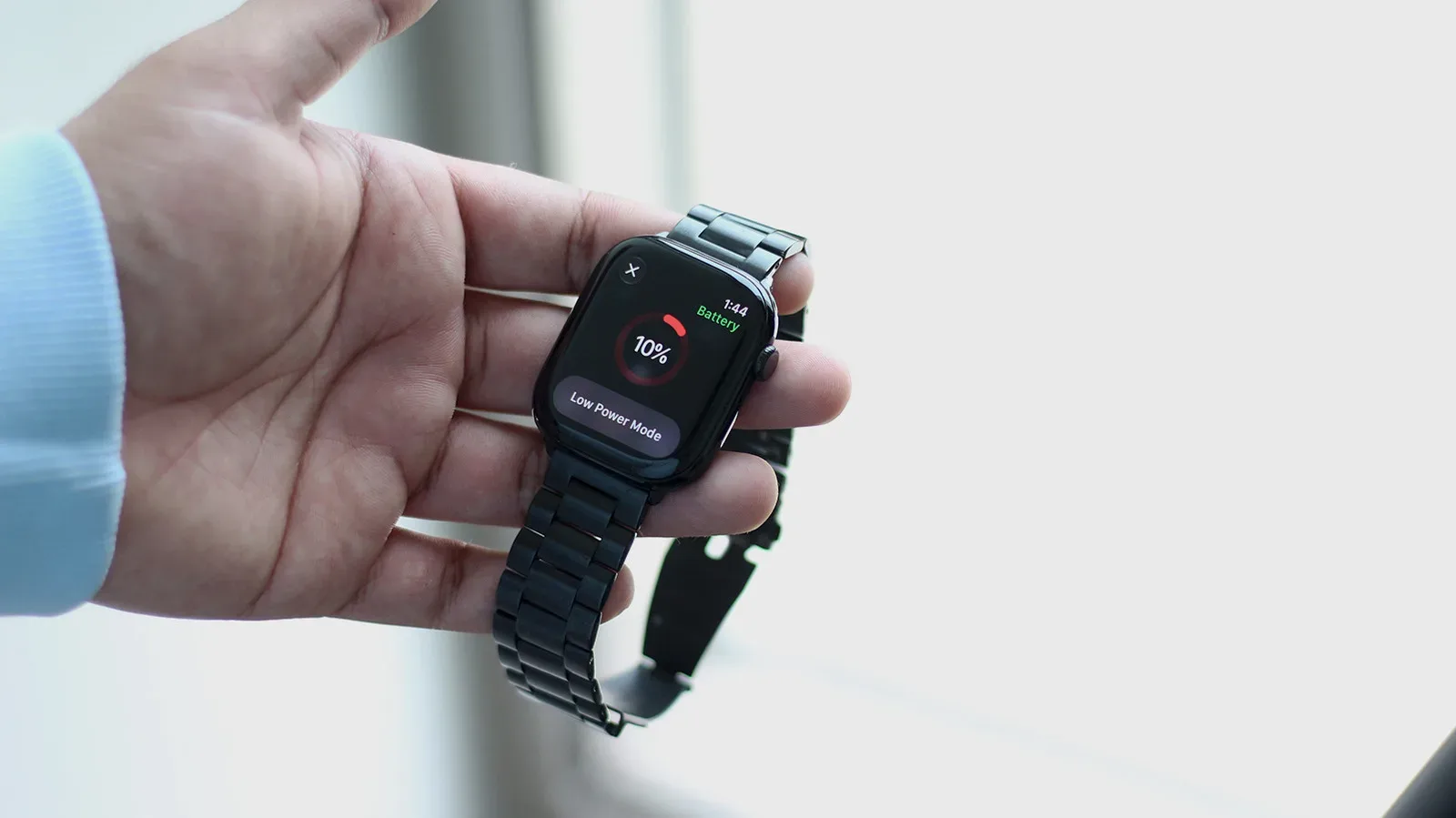
An Apple Watch battery can feel like a tiny stamina bar with an especially unforgiving boss encounter: a long day, a workout, a stream of notifications and no charger in sight. Apple rates the Apple Watch Series 12 for up to 24 hours under a defined mix of time checks, app use, sleep tracking, notifications, a workout and music playback. That is a useful benchmark, but it is not a guarantee for every wrist. More screen wake-ups, independent connectivity, frequent alerts and longer exercise sessions can change the result.
Before changing settings, distinguish between two separate problems. Battery life is the time a watch lasts between charges. Battery health describes the battery’s condition and capacity as it ages. Settings can reduce day-to-day power use, but they cannot restore capacity lost to significant battery wear. On the watch, the health status is available through Settings > Battery > Battery Health. If that reading has degraded substantially, a battery replacement may be the more meaningful fix than endlessly hunting for another toggle.
For everyone else, the practical approach is not necessarily to turn everything off. It is to decide which functions matter during a particular day. A commuter who needs calls and health alerts will make different trade-offs from someone preparing for a long run, a day outdoors or a night away from an outlet. The settings below explain what each choice saves, what it gives up, and when it is most sensible to use.
Battery longevity is also an ownership issue rather than merely a daily inconvenience. Hardware condition, sealing and continuing software support all affect how long a wearable remains useful; the broader idea is explored in this look at the less glamorous limits of wearable longevity. For an Apple Watch that is still healthy, however, a few software decisions may be enough to get through the day.
1. Treat Low Power Mode as the emergency loadout
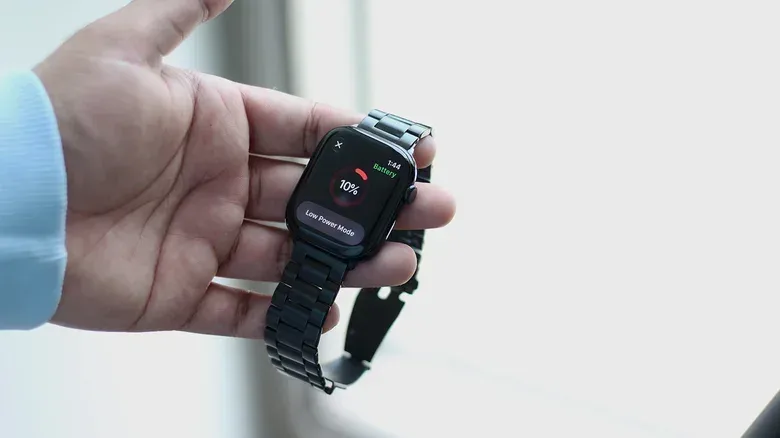
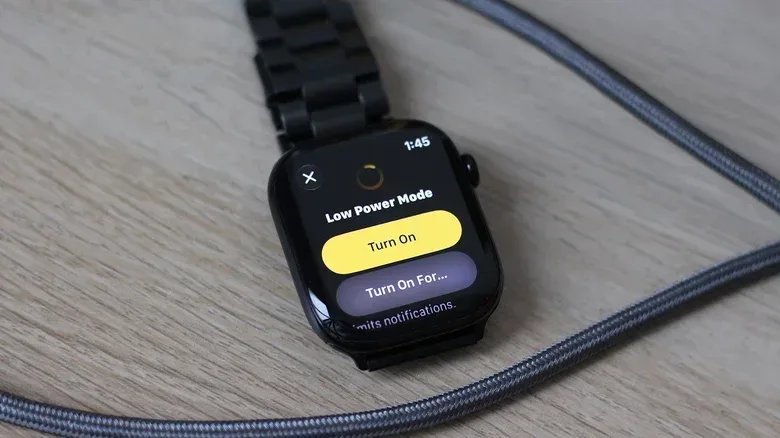
Low Power Mode is the quickest all-in-one option when charge is getting low. Open Control Center with the side button, tap the battery percentage, then select Low Power Mode. It is also available under Settings > Battery. After the first explanatory screen, it can be enabled immediately or scheduled to remain on for one, two or three days.
The convenience comes from aggressive compromises. Low Power Mode disables the Always On display, Wrist Flick and Double Tap gestures. The screen can still wake when the wearer raises their wrist, but the watch stops taking background heart-rate and blood-oxygen readings. Manual readings remain possible in the relevant apps, yet notifications for low, high or irregular heart rate are disabled. That last point is critical: this setting should not be treated as a consequence-free battery booster when those alerts are important to the wearer.
Several less visible services also become less immediate. Siri requests may take longer, complications and Live Activities update less often, and scrolling may be less smooth. The watch can still receive calls and notifications, but only when the paired iPhone is nearby. When an app needs internet access, the watch can temporarily enable Wi-Fi or cellular data.
In plain terms, Low Power Mode is a broad reduction in the watch’s background work. A complication is the small information element on a watch face, such as a weather, calendar or activity readout. A Live Activity is information that can update as an event unfolds. Updating these elements less frequently means fewer routine demands on the device, but it also means accepting that information on the watch face may not be as current.
Related coverage includes Five Apple Watch Settings That Can Help Stretch Battery Life.
That makes Low Power Mode a strong fit for a known charger-free stretch, not necessarily a default setting. Use it when finishing the day matters more than continuous measurements, instant updates and gesture convenience. Leave it off when background health notifications are a priority.
2. Let the iPhone do the connection heavy lifting
Connectivity is another major choice. Apple Watch can work through Wi-Fi, and cellular versions can use mobile data directly. Those options make the watch more independent, but independence has an energy cost. When the paired iPhone is nearby, the watch can use the iPhone’s internet connection through Bluetooth, which is the preferred arrangement when preserving watch battery is the goal.
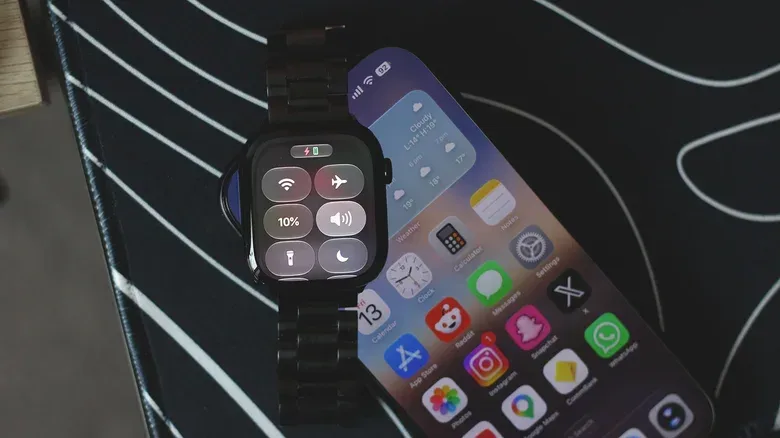
A small green phone icon in Apple Watch Control Center indicates that the devices are connected. It is a simple visual check that the lower-power paired setup is available rather than asking the watch to handle more networking on its own.
For cellular-capable models, Wi-Fi can be the more battery-conscious option where a usable Wi-Fi network is available. Cellular is valuable when there is no phone nearby, but it is not automatically the best choice for endurance. The same principle applies more broadly: use the least demanding connection that still accomplishes what is needed.
When there is no need to stay connected, Airplane Mode can extend runtime further. It is available in Control Center and Settings. This does not turn the Apple Watch into a decorative bracelet. Without an internet connection, it can still track workouts, track sleep, play downloaded music or podcasts, make Apple Pay purchases, and run built-in functions including Alarms, Timers, Medications and Voice Memos.
The key word is downloaded. Content already stored on the watch does not need an active connection to play. That makes preloading music or podcasts a useful preparation step for a disconnected workout or travel day. It also clarifies the trade: offline operation retains many core tools while cutting off the live calls, messages and app updates that rely on a connection.
3. Audit the apps that quietly occupy the wrist
The Apple Watch’s usefulness can create a crowded software roster. When an iPhone app has an Apple Watch companion, that watch app may install automatically. Some will be genuinely useful; others may be apps that never need to be checked from the wrist. Removing unneeded apps from the watch is a sensible first cleanup, and doing so does not remove the corresponding apps from the iPhone.
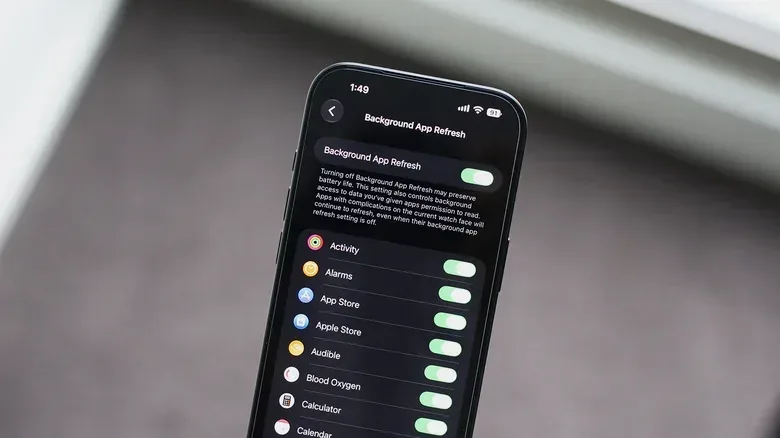
The next setting is Background App Refresh, found at Settings > General > Background App Refresh. Background refresh means an app can retrieve or prepare updated information when it is not actively open on screen. That is convenient for data that should be ready at a glance, but it can also mean extra battery use for apps whose information is not time-sensitive.
A targeted approach is often better than a total shutdown. Disable background refresh for occasional-use apps while leaving it available for the few services that genuinely need to update in advance. Disabling Background App Refresh entirely is also possible, but it affects every app on the watch. The decision is less about declaring background activity bad than about identifying which background activity earns its place.
Notifications deserve the same scrutiny. Each alert can mean a vibration and a screen wake-up, so fewer nonessential notifications can reduce battery drain while also making the watch less distracting. On the paired iPhone, open the Watch app, go to Notifications, then find Mirror iPhone Alerts From and turn off apps that do not need to reach the wrist.
This is useful because notification preferences can be tailored separately from the phone. By default, an app disabled on the iPhone is also disabled on Apple Watch, but the watch’s alert behavior can be customized independently. A practical audit asks a narrow question: if this alert arrives while the phone is in a pocket or bag, must it also buzz on the wrist? A calendar reminder might qualify; a low-priority retail or social alert may not.
Audio habits can matter too. Using the watch’s built-in speakers consumes more battery than connecting headphones. That does not mean the speaker should never be used, but it is another worthwhile distinction on an endurance-focused day.
4. Make the display less eager to wake
The display is one of the most visible battery levers because it is the part of the watch users interact with constantly. Turning off Always On is a more focused move than enabling Low Power Mode, since it does not require accepting all of Low Power Mode’s other restrictions. Go to Settings > Display & Brightness > Always On and switch it off.
That same area also offers controls over what appears while Always On is enabled, including complication data and Live Activities. For people who want the always-visible clock but do not need every constantly available detail, those choices provide a middle ground.
A reported test found that disabling Always On increased Apple Watch battery life by 10 to 12 hours. Results will vary with model and habits, so that figure should be understood as an example rather than a promise. Still, it highlights why the display is a logical first setting to examine for owners who regularly run low.
There are smaller display-related changes as well. Covering the watch with a palm when finished using it minimizes unnecessary screen-on time. Turning off Wake on Wrist Raise, located in the display settings, can prevent accidental wake-ups. This is most attractive for people whose wrist movement frequently triggers the screen when they were not trying to look at it.
Under Settings > Gestures, Double Tap and Wrist Flick can also be disabled. Low Power Mode already turns them off, which makes them reasonable candidates for anyone seeking a more selective battery setup. There is no stated endurance figure for disabling those gestures individually, so expect any benefit to be modest rather than transformative. Their real value is in trimming repeated, unnecessary activations without disabling the entire watch experience.
5. Save the severe compromise for long workouts
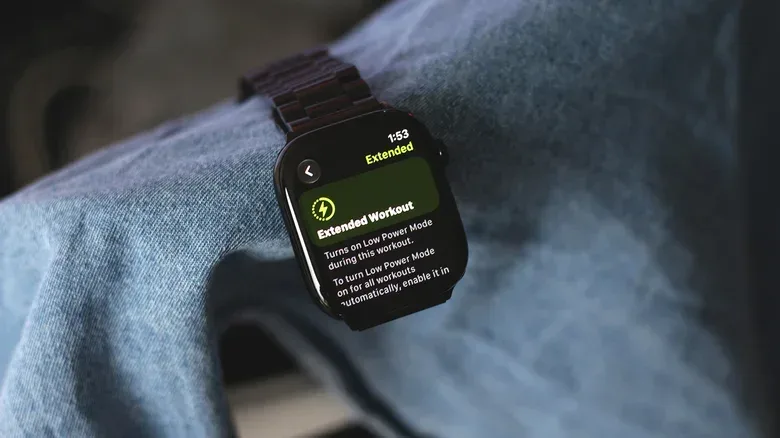
Workout tracking can be the moment when battery concern is most acute: it may combine GPS, heart-rate measurements, alerts and a long stretch away from a charger. watchOS 27 adds workout-specific ways to invoke Low Power Mode, allowing the battery-saving behavior to be applied during exercise instead of across the whole day.
In the Workout app, choose an activity type and tap Goals and Targets in the upper-right corner. Scroll to Extended, then choose Extended Workout to begin tracking. Some workout types also provide Max Extended Workout. The latter reduces how frequently GPS and heart rate are measured, disables alerts and splits, and removes certain measurements such as current pace.
GPS is the satellite-based location system used to map routes and estimate movement-related information. Reducing its measurement frequency is therefore an explicit accuracy-and-detail trade-off in favor of greater endurance. Likewise, reducing heart-rate measurements can mean less continuous data. Runners or other athletes relying on live pace, splits or alerts should consider those losses before selecting Max Extended Workout.
The advantage is that Low Power Mode switches off when the exercise ends. That is cleaner than manually enabling a broad battery saver before a workout and then remembering to reverse it later. For people who want this trade every time they exercise, Settings > Workout > Low Power Mode enables it automatically at the start of a workout.
Extended Workout is not a universal best setting; it is a purpose-built compromise. Choose it for lengthy sessions where recording the activity is more important than preserving every live metric. Keep normal workout tracking for shorter sessions or for training where immediate pace, alerts and more frequent measurements matter.
Build a battery plan around what cannot be lost
The most effective Apple Watch setup is not necessarily the most restrictive one. Start by protecting the capabilities that matter most. If background irregular-heart-rate notifications are non-negotiable, do not lean on full Low Power Mode. If a phone will be nearby all day, keep the watch paired over Bluetooth rather than treating cellular independence as the default. If a particular app never needs wrist access, remove it or stop it refreshing and notifying in the background.
Then make the larger cuts only for the situations that justify them. Disabling Always On may be the most useful everyday compromise. Airplane Mode is sensible during a period of intentional disconnection. Extended Workout can reserve the bigger tracking concessions for long exercise sessions. And if the watch still falls short after a thoughtful settings audit, Battery Health is the place to check whether the issue is no longer software behavior, but the battery itself.