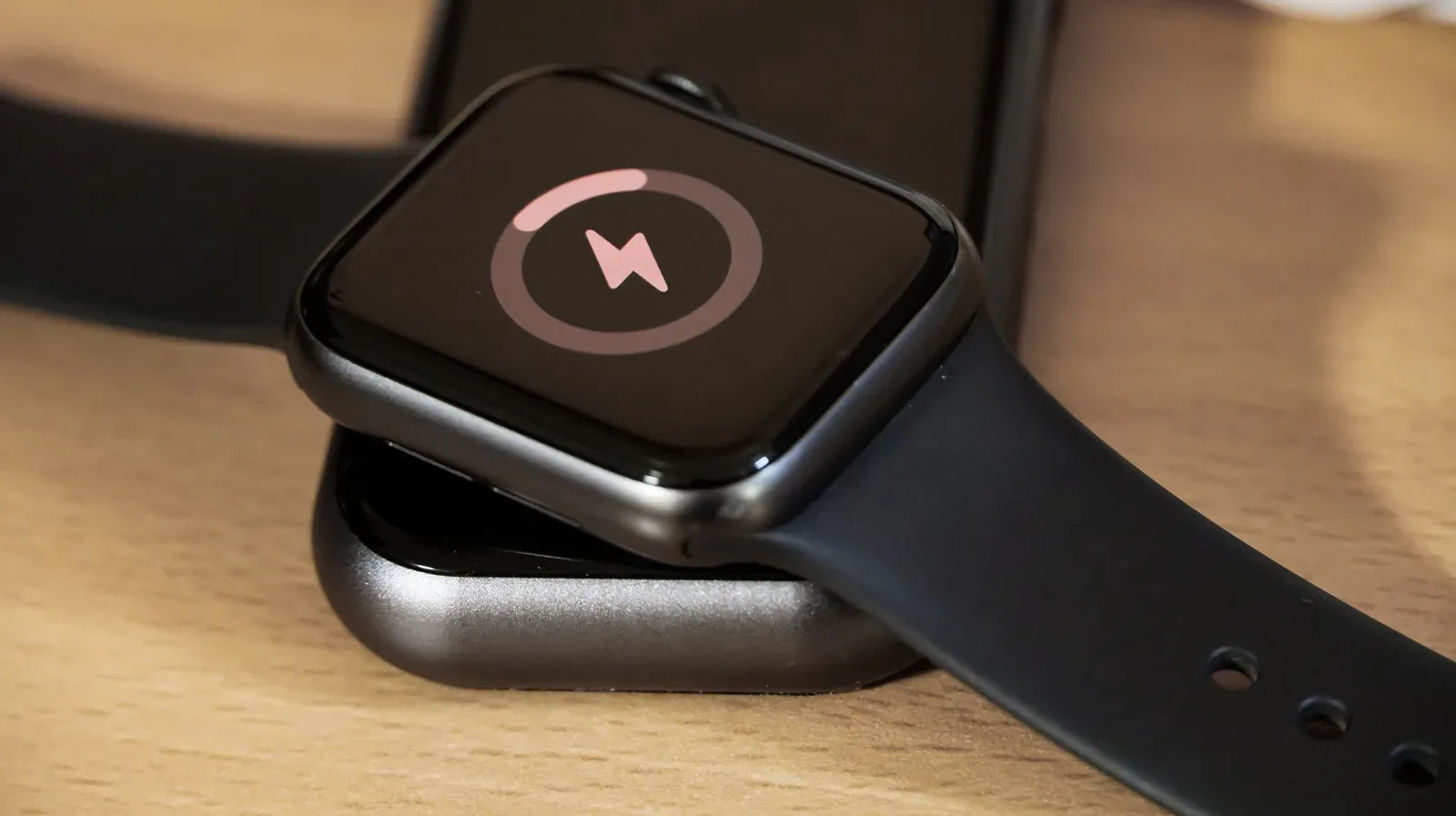
An Apple Watch is designed to be worn, used and charged often, which makes battery aging one of the less glamorous but more consequential parts of ownership. The watch may still switch on, show notifications and track a workout, yet a shortened gap between charges can gradually make it less dependable for sleep tracking, long days away from a charger, or an extended exercise session.
The useful part is that Apple Watch provides a built-in health reading rather than making owners infer everything from a single disappointing day of battery life. The setting is quick to find, and it separates two questions that are easy to muddle: how much charge the watch has right now, and how much energy its battery can retain compared with when it was new.
Where to find the battery health reading
On the Apple Watch, open Settings, select Battery, then choose Battery Health. This page shows the watch’s maximum capacity and includes the option for optimized battery charging where the feature is supported.
Maximum capacity is the figure worth monitoring over time. It is a measurement of the battery’s present storage capacity relative to its original capacity. A lower percentage generally means fewer hours of use before another charge is necessary. It is not the same as the number displayed by the battery indicator on the watch face or in Control Center, which indicates how full the battery is at that moment.
That distinction matters in practical use. A watch at 100% charge can still deliver a shorter day than it did when new if its maximum capacity has declined. Conversely, a low current charge is not proof that the battery has deteriorated; it may simply have been used heavily since it was last charged.
Why capacity declines
Apple Watch models use lithium-ion batteries. Like lithium-ion batteries in phones and tablets, they weaken as they age. The result can be reduced overall capacity, more frequent charging, and poorer performance over time. This is normal battery behavior rather than an automatic sign that something else in the watch has failed.
Apple says software on Apple Watch Series 5 and later, Apple Watch SE models, and Apple Watch Ultra models helps reduce the risk of poor performance as a battery ages. That is helpful, but it does not stop the underlying chemical aging process. Checking the Battery Health page remains the direct way to see the capacity estimate presented by the watch.
What an 80% reading can mean
A maximum-capacity result below 80% is a sensible point to consider service options, particularly if the shorter runtime is disrupting how the watch fits into a normal routine. A visit to an Apple Genius Bar may be needed at that stage. The watch can also provide an alert when its battery requires service, so people who do not routinely inspect the setting are not wholly reliant on remembering to check it.
Related coverage includes How to Check Apple Watch Battery Health and Make Each Charge Last Longer.
There is no need to treat a single percentage as a dramatic verdict. The practical question is whether the watch still lasts through the activities that matter to its owner. Someone using it mainly for alerts may have different expectations from someone who relies on overnight use, an always-on display, workout recording and health-related features throughout the day. Capacity provides the technical context; actual charging frequency shows the everyday impact.
It is also worth avoiding a false choice between immediate replacement and ignoring the problem. First identify whether the watch is reporting a service need, look at the maximum-capacity figure, and consider which active settings are consuming power. That creates a clearer basis for deciding whether a battery replacement or a new watch is warranted.
Optimized Battery Charging: what it does
The Battery Health screen is also where eligible watches can use Optimized Battery Charging. Support extends to Apple Watch Series 6, Apple Watch SE and the first Apple Watch Ultra, as well as later applicable models.
When enabled, the feature uses typical charging habits to manage when charging finishes. Rather than immediately maintaining a full charge for an extended period, it can delay charging beyond 80%, keeping the battery between 75% and 80% until closer to the time the watch expects to be removed from its charger. The intention is for the battery to reach full charge by the usual pickup time while supporting long-term battery lifespan.
In plain language, it is a timing feature, not a way to add capacity to an already worn battery. It cannot make an aging cell behave like a new one, but it is intended to reduce unnecessary time spent at a very high charge level. It works best when charging follows recognizable patterns, such as putting the watch on its charger at a similar time.
Leaving optimized charging enabled is the low-effort option for owners whose schedule is consistent. Those with unpredictable travel, shifts or workout times should remember that the feature is built around learned habits. If a full charge is needed earlier than usual, check the battery status before heading out rather than assuming the normal routine will apply.
Settings that can extend time between charges
Battery health and battery life are related, but they are not interchangeable. Battery health describes the battery’s capacity condition; battery life is the runtime produced by that capacity and the features currently in use. A healthy battery can still drain quickly when power-intensive functions are active.
Keeping watchOS up to date is one recommended baseline. Beyond software updates, Apple Watch includes several settings that can reduce demand on the battery. Each comes with a trade-off, so the right approach is to choose the restrictions that do not undermine the reason the watch is being worn.
Use Low Power Mode selectively
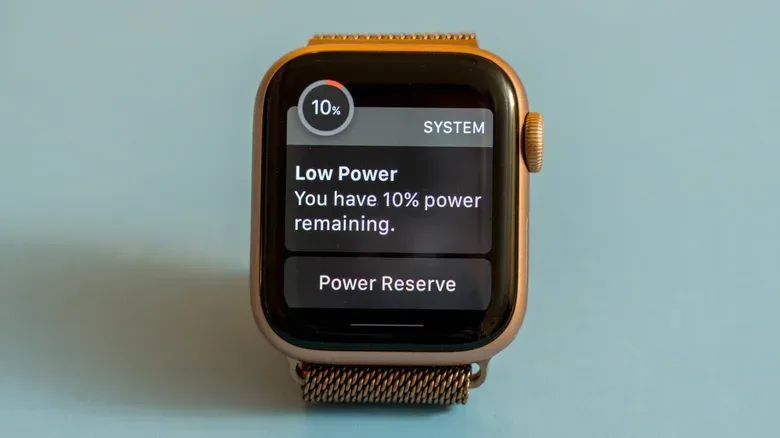
Low Power Mode reduces consumption by deactivating oxygen monitoring, the always-on display and other features that can use power in the background. It is a practical option when the priority is making it to the next charging opportunity rather than having every feature active.
The compromise is straightforward: turning off or limiting features changes the experience of using the watch. The always-on display, for example, is convenient precisely because it makes information visible without an extra gesture. Low Power Mode is therefore best understood as an endurance setting, not an invisible performance upgrade.
Consider workout power-saving choices carefully
For a run or walk, Power Saving Mode is available under the Workout section of the Apple Watch app on the paired iPhone. Disabling the heart-rate sensor can help conserve battery power over time, but it can also make health metrics less accurate.
That accuracy warning should guide the decision. If heart-rate data is important to the workout record or a person’s wider health tracking, the savings may not justify the loss of precision. If the goal is a basic activity record during a time when extending battery life matters more, the option may be more appealing. This is a useful example of why power saving is not one-size-fits-all: the best configuration depends on which information the wearer considers essential.
Stop the display waking for every wrist movement
Wake on Wrist Raise is another feature to review. On the watch, press the Digital Crown, open Settings, select Display & Brightness, then scroll to Wake. From there, Wake on Wrist Raise can be turned on or off.
Disabling it prevents the display from lighting up whenever the watch interprets a movement as a raised wrist. The power benefit comes at a cost in convenience, because checking the screen requires a more deliberate action. It is a small change, but small recurring display activations can matter across an entire day.
For a temporary version of the same idea, enable Theater Mode. It prevents the display from activating when the wrist is raised or moved slightly. That can be useful in situations where accidental screen wake-ups are especially likely, without requiring a permanent change to the everyday display setting.
A simple battery-health routine
A practical approach is to check Battery Health occasionally, take note if charging habits noticeably change, and act on a service alert rather than trying to diagnose every fluctuation from a single day. If maximum capacity is declining and the watch no longer lasts through normal use, review Low Power Mode, workout settings and display behavior before deciding on hardware service or replacement.
The same broad principle applies across personal technology: software support and sensible power settings can extend usefulness, but they do not make batteries immune to age. For a related look at how long software support can remain relevant to a device’s lifespan, see this overview of software support and device longevity.
Apple Watch Ultra 4 is described as offering up to 50 hours of normal use on one charge and up to 84 hours in Low Power Mode, but even long-runtime hardware is still subject to battery aging. The most useful maintenance habit is not obsessing over every percentage point. It is knowing where the maximum-capacity reading lives, understanding what it measures, and using power-saving tools with a clear view of what they turn off.