An Apple Watch can look like an ordinary everyday smartwatch rather than a dedicated medical device, but its most practical role for many older adults may be quietly handling the small safety nets that are easy to overlook: an emergency call shortcut, a reminder to take a scheduled medication, a warning after a suspected fall, or a tap on the wrist when it is time to pay attention.
That does not make the watch a substitute for medical care, emergency planning or regular contact with family and friends. It also cannot diagnose every condition—most notably, it is not a device for identifying a heart attack. What it can do is collect certain signals, present alerts and make a call in specified circumstances. For someone who wants to continue living independently, those tools are potentially meaningful when they are configured before they are needed.
The practical rule is simple: set up the essentials, check that the watch has a workable connection for calling, and make sure the information behind each alert is current. Here are five groups of Apple Watch features worth reviewing.
1. Make Emergency SOS, Medical ID and emergency contacts usable
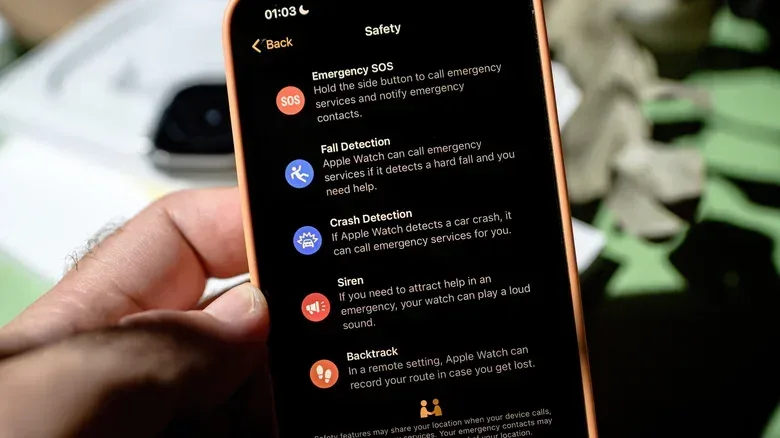
Emergency SOS is the most direct safety feature in the set. On Apple Watch, holding the side button can bring up an Emergency Call slider; continuing to hold the button can also place the call. The feature requires a cellular Apple Watch with an active plan, Wi-Fi calling, or the paired iPhone nearby. That dependency is important. A watch may be worn every day, but it is only as useful for an emergency call as its available connection permits.
On an iPhone, open the Watch app, choose Emergency SOS, then enable Hold Side Button to Dial. It is worth practicing the motion carefully rather than trying to learn it under stress. The objective is not to trigger a call accidentally, but to know exactly how the control behaves.
The same preparation should include Medical ID and Emergency Contacts in the iPhone Health app. Select the profile picture, open Medical ID, choose Edit and enter relevant information before adding trusted contacts. Allergies and existing conditions should be kept current. Medical ID is designed to make this information available to responders who find the watch, which can be valuable when the wearer cannot explain it themselves.
This is also an appropriate point for a conversation with the people listed as contacts. They should know they have been selected, have the right phone numbers on file, and understand what an emergency alert from the wearer may mean. Technology works best here as part of a human plan, not as an invisible replacement for one.
2. Turn on Fall Detection, and understand what it looks for
Falls are a serious concern for older adults. More than one in four people aged 65 or older experiences an unexpected fall each year, while 319,000 older people are hospitalized for hip fractures annually. Living arrangements can add to that concern: 26% of U.S. adults 65 and older lived alone in 2023.
Fall Detection uses the watch’s built-in sensors to recognize a possible hard fall. If it detects one, the watch displays an alert asking whether the wearer fell. The wearer can ask for help from that screen. If there is no response or the wearer remains immobile, the system can call emergency services.
The feature is enabled automatically when a user has told the Health app they are 55 or older, but it remains sensible to verify it rather than assume it is active. On iPhone, visit Emergency SOS and turn the feature on. On the watch itself, open Settings > SOS, turn on Fall Detection, select Always On, and confirm the choice.
“Always On” matters because a fall is not restricted to an exercise session or a convenient time. Still, the wording of the feature is significant: it detects a suspected fall and responds to immobility, not every accident or health episode. It should be treated as a backup layer rather than a guarantee that every emergency will be identified.
Recent Apple Watch models also offer Crash Detection for serious car crashes. The corresponding switch is Call After Serious Crash under Emergency SOS. This is separate from Fall Detection, so owners of a compatible recent model should check both rather than thinking one setting covers every scenario.
3. Review heart-rate, irregular-rhythm and ECG settings
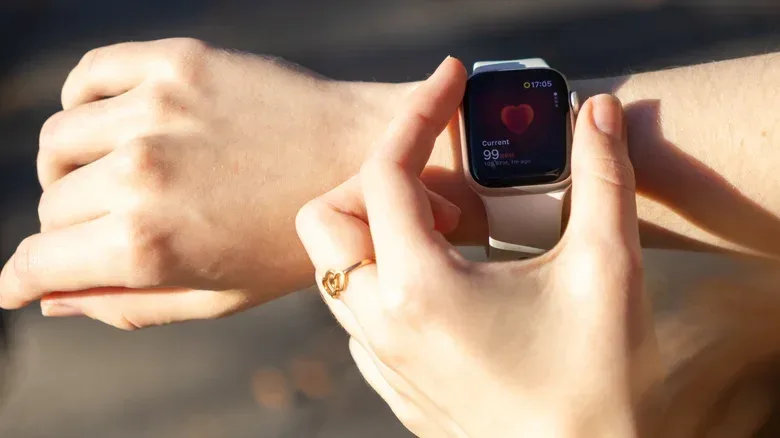
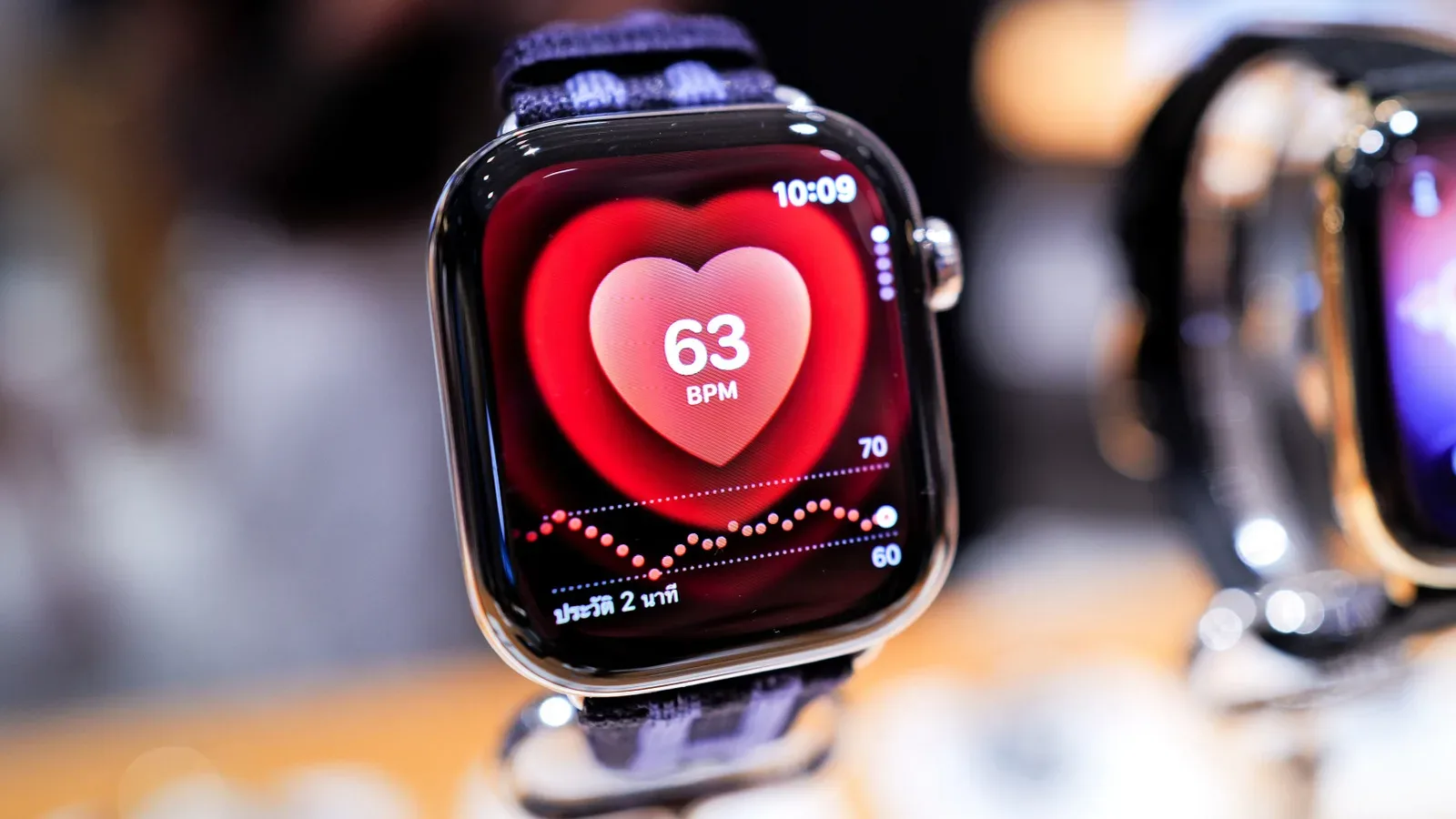
Apple Watch heart features can be useful for observation and alerts, but they need particularly clear expectations. Cardiovascular disease remains a major health issue in the United States, where a person dies from it every 34 seconds. An Apple Watch cannot identify a heart attack. It can, however, continuously monitor heart rate, notify the wearer when readings cross selected thresholds, and help identify signs associated with irregular rhythm or atrial fibrillation.
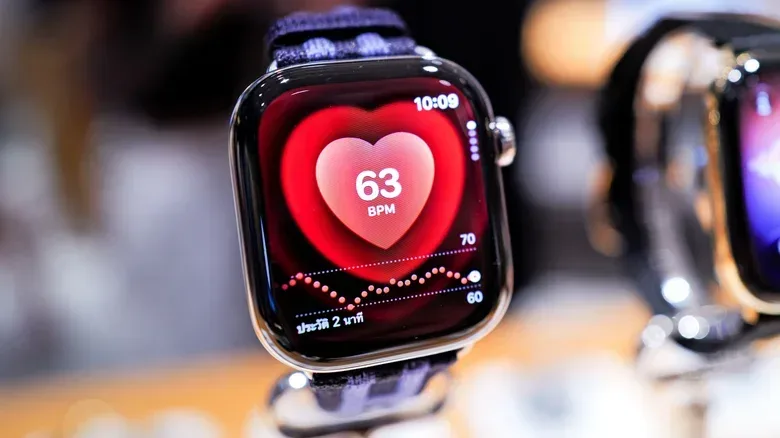
The watch uses green and infrared LEDs on its underside for continuous heart-rate measurement. That monitoring happens automatically. High and low heart-rate notifications can alert the wearer when the rate rises above or falls below configured thresholds; examples include above 120 beats per minute or below 40 beats per minute.
Users can also take an ECG, short for electrocardiogram. An ECG is a recording of the heart’s electrical activity. On the watch, open the ECG app, keep the wrist steady and touch a finger to the Digital Crown. The reading takes 30 seconds. The function may help flag irregular rhythms or signs of atrial fibrillation, a condition involving an irregular heartbeat, but it does not turn the watch into a comprehensive diagnostic tool.
To see the available heart options, go to Settings > Heart on Apple Watch and enable the relevant features. Results are shared with the iPhone Health app, which also includes a VO2 Max estimate. VO2 Max is an estimate used to assess cardiorespiratory fitness based on sensor data; it is a fitness-related measurement, not a diagnosis.
The useful habit is to regard an alert or ECG result as information to take seriously and discuss with an appropriate healthcare professional, especially if symptoms are present—not as reassurance that rules out a problem, or a reason to delay seeking urgent help. This distinction is the difference between a helpful prompt and misplaced confidence in a consumer device.
4. Use medication notifications to build a reliable routine
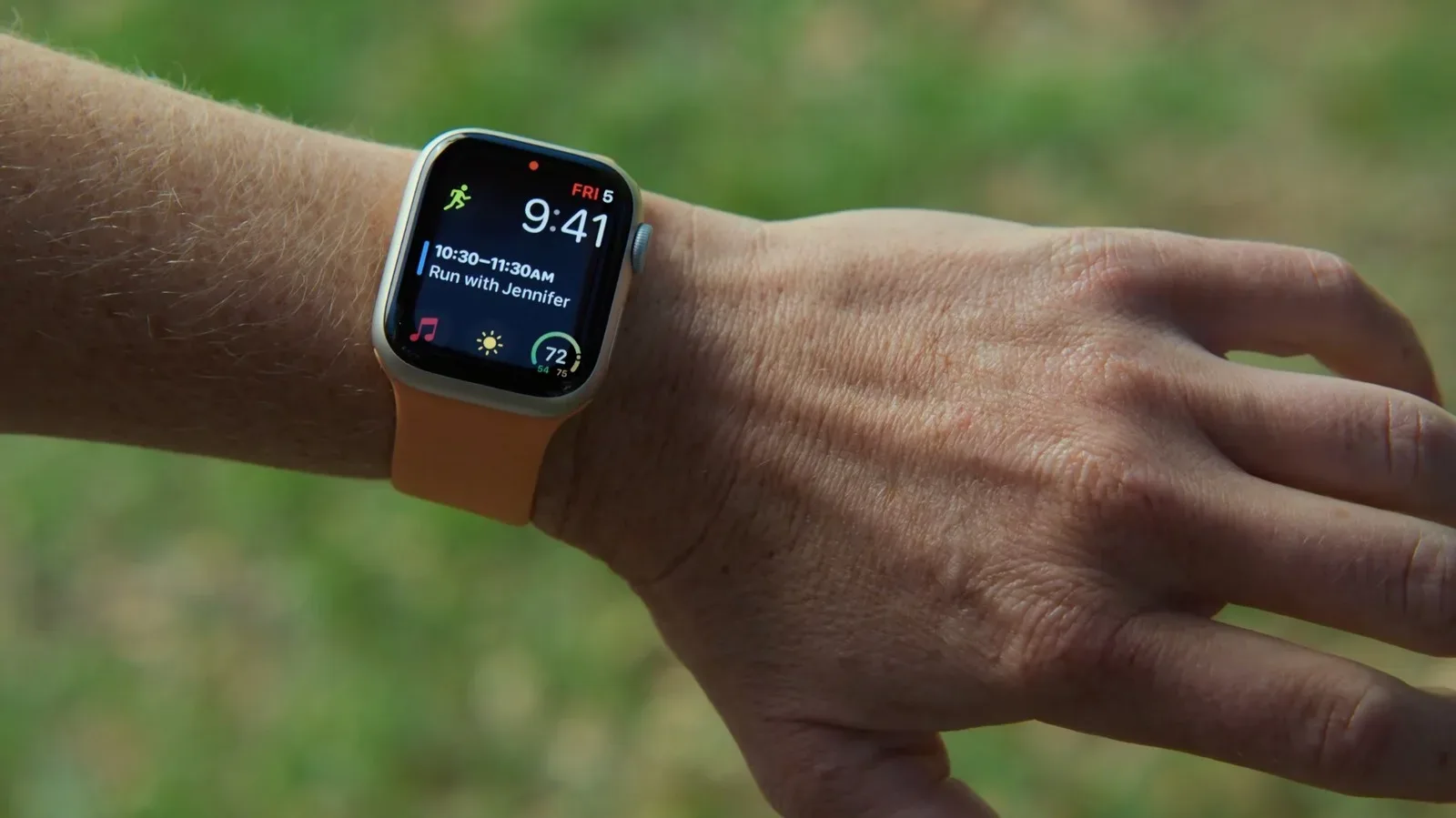
Medication schedules can become complicated, particularly when there is more than one prescription. Apple’s Medications feature lets users add medicines and set a schedule so the watch can tap the wrist and display a notification at dose time. It can also create a record of medication adherence that may be useful to share with a doctor.
Set it up in the iPhone Health app by going to Browse > Medications > Add Medication. Search for the medication, select Add, follow the scheduling prompts and choose Done. Repeat the process for additional medications.
The value here is less about sophisticated sensing and more about consistency. A notification cannot confirm that a medication was actually taken, and it does not decide whether a missed dose should be taken late. Those are questions for the prescribing clinician or pharmacist. But a timely, visible, haptic prompt can reduce the chance that a planned dose is forgotten amid ordinary daily distractions.
Sleep tracking is another related Health feature to review. Enable Track Sleep with Apple Watch in the Sleep app on the watch or in the iPhone Health app. Sleep Apnea Notifications can be found through Health > Browse > Respiratory > Sleep Apnea Notifications. The watch can flag a potential issue for medical investigation; it does not establish a diagnosis on its own.
5. Configure sound recognition and readable controls
Not every useful alert is medical. Accessibility options can help an Apple Watch and iPhone support independent daily life for people dealing with hearing or vision changes. Hearing loss becomes more common with age, and one estimate places it at one in four U.S. adults in their sixties.
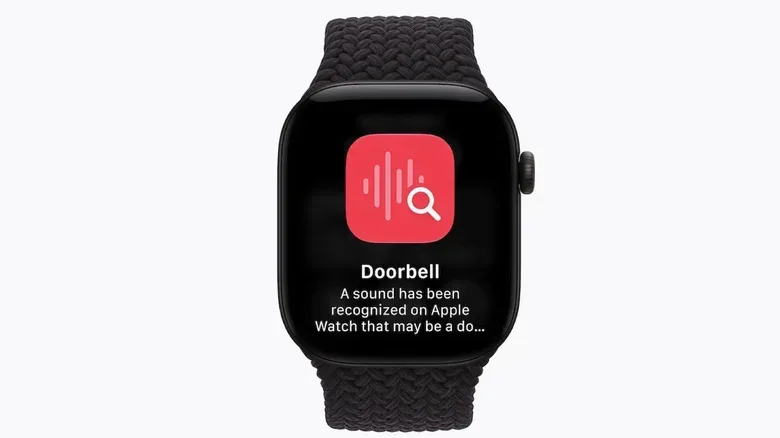
Sound Recognition can use Apple devices to listen for selected sounds such as doorbells, sirens and fire alarms. To configure it on iPhone, go to Accessibility Settings > Sound & Name Recognition > Sound Recognition, switch it on and choose the sounds to recognize. The best choices will depend on the home and the person: a doorbell may be important for someone expecting visitors, while a fire alarm or siren can be a higher-priority alert for many households.
For visual readability, Apple Watch’s text size can be adjusted from Control Center. Press the side button, select the AA icon and turn the Digital Crown to increase the font size. This is a small setting with an outsized effect: an alert is only helpful if the wearer can comfortably read it in the moment.
These accessibility choices reinforce the broader case for checking the setup rather than leaving the watch on its defaults. A device that fits into a normal routine may help someone remain active and informed without making every activity feel medicalized. That practical, low-drama role is why a few minutes spent reviewing settings can be worthwhile.
For more Apple-and-iPhone context, see our look at Webex support for iPhone Duo.