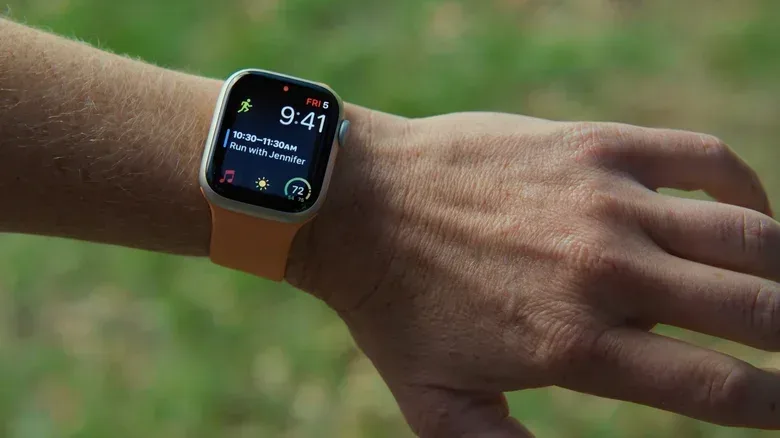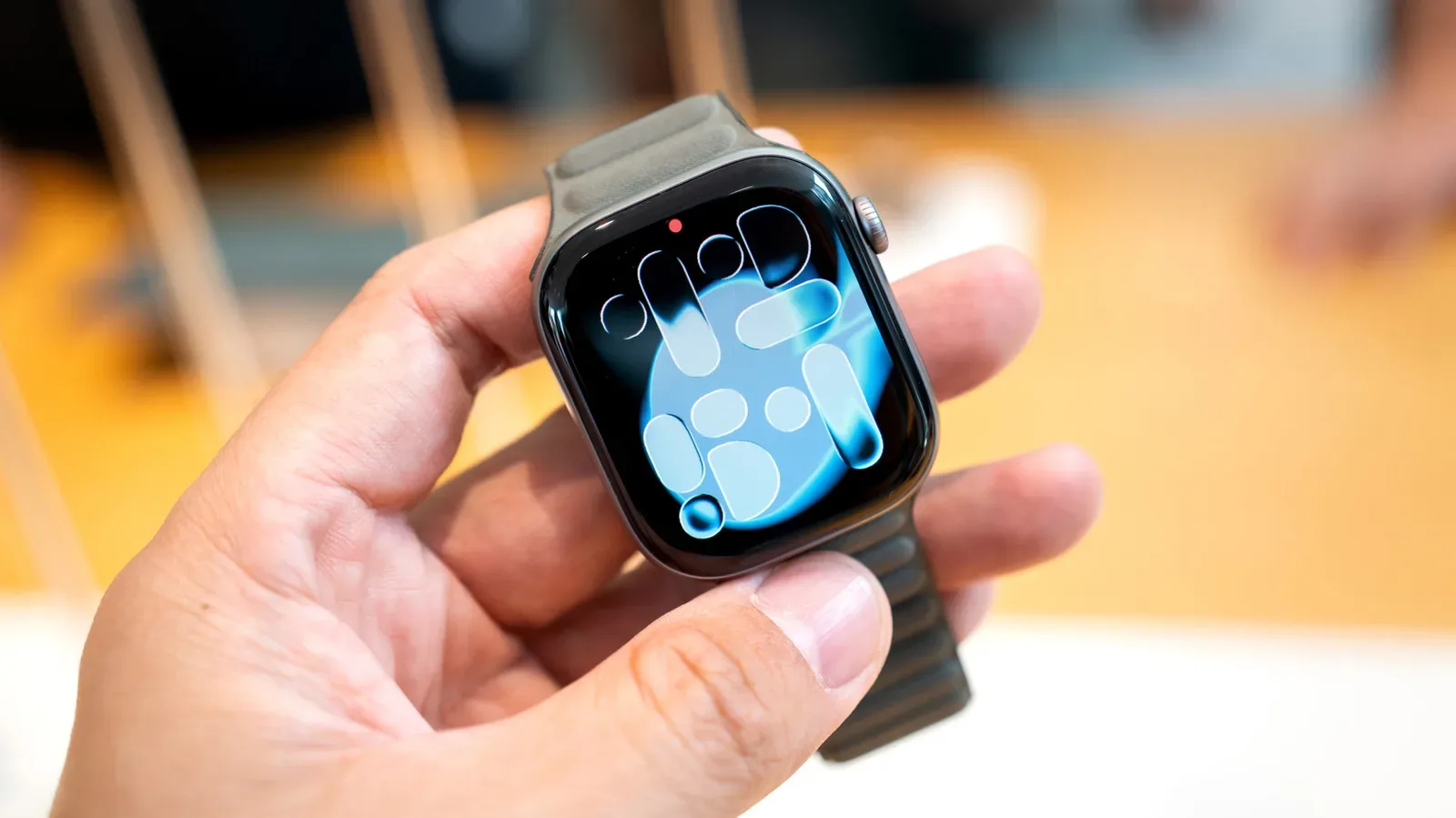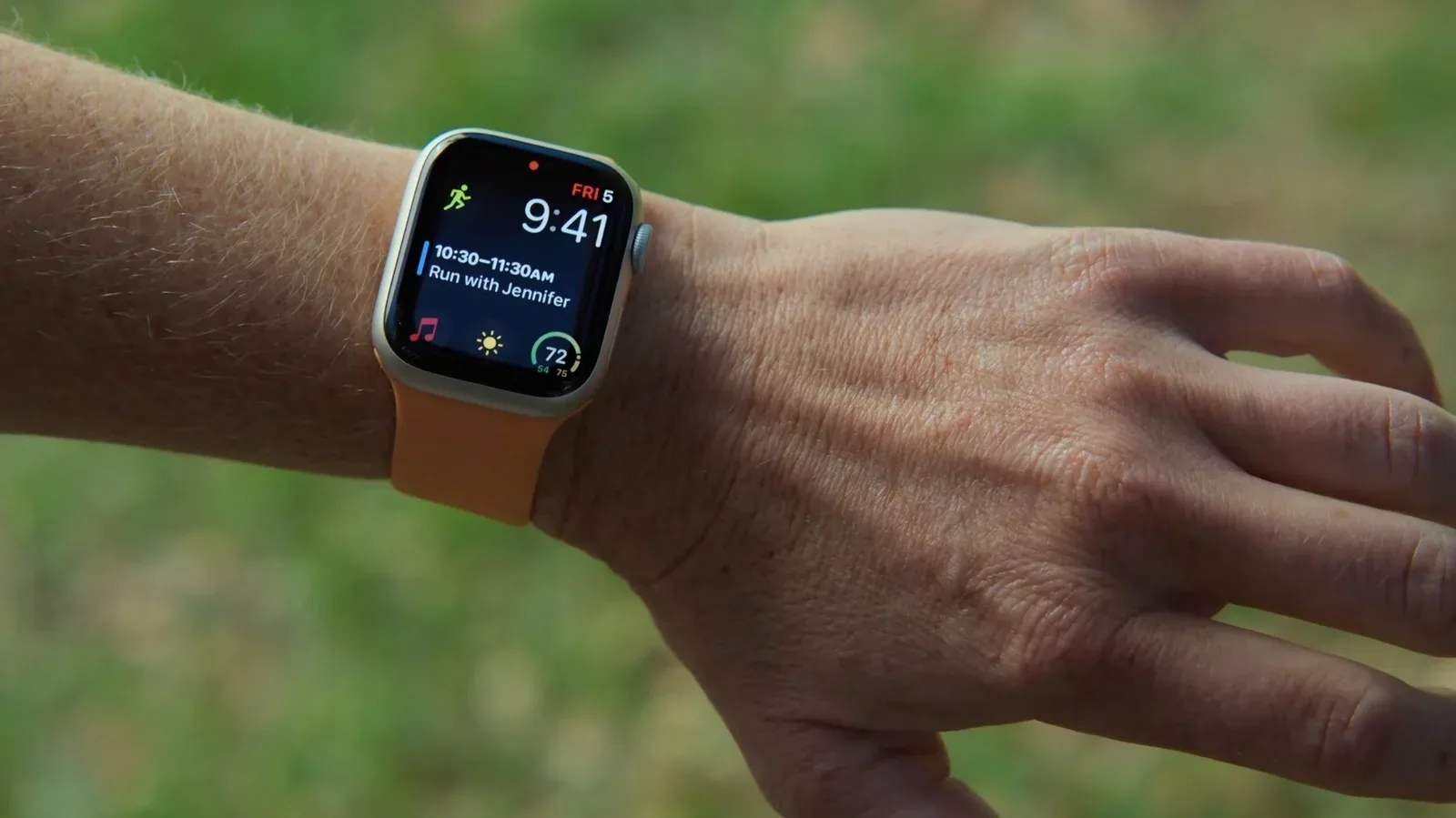
The Apple Watch is built around quick physical interactions: tap the display, turn the Digital Crown, glance at a notification, move on. AssistiveTouch offers a very different control path. Rather than requiring a finger to meet the screen, it can interpret movements of the wearer’s hand, fingers and arm, then translate those movements into navigation and actions on the watch.
Its primary purpose is accessibility. For people who cannot comfortably or reliably tap a small touchscreen, the feature can make core watch interactions more manageable. But its value is not limited to that purpose. It can also be useful when a screen is physically inconvenient to reach, including when someone is wearing gloves or carrying something in their hands.
The important point is that AssistiveTouch is more than the familiar one-off gesture used to interact with an Apple Watch. Once configured, it is a customizable interaction system with an on-screen focus highlight, hand gestures and an optional pointer controlled by arm movement. That flexibility makes it worth understanding before switching it on—and especially before assuming it is simply an upgrade to the watch’s standard double-pinch shortcut.
What AssistiveTouch does on Apple Watch
AssistiveTouch is an accessibility setting included on Apple Watch models running the latest version of watchOS. It enables touch-free control of interface elements and actions through detected motion. The watch uses its existing hardware rather than needing a separate controller or accessory.
For more context, explore OpenAI Tightens ChatGPT Weapon-Information Limits for Teen Accounts.
The relevant sensors include the gyroscope, accelerometer and optical heart-rate sensor. In simple terms, the gyroscope helps identify rotational movement, the accelerometer measures changes in motion, and the optical heart-rate sensor contributes data that can help the device recognize subtle physical gestures. Together, those inputs allow the watch to distinguish small movements involving the arm, hand and fingers.
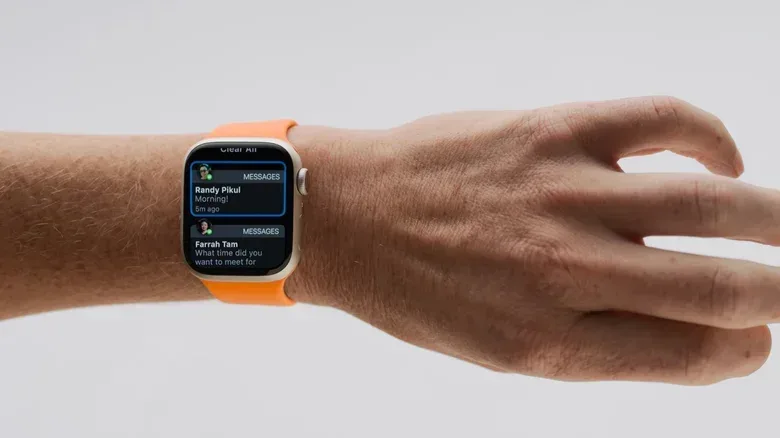
That recognition can be used for tasks that would ordinarily involve direct touch. AssistiveTouch can activate buttons, move through content, scroll the display and support Apple Pay without tapping the screen itself. A visual highlight indicates which on-screen element is currently selected, so the wearer has a clear target before performing the gesture assigned to activate it.
This is an important design detail. Hands-free control needs an alternative to the precision supplied by a fingertip. The highlight supplies that precision at the interface level: it shows what will be affected when the activation gesture is made. Rather than trying to imitate a finger landing on one exact pixel, AssistiveTouch moves focus through the interface and then confirms a selection.
AssistiveTouch versus the standard double-tap gesture
Apple Watch already supports a default finger gesture: pinching fingers twice to interact with the screen. That shortcut is designed for fast, limited interactions such as answering calls or scrolling through widgets.
AssistiveTouch broadens the idea into a system of multiple gestures and configurable assignments. A single finger tap can be set to perform a touch action, while a double tap can be assigned to open Notification Center. The exact actions are customizable, meaning the most useful setup will depend on what the wearer wants to access most often.
There is a significant limitation to remember: enabling AssistiveTouch disables Apple’s universal double-tap gesture. In practice, this is a choice between the standard shortcut’s immediate, predefined behavior and AssistiveTouch’s more expansive set of navigational tools.
That does not make one universally better. Someone who mainly wants to answer a call or move through widgets with the built-in double tap may prefer leaving AssistiveTouch off. Someone who needs a consistent way to navigate a broader range of controls without touching the display may find the trade-off worthwhile.
How to enable AssistiveTouch
The setting can be enabled directly on the Apple Watch:
- Open Settings on the watch.
- Go to Accessibility.
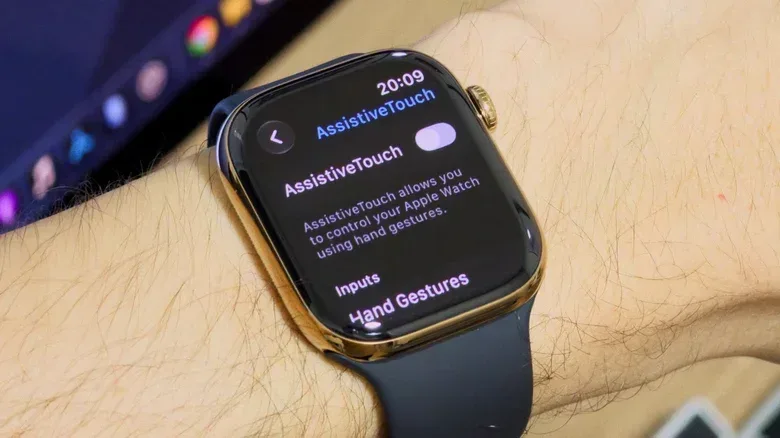
- Select AssistiveTouch.
- Turn on AssistiveTouch.
- Turn on Hand Gestures to navigate without touching the display.
Once hand gestures are active, the next step should be customization rather than immediately treating the defaults as final. AssistiveTouch can assign different commands to particular gestures, and those assignments determine whether the feature feels practical for the wearer’s routine.
For example, the available configuration can map a single finger tap to a touch action and a double tap to Notification Center. The key is not that those particular assignments are mandatory, but that the system allows a person to match a gesture to a destination or command that they actually use.
Use the guided practice mode before relying on it
The Hand Gestures menu includes a blue Try it out option. Selecting it opens a guided environment with animations demonstrating each gesture. This is a useful first stop because AssistiveTouch depends on repeatable movement rather than a traditional screen press.
Guided practice also helps establish what the interface is doing. With AssistiveTouch enabled, the on-screen highlight moves among selectable elements, and four default gestures handle navigation. The visual feedback is central to learning the system: it tells the wearer which item is currently focused and, therefore, what will be activated by the assigned command.
Taking a few minutes to practice is preferable to trying to learn the gestures during an incoming call, a payment or a moment when both hands are occupied. It also gives users an opportunity to decide whether the gesture assignments make sense before they become habitual.
Motion Pointer offers another route through the interface
AssistiveTouch includes Motion Pointer, an option that puts a cursor on the Apple Watch display and lets the wearer control it with arm movement. While hand gestures provide discrete commands—such as moving, selecting or opening a control—Motion Pointer is a more direct cursor-based approach.
The distinction matters because the two methods solve slightly different problems. Gesture navigation can be effective when someone wants a small, consistent set of commands. A motion-controlled pointer may make more sense when a person wants to guide a cursor toward items on the display. Neither approach requires touching the screen, but their interaction styles differ.
For people exploring AssistiveTouch primarily for accessibility, the ability to choose between focus-and-gesture navigation and a movable pointer is meaningful. For everyone else, it illustrates that the feature is not merely a novelty shortcut. It is a set of alternatives for operating a compact wearable interface.
When AssistiveTouch is most useful
The clearest use case is for people with motor disabilities or other conditions that make small touchscreen taps difficult. A watch face is a constrained target even under ideal circumstances. AssistiveTouch can replace the need for direct screen contact with movements that may be easier or more comfortable for a given wearer to perform.
It can also help in ordinary situations where the screen is temporarily impractical to use. Gloves are the straightforward example: even when a wearer can use a watch normally, gloves can make touching a small display awkward. Carrying objects is another. If the watch is visible but one or both hands are occupied, a gesture-driven command may be easier than trying to free a hand and tap the display.
Apple Pay is particularly notable in this context because it is an action people may want to complete quickly while keeping hold of something else. AssistiveTouch’s support for Apple Pay shows that the feature can reach beyond simple movement through menus into useful device functions.
Still, it should not be enabled purely because it sounds futuristic. The loss of the usual universal double-tap behavior is real, and some people will find the standard gesture more efficient for their limited needs. AssistiveTouch is best considered when its expanded control options solve a specific access or convenience problem.
Customize around your most frequent actions
A sensible setup starts with a short question: which actions are difficult to perform by touching the screen, and which actions are repeated often enough to deserve a gesture? The answer will differ from one wearer to the next.
- Prioritize accessibility needs: Assign actions that replace interactions that are physically difficult or uncomfortable.
- Keep navigation predictable: Use assignments that are easy to remember and that fit the on-screen highlight system.
- Practice before depending on it: The Try it out guide is available specifically to demonstrate the gestures.
- Review the double-tap trade-off: Turning on AssistiveTouch removes the standard universal double-tap gesture used for actions including answering calls and scrolling widgets.
- Consider Motion Pointer separately: It may suit users who prefer steering a cursor with arm movement over relying only on gesture-based focus changes.
The broader lesson is that accessibility settings can be valuable even when they are not needed all day, every day. A control method can be essential for one user and situationally helpful for another. AssistiveTouch is designed first for the former case, while providing a practical option for the latter.
Other Apple Watch accessibility adjustments worth checking
AssistiveTouch is only one part of the Apple Watch accessibility menu. People who are refining the watch for easier day-to-day use can also look at Auto-Answer Calls and audio transcriptions for HomePod announcements or Workout Buddy.
Display readability can be adjusted with Reduce Transparency, which increases contrast, and Text Size, which makes on-screen text larger or smaller. Those settings address a separate issue from hands-free control, but they follow the same principle: the default interface is not necessarily the most usable interface for every person.
Apple Watch Ultra owners have an additional hardware-focused option in the Action Button, whose actions can be configured. That is not part of AssistiveTouch, but it is another example of choosing a faster route to a task rather than relying exclusively on the standard touchscreen-and-Crown controls.
For a closer look at the touch-free-control concept, see this overview of using AssistiveTouch without touching the screen.
AssistiveTouch will not replace conventional Apple Watch controls for every wearer. Its usefulness comes from choice: it provides a configurable, sensor-driven way to navigate when direct touch is difficult, unavailable or simply less convenient than a hand gesture.