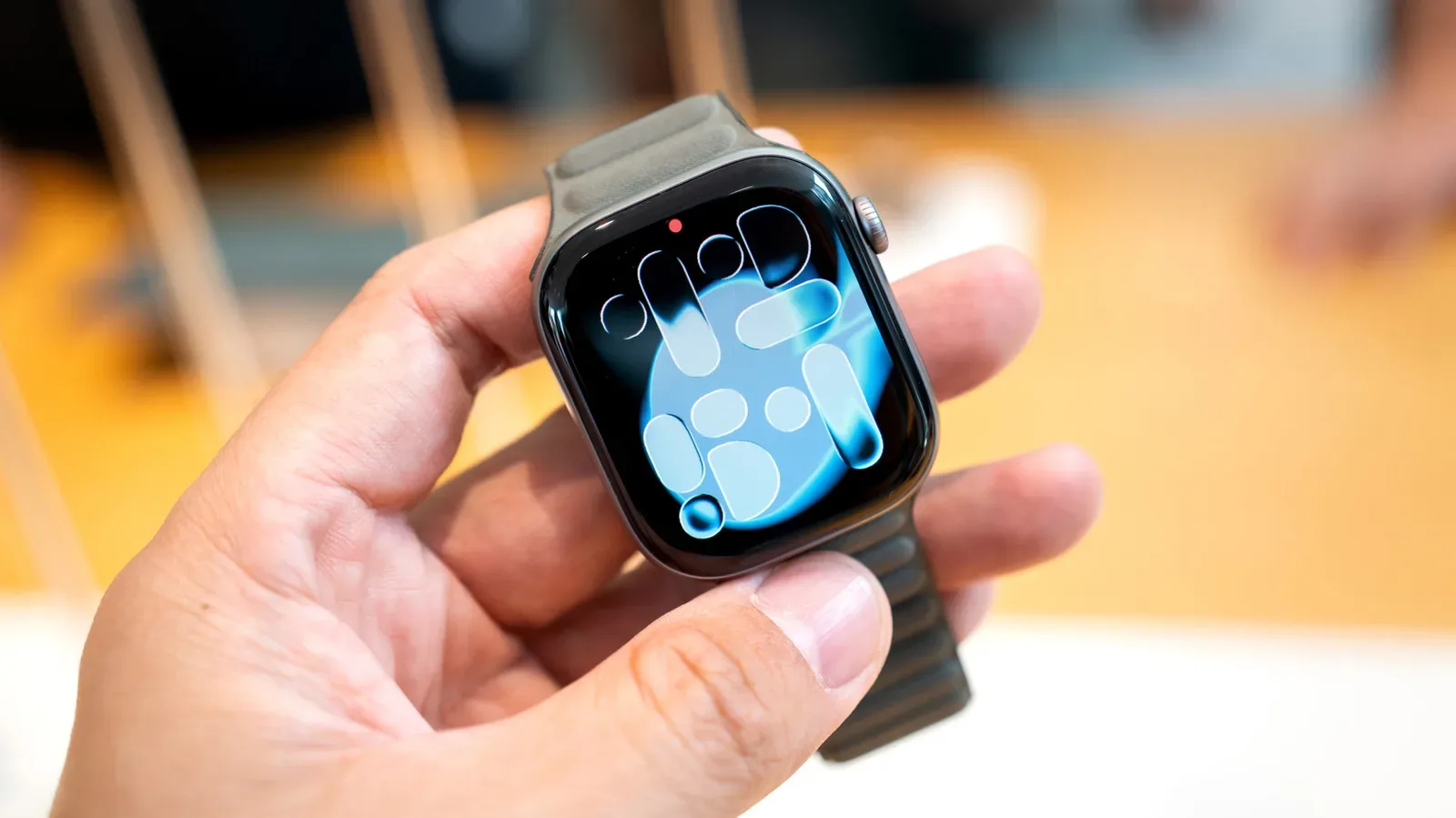
There is a familiar bit of gadget advice that says a periodic restart keeps everything running cleanly. It is sensible advice for plenty of devices, including phones, routers and gaming handhelds. But the Apple Watch is a less straightforward case. It is designed to stay on the wrist, stay connected and keep doing small jobs throughout the day. Turning it off even briefly means losing access to the time, Apple Pay, directions and, where configured, digital house or car keys.
For most owners, the practical answer is simple: do not put Apple Watch restarts on a schedule. A restart is a useful troubleshooting tool when something has gone wrong, but it is not a piece of weekly or monthly maintenance that a normally functioning watch demands. Installing watchOS updates already involves rebooting, and the software is built around a narrower workload than an iPhone, iPad or Mac.
That does not mean restarting is pointless. If an app has frozen, the interface is unusually sluggish, a feature is behaving unpredictably or the watch has stopped responding entirely, a restart can be the quickest appropriate first move. The key is treating it as a response to a symptom rather than a ritual.
Why the Apple Watch can usually stay running
Apple Watch runs watchOS, a full operating system capable of running applications and system services. Like other operating systems, it uses background processes and caches.
A background process is work the system or an app handles without requiring the person wearing the watch to actively keep the app open. A cache is temporary stored data intended to make later tasks faster or more convenient. Both are normal and useful. However, either can occasionally contribute to trouble: a process may hang or misbehave, while temporary stored material can occupy space that the device later needs.
A reboot ends the current session of those processes and clears temporary system state. In plain terms, it gives the operating system a fresh start. That is why restarting a device can fix a problem without the owner ever identifying the exact app or service responsible.
On the Watch, though, the operating environment is deliberately constrained. watchOS apps are scaled back compared with their iPhone counterparts, including apps such as Apple Maps. The watch is not intended to support the breadth of continuously active, background workloads associated with a Mac or iPad. It can also suspend apps when its workload gets beyond what it can comfortably keep running.
That design matters. It reduces the case for preventative reboots because the software is already managing a focused set of jobs. Routine watchOS-update restarts can also provide the occasional clean start that people associate with regular manual rebooting.
The same distinction applies to gaming hardware. A handheld may benefit from a restart when a game, launcher or network function goes awry, but the existence of that troubleshooting step does not make a calendar reminder necessary. The broader handheld space is still evolving too, as illustrated by planned performance technology support for Xbox Series X|S and Ally devices in AMD’s FSR 4.1 move toward Xbox and Ally handhelds. For an Apple Watch, the more immediate concern is whether the device is actually showing a problem, not whether it has gone a certain number of days without a reboot.
The downtime is small, but it is real
A restart is normally quick, yet an Apple Watch is a device people rely on while moving around. During the shutdown and boot-up window, it cannot serve its usual role as a glanceable timepiece or a payment and navigation companion. Anyone using it as a key must also account for that interruption before turning it off.
Health and fitness tracking adds another consideration. A reboot creates a gap in whatever the watch would otherwise record at that moment. That might be inconsequential while sitting at home, but it is a poor time to restart in the middle of a workout if the watch is functioning normally. For users working toward an Activity goal, the interruption may feel especially unwelcome.
These are not arguments against restarting when it is needed. They are reasons to choose the moment carefully. If the Watch is merely being rebooted “just in case,” its short period of unavailability may be more disruptive than beneficial.
When a restart is the right first step
Restart the Apple Watch when you encounter a persistent software-like issue, particularly one of the following:
- An app freezes or stops responding.
- The interface becomes unexpectedly slow.
- The watch exhibits bugs or erratic behavior that do not quickly clear on their own.
- The device lacks enough available room for an update, where a restart is specifically recommended.
- The watch is totally unresponsive and needs a forced reboot.
A restart is not a guaranteed cure for every fault. It will not create storage capacity out of nowhere, nor will it replace an available system update. But it is a low-complexity way to clear active processes and temporary cached state before escalating to more involved troubleshooting.
It is worth separating slowdown from a one-off delay. A single momentary pause does not necessarily signal a system problem. A repeatable or sustained issue is the more meaningful reason to intervene. Similarly, if a particular app repeatedly fails after a restart, the issue may be tied to that app or to software that needs updating rather than to the Watch needing constant reboots.
Storage is the maintenance issue to watch
Storage deserves more attention than reboot frequency. Updates need room to download and install, and caches also take space. When free storage becomes tight, normal operation can become less flexible because there is less room for those temporary files and update requirements.
If an update cannot proceed because the Watch does not have enough storage, restarting is one recommended action. It is still only part of the situation: monitoring storage usage and removing unneeded material where appropriate remains the practical way to preserve room for updates and other system needs.
There is also a manual option for clearing website-related information stored on the Watch. Navigate to:
Settings > General > Website Data > Clear Website Data
This targets web-related data such as cookies. It should not be confused with a full reset or with an all-purpose storage cleanup. It is a specific control for website data, useful when that category is the relevant concern.
How to restart an Apple Watch normally
Use the normal software shutdown whenever the Watch is responsive. This is the preferred route over forcing a reboot.
- Press and hold the side button until the slider menu appears.
- Tap the power icon.
- Drag the Power Off slider.
- After the Watch turns off, press and hold the side button again to turn it back on.
One practical limitation: an Apple Watch cannot be restarted while it is charging. Take it off the charger first if a restart is required.
What to do when the Watch is completely unresponsive
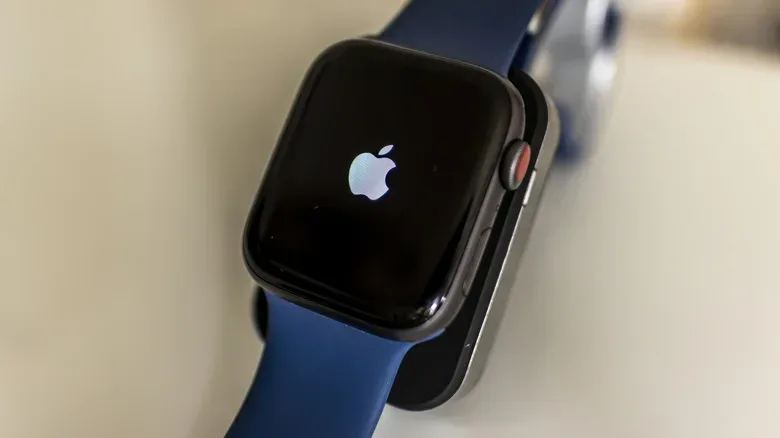
If the normal controls cannot be reached because the Apple Watch has frozen completely, use a forced reboot. Hold the side button and the Digital Crown together until the Apple logo appears.
A forced reboot is for the situation where the normal shutdown path is unavailable. It is not the preferred everyday method, precisely because the standard on-screen shutdown is available when the operating system is responding. Think of it as an emergency way to regain control, not as a faster version of routine maintenance.
A practical Apple Watch maintenance routine
A low-effort approach is enough for most people:
- Leave the Watch running when it is performing normally.
- Install available watchOS and app updates.
- Keep an eye on storage, especially before attempting an update.
- Clear website data only when web-related stored data is relevant.
- Restart when bugs, freezes or meaningful slowdowns appear.
- Use a forced reboot only when the Watch does not respond to the normal shutdown controls.
The Apple Watch is meant to be an always-available wearable, not a device that needs frequent attention to stay healthy. If it is running smoothly, leaving it alone is reasonable. If it starts acting strange, a restart is one of the most useful and least complicated fixes to try before worrying about anything more serious.